

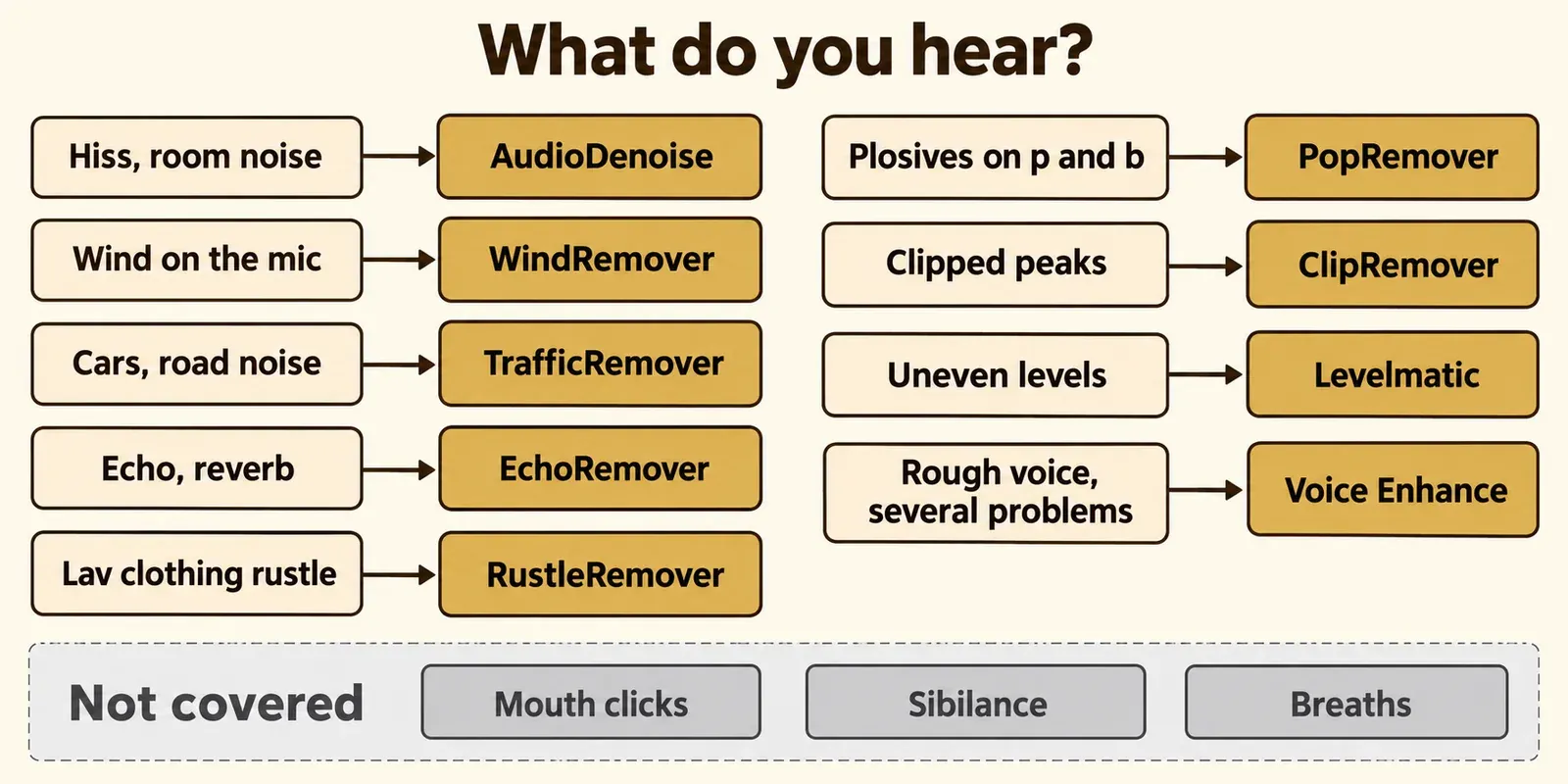
CrumplePop is nine plugins, one per kind of damage: AudioDenoise for hiss and steady background noise, WindRemover for wind, TrafficRemover for road noise, EchoRemover for room echo, RustleRemover for lav rustle, PopRemover for plosives, ClipRemover for clipped peaks, Levelmatic for uneven levels and Voice Enhance for overall voice clarity. Start with Voice Enhance when a voice is simply rough, and put the targeted remover in front of it when one noise dominates. None of the nine handles mouth clicks, sibilance or breaths, and steady 50/60 Hz hum is a disputed case.
My rule is to name the loudest problem first and let the plugin follow from it. A voice recorded outdoors goes to WindRemover or TrafficRemover, a voice in a bare room goes to EchoRemover, and a laptop or Zoom recording goes straight to Voice Enhance. Keep Strength below the point where consonants start to thin, because three of seven published reviews heard speech thin out or turn choppy when a plugin did too much, and add a second plugin only for the residue the first one leaves. CrumplePop sits in the Boris FX audio lineup next to SoundApp, which is a separate app rather than a tenth insert.
The nine CrumplePop plugins and what each fixes
The current bundle has nine plugins, and each one targets a single kind of noise. Boris FX's CrumplePop product page lists AudioDenoise, EchoRemover, WindRemover, TrafficRemover, ClipRemover, Levelmatic, PopRemover, RustleRemover and Voice Enhance, and recommends separate tools per noise type instead of one general cleaner. The latest release is 2026.5, which Boris FX announced on May 7, 2026 together with an ARA version of SoundApp. One license covers the multi-host plugins in ARA, VST, AU and AAX form plus standalone SoundApp.
The plugins install as VST3, AAX and AU on Mac or PC and play back in real time. There is no noise print to capture first: you drop the plugin on a clip and adjust while it plays. Oliver Peters noted in his look at the Boris FX CrumplePop suite that the plugins use a one-knob design: a central Strength knob and an output slider, with Low, Mid and High range knobs underneath on every plugin except EchoRemover, Levelmatic and ClipRemover, which use their own controls.
| Plugin | What it fixes | Controls to set first | Keeps working after the trial |
|---|---|---|---|
| AudioDenoise | Hiss, background and room noise; hum per Boris FX | Strength, then Low, Mid, High, Output | No |
| WindRemover | Low, mid and high wind noise, including all three at once | Strength, then the range knobs, Output | No |
| TrafficRemover | Car traffic, from a car passing nearby to distant road noise | Strength, then the range knobs, Output | No |
| EchoRemover | Echo and reverb on dialogue | Strength, then Dryness, Body, Tone | No |
| RustleRemover | Lavalier clothing rustle | Strength | Yes, with a free Boris FX account |
| PopRemover | Plosives on p and b sounds | Strength | Yes, with a free Boris FX account |
| ClipRemover | Clipped peaks, by rebuilding the clipped part of the waveform | Threshold, Output | No |
| Levelmatic | Passages that are too quiet or too loud | Target output level, then Strength | No |
| Voice Enhance | Overall clarity on Zoom calls, laptop mics, mixed noise, echo and muffled voices | Model, Strength, then Refine and Output | No |
Each plugin has a built-in help screen that explains its workflow and parameters, which RedShark's CrumplePop review singled out as a strength, and settings can be saved as presets. That matters for a series: once a lav setting works on episode one, it becomes the starting point for episode two.
Which CrumplePop plugin for which problem
Match the plugin to what you hear, not to the recording setup. If two noises are present, treat the louder one first and add the second plugin only if it is still audible.
| What you hear | Plugin | What to watch |
|---|---|---|
| Steady hiss, air conditioning, room tone | AudioDenoise | Soft word endings at high Strength |
| Wind rumble or gusts on the mic | WindRemover | Add AudioDenoise if other background noise remains |
| Cars, buses, road wash | TrafficRemover | Sirens and loud exterior noise are a known weak spot |
| Hollow, roomy voice, conference-room echo | EchoRemover | Body and Tone if the voice turns thin or dull |
| Scrapes and rubbing from a lav under clothing | RustleRemover | Free after the trial |
| Thumps on p and b | PopRemover | Plosives only, not clicks |
| Harsh, flat-topped peaks | ClipRemover | Threshold, not Strength, sets the amount |
| One speaker quiet, the other loud | Levelmatic | It levels; it does not measure loudness |
| A rough voice with several small problems | Voice Enhance | Pick the model before touching Strength |
| Steady 50 or 60 Hz hum | AudioDenoise, disputed | Reviewers heard only a slight reduction |
| Mouth clicks, sibilance, breaths | None | Use a dedicated editor tool |
Voice Enhance: the first plugin for a rough voice
Voice Enhance is the general-purpose plugin, and Boris FX tells you to try it alone before anything else. The Voice Enhance product page aims it at Zoom interviews, laptop microphones, background noise, echo and muffled vocals, and says it runs in real time and processes on your own computer. The front of the plugin is one Strength control, with a model menu above it and Refine and Output sliders below.
- Choose the model that matches the location: indoor, indoor-noisy for untreated rooms and rooms with other people, or outdoor for traffic, wind and other outside noise.
- Raise Strength until the noise drops and stop before the voice loses its edges.
- Use Refine and Output for the last adjustment.
That order comes from Boris FX's RX versus CrumplePop guide, which also notes that Voice Enhance works on a single clip or on a whole track. Put it on the track for a podcast with one host mic and on the clip for an interview that changes location. When one specific noise survives, Boris FX's advice is to add the matching remover before Voice Enhance, not after it; the chain order section shows how.
AudioDenoise: hiss, background noise and room tone
AudioDenoise is the plugin for steady noise under a voice. The AudioDenoise product page lists hiss, background noise, room noise and hum, and uses an air conditioner with 60-cycle hum as its example of complex noise. Strength is the main control, Low, Mid and High set how much processing each frequency band gets, and the output slider sets the level after processing.
Larry Jordan's review of the CrumplePop suite found Strength defaulting to 80%, and he warns that at 100% the speaker can sound a little odd; the fix is to back Strength off until the voice sounds normal again. Peters heard a related artifact on a boat clip with light wave, wind and motor noise: soft consonants at the ends of sentences were sometimes suppressed, often before a breath, and "lounge" came out as "loun." Use the last syllable of each sentence as the check: if it fades early, back Strength off.
Hum is where the documentation and the reviews disagree. Boris FX says AudioDenoise removes it. Larry Jordan's 2023 review found no tool for 50 or 60 Hz AC hum and only a slight reduction, and Peters listed de-hum among the missing tools. Jordan's 2020 review of the older AudioDenoise 2 did report power-line hum removal, so results may depend on the version. If steady hum is the main problem, I'd pick a dedicated hum tool instead, and the guide to removing hiss and hum in Sound Forge covers the Sound Forge side.
WindRemover: wind on outdoor dialogue
WindRemover handles wind in the low, mid and high ranges, including all three at once, according to the WindRemover product page. Boris FX suggests pairing it with AudioDenoise when the clip also carries other background noise. The controls are Strength, the range knobs and Output.
It is built around speech. Peters found that wind with no voice over it was not fully removed, while wind behind a speaking voice largely disappeared. RedShark ran a windy beach clip and found CrumplePop left a more natural voice than DaVinci Resolve's voice isolation, which needed EQ and compression afterward. Kevin P. McAuliffe's ProVideo Coalition review put WindRemover and then Voice Enhance on the same clip in Resolve, both on default settings, and wrote that it "sounds worlds better."
For outdoor interviews, start with WindRemover alone and add Voice Enhance only if the voice still sounds thin or distant. If the session lives in Sound Forge instead of a video editor, see reducing wind noise on a voice recording in Sound Forge.
EchoRemover: room echo and reverb
EchoRemover removes echo and reverb from dialogue, as the EchoRemover product page describes it, and it is the one plugin where the lower knobs change the character of the voice rather than a frequency range. Under Strength sit Dryness, Body and Tone. Music Radio Creative's CrumplePop review explains them plainly: Dryness sets how aggressive the echo removal is, Body the thickness of the voice and Tone its brightness.
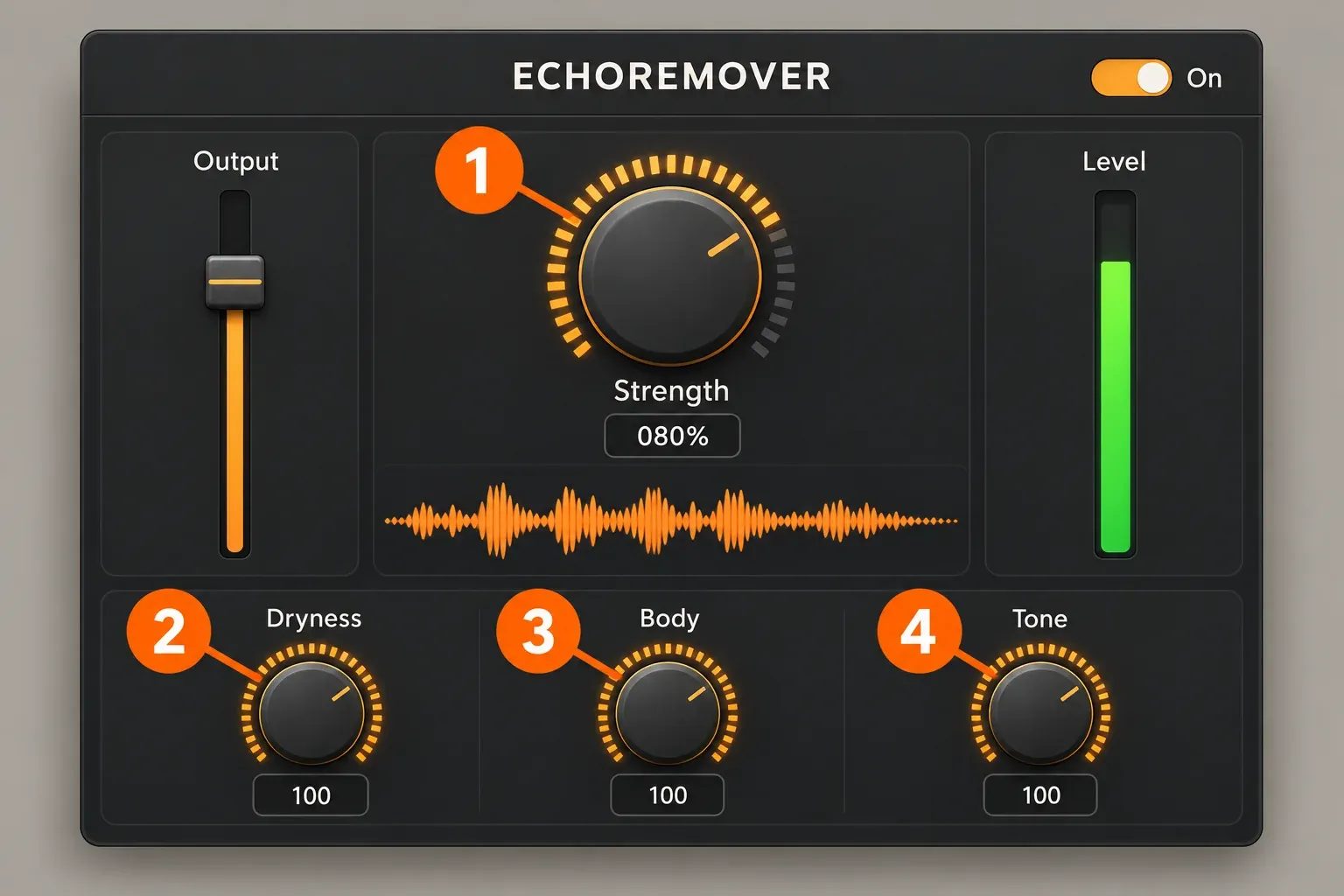
My order is Strength until the room tail drops, then Dryness only if a tail remains, then Body if the voice has turned thin and Tone if it has gone dull. On a reverberant conference-room recording, Peters preferred EchoRemover to Resolve's Voice Isolation. For echo work inside Sound Forge, the guide on removing echo from audio without wrecking speech is the companion piece.
TrafficRemover: cars and road noise
TrafficRemover is the plugin for engines and tires. The TrafficRemover product page covers everything from a car passing nearby to distant road noise. It shares the Strength, range-knob and Output layout of WindRemover. It fits noise that comes from the street rather than gusts on the microphone; keep expectations low for sirens: Larry Jordan reported that sirens and other loud exterior noise stayed in the clip.
RustleRemover: lav clothing noise
RustleRemover removes the scraping and rubbing a lavalier picks up from clothing, per the RustleRemover product page. Strength is the control to set. It is also one of the two plugins that keep working after the trial ends, so if you record with lav mics, I'd install it even without buying the bundle. For the manual route inside Sound Forge, see the walkthrough on reducing lavalier clothing rustle in Sound Forge.
PopRemover: plosives on p and b
PopRemover targets the air blast that hits the microphone on p and b sounds and leaves the rest of the voice alone, according to the PopRemover product page. Strength is the control to set, and like RustleRemover it stays free after the trial. It is a plosive tool, not a click tool: mouth clicks and crackle need something else. For the Sound Forge versions of both jobs, see removing plosives without thinning the voice and removing clicks and pops in Sound Forge Pro.
ClipRemover: clipped peaks
ClipRemover rebuilds the clipped parts of the waveform to reduce the harsh, flat-topped distortion of an overloaded recording, as the ClipRemover product page describes. It does not use a Strength knob; the controls are Threshold and Output. Put it first in any chain, so the other plugins work on a waveform with its peaks restored. If the file is going into Sound Forge for a final edit, repairing clipped audio in Sound Forge covers the DeClipper alternative.
Levelmatic: uneven levels between speakers
Levelmatic finds passages that are too quiet or too loud and evens them out. The Levelmatic product page is clear that it is not a compressor or a limiter: you set the target output level, then the Strength knob. That makes it the right fix for a speaker who drifts off the microphone or a two-person interview with one voice farther away.
It does not measure loudness. CrumplePop has no LUFS or LKFS meter, so Levelmatic gets the levels consistent while the delivery number still needs checking. Put Levelmatic after the repair plugins, since the noise it would otherwise lift is gone by then, and check the export against the podcast loudness standard with the free online LUFS meter.
SoundApp: the standalone app and ARA plugin
SoundApp is not a tenth plugin; it is a standalone Mac and Windows app for dialogue cleanup and stem separation that the CrumplePop license also covers. The SoundApp product page lists echo, fan noise, mic bumps, electrical hum, wind and traffic, and separation models including Music 4 Stems, Voice 2 Stems and Cinema 4 Stems, with more models added through Model Manager. It opens WAV, AIFF, MP3, FLAC, AAC, MP4, MOV, MKV, MPG/MPEG and MXF files and processes them on your own computer.
Since 2026.5, SoundApp also runs as an ARA plugin inside Pro Tools, Samplitude, Sequoia, Reaper, Cubase and other ARA2 hosts. In ARA mode it processes the full clip instead of playing back in real time, and the same release added a Processed Audio Cache and faster model loading. SoundApp needs 16 GB of RAM and at least 10 GB of free disk space, and on a Mac also macOS 14 or later on Apple silicon (M1 or newer), a much higher bar than the plugins.
Chain order when one plugin is not enough
The order follows from what each plugin needs to hear. Boris FX's advice is to try Voice Enhance alone and, when a specific or difficult noise remains, to put the matching CrumplePop plugin before Voice Enhance in the chain. Stacking is normal: Stonetree's CrumplePop versus Adobe Podcast comparison for Final Cut Pro users recommends stacking, for example AudioDenoise and then Levelmatic.
- ClipRemover, if the recording clipped.
- The targeted remover for the dominant noise: WindRemover, TrafficRemover, AudioDenoise, EchoRemover, RustleRemover or PopRemover.
- Voice Enhance, if the voice still sounds rough.
- Levelmatic, to even out the result.
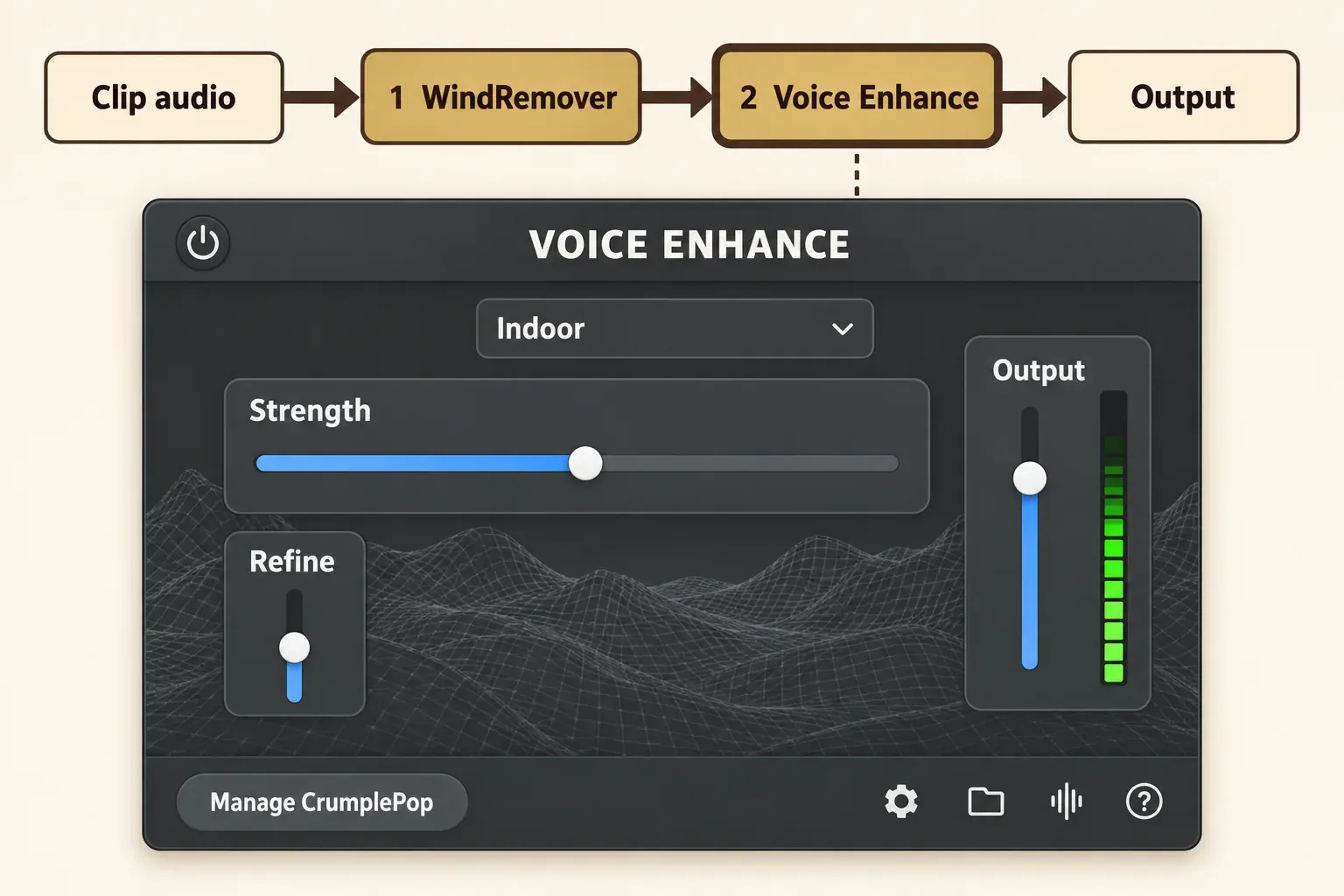
Placing ClipRemover first and Levelmatic last is my own ordering rather than a Boris FX rule; the reasoning is that repair works best on undistorted peaks and leveling works best on clean audio. Keep each plugin a little lighter in a chain than you would use alone, since the processing adds up. Boris FX notes that CrumplePop can be heavy on the CPU, and one reviewer, Stonetree, heard clicks during playback of long unrendered clips that disappeared once the clip was rendered, while Oliver Peters found playback smooth without rendering.
Where the plugins appear in your editor
In AU and VST3 hosts the plugins are grouped under CrumplePop Complete, and the exact path depends on the host and plugin format. The CrumplePop product page FAQ gives the AU, VST3 and AudioSuite paths below; the Resolve page locations come from the ProVideo Coalition review.
| Host | Format | Where to look |
|---|---|---|
| Final Cut Pro, Logic, GarageBand | AU | Audio Effects > AU > CrumplePop Complete |
| Premiere Pro, Audition | VST3 | Scan first in Preferences > Audio > Audio Plugin Manager, then search "CrumplePop Complete" or open Audio Effects > VST3 > Restoration > CrumplePop Complete |
| Audacity | VST3 | Audio Effects > VST3 > Restoration > CrumplePop Complete |
| DaVinci Resolve | VST3 | Effects > Audio FX > VST Effects on the Edit page, same place on Fairlight; scanned at the Project Browser, otherwise check Preferences > Audio Plugins |
| Pro Tools, Media Composer | AAX | AudioSuite menu; in Pro Tools most plugins sit under AudioSuite > Noise Reduction |
| Reaper, VEGAS | VST3 | The host's VST3 plugin list; rescan if the plugins are missing |
Two problems account for most "missing plugin" reports. If Final Cut Pro disables the plugins, turn on Validate on Next Launch under Preferences > General > Audio Units, restart, and use fewer instances or a compound clip. If the plugins load but beep, they are not activated: open the Boris FX Hub, click the gear icon, choose License activation, and the beeping stops once the license is active. Owners of older crumplepop.com accounts need to move them to borisfx.com to get license keys, updates and new plugins.
Sound Forge Pro is not on the Boris FX host list. It is a Windows VST3 host, so the CrumplePop VST3 build falls under the general VST host category rather than a host Boris FX names. Add the VST3 folder under Options > Preferences > VST Effects, refresh and tick the plugins, following the Sound Forge plugin guide, and run the trial on your own files before paying. Windows support is Windows 10 or 11, 64-bit only. The plugins need 8 GB of RAM and 450 MB of disk space, plus macOS 12 or later on a Mac. There is no Linux or 32-bit version.
What CrumplePop does not fix
The gaps are specific, and they matter for podcast and voiceover work. There is no tool for mouth clicks, no de-esser for sibilance and no breath control, which Peters listed among the missing pieces. Sirens and loud exterior noise were not removed in Larry Jordan's review, steady 50/60 Hz hum is disputed, and there is no loudness meter.
For those jobs, use a dedicated editor tool. In Sound Forge, this site's guides cover removing mouth clicks without damaging speech, reducing sibilance without dulling the voice and editing breaths without chopping speech. If you want them in one restoration suite, iZotope's RX 12 documentation lists dedicated Mouth De-click, De-ess, Breath Control and De-hum modules in RX 12 Standard and Advanced, and the iZotope RX hub maps the editions.
Free plugins, the trial and VEGAS bundles
Two CrumplePop plugins stay free. The CrumplePop free trial is fully functional with an audio watermark, needs no credit card and includes the two free plugins. Production Expert's write-up of the free PopRemover and RustleRemover explains the mechanism: install the full bundle trial while signed in to a free Boris FX account, and those two keep working while the rest stay in trial mode. SoundApp has its own 15-day trial, which Boris FX describes as unlimited, also without a credit card. Other free options from Boris FX and iZotope are collected on the free plugins and trials hub.
VEGAS users may already own the plugins. The VEGAS Pro plans page lists the CrumplePop VST plugins in VEGAS Pro Plus and Ultimate, and only Ultimate adds standalone SoundApp. The VEGAS Pro plugins guide covers what each edition includes.
Old CrumplePop plugin names
If a tutorial names a plugin you cannot find, it is probably an older version. In 2020 CrumplePop sold its audio plugins through FxFactory for Mac editors, and Larry Jordan's 2020 review of five CrumplePop plugins used names such as PopRemover AI, RustleRemover AI, WindRemover AI, AudioDenoise 2 and EchoRemover 2. The legacy crumplepop.com plugin archive now carries a "CrumplePop has moved to Boris FX" banner and still lists EchoRemover AI, AudioDenoise AI, WindRemover AI, PopRemover AI 2 and RustleRemover AI 2.
| Current name | Older names |
|---|---|
| EchoRemover | EchoRemover 2, EchoRemover AI |
| AudioDenoise | AudioDenoise 2, AudioDenoise AI |
| WindRemover | WindRemover AI |
| PopRemover | PopRemover AI, PopRemover AI 2 |
| RustleRemover | RustleRemover AI, RustleRemover AI 2 |
If your license dates from one of those names, migrate the crumplepop.com account to borisfx.com before reinstalling, as covered in the activation notes above.
Test results: what published reviews show
Across seven published reviews from 2020 to 2025, the pattern is consistent: a targeted plugin on default or near-default settings fixes the named problem, and the failures come from pushing Strength too far or asking for a repair the suite does not offer. Six of the reviews cover the current Boris FX suite and one covers the 2020 FxFactory versions. They report listening results on real dialogue clips rather than numeric scores, so the composite is a count of reviewer verdicts.
| Finding | Reviews | Who reported it |
|---|---|---|
| A targeted plugin on defaults fixed the named problem | 4 of 7 | ProVideo Coalition, 2025; RedShark, 2023; Oliver Peters, 2023; Larry Jordan, 2023 |
| Too much processing thinned or roughened speech | 3 of 7 | Larry Jordan, 2023 and 2020; Oliver Peters, 2023 |
| Reviewer chained or recommended stacking two or more plugins | 2 of 7 | ProVideo Coalition; Stonetree, 2025 |
| Levelmatic gave consistent dialogue levels | 3 of 7 | Stonetree; Music Radio Creative, 2024; RedShark |
| Sounded more natural than Resolve's voice isolation | 2 of 2 head-to-heads | Oliver Peters (echo); RedShark (wind) |
| Missing tools for clicks, sibilance, breaths, hum, sirens or metering | 2 of 7 | Oliver Peters; Larry Jordan, 2023 |
| Clicks on long unrendered clips, clean after rendering | 1 of 7 | Stonetree |
| Range and percentage controls under-explained | 2 of 7 | Larry Jordan, 2023 and 2020 |
| Wind with no voice over it not fully removed | 1 of 7 | Oliver Peters |
The strongest result is the head-to-head: in both reviews that compared CrumplePop with DaVinci Resolve's own voice isolation, CrumplePop left the more natural voice. The weakest is documentation of the range knobs, although RedShark found the built-in help screens useful. Larry Jordan's 2023 review also found the Levelmatic percentage scale unclear, the one dissent on leveling. McAuliffe frames the realistic goal well: badly damaged audio comes back to at least 80 to 90 percent, never to 100 percent, because 100 percent would mean a clip recorded correctly in the first place.
My verdict from the composite: CrumplePop is the right tool when the problem has a name and the voice is what matters. It is fast, it plays in real time and the default settings carry most of the work. It is the wrong tool when the job is detailed spoken-word polish, because clicks, sibilance and breaths need a dedicated editor. For a broader comparison with a full restoration suite, see the CrumplePop versus iZotope RX comparison.
My picks by recording type
Pick by the recording, then add the second plugin only for what survives.
- Podcast or Zoom interview: Voice Enhance on the track with the indoor or indoor-noisy model, then Levelmatic to even out the two voices.
- Outdoor run-and-gun: WindRemover or TrafficRemover on the clip, then Voice Enhance with the outdoor model if the voice still sounds rough.
- Echoey room: EchoRemover alone, with Body and Tone used to put weight and brightness back.
- Lav shoot: RustleRemover, which stays free, plus PopRemover if the talent is close to the mic.
- Clipped recording: ClipRemover first, before anything else touches the clip.
CrumplePop plugins FAQ
How much does CrumplePop cost?
At the 2026.5 launch, Boris FX listed CrumplePop under a single Multi-Host plan at $25 a month, $175 a year or $345 perpetual, with Upgrade & Support from $195. Those are the May 2026 launch figures.
Can I buy a single CrumplePop plugin?
No. Boris FX sells the plugins only as a bundle, which is why the two free plugins, PopRemover and RustleRemover, are the only way to get a single plugin on its own.
Should I pick CrumplePop or iZotope RX?
Pick CrumplePop for fast, real-time fixes inside a video editor and RX for detailed restoration with dedicated mouth-click, de-ess, breath and hum modules. The full CrumplePop and RX comparison covers price, hosts and results side by side.