
Quick answer: choose Effects → DeClicker / DeCrackler for repeated clicks or fine crackle, and Tools → Repair → Interpolate for one very short glitch that you can isolate. If the click began at a cut, repair the boundary with a zero crossing, fade or crossfade. Before repairing samples, compare the original with a lossless copy exported without effects. A click can come from the playback or plug-in chain rather than damaged source audio.
This guide is part of the Sound Forge restoration hub. The repair should match the shape of the problem. A declicker can mistake drum attacks and hard consonants for damage. Interpolate can replace useful waveform detail when the selection is too wide. The safest pass uses the smallest suitable tool, a preserved original and a before/after check at normal listening level.
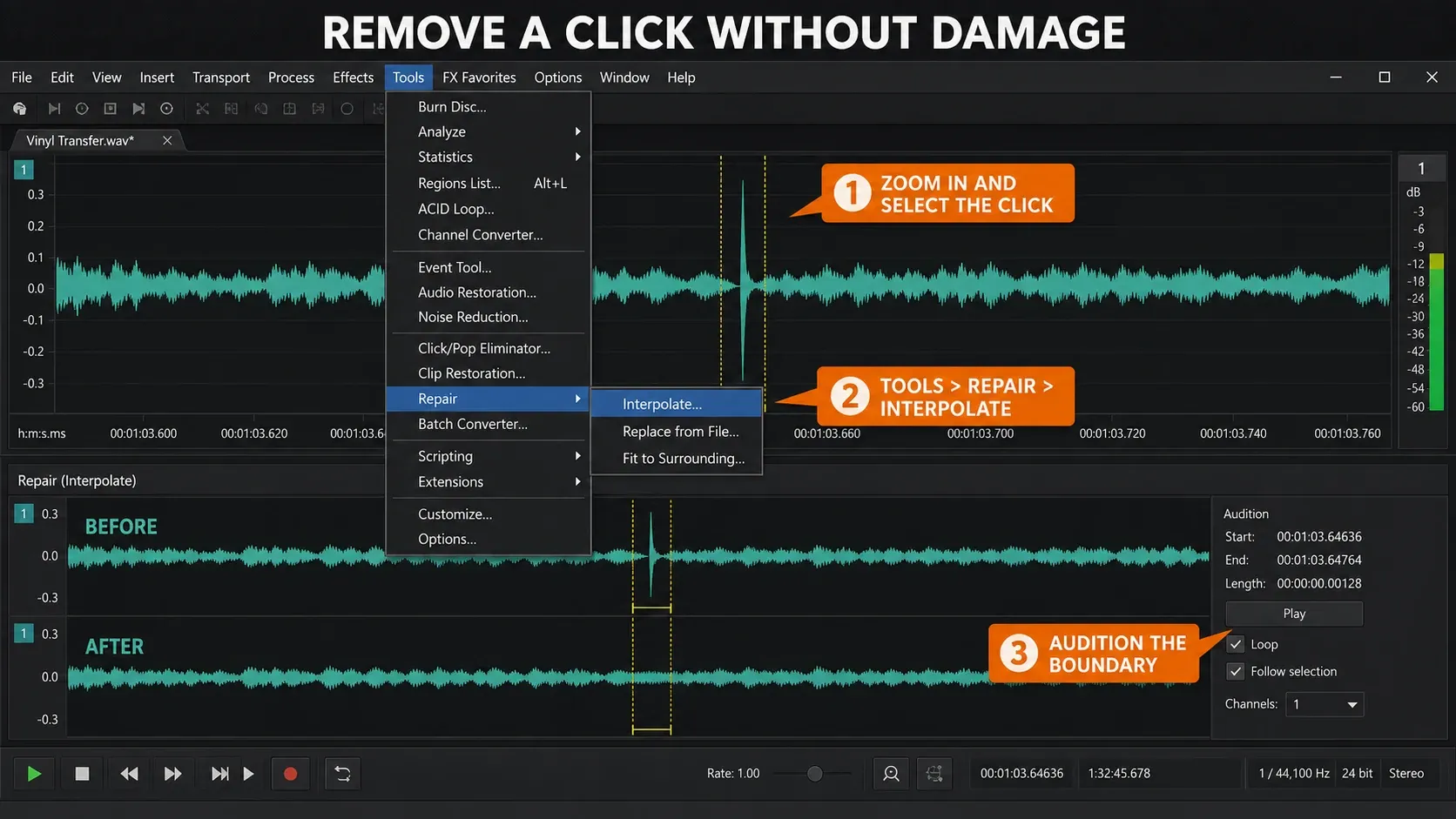
The illustration below is a teaching composite, not a captured repair test. Use the current application labels and linked help for the exact controls.
| What you hear | Likely problem | Start here | Do not confuse it with |
|---|---|---|---|
| Separate sharp ticks or pops | Scratches or isolated impulse errors | DeClicker | Steady hiss or clipping |
| Continuous fine crackle | Dense low-level impulses, often surface noise | DeCrackler | One large click |
| One visible tiny discontinuity | A few damaged samples | Interpolate or Pencil | A long missing passage |
| Click at a cut or event edge | Waveform discontinuity | Zero crossing, fade or crossfade | Recorded damage |
| Flattened peaks and broad distortion | Clipping | DeClipper workflow | A narrow impulse |
| Lip smacks inside speech | Mouth noise | Mouth-click workflow | Vinyl crackle |
| Click moves or vanishes on export | Playback, driver or buffer path | Playback diagnosis | File damage |
Confirm the click is actually in the file
Play the same short region several times. Damage in the source recurs at the same position, but so can an effect or automation error. Compare the unprocessed source in another trusted player, then a lossless export with the effects chain bypassed. If the source is clean, or the click changes with the player or processing path, investigate the device, driver, buffer and plug-ins before altering samples. An export made through the same faulty effect can print that fault into a new file.
Next, zoom in and listen together. A narrow visual spike can be a wanted transient. A click that is obvious by ear may be too small to identify at the first zoom level. Mark the exact time, include a little sound before and after it, then compare the same passage with processing bypassed. For a playback fault, use the separate Sound Forge playback and ASIO checks; this page repairs defects already committed to audio data.
Preserve the source before destructive editing. Duplicate the file or use Save As, keep the original sample rate and bit depth, and make one repair at a time. A visible change that cannot be compared with the source is harder to trust than a conservative repair you can undo.
Remove clicks and pops in Sound Forge: 7-step workflow
- Confirm the click is in the file. Compare the unprocessed source in another player and a lossless export with effects bypassed. A repeatable click alone does not prove source damage; rule out the playback and plug-in chain before editing samples.
- Preserve the source. Duplicate the file or use Save As so every repair can be compared with an untouched original.
- Classify the defect. Separate isolated clicks, continuous crackle, a very short sample glitch, an edit-boundary discontinuity, clipping and speech mouth noise.
- Choose a representative test region. Include the defect plus wanted transients, speech consonants or musical attacks that the processor must preserve.
- Use the smallest suitable repair. Choose DeClicker or DeCrackler for repeated defects, Interpolate or Pencil for a tiny visible glitch, and a zero crossing, fade or crossfade for an edit boundary.
- Preview and audition what is removed. Compare Preview and Bypass with surrounding audio. Where available, use Inverse to hear the removed signal; reduce processing if wanted detail is lost. Turn Inverse off before judging the repaired audio.
- Process and verify. For an effects pass, turn Inverse and Bypass off, then apply to the intended area once. Undo a rendered test before including it in a larger pass. Listen through both boundaries and verify a new lossless export.
The workflow deliberately separates diagnosis from processing. One clean test passage doesn’t prove that a full vinyl side, interview or music file will tolerate the same sensitivity. If defects are dense, test a quiet passage, a transient-heavy passage and the worst damaged area before extending the setting.
Use DeClicker for separate defects and DeCrackler for a crackle bed
The current Sound Forge Pro 2026 DeClicker / DeCrackler help places the effect under Effects → DeClicker / DeCrackler. It describes DeClicker for crackling and single clicking noises typical of scratched records, while DeCrackler is designed for crackling. In practice, start with DeClicker when the defects are individually distinct and test DeCrackler when many quieter impulses merge into a texture.
Boris FX identifies this as a Sequoia restoration effect in its Sound Forge Repair help. The Sequoia control reference documents separate Sensitivity and Mix controls for DeClicker and DeCrackler. Sensitivity controls detection; Mix controls how strongly the repair acts at detected areas. Open the effect’s own ? help if your installed controls differ; do not transfer settings from a differently named Click and Crackle Removal plug-in. Inverse plays what the algorithm removes. If the residual contains snare attacks, pick noise, consonants, room tone changes or pitched material, reduce Sensitivity or Mix. The goal is removal dominated by the defect, not perfectly empty silence. Turn Inverse off to hear the repaired recording again, then compare with Bypass. Leave both audition switches off when applying the chosen effects pass.
There is no defensible universal sensitivity number. A clean modern recording with a few digital ticks and a worn record side have different transient statistics. Start conservatively, loop a short representative region, raise detection until the target click is caught, then back away as soon as wanted detail enters the removed signal. The processing-dialog help explains Preview and Bypass. Right-click that dialog and enable Pre-Roll or Post-Roll to hear the unprocessed audio around the selection. Preview does not commit the repair; OK processes the selected settings. If you render a small test and later include it in a larger pass, undo that test first so the same samples are not repaired twice.
For a vinyl transfer, try the larger isolated clicks before deciding whether the remaining low-level crackle needs another pass. That order is an editorial workflow; Sound Forge doesn’t impose it as a rule. The dedicated vinyl digitization and archive guide covers cleaning, capture, raw-master preservation and track splitting around this repair step.
Repair one very short glitch with Interpolate
The current Interpolate documentation gives the exact route: zoom in, select the glitch, then choose Tools → Repair → Interpolate. Boris FX says the selection should be very small, less than 2 ms in most cases. With no selection, Sound Forge assumes a glitch shorter than 1 ms and treats the cursor as its centre.
- Use View → Zoom Time → In Full, then locate the discontinuity in the surrounding waveform.
- Select the damaged samples, not an entire word, note or transient.
- Run Tools → Repair → Interpolate.
- Return to a normal zoom and audition before, through and after the repair.
- Undo if the join creates a second tick, softens the attack or changes the timing.
Interpolate connects the selection endpoints with a straight line, which is useful when the adjacent samples provide a plausible bridge. It won’t reconstruct a long missing passage or infer the original performance. The 1.28 ms illustration is an example, not a universal repair limit. The useful test is whether a straight bridge between the selected endpoints removes the defect without adding another one.
Redraw one obvious sample error with Pencil
Choose Edit → Tool → Pencil. The current Pencil Tool help says to zoom into a glitch and redraw the waveform smoothly. While holding the left mouse button, you can use the arrow keys to fine-tune the pencil position. If Pencil is unavailable, zoom in further. Its availability depends on the Pencil tool maximum zoom ratio setting under Options → Preferences → Editing; the current help does not prescribe one fixed zoom ratio for every setup.
Use Pencil when the expected path is visually obvious, such as one outlying sample between two smooth neighbours. Avoid drawing across a complex transient or several waveform cycles. Use the menu route above, or a shortcut you have confirmed in your own keyboard map.
Choose Interpolate when a tiny selected span needs a straight bridge, and reach for Pencil when one or two points need manual shaping. If neither produces a transparent result, undo and move to a specialist spectral or de-click process instead of extending a hand-drawn repair.
Fix cut-boundary clicks without a restoration pass
If the click appeared immediately after a cut, the source may be clean and the new boundary may be discontinuous. Running DeClicker across the whole file treats the symptom while leaving the edit decision unexplained.
- Edit → Selection → Snap to Zero moves both selection edges to zero crossings.
- Snap Edge to Zero moves only the active edge.
- A short fade can smooth a file start or end when moving the edge would remove wanted timing.
- An event crossfade can join two different waveforms when a shared zero value still sounds abrupt.
The current Selection Snapping help says zero-crossing edits reduce the possibility of introducing glitches. It does not promise an inaudible join. Two unrelated waveforms can cross zero with different slopes and spectral content, so listen through the transition. The cut-and-trim guide covers boundary placement, while the crossfade workflow covers overlapping events.
Route mouth clicks, clipping and steady noise to the right workflow
“Pop” can describe several unrelated faults. A vocal plosive is a low-frequency burst from air hitting the microphone, while a mouth click is a small speech articulation noise. Clipping can leave flattened peaks after overload, but a flat-looking overview alone does not prove clipping; inspect at close zoom and listen for distortion. Hiss and hum are continuous noise. Treating all four as vinyl clicks wastes time and can damage the wanted signal.
- Use the mouth-click guide for lip smacks and saliva noise inside speech.
- Use the DeClipper workflow for flattened peaks and overload distortion.
- Use the background-noise workflow for steady broadband noise.
- Use the hiss and hum guide for a continuous floor or tonal mains interference.
Repair the identified defect before heavy EQ, compression or limiting when those later processors would make it harder to hear the original shape. Keep enough headroom for comparison and save an intermediate lossless file before mastering. The order can change when the source demands it, so treat this as a reversible workflow rather than a fixed chain.
Use iZotope RX when the native repair removes wanted detail
The current Sound Forge Pro 2026 Repair help says included iZotope RX plug-ins are available through FX Plug-In. The current public Sound Forge pricing comparison confirms VST2/VST3 support but does not name RX among current plan inclusions. Do not assume that the help’s bundle description applies to your purchase. Check the licence and installed modules before looking for RX. Third-party plug-in support is not the same as an included RX licence.
iZotope's current RX 12 Elements comparison lists six host plug-ins: De-click, De-clip, De-hum, De-reverb, Voice De-noise and Repair Assistant. De-crackle and Mouth De-click appear in Standard and Advanced rather than Elements. Installed RX De-click is a sensible escalation when a native pass repeatedly removes wanted attacks, when clicks vary too much for one setting, or when manual Interpolate repairs are impractical.
The RX 12 De-click manual describes Elements as plug-in-only for this module. In Sound Forge, use the host plug-in controls; standalone RX Editor instructions are a different workflow. Compare the Sound Forge and RX result on the same short selection at matched listening level. A more expensive edition or a more aggressive setting doesn’t prove a safer repair. If the click can be fixed transparently with one narrow Interpolate selection, a large restoration suite adds no automatic advantage.
Troubleshoot a repair that sounds worse or misses defects
| Symptom | Likely issue | Next check |
|---|---|---|
| Drums or consonants sound soft | Sensitivity or Mix is too aggressive | Use Inverse, lower processing and shorten the target region |
| Click remains after Interpolate | The span may miss the impulse, or a straight-line repair may be unsuitable | Undo, inspect both endpoints and try a different method if the bridge changes wanted audio |
| A new click appears at the repair | The straight bridge or edit boundary is discontinuous | Undo; reduce the span or try Pencil, zero crossing or fade |
| Fine crackle remains after large pops are gone | Defect class changed | Test a lighter DeCrackler pass on contrasting passages |
| Effect or RX module is missing | Edition, licence, installation or scan differs | Check current entitlement and the VST discovery workflow |
| Click is absent from exported WAV | Live playback path may be responsible | Do not render repair; diagnose driver, device, buffer and plug-ins |
Always verify at normal level. Extreme looping and high monitor gain can make a benign transition feel larger than it is, while a quiet comparison can make an overprocessed result seem cleaner. Match playback level, leave the repair for a minute, then return and listen through the surrounding phrase or musical passage.
Sound Forge clicks and pops FAQ
Where is DeClicker in Sound Forge Pro 2026?
Choose Effects → DeClicker / DeCrackler. Current Sound Forge help places both processors in one effect and links its detailed controls through the effect's Help button.
Should I use DeClicker or DeCrackler?
Use DeClicker for separate sharp clicks and pops. Use DeCrackler for a denser bed of fine crackle. Test both on a short passage containing wanted attacks before processing a longer range.
What sensitivity setting should I use?
There is no reliable universal number. Start conservatively on a representative passage, raise Sensitivity until the target defects are detected, and reduce it if Inverse or a bypass comparison reveals lost transients, consonants or tonal detail.
How small should an Interpolate selection be?
Boris FX recommends less than 2 ms in most cases; that is guidance, not a hard limit or a guarantee. With no selection it assumes a sub-1 ms glitch around the cursor. If a straight bridge damages the surrounding waveform, undo and use a more suitable repair.
Does the Pencil tool have a P shortcut?
The current Pencil documentation gives Edit → Tool → Pencil and does not establish P as a default shortcut. Use the documented menu route unless your workstation has a confirmed custom key map.
Why did a click appear after I cut audio?
The samples on either side of the new boundary may not meet smoothly. Move the edit, use Snap to Zero or Snap Edge to Zero, or add a short fade or event crossfade, then listen across the boundary.
Is iZotope RX included with Sound Forge Pro?
Current Boris FX Repair help mentions included RX plug-ins through FX Plug-In, while the current public pricing table does not name RX. Confirm the licence and installed modules on that workstation. RX 12 Elements sold by iZotope includes De-click; De-crackle and Mouth De-click require Standard or Advanced.
Why does a click remain after the waveform looks repaired?
Listen to a lossless export at the same timestamp. The selected span may have missed part of the impulse, the new boundary may be discontinuous, or the noise may come from live playback rather than the file. Undo and re-diagnose instead of widening the repair blindly.
Last fact-checked: September 8, 2026 against current Boris FX Sound Forge Pro 2026 Repair, DeClicker / DeCrackler, Processing Dialogs, Interpolate, Pencil and Selection Snapping documentation; the current Sound Forge pricing comparison; the current iZotope RX 12 edition comparison and De-click manual. This is a documentation-based review, not a claim of a recorded repair test on every build.