

Sibilance is the sharp, sustained energy that can make S, SH and Z sounds jump out of an otherwise balanced voice. The wrong repair is easy to hear: the consonants collapse, the speaker starts to sound as if they have a lisp, and the whole recording loses air. The safer approach is to identify the shape of the problem, then use the narrowest treatment that solves it.
Confirm that the problem is actually sibilance
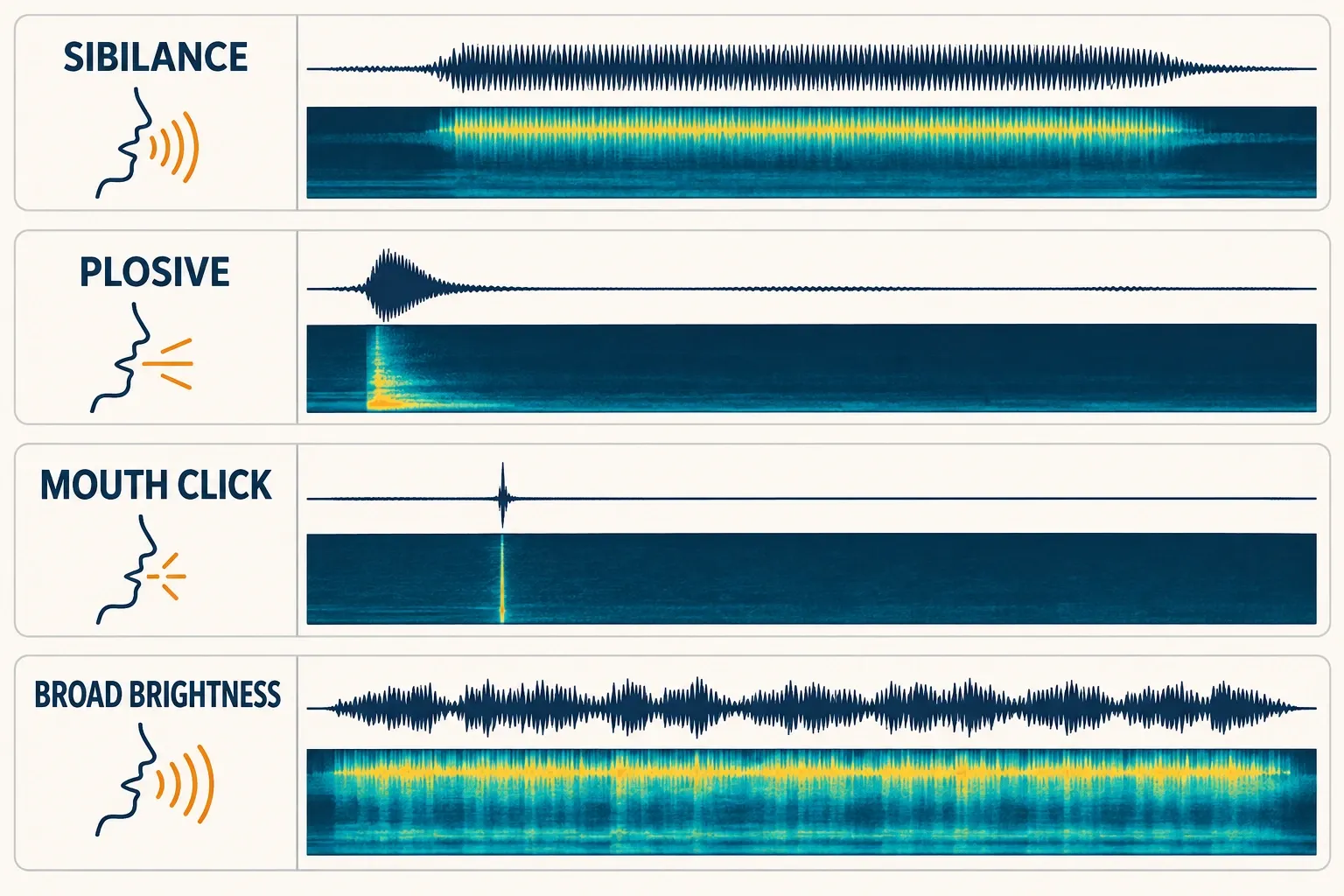
A bright consonant is not automatically a de-essing problem. Listen to its duration and where the energy sits before choosing a tool.
| What you hear | What it usually is | Better first move |
|---|---|---|
| A long, bright hiss on S, SH or Z | Sibilance | Manual level repair, dynamic EQ or a de-esser |
| A low thump on P or B | Plosive | Local level and low-frequency repair; see the plosive removal workflow |
| A tiny isolated tick | Mouth click or edit click | Short event repair; compare with the mouth-click guide |
| Every word feels edgy, not just consonants | Broad tonal imbalance, clipping or microphone coloration | Check the recording, then consider broader EQ or restoration |
Find the harsh band by ear first
Start with the most obvious S sound in the file. Loop a short phrase, but keep enough of the vowel before and after it to hear whether the voice stays natural. A spectrum graph can show a concentrated rise in the upper mids or treble, yet the graph should confirm what you hear rather than choose the band for you.
A useful search area is often somewhere around 4–10 kHz, but that is only a starting region. The speaker, microphone angle, room, codec and previous processing can move the painful band. Sweep a narrow monitoring band until the hiss becomes unmistakable, then widen the band only enough to catch the full consonant. If the vowels begin to sound papery, the band is too wide or too low.
Repair isolated syllables before reaching for a processor
When only a few consonants are distracting, manual repair is usually cleaner than placing a de-esser across the whole file.
- Preserve the source. Save a new version before destructive edits.
- Select the sibilant portion. Include the sustained hiss, not the complete word.
- Reduce level gently. Use gain reduction or a short envelope and listen to the transition into the following vowel.
- Shape only if level repair is not enough. Apply a small local EQ cut to the selected event rather than removing treble from every sentence.
- Check the boundary. Add a tiny fade if the edit creates a click, then replay the complete phrase.
This method takes longer when a recording contains dozens of similar events. Its advantage is control: a soft S can remain untouched while one aggressive consonant receives a precise edit.
Use Dynamic EQ for repeated sibilance
Sound Forge 2026 documentation describes Dynamic EQ as a Suite feature. If it appears in your installed edition, it is a good fit for repeated sibilance because the selected band changes only when its level triggers the processor. Confirm your license and available effects before building the workflow around it.
- Create a bell band around the harshest part of the S sound.
- Set the band to reduce level when that region becomes dominant.
- Lower the threshold until strong sibilants trigger reliably, while vowels and cymbals pass without obvious movement.
- Use a quick attack to catch the front of the consonant. Set the release so the reduction recovers before the next vowel without fluttering.
- Start with a small amount of reduction. Increase it only while the word becomes easier to hear, then back off as soon as the consonant loses definition.
The documented Band Dynamics panel can also react to level inside a selected band. It can serve a similar purpose when configured conservatively, but it is not the same as a dedicated de-esser with a purpose-built detector and audition controls.
Do not use static EQ as an automatic de-esser
Static EQ applies the same cut whenever audio passes through the file. That is useful when the entire recording is too bright. It is inefficient when the problem appears only on certain consonants because it also removes presence from vowels, breaths and room tone.
If the voice is harsh throughout, use the Sound Forge equalizer guide to correct the broader balance first. Then reassess the remaining S sounds. A smaller de-essing stage after tonal correction often sounds more natural than asking one processor to fix both problems.
When a dedicated VST3 de-esser is the better choice
Current Sound Forge documentation covers VST3 plug-ins. A dedicated de-esser is worth using when you need to audition the detector signal, switch between wide-band and split-band processing, or control the detection range more precisely. Check the plug-in format, scan path and license on your own system before committing a project to it.
| Mode | What moves when sibilance is detected | Where it tends to help | Main risk |
|---|---|---|---|
| Wide-band | The whole signal turns down briefly | Exposed speech and vocals where the level dip is unobtrusive | Pumping or a small audible volume hole |
| Split-band | Mainly the high-frequency region turns down | Dense mixes or voices that must keep their body stable | A dull or phasey top end if the band is too broad |
Use the detector-listen function if the plug-in provides one. You should hear mostly the offending hiss. If whole syllables, vowels or musical detail dominate the detector signal, narrow or move the range before increasing reduction.
Prevent lisping, dullness and pumping
- Lisping: reduce the range or depth until T, S and SH remain distinct.
- Dull vowels: move the band higher, narrow it, or use split-band processing.
- Pumping: reduce the wide-band amount or shorten the recovery without making it chatter.
- Missed consonants: adjust the detector range before lowering the threshold further.
- Inconsistent results: use automation or manual edits for the few outliers instead of forcing one setting to catch every event.
Do not judge a de-esser while soloing only the S sounds. The goal is not to erase them. The goal is to make them sit inside the sentence.
Run the final check in context
Replay the processed voice at a normal listening level and compare it with the bypassed version at similar loudness. Check headphones and speakers. Then listen to a quiet S, a strong S, an SH sound and a phrase without sibilance. If the non-sibilant phrase changes noticeably, the processor is working too often.
For voice-over work, check the repair before the final limiter or loudness stage; later compression can bring missed consonants forward again. The voice-over workflow covers the broader processing order, and the export QA checklist gives you a last pass before delivery.
Sources and scope
This guide is based on current product documentation and established de-essing methods, not a claim that we installed or tested a particular Sound Forge edition or plug-in. Product references: Boris FX documentation for Dynamic EQ, Band Dynamics, the Spectrum Graph and VST plug-ins. De-essing behavior and mode comparisons are cross-checked against documentation from FabFilter Pro-DS, Waves DeEsser, iZotope RX De-ess and Adobe Audition.