

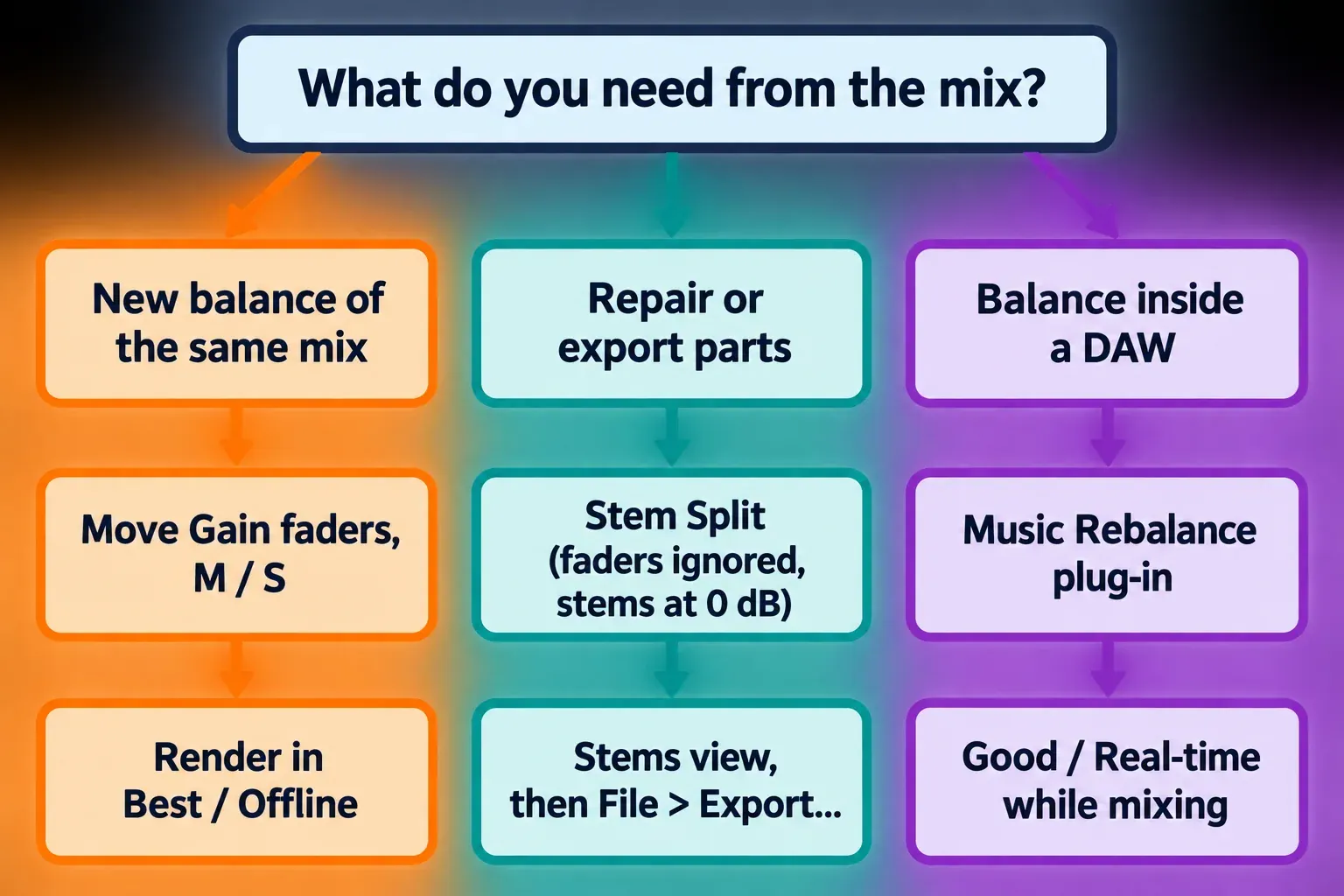
iZotope RX Music Rebalance splits a finished stereo mix into four parts, Voice, Bass, Drums and Other, so you can change their levels or pull them out as stems without the original multitracks. In RX 12 it is part of Standard and Advanced, not Elements. Move the Gain faders and click Render when you want a new balance of the same mix; use Stem Split when you need four separate stems to repair or export.
My rule is short. A level fix on the same mix stays in the module: one fader, small steps, a final render in Best / Offline. A stem that needs repair, or has to leave RX as a file, goes through Stem Split and Stems view. Everything below follows RX 12, released April 28, 2026; the current 12.1.0 update from October 15, 2026 fixes Stem tabs that could vanish on reopen after you had opened other files and exported stems. Older tutorials show RX 11's round Sensitivity knobs and call the stems Vocals and Percussion; they are the same four parts with older names.
Music Rebalance is one of the machine-learning separators in the RX repair suite, next to Dialogue Isolate and, in Advanced only, Scene Rebalance.
What Music Rebalance separates and which RX edition has it
The RX 12 Music Rebalance manual sorts a mix into Voice, Bass and Drums, and sends everything it does not identify as one of those three to Other. Other is typically the melodic instruments, so guitars, keys, pads and synths share one stem. iZotope gives the module two jobs: change the level of one element when the tracks or stems are not available, or isolate one element, such as the lead vocal, by turning the other three down.
Expect different labels in different places. The RX 12 manual says Voice, Bass, Drums and Other. iZotope's blog posts say Vocals, Bass, Percussion and Others, and the RX 11 manual used a Vocal slider and stems named Vocal, Bass, Percussion and Other. All of them describe the same four-way split.
| RX 12 feature | Elements | Standard | Advanced |
|---|---|---|---|
| Music Rebalance module (Audio Editor) | No | Yes, improved in RX 12 | Yes, improved in RX 12 |
| Music Rebalance plug-in | No | Yes, new in RX 12 | Yes, new in RX 12 |
| Stem Split pane | No | Yes, new in RX 12 | Yes, new in RX 12 |
| Stems view | No | Yes, new in RX 12 | Yes, new in RX 12 |
| Scene Rebalance (dialogue, music, effects) | No | No | Yes, new in RX 12 |
The rows follow iZotope's RX 12 overview tables. Elements is a set of six plug-ins without the RX Audio Editor, so none of the Music Rebalance features apply to it. If you are still choosing an edition, the Elements vs Standard vs Advanced breakdown covers everything else the two upper tiers add, and current edition prices and trial terms are tracked in the RX price and license guide. For speech rather than songs, Dialogue Isolate is the separator built for dialogue.
Render a new balance or Stem Split?
Render when you want the same mix with a different balance. Stem Split when you want the parts. iZotope's Stem Split pane documentation recommends the module's Render button for simple mute, solo or level changes, and keeps Stem Split for work on the stems themselves.
The two routes treat your fader moves differently. According to the Music Rebalance manual, Stem Split ignores the Gain slider positions and always writes the stems at 0 dB. A careful Voice lift set up before you click Stem Split will not be in the files, so set levels after the split, in Stems view or in your DAW.
RX 12 also offers the split outside the module. Click Stem Split at the top right of the Audio Editor to open the Stem Split pane. Its Music Rebalance minimodule has Voice, Bass, Drums and Other Sensitivity controls and a Quality menu, but no Gain sliders, and its Process button does the same job as the Stem Split button in the full module. Either way, the result opens in a dedicated Stems tab named after the original file followed by (Stems).
New to the editor itself? The RX 12 beginner tutorial covers opening files, making selections and finding the module list.
Every Music Rebalance control, explained
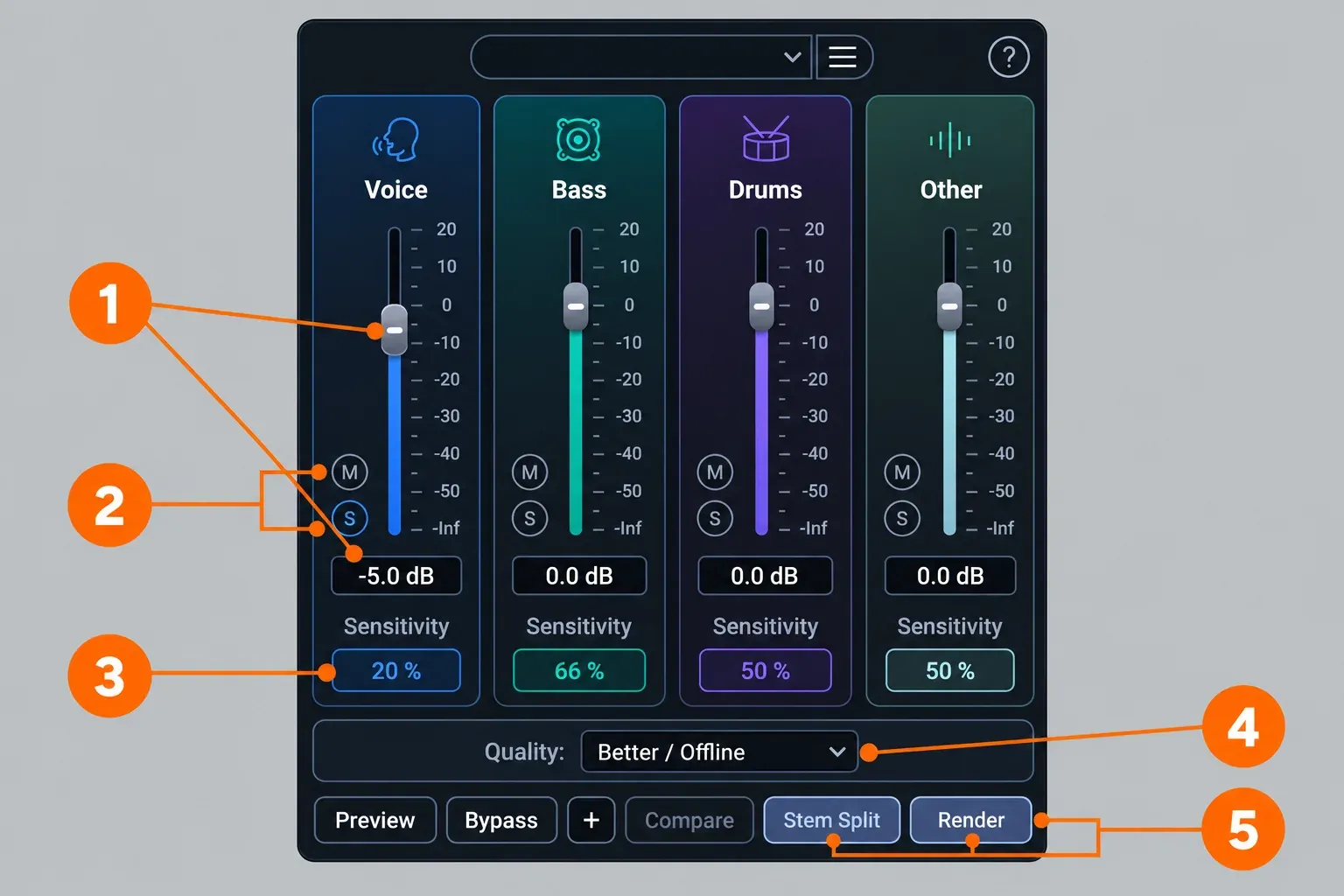
The four Gain faders do the work. Sensitivity decides which sounds land in which stem, and Quality trades speed for cleaner separation. The rest of the module window is for auditioning and committing the result.
| Control | What it does | When to touch it |
|---|---|---|
| Gain faders (dB) | Raise or lower each stem. In iZotope's RX 12 module view the scale runs from +20 dB down to -Inf. | First, one stem at a time, in small steps |
| M (Mute) | Removes that stem from what you hear. | To build an instrumental bed, or to hear a stem by its absence |
| S (Solo) | Plays that stem on its own. | Before any fader move, to hear what landed where |
| Sensitivity (%) | Steers more subtle signal into that stem. Raising Voice keeps more breaths in the voice stem, but higher values can pull other elements in. The four values work relative to each other, so all four at 100 % changes nothing. | Only when a stem misses content or catches leakage |
| Quality | Good / Real-time is fastest and suited to real-time use. Better / Offline separates more cleanly at a small speed cost. Best / Offline adds anti-phasing processing and is the slowest. | A faster mode while auditioning, Best / Offline for the render you keep |
| Preview, Bypass, + | Preview plays a pre-rendered buffer of the current settings on the selected audio. Bypass switches the processing off during preview. The + button sets the preview buffer length. | The whole time you audition |
| Compare | Sends the current settings to the Compare Settings window for side-by-side listening. | When two balances are close and you need to choose |
| Stem Split | Writes four stems at 0 dB to a Stems tab, ignoring the faders. | When you need parts, not a new balance |
| Render | Applies the new balance to the selected audio. | Last, after a full-length listen |
RX 12 replaced the old Sensitivity knobs with percentage readouts, which is the quickest way to tell a current tutorial from an RX 11 one. The footer controls are described in iZotope's common module controls page.
Music Rebalance settings that stay transparent
Small moves, one stem at a time, and a final render in Best / Offline. Gearnews' RX 12 studio review puts it plainly: subtle adjustments usually deliver the best results, while extreme settings can sound unnatural. iZotope's own vocal example in its seven ways to use Music Rebalance is a 2 dB lift. I'd start with moves of a dB or two and go further only while the solo checks stay clean.
- Select a dense, representative passage, such as a full chorus, rather than a sparse intro. Dense material is where separation errors show first.
- Solo each stem in turn. Listen for what landed in the wrong place: cymbal tails in Other, a doubled guitar in Voice, bass harmonics in Drums.
- Move one fader at a time in small steps, and toggle Bypass during preview after each move.
- Touch Sensitivity only to fix classification. Raise it for a stem that is missing content, lower it for a stem that is catching leakage, then solo the neighboring stems again.
- When two settings are close, send each to Compare Settings and choose there rather than from memory.
- Set Quality to Best / Offline, render, and listen to the whole song, not just the passage you tuned.
Preview is not a live stream. The common module controls page explains that Preview plays a pre-rendered buffer, about half a second long for most modules by default, and that adjustments are heard within the length of that buffer. In RX 11 this was a real nuisance: Production Expert's RX 11 review found that the controls took several seconds to take effect after an adjustment. Give each move a moment before you judge it.
Raising, lowering or isolating the vocal with Music Rebalance
For a vocal lift or dip, move only the Voice fader and render. To isolate the lead, pull Bass, Drums and Other down or mute them, or run Stem Split and export the Voice stem. Both are documented uses, and the vocal level fix is a commonly reported job.
Gearnews lists slightly boosting vocals in a finished mix as a practical use, and iZotope's RX 11-era blog describes bringing a vocal up by 2 dB to give the end of a song more urgency. That is the scale I would aim for on a finished master: a correction the listener feels, not a remix.
Breaths and soft consonants are the usual casualties. The manual's own example of Sensitivity is exactly this: raising Voice Sensitivity keeps more breath sounds in the voice stem, at the risk of other elements leaking in. Solo Voice after every Sensitivity change and listen for hi-hat or guitar creeping into it.
Muting Voice gives you a backing bed. iZotope's blog describes muting the vocal stem of a backing track because it clashed with a radio-ad voiceover. Do this only with material you have the rights to use; the rights note below explains why.
The same fader also fixes bleed on instrument mics. In iZotope's live example, a fiddle mic picked up the vocal from a stage monitor, and turning the Voice fader all the way down on that track removed the bleed. When the player also sang into the fiddle mic, the track was duplicated: Voice down on the original kept the fiddle, Other down on the copy kept the vocal, and the two could then be balanced separately. Better still, stop the bleed at the session; the headphone-bleed guide covers mic and monitor choices. Without RX, the Sound Forge vocal-removal methods show what a center-channel or spectral approach can and cannot do.
Working in Stems view and exporting stems
Stems view shows all four stems as stacked lanes in one tab. Set the Stem selector to All Stems, activate only the lanes you want to edit, then export with File > Export… for separate files or File > Export as Single File… for their sum.
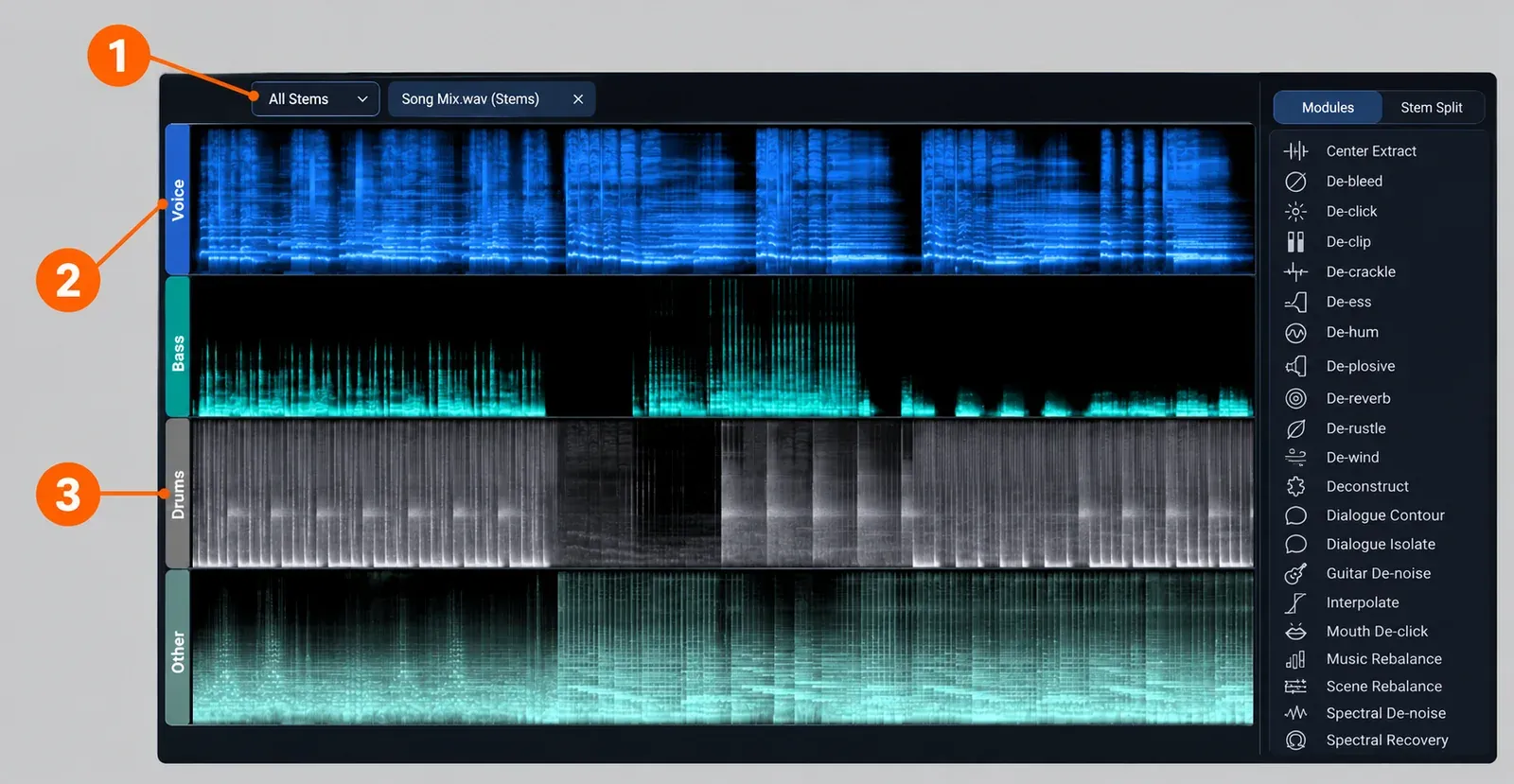
The lane selectors on the left decide what you hear and what you edit. The Stems view rules are worth learning once:
- Clicking an active lane selector deactivates every other stem, so only that lane stays active.
- Clicking an inactive lane selector adds that stem without changing the others.
- Double-clicking an active lane selector activates all stems.
- Double-clicking an inactive lane selector makes it the only active stem.
- Selecting a region in an inactive lane activates that stem.
Inactive lanes are grayed out, and playback, selections and edits affect only the active stems. If Stems view sounds quieter than the original tab, that is expected: playback is attenuated by the Composite view gain reduction value in the Audio tab of Preferences. Set it to 0 dB to hear the stems at the original level.
Some features are not available in Stems view: Channel Sum, Clip Gain, the Stem Split pane, the Compare button in every module, and the Stem Split buttons in Music Rebalance, Scene Rebalance and Dialogue Isolate. Switch to a single stem with the Stem selector to use them; your edits are kept when you switch back.
The point of Stems view is repair on one stem without touching the rest. iZotope's RX 12 stem separation walkthrough names De-hum and Spectral Repair on individual stems, runs Ozone 12 on the bass stem, and uses a transient shaper on the drum stem only below 100 Hz. One demo goes further: the song had three synths and no singer, so the Voice lane was empty, and sustained synth harmony parts were copied out of the Other lane and pasted into the empty vocal lane, which gave that part its own stem for the new mix. The same post warns that this kind of processing needs care, or it can introduce artifacts.
| What the Stems tab shows | File menu command | Result |
|---|---|---|
| One stem | Export… | That stem as its own audio file |
| One stem, with a selection | Export Selection… | The selected range as an audio file |
| Stems view (All Stems) | Export… | Every stem to a separate audio file |
| Stems view (All Stems) | Export as Single File… | The sum of all stems in one file |
Music Rebalance as a plug-in: real time, AudioSuite, ARA and latency
RX 12 lists a Music Rebalance plug-in as new in Standard and Advanced. Use it in Good / Real-time to balance a mix inside a DAW session, and print anything final at Best / Offline in the Audio Editor. That split follows the manual: Good is the mode suited to real-time processing, Best is the slowest and cleanest.
Reviewers welcomed it. MusicTech's RX 12 review says the faster processing allowed Music Rebalance and Dialogue Isolate to join the real-time RX plug-ins that run natively in a DAW, and Gearnews calls the real-time plug-in overdue. It is not the first DAW version, though. RX 11 already offered Music Rebalance as an AudioSuite and AAX real-time plug-in in Pro Tools, and as an ARA 2.0 plug-in in Logic that ran in Rosetta only, as the first insert, in the Good quality mode.
For delivery I side with ProVideo Coalition's RX 12 shootout, whose author would only plan on using the offline high-quality version. Real time is for deciding the balance; the render you hand over should come from Best / Offline.
Three host details matter:
- AudioSuite has no preview. The manual states that the Music Rebalance AudioSuite plug-in cannot preview processing before rendering, so audition the setting in the Audio Editor first.
- ARA is a host question. The Music Rebalance manual page lists a VST3 and AU ARA plug-in, while the release notes and the product page document RX 12 ARA support for the Spectral Editor, and MusicTech names Logic Pro and Studio One 7 / Studio Pro 8 as the ARA hosts. Check your host before planning an ARA workflow for Music Rebalance.
- Latency needs compensation. With Enable Delay Compensation turned on in the plug-in's Latency menu, RX reports its delay to the host. If the host skips or stutters, the RX plug-in guide shows the delay as Total System Delay in samples and milliseconds for manual correction.
In plug-in form, only the Bypass button survives from the module footer, so there is no Compare or Render inside the DAW. If the Music Rebalance plug-in does not appear after installing, work through the RX plug-in scanning fixes.
Mixing and mastering jobs it handles well
Music Rebalance is strongest on corrections inside a finished mix: a vocal that sits a little low, cymbals that are too present, low end that does not translate. These are the jobs reviewers and iZotope's own walkthroughs report, and each one works best with a modest move.
| Job | What to move | Reported by |
|---|---|---|
| Vocal a little low or high in a finished mix | Voice fader, a dB or two | Gearnews; iZotope (2 dB vocal lift) |
| Harsh hi-hats in a master | A small Drums cut, or a high-frequency fix on the drum stem alone in Stems view | Gearnews |
| Bass that does not translate | Bass fader, or processing on the bass stem alone (iZotope used Ozone 12) | Gearnews; iZotope RX 12 walkthrough |
| Kick resonance | Transient shaper on the drum stem, limited to below 100 Hz | iZotope RX 12 walkthrough |
| Quiet drums in a live two-mix | Drums and Other up toward the vocal level | iZotope (RX 11 example) |
| Presence and body in mastering | A subtle amount of a vocal or bass stem added in parallel to the original mix | iZotope RX 12 walkthrough |
| Backing bed without the singer | Voice muted | iZotope (radio-ad example) |
The parallel approach deserves a closer look. iZotope's RX 12 walkthrough calls it a favorite technique for mastering engineers: instead of replacing the mix with rebalanced stems, you add a little of one stem alongside the untouched original. Nothing in the original is removed, so a separation artifact is far less exposed. If you then finish the master in Sound Forge, the Sound Forge mastering walkthrough takes the render through loudness and final export, and the Ozone 12 review covers the mastering suite iZotope used on the bass stem.
Test results: how Music Rebalance holds up in published reviews and tests
A composite of seven published sources, five independent reviews and tests plus two iZotope walkthroughs, gives a consistent result: RX 12 separates more cleanly than earlier versions, summed stems rebuild the original exactly, small moves stay clean while dense material and extreme moves expose artifacts, and the four-stem model is the main limit. Here is how often each point appears:
- 3 of 7 report a clear version-over-version gain. MusicTech calls RX 12 markedly higher quality than before, "as convincing as any I've heard"; Production Expert found RX 11 notably better than its predecessor; iZotope says the RX 12 nets were retrained for more precise isolation and fewer artifacts.
- 4 of 7 say the stems are usable rather than multitrack-clean. Gearnews found the parts not perfectly isolated but often clean enough to work with, and both iZotope posts warn about artifacts.
- 3 of 7 confirm that unprocessed stems null against the original mix.
- 3 of 7 address the real-time plug-in: MusicTech and Gearnews welcome it in the DAW, while ProVideo Coalition would plan only on the offline high-quality version.
- 3 of 7 describe the same everyday jobs: vocal lifts, harsh hats, low end, monitor bleed and per-stem processing.
- 2 of 7 name the four-stem model as the main limit against splitters that also extract guitar and piano.
- 2 of 7 show how competitive standing depends on version, and 2 of 7 address speed: RX 11 controls lagged by several seconds, while RX 12 processes noticeably faster.
Only one source in this set publishes a timing. MusicTech split the same four-and-a-half-minute test mix at the highest quality level: about two and a half minutes in RX 11 and about one minute 45 seconds in RX 12, roughly 30% less time. The reviewer's computer is not stated, so the minutes describe MusicTech's machine only.
| Source | Date | RX version | Method | Finding |
|---|---|---|---|---|
| MusicTech | April 29, 2026 | RX 12 | Review with a timed split of one mix in RX 11 and RX 12 | Markedly better separation, faster processing, still four stem types |
| Gearnews | April 29, 2026 | RX 12 | Studio review on finished mixes | Often clean enough to work with; subtle moves best; artifacts on dense material |
| ProVideo Coalition | May 1, 2026 | RX 12 | Shootout of other RX 12 modules; workflow opinion on Music Rebalance | Would only plan on the offline high-quality version |
| MusicRadar | January 7, 2026 | RX 11 | 11 separators, three songs, highest settings, listening plus difference test | Outside the top five; one of three lossless tools; stems more processed and less clean |
| Production Expert | May 15, 2024 | RX 11 | Review across several pieces of music | Notably better than before; controls lag by several seconds |
| iZotope RX 12 walkthrough | 2026 | RX 12 | Vendor demonstration | Stems null; per-stem processing works with care to avoid artifacts |
| iZotope, seven ways | March 10, 2025 | RX 11 | Vendor workflow examples | Vocal lift, ad bed, bleed and two-mix fixes; some artifacts depending on the job |
The competitive picture splits by version. The most recent multi-tool test, MusicRadar's 11-tool stem separation test, covered RX 11: it missed the top five, though it was one of only three entrants with completely lossless results, and Logic Pro 11.2.2 won with six stems. MusicTech's RX 12 verdict is that RX is very much back to the top of its game, with the limited number of stem types as the remaining gap.
My verdict: for level fixes inside a finished mix, RX 12 Music Rebalance is one of the most convincing four-stem separators you can buy, and the Stem Split pane plus Stems view make per-stem repair practical in RX for the first time. If you need guitar or piano as separate stems, the RX alternatives guide covers separators that split more than four parts.
Limits, artifacts and rights
- Four stems only. Guitars, keys, pads and synths all live in Other. MusicTech reports that extended instrument recognition is on iZotope's roadmap, but it is not in RX 12.
- Leakage follows Sensitivity and big moves. Higher Sensitivity pulls neighboring sounds into a stem, and large fader changes expose whatever the model misclassified.
- A null proves reconstruction, not purity. Summed, unchanged stems cancel against the original, which shows nothing was lost or added in total. It does not show that each stem contains only its instrument.
- Dense or heavily processed masters are hardest. Gearnews singles out this material as where artifacts appear.
Rights are a separate question from technique. Splitting a song you do not own gives you no right to release its stems or a remix: under US law, as the Copyright Office's FAQ explains, only the copyright owner can prepare or authorize a new version of a work, and in cases of doubt the Office recommends getting permission.
How Music Rebalance changed from RX 7 to RX 12
The module is older than most tutorials suggest, and each release changed what it can do.
| Release | Date | What changed for Music Rebalance |
|---|---|---|
| RX 7 era | iZotope blog dated September 13, 2018 | Introduced as a source-separation tool for shifting or isolating vocals, bass and percussion; usable in Pro Tools as an AudioSuite plug-in |
| RX 11.0.0 | May 14, 2024 | New neural net and a refreshed interface with a stem mute button; real-time AAX and AudioSuite in Pro Tools; ARA 2.0 in Logic in Good mode |
| RX 11.1.0 to 11.2.0 | 11.2.0 released September 20, 2024 | A known 11.1 issue swapped the Bass and Percussion stems in Logic ARA; 11.2.0 fixed the labels and ARA AU passing no audio in Rosetta |
| RX 12.0.0 | April 28, 2026 | Retrained neural nets, percentage Sensitivity readouts, a new plug-in, the Stem Split pane and Stems view |
| RX 12.1.0 | October 15, 2026 | Fixed Stem tabs that could vanish on reopen after opening other files and exporting stems |
The RX 7 starting point is described in iZotope's original Music Rebalance guide. RX 11 owners can weigh this module's gains against the rest of the release in the RX 12 vs RX 11 comparison, and the RX 12 review gives the verdict on the whole suite.