

To learn iZotope RX 12, check your edition first, then learn one repair loop. RX 12 Elements is six plug-ins for your DAW with no standalone editor, so Elements owners start with Repair Assistant or Voice De-noise on a track. RX 12 Standard and Advanced include the RX Audio Editor, where every repair runs the same way: find the problem on the spectrogram, select it, preview the module against Bypass, render, and keep each step in Undo History. Save the project as an RX Document (.rxdoc) and export a copy for delivery. Do not press plain Save on an original WAV or AIFF file, because it overwrites that file on disk.
I would learn that loop on one short voice clip with steady background noise before touching the machine-learning modules. Most RX modules share the same footer controls, so the habits you build on one noise-reduction pass carry over to the rest of the toolkit, and an .rxdoc keeps every step reversible while you practice. This guide follows the RX 12.0.0 release from April 28, 2026 and iZotope's RX 12 help pages.
Which RX 12 do you have?
Your edition decides whether you have an editor at all. iZotope's RX 12 overview and edition tables split the three versions like this:
| Edition | What you get | Where to start |
|---|---|---|
| Elements | Six DAW plug-ins: De-click, De-clip, De-hum, De-reverb, Repair Assistant and Voice De-noise. No RX Audio Editor. | Repair Assistant or Voice De-noise on a track in your DAW |
| Standard | The RX Audio Editor plus plug-ins. The editor includes Spectral Repair, Instant Process, Module Chain, Batch Processor, Text Navigation and the new Stems View. | The editor loop in this guide |
| Advanced | Everything in Standard, plus Scene Rebalance, Trim Silence, multichannel processing, Dialogue Isolate's high-quality offline and multi-band modes, and sending Repair Assistant suggestions to Module Chain. | The same loop; the extra modules can wait |
If you are still choosing, the Elements vs Standard vs Advanced comparison lists every module by edition. On October 20, 2026, the US iZotope store listed RX 12 Elements at $99, Standard at $399 and Advanced at $1,399. Prices move and iZotope also sells updates from RX 11, so check the RX price, trial and license guide before you pay. If your work is mostly editing and mastering rather than repair, compare Sound Forge Pro and iZotope RX first.
No license yet? The RX 12 Standard download page says that loading RX after installation asks you to authorize with a serial number or start a free trial. An unauthorized copy runs in Trial mode for 10 days with export disabled, then switches to Demo mode, which inserts silence at regular intervals. That is enough time to practice every step below, but not to deliver finished files. If authorization stalls, the iZotope Product Portal and authorization fixes walk through the usual causes.
RX 12 runs on macOS Sonoma 14.7, macOS Sequoia 15.7 and macOS Tahoe, on both Intel and Apple silicon Macs, and on Windows 10 (22H2) and Windows 11 (24H2), according to the same release notes.
The RX Audio Editor window, area by area
The RX 12 overview labels ten areas in the editor window. Six of them carry almost all beginner work, so find those first.
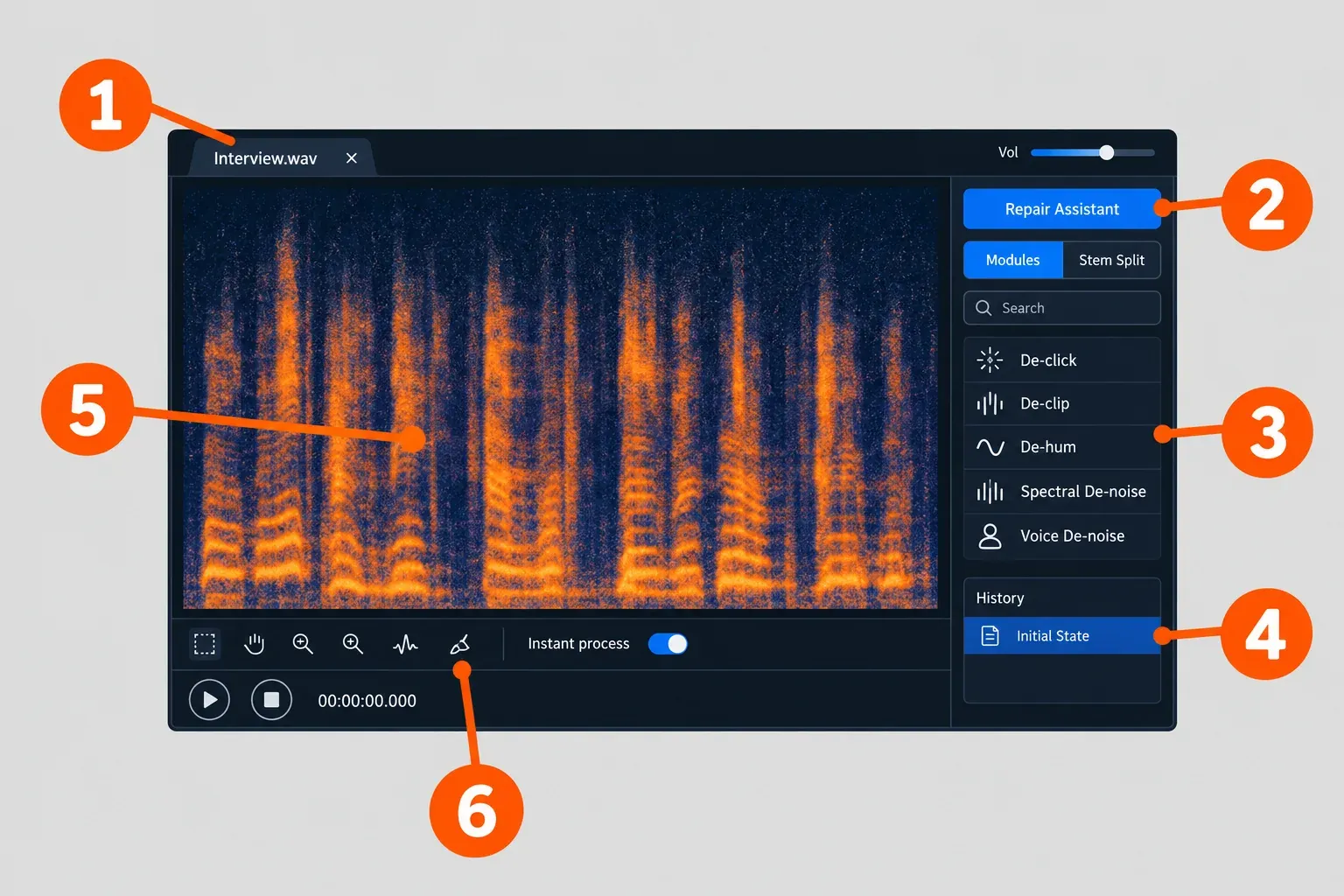
- File tabs. Each open file gets its own tab. A small dot on a tab means it has unsaved changes, and RX asks before closing it.
- Repair Assistant button, in the upper right. It analyzes your audio and suggests a starting repair.
- Module list. Every processing module in your edition. RX 12 adds module search, which is quicker than scrolling once you know a module's name.
- Undo History, in the History pane at the bottom right. Every edit becomes a step you can return to.
- Spectrogram/Waveform display. The main view, where you find and select problems.
- Interactive tools, the toolbar under the display, with navigation, Instant Process and the selection tools.
The other four are the volume slider at the top right, the Modules/Stem Split selector, the transport controls and time displays, and the Text Navigation tools. Text Navigation (Standard and Advanced) transcribes speech or dialogue so you can search for a word and jump straight to it, which saves time on long interviews.
Open files with Cmd+O on a Mac or Ctrl+O on Windows; RX can hold up to 32 files at a time. The RX 12 file-handling help lists AAC, Audible AAX, AIFF, BWF, CAF, FLAC, M4A, MP3, OGG, SD2, WAV and WMA as formats it opens. Video files load too, but RX imports only their audio and does not play the picture. For a first session I would open a copy of the recording rather than the only original. That single habit takes most of the risk out of the save rules further down.
Read the spectrogram before you touch a module
The spectrogram shows time horizontally and frequency vertically, with the lowest frequencies at the bottom, and louder sound appears as brighter color. Problems have recognizable shapes there before you can name them by ear. The spectrogram display help covers three controls worth learning on day one:
- The Transparency Balance slider sets how much of the waveform and how much of the spectrogram you see layered together.
- The Color Map ruler, to the right of the frequency ruler, shows which color stands for which level. Drag it to shift the displayed range, or use the scroll wheel to widen or narrow it, and very quiet noise becomes visible without changing the gain of your audio.
- Spectrogram Settings open with Cmd+Shift+comma on a Mac or Ctrl+Shift+comma on Windows.
With the view set, iZotope's guide to identifying audio problems describes the shapes to look for:
- Hum is a low 50 Hz or 60 Hz tone. It shows as horizontal lines: a bright one at the fundamental and fainter harmonics above it.
- Broadband noise, such as tape hiss, fans or air conditioning, usually looks like speckles surrounding the wanted sound.
- Clicks and pops are thin vertical lines, brighter when louder.
- Clipping is easier to see in the waveform, as squared-off peaks. A brickwall-limited master can also look squared off when zoomed out without actually clipping, so zoom in before you decide.
- Intermittent noises, such as coughs, phones and footsteps, come and go, so they need a different tool from steady noise.
Match the problem to the module
Once you can name the shape, the module choice is short. Start with the first tool in each row and move to the alternative only if the preview still sounds wrong.
| What you see or hear | Try first | Edition note |
|---|---|---|
| Steady hiss, fan or air-conditioning noise behind a voice | Voice De-noise; Spectral De-noise for finer control | Voice De-noise in every edition (a plug-in only in Elements); Spectral De-noise in Standard and Advanced |
| 50 Hz or 60 Hz hum, horizontal lines | De-hum; Spectral De-noise when buzz harmonics extend above 400 Hz | De-hum in every edition |
| Clicks and pops, thin vertical lines | De-click | Every edition |
| Squared-off waveform peaks | De-clip | Every edition |
| Coughs, phones, footsteps | Spectral Repair | Audio Editor in Standard and Advanced |
| Speech buried under noise and reverb | Dialogue Isolate | Standard and Advanced; the high-quality offline and multi-band modes are Advanced only |
| Several problems at once, or you are not sure | Repair Assistant | Every edition |
The same identification guide suggests fixing a gap by deleting it and then applying Spectral Repair. For speech that is badly buried, iZotope's What's new in RX 12 post presents the improved Dialogue Isolate as the way to "rescue speech buried under noise and reverb", and the module has its own walkthrough in the Dialogue Isolate guide.
Select only the problem
A module processes what you select, so a tight selection keeps it away from audio that is already fine. The toolbar under the display holds six selection tools, each with the one-key shortcut listed in the RX 12 interactive tools help.
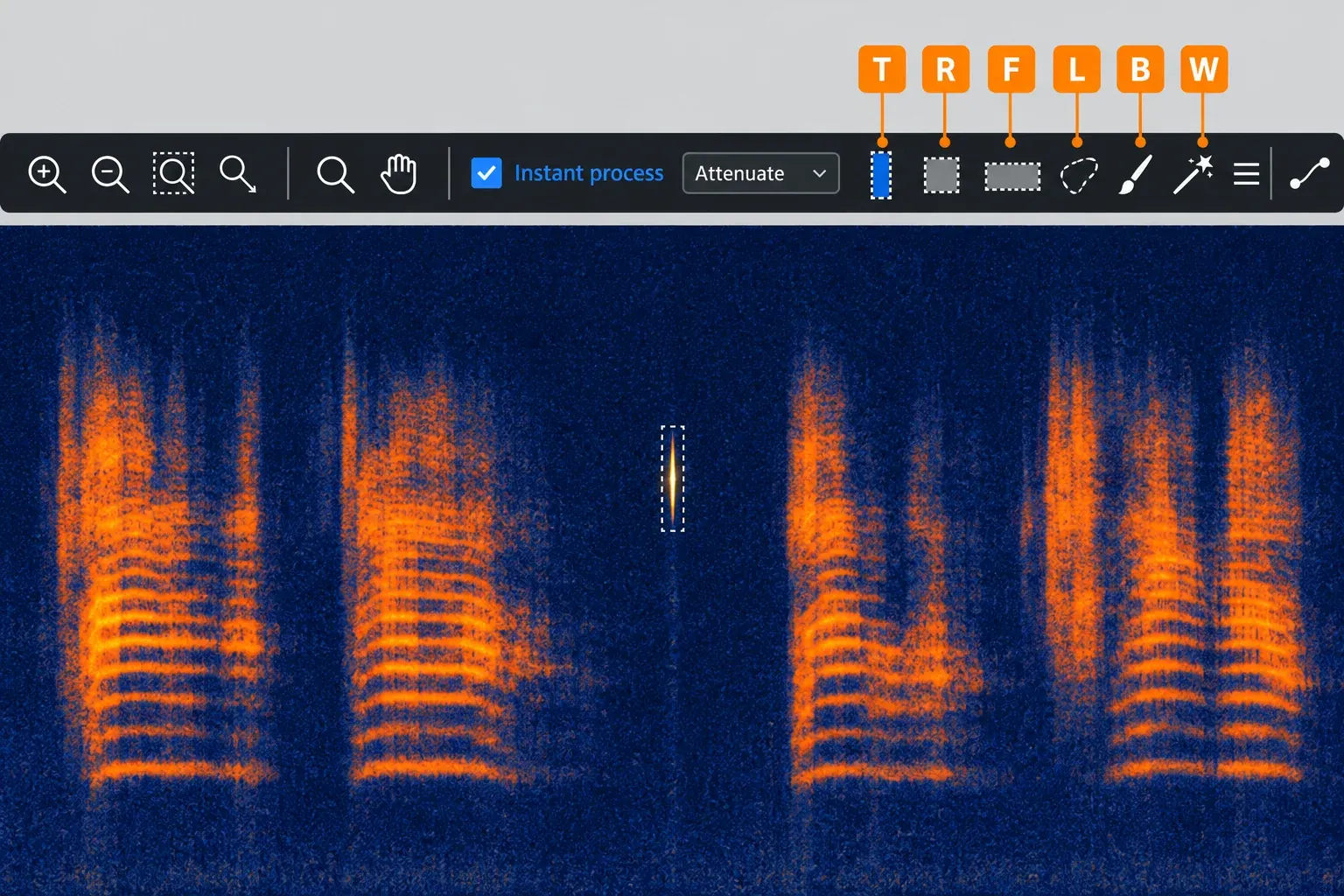
- Time Selection (T): a span of time across every frequency, for whole-word edits and broad noise passes.
- Time-Frequency Selection (R): a box limited in both time and frequency, the natural fit for one click or a short cough.
- Frequency Selection (F): a frequency band rather than a span of time.
- Lasso (L): a freehand outline around an irregular shape.
- Brush (B): paint the selection over the sound.
- Magic Wand (W): click to select the most prominent tone under the cursor, then click that selection again to add its harmonics.
Hold Shift to add another selection and Alt/Option to subtract from one, which is handy for trimming a Lasso or Brush shape. Before you process anything, turn on Play Selection Only in the transport so playback covers just the time, frequency or time-frequency area you selected. If the problem is clearly audible in that playback, the selection has caught it.
Standard and Advanced also offer Instant Process [I]. With it on, every new selection is processed at once by the module chosen in its drop-down menu, using that module's current settings; the Attenuate mode, for example, applies the active settings of Spectral Repair's Attenuate tab. It is fast once you know what each setting does. While you are learning, I would leave it off, because it skips the preview step that teaches you exactly that.
Preview, compare, then render
Every editor repair ends in the module footer, and the safe order is always the same: hear it, check it, then commit. The common module controls help describes each button.
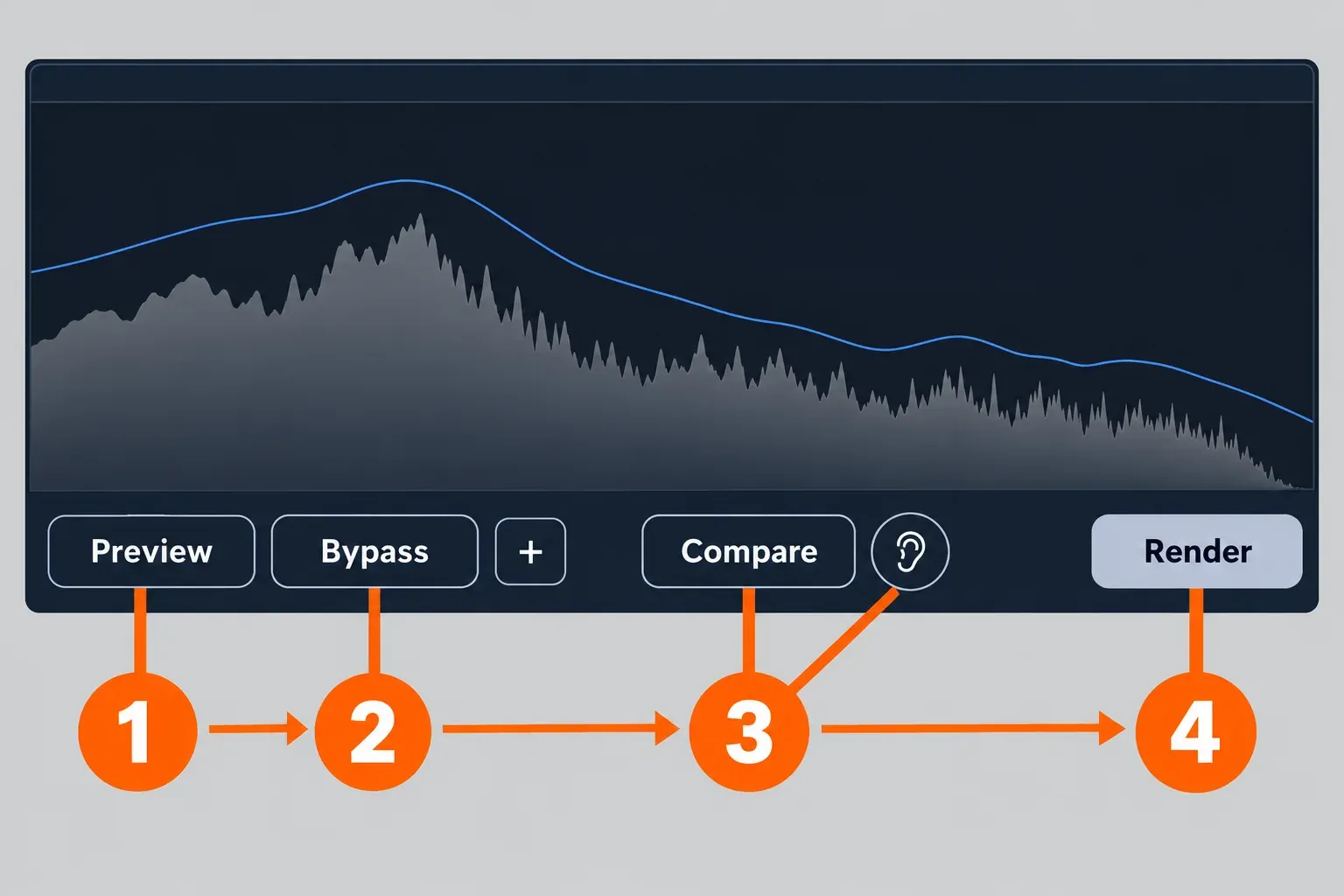
- Preview (Shift+Space). Plays a pre-rendered preview of the current settings over your selection, or from the playhead when nothing is selected, and repeats it when Loop is on in the transport. By default RX adds one second of untouched audio before and after the selection so you hear the edit in context; Preferences > Misc sets this pre- and post-roll up to ten seconds. For most modules the preview buffer is about half a second, adjustable under Preview Options (+).
- Bypass (Shift+B). Toggle it during preview to switch between processed and original. If you cannot hear a clear improvement, back off the settings.
- Compare, or the ear button. The ear (Listen) button, available in certain modules, makes Preview play only what the module would remove. If you hear words or the character of the voice in that signal, the setting is too strong. Compare sends the current settings to the Compare Settings window as "[Module]: Settings 1", "Settings 2" and so on, where you can preview each entry, rename it by double-clicking, show its settings in the module controls again, remove it or render it.
- Render. Applies the processing to the file, and the result appears as a new step in Undo History.
Some modules have no Preview because their processing takes too long; in many of those, Compare is the way to audition settings. Two limits apply outside the main module window: footer controls are unavailable when a module sits inside Module Chain, and RX plug-ins in a DAW keep only Bypass.
The ear button is one of the RX 12 changes that matter most to a beginner. Sound On Sound's RX 12 Advanced review notes that it now sits beside Preview, Bypass and Compare in many tool windows and calls that common approach "a very welcome addition".
Your first repair: steady noise behind a voice
Pick a short voice clip with constant hiss or fan noise and at least one second where nobody speaks. Voice De-noise is the easier first tool. The Voice De-noise help describes it as a zero-latency de-noiser, and it is in every edition; in Elements it runs as a plug-in on the track, so you audition by playing the track and toggling Bypass. In the Audio Editor:
- Open Voice De-noise from the module list and set Optimize for to Dialogue, which reacts to noise changes faster than the Music setting meant for sung vocals.
- Choose how it finds the noise. Adaptive mode follows the noise floor automatically and suits most spoken-word recordings. For a fixed profile, switch to Manual, select at least one second of pure noise and click Learn; longer noise selections place the threshold nodes better.
- Start with the Gentle filter type. Surgical removes more noise but can leave chirpy, watery musical-noise artifacts; Gentle is more transparent and removes less high-end sizzle.
- Select the passage to clean with Time Selection, press Shift+Space and toggle Shift+B.
- If the processing is too aggressive or touches the voice, adjust the master Threshold control, which shifts all threshold nodes at once. Only signal below the threshold is reduced, so a lower Threshold processes less. Reduction sets the maximum depth of the cut per band. Render when the voice sounds clean and natural against Bypass.
Spectral De-noise (Standard and Advanced) is the alternative when you want a learned profile with more control. Learn on the longest noise-only section you can find, ideally a few seconds with nothing you want to keep in it, and start Threshold at 0 dB, which the Spectral De-noise help calls a good default. Quality A is the lightest, lowest-latency algorithm and the one meant for real-time use. As a plug-in, Spectral De-noise needs far more CPU and adds more latency than Voice De-noise. For hum, air conditioning and noise that changes over time, go further with the RX background-noise removal guide.
Let Repair Assistant suggest a starting point
Repair Assistant is the shortcut when a clip has several problems or you cannot name the one you hear. Click its button in the upper right of the editor, choose Voice or Music, and click Learn. Unlike Spectral De-noise, it does not need a noise-only section: the Repair Assistant help says it analyzes your selection, or as much of the file as it needs when nothing is selected.
Each section of its suggestion has an On/Off button and an Audition button that plays only what that section removes, the same idea as the ear button. Switch sections off one at a time to hear what each contributes, pick the processing option you prefer, then click Render at the bottom right to apply it to the current selection. In RX 12 Advanced, Open Module Chain sends the suggestion to Module Chain, where you can save it as a preset or edit it before rendering.
The Repair Assistant plug-in comes as AAX AudioSuite, AU and VST3. Choose Voice or Music, click Learn and play the track so it can analyze. In AudioSuite, give it a clip longer than seven seconds; on shorter clips it keeps learning and appears to hang. I treat its result as a first draft rather than a finished repair: it shows which problems RX hears, and the footer loop tells you whether the fix is right.
Undo History and Restore Selection
The History pane keeps a timeline of every edit, and the Undo History help describes reverting to earlier states as non-destructive. Four features make it more useful than plain undo:
- Double-click an item to rename it, for example "voice de-noise, gentle". Named steps make later comparisons easy.
- Restore Selection: with a selection made, hover over a History item and click the icon that appears. Only the selected area returns to that point; the rest of the file stays as it is. It is the fix for one over-processed word.
- Turn on Recall selections during undo/redo in the Misc tab of the RX 12 Preferences so Cmd+Z or Ctrl+Z also brings back the selection each step used.
- File > Export History as XML writes the edit log to a separate file for forensic or archival records.
Saving as an RX Document (.rxdoc) keeps the Undo History with the file, which is the main reason to use that format while you learn.
Save, RX Document or Export: keep the original safe
RX gives you several ways out, and only plain Save can damage an original WAV or AIFF, because it overwrites the file.
| Command | What it does | Use it when |
|---|---|---|
| Save (Cmd/Ctrl+S) | Overwrites the original WAV or AIFF on disk. For compressed formats it opens the Export dialog instead. | Only on a copy you are happy to change |
| Save As (Cmd/Ctrl+Shift+S) | Saves a copy in the same format; for compressed formats it opens the Export dialog. | You want a repaired WAV or AIFF beside the original |
| File > Save RX Document | Saves an .rxdoc with the original audio, every edit and the latest selection and view. It opens only in the RX Audio Editor and can be very large. | Work in progress you want to reopen with its history |
| File > Export | Writes WAV or AIFF (16-bit, 24-bit, 32-bit float or 32-bit integer), FLAC, OGG or MP3, with dither set to None, White Noise (TPDF) or Noise shaping (MBIT+). | Delivering to a DAW, video editor or player |
| File > Export Selection, Export Regions to Files | Exports only the selected audio, or writes each region as its own file. | Pulling one take or a set of clips out of a long recording |
RX also backs up your editing session automatically by default and reopens the most recent session at launch. If "Reopen previous audio files when app starts" is on in Preferences > Misc, closing RX with unsaved changes does not prompt you; the changes wait in the session data folder. Treat that as a safety net, not a replacement for an .rxdoc. The saving and export section of the file help has every option.
The routine I recommend for a beginner: open a copy, save an .rxdoc as soon as the first render lands, and export a new WAV for delivery with "Reopen file in RX" ticked, so you play back exactly what you exported. Keep lossy MP3 for the final delivery copy only; WAV vs FLAC vs MP3 explains why. Before the file leaves your hands, run it through an audio export QA checklist.
Using RX 12 as plug-ins in a DAW
Every edition installs plug-ins, and for Elements they are the whole product. They come as AU and AU ARA (Mac only), AAX, AAX AudioSuite, VST3 and VST3 ARA, all 64-bit only. iZotope's RX 12 product page confirms compatibility with Logic Pro 12, Pro Tools 2025, Ableton Live 12, Cubase 15, Nuendo 15, Fender Studio Pro 8 (Studio One 7), Reaper 7, FL Studio 25, Adobe Audition 2026, Adobe Premiere Pro 2026, DaVinci Resolve 19 and Reason 13. Other hosts may work, but they are not on that list.
Three differences catch beginners:
- The footer loop shrinks to Bypass. There is no Preview, Compare or Render in a plug-in window, so you audition by playing the track and toggling Bypass.
- Ambience Match, De-rustle and Scene Rebalance, all Advanced plug-ins, run only as AAX AudioSuite.
- Real-time cost varies. Voice De-noise has zero latency, while the Spectral De-noise plug-in is far heavier and adds more latency.
RX 12 adds Music Rebalance to the plug-in list and improves the Dialogue Isolate plug-in, so both now run inside a DAW in Standard and Advanced; Music Rebalance has its own walkthrough in the Music Rebalance guide. Standard and Advanced also include the Spectral Editor plug-in, which works through ARA in Logic Pro 10.7 or later (AU, under Rosetta on Apple silicon) and in Studio One 7 or Studio Pro 8 (VST3). If RX plug-ins do not appear after installation, work through the RX plug-ins not showing checklist before reinstalling.
RX 12 test results: what published reviews found
Five hands-on RX 12 reviews, published between April and July 2026, agree that the new version is faster and easier to work in, and they split on whether it sounds better. The reviews come from MusicTech, Sound On Sound, Gearnews, ProVideo Coalition and Arefyev Studio.
Only one of them published a timing. In MusicTech's RX 12 review, splitting a 4:30 test mix at the highest quality level took about 2:30 in RX 11 and about 1:45 in RX 12, roughly 30% less time. That is a single run on hardware the review does not state, so read it as a direction rather than a figure for your own computer. The other findings are counted verdicts:
| Finding | Reviews that report it | Count |
|---|---|---|
| Processing is faster | MusicTech, Sound On Sound, Arefyev Studio | 3 of 5 |
| Stems View is a major workflow gain | MusicTech, Sound On Sound, Gearnews | 3 of 5 |
| Music Rebalance and Dialogue Isolate now also run as plug-ins | MusicTech, Gearnews, ProVideo Coalition | 3 of 5 |
| The ear button makes settings easier to judge | MusicTech, Sound On Sound | 2 of the 2 that discuss it |
| The larger spectrogram is barely noticeable | MusicTech, Sound On Sound | 2 of the 2 that comment on it |
| Separation quality clearly improved | MusicTech, ProVideo Coalition (Arefyev Studio disagrees) | 2 of 5 |
| Standard is enough for most users | Gearnews, Arefyev Studio | 2 of 5 |
| Advanced's higher price is a drawback | MusicTech, Gearnews | 2 of 5 |
Sound On Sound calls Stems View "a very big workflow improvement", and Gearnews' studio review names it "one of its most important new features". The most detailed listening test is ProVideo Coalition's RX 12 shootout. With the same settings, RX 12's Dialogue Isolate beat RX 11 in two of three scenes: a noticeable but not massive gain on steady noise, significantly less artifacting in heavy traffic, and little or no gain on a reverberant phone recording. Against Adobe's online Enhance Speech, RX 12 won one of the three, and its Scene Rebalance split beat the Ultimate Vocal Remover comparison. The reviewer called RX 12 "a subtle but important step forward".
Arefyev Studio's review is the dissent: it credits RX 12 with better workflow and speed but finds no meaningful gain in separation quality, and it warns that heavier real-time use raises CPU load. ProVideo Coalition is cautious about real-time use too: its reviewer would only plan on using the offline high-quality versions of Music Rebalance and Dialogue Isolate.
My verdict for a beginner: the most useful RX 12 gains are the ones that teach. The ear button lets you hear what a module takes away, and Stems View lines split stems up in one display instead of separate tabs. Standard covers everything in this tutorial. Advanced earns its price when you need Scene Rebalance, multichannel work or Dialogue Isolate's high-quality offline mode, not before. The full verdict, including where RX 12 falls short, is in our RX 12 review.
Keyboard shortcuts for the first week
These are RX 12 defaults from the file, interactive tools and transport controls help pages.
| Action | Mac | Windows |
|---|---|---|
| Open file | Cmd+O | Ctrl+O |
| Save (overwrites WAV/AIFF) | Cmd+S | Ctrl+S |
| Save As | Cmd+Shift+S | Ctrl+Shift+S |
| Undo | Cmd+Z | Ctrl+Z |
| Play / stop | Space | Space |
| Rewind | Return | Enter |
| Loop | Cmd+L | Ctrl+L |
| Playhead follows playback | Cmd+R | Ctrl+R |
| Preview in a module | Shift+Space | Shift+Space |
| Bypass during preview | Shift+B | Shift+B |
| Time / Time-Frequency / Frequency Selection | T / R / F | T / R / F |
| Lasso / Brush / Magic Wand | L / B / W | L / B / W |
| Harmonic Selection | Shift+Cmd+H | Shift+Ctrl+H |
| Selection Feathering | Shift+F | Shift+F |
| Grab & Drag | G | G |
| Instant Process (Standard and Advanced) | I | I |
| Clip Gain line | Cmd+G | Ctrl+G |
| Spectrogram Settings | Cmd+Shift+comma | Ctrl+Shift+comma |
Using an older RX version?
The loop in this tutorial is the part most likely to carry over. Sound On Sound's reviewer says RX 12 "retains the same overall configuration and workflows" of earlier versions, with a GUI refresh across all three editions. The steps above follow the RX 12 help, so on RX 9, 10 or 11, confirm exact shortcuts and module names in your own version's help.
These parts are new in RX 12 and will be missing from older versions: Stems View and the Stem Split pane, Scene Rebalance and Trim Silence (Advanced), the ear button across many module windows (a few tools had a similar control before), the Music Rebalance plug-in, module search, the larger spectrogram and the resizable history panel. Whether those additions justify an update is covered in RX 12 vs RX 11. Once the loop feels natural, the rest of the iZotope RX guides go module by module.
FAQ
Is there an official RX 12 manual or PDF?
iZotope publishes the full RX 12 help as web pages, starting from the RX 12 help overview. This guide links the matching help page at each step, so you can read the official description of any control you are using.
Is there an official RX 12 video?
Yes. iZotope's YouTube channel posted Introducing iZotope RX 12 on April 29, 2026. I would pair any video with the written loop above, because a video moves faster than you can repeat its steps on your own file.
Can RX 12 open video files?
It loads them, but only the audio comes in; RX does not play the picture. Repair the audio, export it, and bring it back into your video editor.
Does RX 12 Elements include the Audio Editor?
No. Elements is six plug-ins that run inside your DAW. The RX Audio Editor comes with Standard and Advanced.
What happens when the RX 12 trial ends?
According to the RX 12 Standard download page, an unauthorized copy runs for 10 days in Trial mode with export disabled, then switches to Demo mode, which inserts silence at regular intervals. To deliver files, authorize RX with a serial number.