

iZotope RX Spectral Repair is the RX Audio Editor module that removes a single unwanted event, such as a cough, a phone ring, a chair squeak or a dropout, by rebuilding the selected part of the spectrogram from the audio around it. In RX 12 it ships in RX Standard and RX Advanced; RX Elements has no Audio Editor, so it has no Spectral Repair. The module has four modes, Attenuate, Replace, Pattern and Partials + Noise, and the RX 12 Spectral Repair manual page caps how long a selection each mode can handle, from 4 seconds to unlimited.
My rule is to choose the mode by what surrounds the damage, not by the damage itself. A noise bed, drums or an event that does not hide the wanted sound gets Attenuate at a light Strength. A gap in a steady tone gets Replace, repeating material gets Pattern, and vibrato or dense harmonics get Partials + Noise. Keep the selection tight, audition with Compare Settings, and split a hard repair into two passes instead of forcing one. Below: how to see and select the defect, what each mode and control does, the length limits, a step-by-step routine, the in-DAW Spectral Editor, the Sound Forge route and what published repairs show.
What Spectral Repair does in RX 12
Spectral Repair treats your selection as corrupted audio and repairs it with information from outside the selection. The manual names three ways it can do that: reduce the selection to the noise floor, replace it with audio from around the selection, or generate new audio that continues what surrounds it. Everything you choose in the module, from the tab to the Bands value, decides which material RX borrows and how much of it.
iZotope's own list of targets reads like a location sound report: squeaky chairs, coughs, mic stand bumps, mobile phones ringing, door slams, sniffles, dropouts from broken audio cables, and fret or string noise from guitars. The common thread is an event that is short, visible on the spectrogram and separate from the sound you want to keep. A hiss or hum running under the whole file is a different job.
Editions matter more here than with most RX tools. The module comparison in the RX 12 overview marks Spectral Repair for Standard and Advanced only, and RX 12 Elements is six DAW plug-ins with no RX Audio Editor at all. Spectral Repair also does not appear in the RX 12 plug-in list; inside a DAW, the related tool is the RX Spectral Editor plug-in, covered further down. If you are still choosing a version, my RX Elements vs Standard vs Advanced comparison sets the three side by side, and the iZotope RX hub collects every RX module guide on the site.
RX 12 runs on macOS Sonoma 14.7, Sequoia 15.8 and Tahoe 26.x on Intel and Apple silicon Macs, and on Windows 10 22H2 and Windows 11 24H2, according to the RX Advanced product page. If the Audio Editor itself is new to you, start with the RX 12 tutorial for beginners and come back here for the repair work.
See the defect before you select it
Spectral Repair is only as good as your view of the problem, so the documented workflow starts by dragging the spectrogram/waveform transparency balance slider to the right until the spectrogram dominates. From there, three display settings decide whether the event stands out cleanly from the material around it.
- Spectrogram type. The RX 12 spectrogram display page lists Regular STFT, Auto-adjustable STFT, Multi-resolution and Adaptively Sparse. Adaptively Sparse is the slowest to calculate, so keep it for close inspection of one tricky region rather than for scrolling a long file.
- FFT size. A larger FFT shows tonal events more clearly but blurs time events. A whistle or a sustained ring reads best with a large FFT; a click or a bump reads best with a smaller one.
- Color map range. Dragging or scrolling the Color Map ruler changes the displayed dynamic range, which reveals very quiet noises without touching the audio's gain. This is how a faint chair creak under dialogue becomes something you can actually outline.
- Frequency scale. Mel is the default. Log runs down to 100 Hz and Extended Log down to 10 Hz, which is the view I would use for low thumps and stand bumps that otherwise hide at the bottom edge.
Spectrogram Settings opens from the View menu, from the spectrogram's right-click menu, or with Cmd+Shift+comma on a Mac and Ctrl+Shift+comma on Windows.
Select the event tightly
The selection is the repair. RX rebuilds whatever sits inside it from whatever sits around it, so a loose box throws away good audio and a box that misses part of the event leaves a residue the module cannot see. The RX 12 interactive tools page lists eight selection tools with their shortcuts.
| Tool | Shortcut | Where it fits in a repair |
|---|---|---|
| Time | T | Dropouts and gaps that cover every frequency |
| Time-Frequency | R | A cough, a bump or a click that occupies a clear box |
| Frequency | F | A narrow tone that runs across a stretch of time |
| Lasso | L | Irregular shapes such as a door slam's decay |
| Brush | B | Curving events such as a squeak or a bird chirp |
| Magic Wand | W | Harmonic content around the click point; click the selection again to add its overtones |
| Harmonic Selection | Shift+Cmd+H / Shift+Ctrl+H | Copying a selection onto the harmonics above it |
| Selection Feathering | Shift+F | Softening the edges of a selection |
Hold Shift to add a separate selection and Alt/Option to subtract from the current one. With Feathering disabled, RX still keeps a default 20 ms of time feathering on the selection, so the repair edges are never perfectly hard.
Two habits from iZotope's guidance are worth copying. For a dropout, the dropout and gap walkthrough selects a small margin on both sides of the gap, because clicks form where the waveform was interrupted. For anything large, the manual notes that several smaller selections repaired one by one can be more accurate than one big selection. Follow both: margin around gaps, and small pieces for anything that spans more than one musical event.
Choose the mode by what surrounds the damage
Attenuate is the gentlest mode and the right first try whenever the wanted sound is still present under the event. Replace, Pattern and Partials + Noise all throw the selection away and rebuild it, so they suit damage that has wiped out the wanted sound. Which rebuild works depends on the material around the hole.
| Mode | What it does | Use it for | Longest selection | Control to watch |
|---|---|---|---|---|
| Attenuate | Reduces spectrogram magnitudes in the selection to match the surrounding area; no resynthesis | Background noise, drums and percussion, events that do not completely hide the wanted signal, such as door slams or chair squeaks | Unlimited with Vertical; 10 seconds with Horizontal or 2D | Strength, Direction of interpolation |
| Replace | Replaces the selection completely with audio interpolated from the surrounding data | Badly damaged sections, such as gaps in tonal audio | 10 seconds | Bands, Surrounding region length |
| Pattern | Finds the most similar part of the surrounding audio and uses it to replace the damage | Badly damaged audio with background noise, or audio with repeating parts | 4 seconds | Pattern search range |
| Partials + Noise | Links harmonics on both sides of the damage by synthesis, follows pitch modulation including vibrato, fills the residual with the Replace method | Sustained notes, vibrato and harmonically dense music | 4 seconds | Harmonic sensitivity |
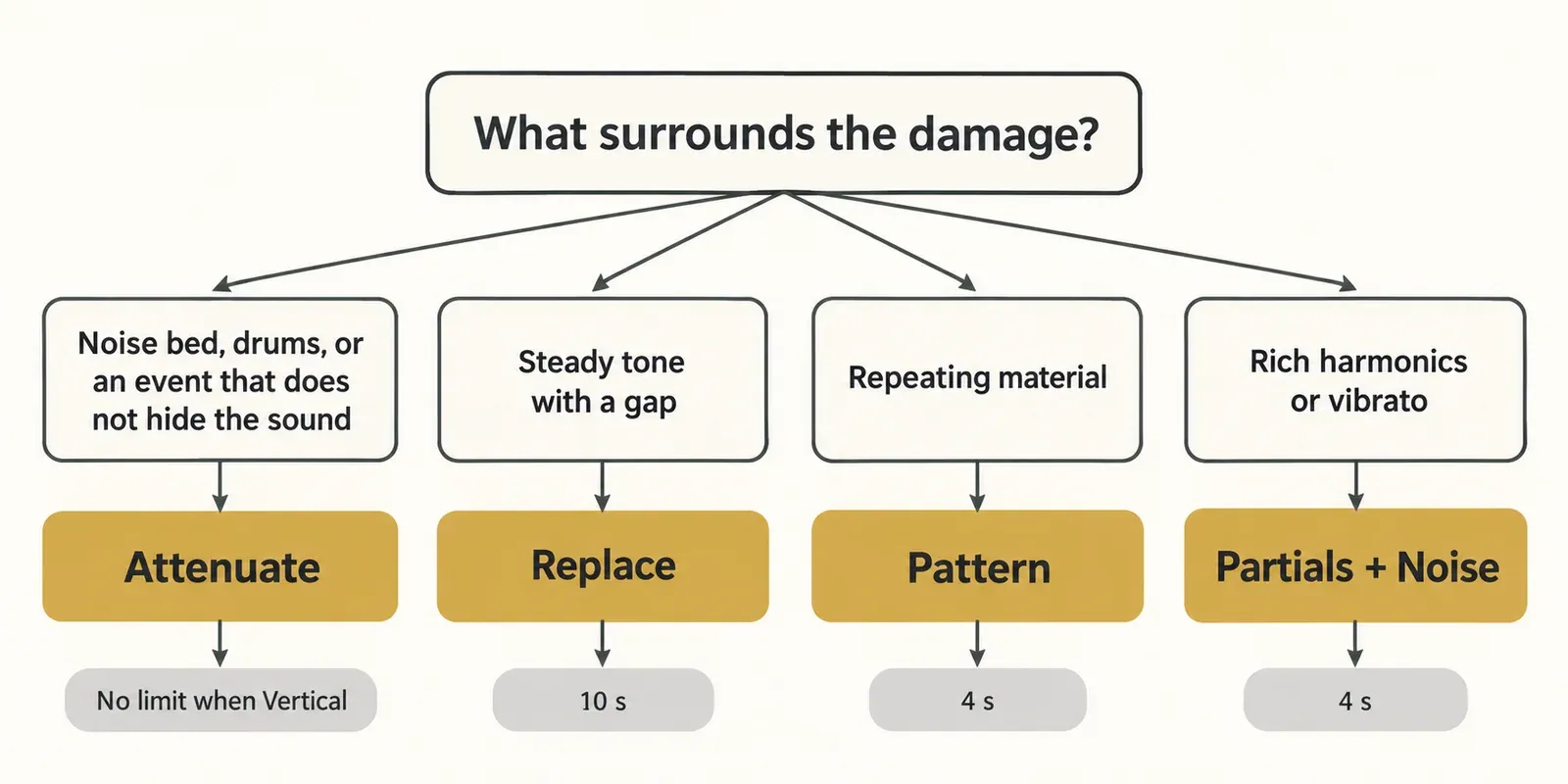
iZotope's own case studies match this logic. The dropout walkthrough picks Replace for steady audio with few harmonics, Pattern for repeating material such as vibrato, and Partials + Noise for harmonically intense music. The intermittent-noise walkthrough uses Attenuate to push a noise back, Replace or Partials + Noise to remove it, and treats Replace as the starting point, moving to Partials + Noise when the surroundings are heavily harmonic.
Both guides date from 2014, the RX 4 era, and the dropout guide files vibrato under Pattern, while the RX 12 manual credits Partials + Noise with following vibrato. On a sustained sung note, start with Partials + Noise and compare Pattern against it. On drums, a strummed loop or anything that literally repeats, Pattern goes first.
Settings that decide the result
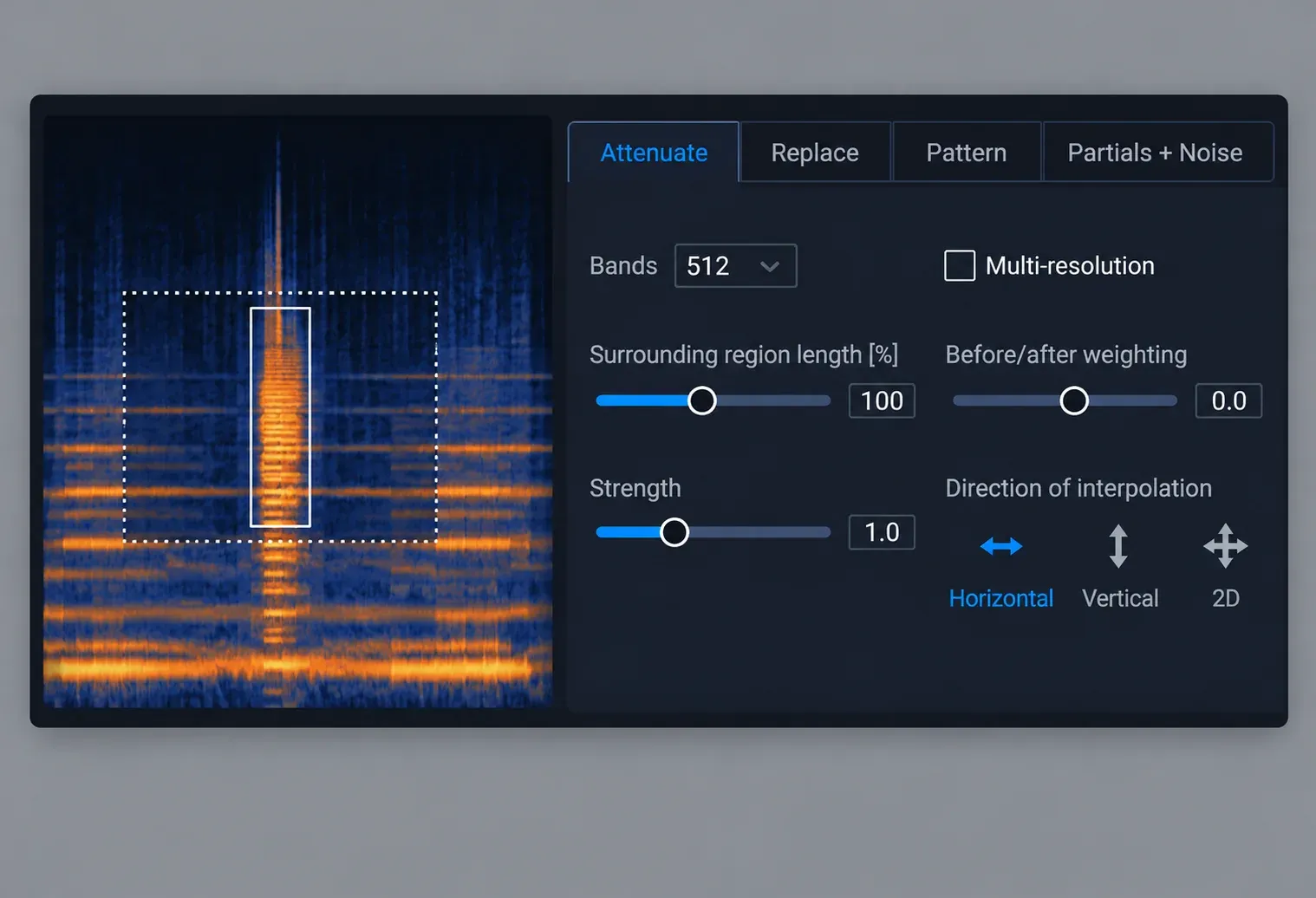
Bands and Surrounding region length change the result more than any other control, and both appear in every tab. Strength and Direction belong to Attenuate alone. The rest are specialists.
| Control | Tabs | What it changes | When to move it |
|---|---|---|---|
| Bands | All four | Frequency resolution of the repair; more Bands need a wider surrounding area | Fewer Bands for short selections and transients, more for long tonal repairs |
| Surrounding region length | All four | How much audio around the selection RX uses, shown by the dotted outline | Shorten it when the outline reaches into a different musical event |
| Before/after weighting | Attenuate, Replace, Partials + Noise | Whether RX leans on audio before or after the selection | Weight toward the audio before the selection when a drum hit follows the event |
| Multi-resolution | All four | Finer frequency resolution in the lows and finer time resolution in the highs | Try it when a repair spans both a low tone and high transients |
| Strength | Attenuate | How far the selection is pulled toward its surroundings | Keep it light on music so the instrument underneath does not thin out |
| Direction of interpolation | Attenuate | Vertical uses audio above and below, Horizontal left and right, 2D all four sides | Vertical for selections longer than 10 seconds; on shorter ones, compare all three |
| Pattern search range | Pattern | How far RX searches for a replacement; 5 seconds means ±5 seconds | Widen it when the repeat you need is further away |
| Harmonic sensitivity | Partials + Noise | How many harmonics RX detects and links | Lower it if the repair starts to warble |
The manual is blunt about Bands: "A higher number of bands doesn't necessarily mean higher quality!" It recommends the Compare Settings window for trying several band counts and modes on the same selection, and that is how I would set Bands: two or three candidates compared in that window, then keep the cleanest.
Replace, Pattern and Partials + Noise interpolate horizontally only, which is why the Direction option disappears when you leave the Attenuate tab. Replace also has no Strength control, and the manual lists neither Strength nor Before/after weighting for Pattern.
On Strength, the clearest published advice comes from zZounds' RX 7 Spectral Repair walkthrough. Its author turned Strength "all the way up to 4 to exaggerate the effect" on a snare repair and said that in a real session he would "probably use 1 or 2" so the snare would not thin out. That was RX 7's scale, but the lesson carries over: start low and raise Strength only while the instrument still sounds whole.
The manual's tip on Before/after weighting is the one that saves drum repairs. If the unwanted event sits just before a transient such as a drum hit, weight the repair toward the audio before the selection so the transient does not smear into it.
Selection length limits
Only Attenuate with Vertical interpolation handles a selection of unlimited length. Attenuate with Horizontal or 2D and Replace stop at 10 seconds, and Pattern and Partials + Noise stop at 4 seconds.
| Mode and direction | Longest selection |
|---|---|
| Attenuate, Vertical | Unlimited |
| Attenuate, Horizontal or 2D | 10 seconds |
| Replace | 10 seconds |
| Pattern | 4 seconds |
| Partials + Noise | 4 seconds |
A longer selection does not fail. According to the manual, processing automatically adjusts to a mode that can handle the length, which means the result may come from a different mode than the tab you chose. When an event runs past the limit, either switch to Attenuate Vertical on purpose or cut the selection into pieces and repair them one at a time.
Step by step: a clean Spectral Repair pass
This is the routine I recommend for any single event, from a cough in dialogue to a pop on a held chord.
- Keep an untreated copy of the audio before you start, as a muted track in your DAW or a duplicate file.
- Check that Instant Process [I] is off; with it on, every new selection is processed immediately.
- Drag the spectrogram/waveform transparency balance slider to the right, then set FFT size, color map range and frequency scale until the event stands out.
- Select the event with the tool that fits its shape, leaving a small margin around gaps and dropouts.
- Press Play Selection in the RX transport and listen to the selection. If you hear wanted sound in it, tighten the selection.
- Open Spectral Repair and choose the tab by what surrounds the event.
- Set Bands and Surrounding region length, then Strength and Direction for Attenuate, or Before/after weighting next to a transient.
- Open Compare Settings and audition two or three versions of the repair against each other.
- Click Render to apply the best version.
- Play the repair in context with a second or two of lead-in. If anything remains, undo and split the event into smaller selections or a second pass.
Boom Box Post co-owner Jeff Shiffman describes the same discipline from his daily dialogue work: Spectral Repair on pops, ticks and other unwanted noises, reached from Pro Tools through RX Connect, with "a copy of the original, untreated audio" always kept on an inactive dialogue track.
Repeated events: Find Similar and Instant Process
When the same kind of noise repeats through a recording, set the repair once and let RX find and apply it. Both helpers below are Standard and Advanced features.
Find Similar looks for events like the current selection, with Find Previous, Find Next and Find All buttons; lower Similarity values find more events. Instant Process [I] is a selection-tool modifier: once it is on, any new selection is processed immediately with the module chosen in the Instant Process menu, using that module's current settings. Its modes include Attenuate and Replace, which apply the active settings of the matching Spectral Repair tabs, as well as De-click, Fade and Gain. Hold Shift to build several selections, and RX processes them all when you release Shift.
iZotope's hidden repair features article recommends exactly this for a squeaking kick pedal: Instant Process with Spectral Repair's Attenuate instead of select-and-render on every hit. My order is fixed: dial in Attenuate on one example in the module, confirm it with Compare Settings, then switch on Instant Process and paint the rest.
Scale is the real cost. On a Steinberg forum thread about multichannel atmos, a feature-film sound editor said RX Advanced's Spectral Repair "works very well" on birds, but removing them from dozens of minutes of atmos took "a huge amount of time". Find Similar and Instant Process shorten that job; they do not make it automatic.
Spectral Repair inside a DAW: the RX Spectral Editor
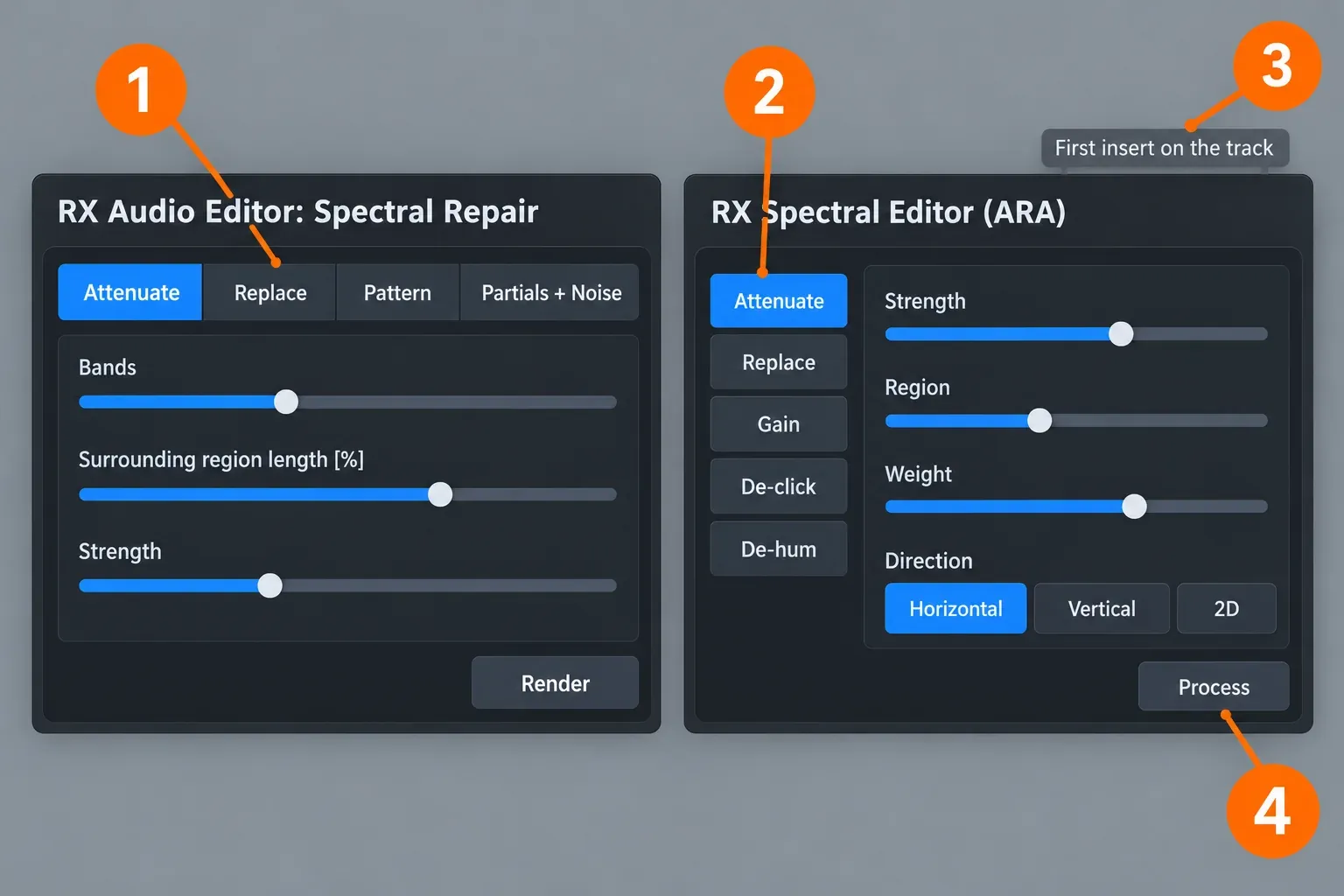
The RX Spectral Editor is the in-DAW alternative, and it is a reduced Spectral Repair. It runs as an ARA plug-in included with RX 12 Standard and Advanced, and its processing modes are Attenuate, Replace, Gain, De-click and De-hum, with no Pattern and no Partials + Noise.
| Feature | Spectral Repair (RX Audio Editor) | RX Spectral Editor (ARA) |
|---|---|---|
| Repair modes | Attenuate, Replace, Pattern, Partials + Noise | Attenuate, Replace, Gain, De-click, De-hum |
| Attenuate controls | Bands, Surrounding region length, Strength, Multi-resolution, Before/after weighting, Direction | Strength, Region, Weight, Direction |
| Over-length selections | Automatically adjusted to a mode that can handle them | Over 10 seconds, Attenuate Horizontal, Attenuate 2D and Replace default to Attenuate Vertical |
| Placement | Inside the standalone RX Audio Editor | First plug-in on an audio track; not on instrument tracks or buses |
| Auditioning and recall | Compare Settings for trying versions side by side | No host presets, no automation |
| Hosts | None needed; it runs in the standalone editor | Logic Pro, Pro Tools, Studio One |
Host support needs care because iZotope's pages disagree on detail. The RX 12 Spectral Editor manual page lists Logic Pro 10.7 or higher (Rosetta only), Pro Tools 2024.6 or higher and Studio One 6.0 or higher, while the RX 12 overview and product page list Logic Pro 10.7+ as AU in Rosetta and Studio One 7 and Studio Pro 8 as VST3. In Studio One the plug-in runs as a VST3 Event FX on individual audio events, and the AU version is not supported there on macOS. The RX 12 plug-in formats include AU ARA on the Mac and VST3 ARA, all 64-bit only.
Pro Tools users have the easiest path. Avid's RX Spectral Editor page says Pro Tools 2024.6 added it through ARA 2 and that it is available to all customers with active subscriptions and perpetual upgrade plans, downloaded through Avid Link or the Avid Account. In Pro Tools you open a clip with Clip menu > RX Spectral Editor > Edit, or add the editor to a whole track from the Elastic Audio/ARA selector or the Track menu. Right-clicking a clip and choosing RX Spectral Editor > Render commits the edits to a new audio file, and the same menu clears or bypasses the processing.
The limits are practical ones. Playback must run for the editor to gather audio data, and after editing you stop and start playback again to update it. Apple Loops, compressed, flex and reversed regions need a bounce in place first. The editor outputs silence for stereo files on mono tracks and for regions whose sample rate does not match the session, and it is not supported by Selection Based Processing. Cmd/Ctrl+1 to 5 switch between Attenuate, Replace, Gain, De-click and De-hum, and Cmd/Ctrl+Enter processes the selection. The editor's undo history is cleared when you save the session, so keep an untreated copy of anything important.
Production Expert's RX 11 review judged noise reduction inside the DAW more practical than round-tripping to RX and back, with Logic support limited to Rosetta as the downside. I agree for quick fixes: a cough or a mouth noise between lines is faster to fix in the timeline. Anything that needs Pattern, Partials + Noise or the full set of Bands and weighting controls goes to the Audio Editor. If you are on RX 11 and wondering whether to move up, my RX 12 vs RX 11 comparison covers what changed.
Using Spectral Repair with Sound Forge Pro
iZotope's Spectral Editor page documents setup only for Logic Pro, Pro Tools and Studio One, so for a Sound Forge Pro project the place to use Spectral Repair is the RX Audio Editor. My route is plain: save the file, open it in the RX Audio Editor, repair it there with the full four-mode module, and continue in Sound Forge with the repaired file. Keep the original next to it until the edit is approved.
Sound Forge's own spectrum tools are for diagnosis. As my guide to the Spectral Analysis tool in Sound Forge Pro explains, Spectrum Analysis is a viewer and will not let you paint out an event such as a bird chirp. For ordinary clicks inside Sound Forge itself, the walkthrough on removing clicks and pops in Sound Forge Pro is the shorter path. For the bigger picture of how the two programs split restoration work, read iZotope RX 12 vs Sound Forge.
When another RX module is the better tool
Spectral Repair is for isolated events. Several RX modules beat it on specific jobs, and picking the right one first saves time.
- Clicks. The Interpolate module repairs individual clicks below 4000 samples, and Instant Process in De-click mode uses Interpolate for selections that short. The Spectral Repair page itself says that with a time selection it gives higher-quality results than De-click on corrupted segments longer than 10 ms. My split follows that: short clicks go to Interpolate or De-click, corrupted segments longer than 10 ms go to Spectral Repair with a time selection.
- Steady noise. Hiss, air conditioning or hum under the whole recording is a job for the noise reduction modules; my guide to removing background noise with iZotope RX covers them.
- Speech under noise or reverb. When the problem is the whole background rather than one event, RX Dialogue Isolate separates the voice from noise and room sound.
- Mouth noise. Lip smacks and clicks across a voiceover are a pattern, not a single event; the guide to removing mouth clicks without damaging speech covers that workflow.
- Missing bandwidth. Spectral Recovery, an RX 12 Advanced module, adds missing frequencies to bandwidth-limited speech such as VoIP recordings. That is a bandwidth problem, not a single event, so it is not a Spectral Repair job.
Outside RX, SpectraLayers is the obvious rival for painted repairs, and users disagree. One Steinberg forum user on macOS 15.6.1 finds RX's Spectral Repair "quicker and more precise" and round-trips audio to RX with RX Connect, while another calls SpectraLayers "clearly superior" for manual spectral repair. For the full field of options, see the best iZotope RX alternatives.
Test results: what published repairs show
The composite result from 11 published sources that describe concrete Spectral Repair jobs is consistent: mode choice decides the result, hard repairs take more than one pass, and the module works very well on isolated events but slows down across long material. The sources are two independent walkthroughs, four Steinberg forum threads, one editorial review and four iZotope case studies. None of them publishes a numeric quality score or a processing time under comparable conditions, so the composite is a count of repeated findings rather than a median.
| Finding | Sources | Where it shows up |
|---|---|---|
| The right mode depends on the surrounding material | 4 of 11 | zZounds' sax-over-drums comparison; iZotope's dropout, intermittent-noise and distorted-vocal cases |
| The module works well on isolated events | 4 of 11 | Steinberg forum reports on a pop in a held chord, birds in film atmos and RX as an external editor; Boom Box Post's daily dialogue work |
| Hard repairs need two or more passes | 3 of 11 | iZotope's opera dropout, bicycle-bell and distorted-vocal cases |
| Round trip vs in-DAW repair is a trade-off | 3 of 11 | Boom Box Post and a Steinberg user round-trip through RX Connect; Production Expert prefers working in the DAW |
| Long material makes it time-consuming | 2 of 11 | The Steinberg film atmos report; iZotope's Instant Process advice |
| SpectraLayers comparisons are split | 2 of 11 | Two Steinberg forum users, one favoring SpectraLayers and one favoring RX |
| Attenuate Strength stays light on music | 1 of 11 | zZounds: Strength 1 or 2 rather than the maximum |
The mode finding is the strongest. In zZounds' walkthrough, Attenuate and Replace "seemed to be leaving a gap" when removing a saxophone note over drums, while Pattern "did an amazing job" of deleting the note and keeping the drums, after an adjustment of Surrounding region length. In iZotope's opera-and-orchestra dropout, Pattern repaired the gap but made the evolving chord change abruptly, and a second pass with Partials + Noise on the harmonic area fixed it. The bicycle-bell example in the intermittent-noise case took two passes as well: the ring first, the mechanical attack second.
The most recent case, iZotope's distorted-track repair for RX 12, makes the same point from another angle. De-clip could not fix a burr on the word "stop", so Replace went on the low overtones and then again on the high-mid fizz. That is the multi-pass habit in its plainest form: one spectral component per pass.
The user reports are short and positive about isolated events. A Steinberg forum user with RX Advanced described using it to fill the space left by a pop in a sustained chord and wrote "It works great!", and the film editor quoted above called the module one that "works very well" while warning how long it took across long atmos files.
On RX 12 as a whole, MusicTech's review concluded that "RX is very much back to the top of its game", and my iZotope RX 12 review weighs the full release. Judged as a module, Spectral Repair is the most reliable way in RX to remove a single event, provided you choose the mode by the surroundings, keep Strength light and accept a second pass on hard material.
Fixing a repair that sounds wrong
Most failed repairs come from one of a handful of causes, and each has a direct fix.
| Symptom | Likely cause | Fix |
|---|---|---|
| A drum hit sounds smeared after the repair | The event sits just before a transient | Weight Before/after toward the audio before the selection |
| A gap or hole remains in music over drums | Attenuate or Replace cannot rebuild repeating material | Try Pattern and adjust Surrounding region length |
| A chord changes abruptly after Pattern | The borrowed material does not follow the chord as it evolves | Run a second pass with Partials + Noise on the harmonic area |
| The repaired note warbles | Harmonic sensitivity is high enough to add unnatural pitch modulation | Lower Harmonic sensitivity in Partials + Noise |
| A short click repair sounds blurred | Too many Bands for a short selection | Reduce Bands; fewer Bands suit transients |
| The instrument sounds thin after Attenuate | Strength is set too high | Lower Strength and compare again |
| The result does not sound like the chosen mode | The selection exceeds that mode's length limit | Split the selection or use Attenuate Vertical |
| The Spectral Editor plays silence | Stereo file on a mono track, or a sample-rate mismatch | Move the clip to a stereo track or match the session sample rate |
| Spectral Editor undo is gone after reopening | Undo history clears when the session is saved | Keep an untreated copy of the clip on an inactive track |
My verdict: which RX edition you need for Spectral Repair
RX 12 Standard is the edition I would buy for Spectral Repair. It has the full four-mode module in the Audio Editor, Find Similar, Instant Process and the Spectral Editor ARA plug-in. Elements cannot do this work at all. iZotope lists the module for Standard and Advanced alike, so buy Advanced for its other modules, such as Spectral Recovery, not for Spectral Repair.
On the US iZotope store on October 20 and 21, 2026, the audio repair collection listed RX 12 Elements at $99, RX 12 Standard at $399 and RX 12 Advanced at $1,399, with RX Post Production Suite 9 at $1,799. MusicTech's RX 12 review lists $129 to update from RX 11 Standard and $269 from RX 11 Advanced. Trial terms and license options are in my RX price, trial and license guide, and the iZotope hub covers the rest of the range.