
To record audio in Sound Forge Pro 2026, verify Windows microphone access, select the correct driver, route the hardware input, create a file with the required format, open View → Record Options, arm the input and check the meters before pressing Record. If the recorded file is silent, check permissions, the selected device and input routing before replacing the microphone.
Sound Forge is strongest for recording into one mono, stereo or multichannel audio file. It isn’t a multitrack DAW: several inputs can become channels in one data window, but you don’t get independent timeline tracks for arranging a band or podcast cast.
Use a ten-second test: stop, play it back from Sound Forge and save it before committing a performance or an entire record side. Check the resulting file’s format as well as listening: a wrong input, missing channel or clipped peak is easier to fix before the full take. For editing after capture, the Core Editing guides cover trimming, processing and export.
1. Allow microphone access in Windows 11
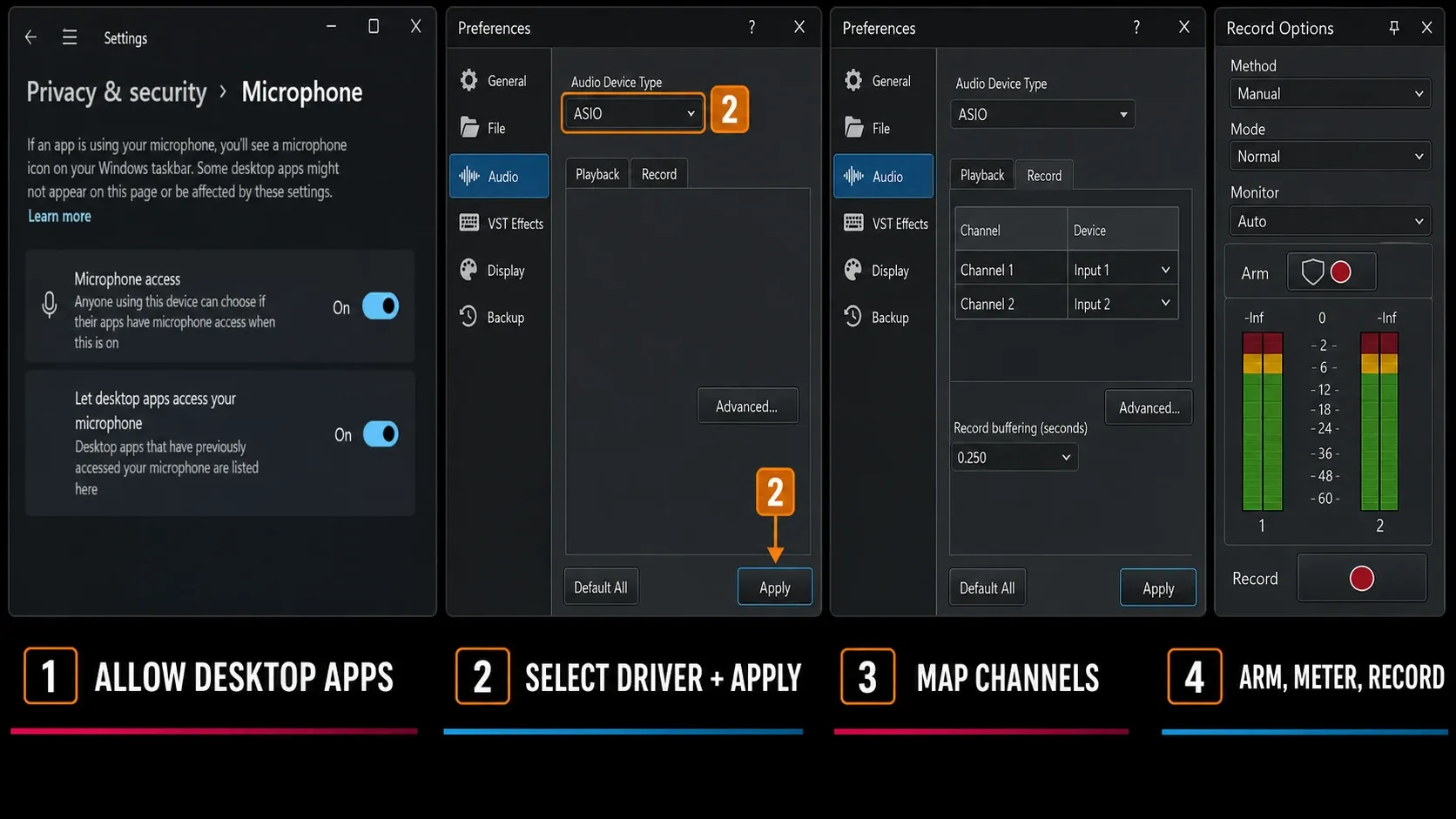
Open Start → Settings → Privacy & security → Microphone. Confirm Microphone access and Let desktop apps access your microphone are enabled. Sound Forge is a desktop application, so it may not appear as an individual Microsoft Store-style toggle.
Microsoft’s current privacy guidance documents that Windows 11 path and the separate desktop-app control. If access is already enabled, continue to the driver and input checks.
2. Select the driver in Audio Preferences
Go to Options → Preferences → Audio. The current Sound Forge help lists three Audio Device Type choices:
- ASIO: choose the manufacturer’s driver for a supported audio interface and low-latency routing.
- Windows Classic Wave Driver: choose a specific Windows audio device through the classic driver path.
- Microsoft Sound Mapper: let Windows choose the default playback and recording devices.
For a dedicated interface, start with the manufacturer’s current ASIO driver when there is one. A simple USB microphone or built-in input may do fine with Classic Wave or Sound Mapper. “ASIO” isn’t a quality preset. A wrong or unstable driver is worse than a working Windows path.
Click Apply after changing the device type, then Advanced. With ASIO selected, Configure opens the interface maker’s control panel. The Audio Preferences help and Advanced Audio Configuration help document those current controls.
There’s no universal 64- or 128-sample buffer worth copying. Lower settings can reduce software-monitoring delay but raise the risk of glitches. Larger buffers can help with gaps, though they won’t fix every recording fault. If gaps appear in the recording, raise the interface or Sound Forge record buffer and test again. The safe value depends on driver, sample rate, channel count and the computer.
3. Route the input to the data-window channels
Still in Options → Preferences → Audio, open the Record tab. In the Channel and Device table, assign each data-window channel to the intended hardware input. You can also change a channel’s input by clicking its channel number in the Record Options window. Enable the inputs you need where the driver exposes an Enable control, then save the routing with Apply or OK. The exact controls can vary with the selected driver.
The data window limits what gets recorded. A stereo window records two routed inputs, and you need a six-channel window to record six enabled inputs. The current multichannel recording help explains this mapping and says explicitly that Sound Forge isn’t a multitrack editor.
For one microphone, create a mono file unless the device intentionally delivers stereo. A mono mic copied to left and right isn’t a stereo recording. It’s just the same signal twice.
4. Create the recording file
Choose File → New and set sample rate, bit depth, channel count and channel layout for the job. Follow the delivery or preservation specification, and don’t just pick the largest number in each list. When the interface and workflow support it, 24-bit capture provides more digital resolution and dynamic range than 16-bit, so conservative recording levels remain practical. It doesn’t add analog input headroom, and it won’t stop the microphone, preamp or converter from clipping. Set hardware gain below overload and keep the interface and Sound Forge sample rates aligned.
If Mode → Create new windows is selected in Record Options, Arm and Record remain available even when no data window is open, and each restart or resume creates a new data window. In Normal or Create regions mode, create or open a data window first. File → New is still the safer choice when sample rate, bit depth, or channel layout matters.
5. Open Record Options and choose the current method
Choose View → Record Options. Legacy tutorials can blur Method and Mode together or show labels that the 2026 help doesn’t include. In the current release, Method controls how recording starts. Mode controls what Sound Forge does after you stop or pause and restart.
Method controls how recording starts:
- Manual: general recording, voice-over and recording into a selection.
- Automatic: Threshold: starts when the input crosses a set level and stops after it remains below the stop condition.
- Automatic: MIDI Timecode: follows specified incoming MIDI timecode.
- Automatic: Time: starts at a chosen date/time and runs for the specified duration.
Mode controls what happens when you stop or pause and restart:
- Normal: continue the ordinary recording workflow.
- Create regions: create a new region each time recording restarts or resumes.
- Create new windows: create a new data window for each restart or resume.
The current Record Options documentation defines those methods and modes. For the first test, stick with Manual + Normal. Threshold logic can wait until the basic input works.
6. Arm, meter and monitor
With headphone volume low, click Arm to open the recording device and load its buffers. Arm is optional, but makes it easier to check the input before the take. Perform the loudest passage you expect to record, without deliberately overloading the microphone or preamp. Check that:
- the correct channel meters move;
- peaks remain below clipping;
- left/right routing is intentional;
- headphone monitoring has no feedback or obvious delay;
- the interface and Sound Forge agree on sample rate.
Set analog gain on the microphone preamp or interface. Turning up a clipped recording later won’t restore the peaks lost at the converter. Sound Forge’s Recording Setup help recommends a strong signal with no clipping and leaves hardware gain details to the device maker.
To hear the input through Sound Forge, set Monitor to On. Auto monitors only during pre/post-roll and recording. To hear plug-in effects too, select Monitor input through Plug-In Chain. Those effects aren’t written into the recording. Hardware processing upstream of Sound Forge is a separate matter.
If your interface’s direct monitor is already enabled, set Sound Forge’s Monitor to Off for that test. Otherwise you may hear the input twice, with a delayed copy from the software. Focusrite explains this double-monitoring echo. Use headphones at a comfortable level, and stop if speaker feedback begins.
7. Record, stop and verify the file
Press Record or Ctrl+R. Stop with Record or Stop. Pause suspends capture and keeps the device armed. With Loop Playback off, recording stops at the end of the selected time range. With Loop Playback on, it repeats the range for more takes, so turn looping off for a single pass.
Immediately play back the test from Sound Forge. Don’t rely on direct monitoring. It proves the microphone reached the interface, not that the correct file was captured. Listen for dropouts, distortion, a missing channel and the wrong source. Check possible DC offset with the waveform and Statistics’ Average value, since listening alone doesn’t establish it.
Save the raw take before editing. For a new audio file, use File → Save As, choose a new filename and an uncompressed WAV format, and check that the template matches the recording’s sample rate, bit depth and channels. If you’re working in a Sound Forge project, use File → Render As to create a playable audio file. Saving the project alone is different. Boris FX documents the distinction in Save As and Render As. Reopen the saved file and check its start, end, duration and channel content. For voice work, edit mistakes before noise reduction, EQ, dynamics and loudness. For a vinyl side, preserve the untouched high-resolution transfer before restoration. The voice-over workflow and vinyl restoration workflow cover those different next steps.
Prerecord buffer, pre-roll and punch-in
With Method set to Manual, click Settings in Record Options. The current Creating a New Recording help explains that a prerecord buffer writes audio continuously after you arm. When recording starts, the buffered data is committed to disk but may stay hidden beyond the recorded event edge. Use the Event Tool to slip or trim the left edge and expose it.
Choose a buffer long enough to cover the opening you might miss, then verify that you can reveal the hidden lead-in with the Event Tool. Enable the Prerecord buffer checkbox in Settings and enter the duration you need. Without that option enabled, arming alone doesn’t preserve an earlier opening.
Work on a saved copy before punch-in recording, because recording into an existing file replaces audio at the cursor or selection. Select the part of that copy to replace, use Manual recording with Normal or Create regions mode, turn Loop Playback off for one take, and configure pre-roll/post-roll if you need context. The current Recording into an Existing Sound File help confirms that recording occurs underneath that roll and that the Event Tool can reveal material beyond the visible edge. It’s a cursor- or selection-based workflow, not a separate current “Punch-In” Mode.
No input signal: check in this order
- Windows: microphone access and desktop-app access are enabled.
- Hardware: the mic/source reaches the correct interface input, phantom power is used only when required, and the hardware meter moves.
- Driver: the intended ASIO, Classic Wave or Sound Mapper path is selected.
- Routing: the input is enabled and assigned on Preferences → Audio → Record.
- File: the data window has the required channel count.
- Format: interface and application sample rates agree.
- Arm: the Record Options meters move before Record is pressed.
For computer or system audio, Sound Forge can record only an input exposed by the selected driver. Don’t assume every PC has “Stereo Mix.” Use a loopback input only when the installed interface or driver provides one, select that actual input in Sound Forge and follow the driver maker’s routing instructions. Keep Sound Forge’s input monitoring off while testing loopback so its output isn’t fed back into the same capture path. For a supported Scarlett, follow the model-specific Focusrite Control 2 loopback instructions. Input numbers aren’t universal. If the meters still stay flat after this checklist, use the dedicated Sound Forge no-input and ASIO troubleshooting sequence instead of changing several settings at once.
Frequently Asked Questions
How do I start recording in Sound Forge Pro 2026?
Create a file with File → New, route the input under Options → Preferences → Audio → Record, open View → Record Options, choose Manual + Normal, click Arm, verify the meters, then press Record or Ctrl+R.
Which audio driver should I use in Sound Forge Pro?
Use the manufacturer’s ASIO driver for a supported audio interface when you need low-latency routing. Windows Classic Wave or Microsoft Sound Mapper can work for simpler devices. Choose the stable path that exposes the correct input and passes a clean test recording.
Why does Sound Forge show no microphone signal?
Check Windows microphone and desktop-app permissions, hardware input and gain, Audio Device Type, Preferences → Audio → Record routing, the data window’s channel count, sample-rate agreement and the armed Record Options meters.
What are the current recording modes in Sound Forge Pro 2026?
The Mode choices are Normal, Create regions and Create new windows. Method is separate: Manual, Automatic: Threshold, Automatic: MIDI Timecode and Automatic: Time. “Automatic retake” and “Multiple takes” are not the current Mode labels.
Does monitoring through the Plug-In Chain record the effects?
No. Current Sound Forge help states that Monitor input through Plug-In Chain affects monitoring only; the chain is not applied to the recorded data. This lets you hear a comfort chain while preserving a dry take.
Can Sound Forge Pro record several inputs at once?
Yes, when the audio device exposes multiple inputs and they are enabled and mapped to a data window with enough channels. The result is a multichannel audio file, not a multitrack timeline session.
What does the prerecord buffer do?
With Prerecord buffer enabled in the Manual recording Settings, Arm starts buffering the specified duration. Starting Record commits that audio to disk. After recording, use the Event Tool to slip or trim the event’s left edge to reveal the buffered opening.
After the take passes playback, continue with the appropriate workflow: cut and trim the recording, choose peak, RMS, or loudness normalization only when delivery requires it, then export and verify the final MP3 while keeping the lossless master.