
If Sound Forge will not record audio, check the source, the selected input and the new take separately. Use the Windows input test for a Windows audio route, or the interface’s physical-input meters for ASIO. Then check the input meters in Sound Forge’s Record Options window. Finally, record into a new, empty data window and inspect the saved take. Hearing a microphone through direct monitoring doesn't prove Sound Forge received it.
Save any open work before you start troubleshooting. Keep headphone and speaker levels low, and begin with input monitoring off to avoid feedback. Don't record over a file you need to keep: Sound Forge can overwrite existing audio at the cursor or within a selection, and Normal mode won't protect you from that.
This guide diagnoses a missing input, flat meters, a silent take, interruptions and system-audio capture. For first-time setup, use the Sound Forge recording walkthrough. If known-good files also play silently, follow the playback and ASIO output checks. The Troubleshooting hub separates input failures from startup and plug-in problems.
Start with the symptom, not a reinstall
| What you observe | Check next | What it does not prove |
|---|---|---|
| No input appears in Sound Forge | Connection, driver, selected Audio Device Type and exposed inputs | That Sound Forge itself needs reinstalling |
| Device appears; record meters stay flat | Arm state, source, gain, mute and Channel-to-Device mapping | That a larger buffer will restore the signal |
| Meters respond; the take is silent | Selected file channels, record status, new waveform and playback route | That you recorded the intended source |
| Arm or Record is unavailable | Create a data window; check the selected Mode | That the microphone is broken |
| Recording waits or stops early | Automatic method, time selection, Pause and disk-space status | That the driver disconnected |
| The take contains clicks or gaps | Source noise, clipping, active buffer, format and sustained workload | That all clicks have the same cause |
| You need browser or system audio | A driver-provided loopback input, or separate supported capture software | That a speaker output is an ordinary recording input |
Use one known source, such as a spoken count into one microphone. Change one setting at a time and note the result. A short take of about five seconds is just a practical diagnostic suggestion; it says nothing about stability. Once it works, record for as long as the take that failed before.
Keep the routes apart. An interface may offer inputs to ASIO that Windows apps never see; Focusrite documents separate channel exposure for non-ASIO Windows apps, for example. So a flat Windows meter doesn't rule out an ASIO input on its own. By the same logic, a moving hardware meter only confirms the signal reached that point in the route.
Fix 1: confirm the source and microphone access
In Windows 11, open Settings > Privacy & security > Microphone. Follow Microsoft’s microphone permission sequence: turn on Microphone access, Let apps access your microphone and Let desktop apps access your microphone as recording needs. Sound Forge is a desktop application, so there's no Store-style individual switch to look for. These are Windows access controls and don't test every native ASIO driver.
For a Windows input, open Settings > System > Sound, select the intended device under Input, and open its properties. Microsoft’s current microphone test instructions use Start test, Stop test and Play. Listen at low volume. For native ASIO, check the interface’s physical-input meter or the corresponding meter in its manufacturer mixer instead.
If the source is missing, check power, the connection and the manufacturer’s driver requirements for that exact device. If it's present but quiet, look at mute, gain, the cable and the selected input type, and use microphone, line or instrument settings to suit the connected source and the interface manual. Don't plug and unplug equipment with the monitoring turned up.
Switch on phantom power only when the microphone needs it and the connected equipment supports it. Follow the microphone and interface manuals, including their connection order. Shure’s phantom-power guidance explains why phantom power won't fix every flat meter. Once the right input meter responds, leave the source connected.
Fix 2: select and apply the intended driver
Open Options > Preferences > Audio. The current Sound Forge 2026 Audio Preferences documents three Audio Device Type choices:
- Microsoft Sound Mapper lets Sound Mapper choose playback and recording devices.
- Windows Classic Wave Driver lets you select a specific classic Wave device.
- ASIO uses a specific low-latency ASIO device.
Start with the interface manufacturer’s supported ASIO driver when you need that interface’s inputs. A basic USB microphone may work through a Windows path without an ASIO wrapper. Select the intended device type and click Apply before inspecting its advanced configuration. Confirm the recording input, not just the similarly named playback output.
If the expected ASIO device is missing, save your work and close Sound Forge before you look at the official manufacturer package. Confirm the exact model and its Windows support, keep a known-good installer or rollback route, and follow the vendor’s installation instructions. The installation and first-run guide covers the wider setup. Don't install several generic driver wrappers at once, or you won't be able to tell which change helped.
Fix 3: map the input to the file channel
Under Options > Preferences > Audio, open the Record tab. In the Channel and Device columns, click a Device entry and choose the intended input. The same official help also documents changing an input by clicking its channel number in Record Options.
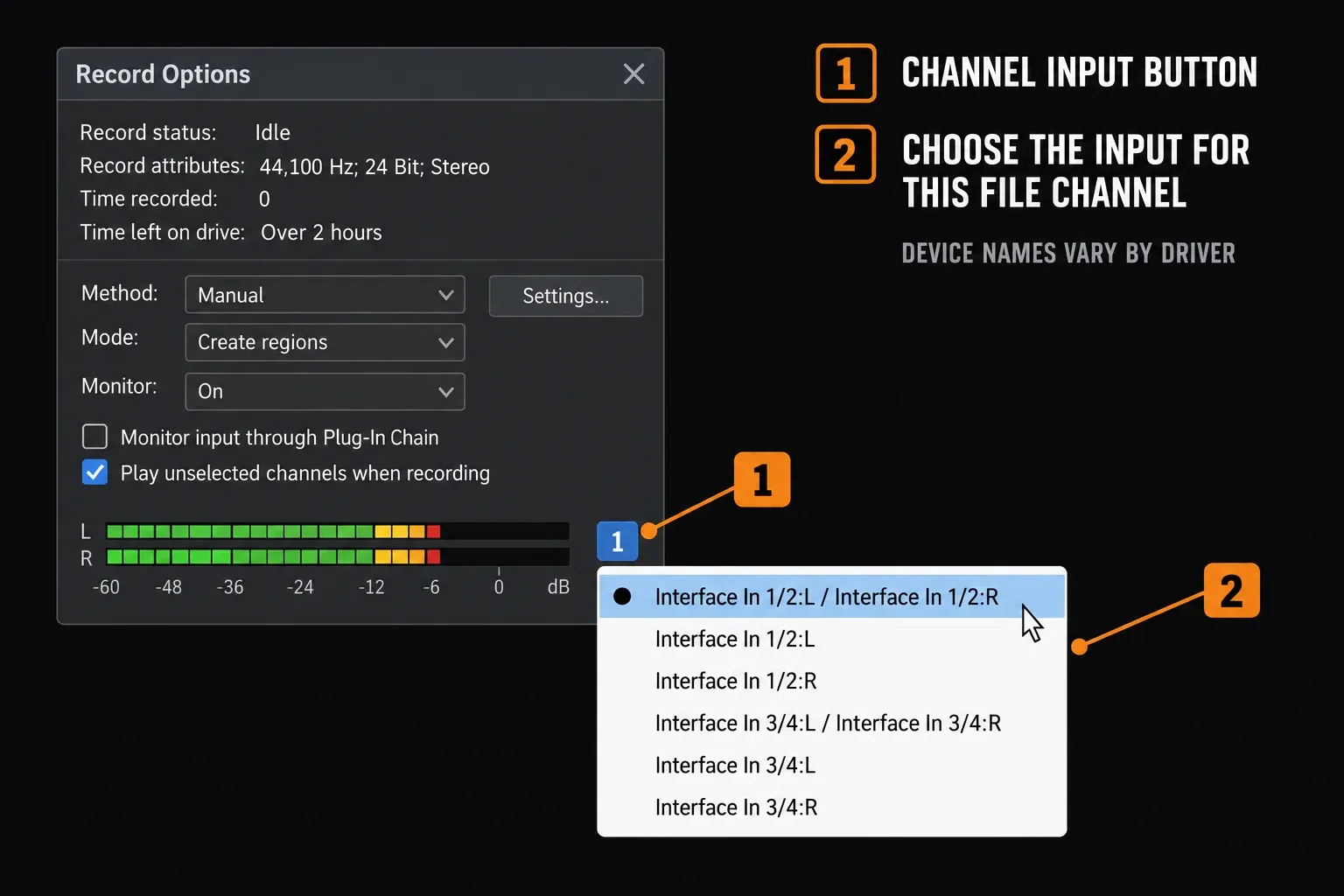
For one microphone, use File > New to create an empty mono data window and map its single channel to that microphone’s input. For a stereo source, create two file channels and map left and right on purpose. Recording the same mono source twice won't give you stereo information.
The new-recording documentation confirms that the data window caps the number of recorded channels, so a stereo window can't capture six separate inputs. Check which file channels are selected as well as their input assignments. Driver labels won't always match the names printed on the sockets, so compare them with the interface manual.
If the interface has direct monitoring, the microphone you hear in your headphones may be skipping Sound Forge entirely. Look for a record meter that responds to your spoken count; any old movement isn't enough, since noise, a loopback return or another input can also move a meter.
Fix 4: separate Arm, Record and automatic triggers
Choose View > Record Options. For this test, use the new empty data window, set Method to Manual and Mode to Normal. The Record Options reference says that Normal and Create regions require an open data window for Arm and Record to be available. Creating the empty window explicitly also avoids relying on last-used file settings.
Click Arm on the main toolbar to prepare the device and check the input meters. Arming is optional preparation and doesn't start a take. Click Record, then Stop after the short test. Check the record status and elapsed time at the top of Record Options; the status area also shows the attributes and the time left on the drive.
If recording seems to wait, check Method: Automatic: Threshold, Automatic: MIDI Timecode and Automatic: Time wait for their respective conditions. If it stops at a repeatable boundary, check for a time selection before blaming the driver. Recording into a selection normally ends at its end; loop recording changes that behavior. Do not diagnose this using an original file you could overwrite.
Set Monitor to Off for the first routing test. The current options are Off, On and Auto, and Auto monitors during pre/post-roll and recording. Clear Monitor input through Plug-In Chain while troubleshooting. That chain only affects monitoring; the recorded data stays dry. So a wet headphone sound doesn't prove effects were recorded.
Inspect the new waveform at a useful zoom, save the test under a new name and reopen it. If the saved file contains the intended signal but plays silently, investigate the output route. A visible waveform alone could be noise or the wrong input, so compare it with the source and audition through a known-working output. If saving fails, preserve the open take, note the exact error and check the destination’s free space and write access before restarting anything. After capture works, the voice-over workflow covers a repeatable recording setup.
Fix 5: isolate device ownership and format conflicts
Save work in other audio applications before closing them. Close the app that last used the input, reopen Sound Forge and repeat the same test. Don't kill unrelated processes or disable security software. How a native ASIO driver handles sharing depends on the manufacturer, and “works in another app” doesn't show that the other app uses the same driver or input.
For a Windows endpoint, its Properties > Advanced page may offer Allow applications to take exclusive control of this device. Microsoft’s exclusive-mode documentation explains that an exclusive stream can block shared streams. Note the original setting before you try it disabled, and set it back if nothing changes. This checkbox won't make every native ASIO driver shareable.
If Sound Forge reports an unsupported format or can't open the device, compare the new file’s rate and channel count with the settings the interface supports. With ASIO selected and applied, Advanced > Configure opens the manufacturer’s applet, and its controls vary. Focusrite’s Windows instructions, for instance, put rate and buffer controls in Focusrite Device Settings and warn that other software can change them. Don't copy a rate, channel count or bit depth from another interface as if it applied everywhere.
Fix 6: distinguish source noise from delivery gaps
Clicks already in the source, a loose cable and clipped input aren't automatically buffer failures. If the route carries the intended signal but the recording drops chunks under load, look at buffering and workload next.
- Save work and clear Plug-In Chain input monitoring.
- For a Windows path, increase Record buffering (seconds) by a small step. Sound Forge documents this as a way to reduce interruptions caused by other tasks.
- For ASIO, use Advanced > Configure and change one available buffer step in the manufacturer applet, if it exposes that control.
- Pause nonessential sustained work, such as a render or cloud sync, without disabling security protection.
- Repeat the same source and settings, first briefly and then long enough to cover the usual failure interval.
The Advanced Audio Configuration reference separates the Windows controls from the ASIO manufacturer applet. No sample-buffer value is stable everywhere, and a clean short test says little about long-session reliability. If problems persist, note the driver, rate, channel count, buffer and exact error before comparing the machine with the Sound Forge system requirements.
Fix 7: choose a real system-audio capture route
Sound Forge’s documented audio-device choices don't include a generic WASAPI-loopback switch. It can record system audio when the selected driver offers a recordable input such as Stereo Mix or an interface loopback return. Microsoft’s WASAPI loopback documentation describes a separate capture mechanism, and not every application implements it.
For a Windows route, open the classic Sound control panel’s Recording tab, right-click its empty area and choose Show Disabled Devices. If Stereo Mix is there, enable it and choose that input in Sound Forge. This can't conjure up a Stereo Mix device the driver doesn't supply. For an interface, follow the exact model’s loopback routing instructions instead of guessing input numbers.
Prevent feedback before recording loopback. Keep Sound Forge’s Monitor off, and don't route its monitored capture back into the same loopback mix. Focusrite’s Scarlett 4th Gen loopback instructions explicitly warn about this feedback route. Supported models and routing differ, so those instructions won't transfer to every Scarlett or to another manufacturer’s interface.
If no suitable input exists, capture with software that explicitly supports Windows loopback, then open its supported lossless output, such as PCM WAV, in Sound Forge. Record only material you have permission to capture. Don't add some random virtual driver just because the speaker output isn't in the recording-input list.
The safe diagnostic order
- Save existing work, lower monitoring volume and create a new empty data window for the test.
- Check Windows microphone permissions and the source on the route you actually use; native ASIO inputs need not appear as Windows endpoints.
- Select and apply the intended Audio Device Type, then map each file channel to its recording input.
- Use Manual method and Normal mode with the empty window open; keep Monitor off, click Arm to inspect input, then Record to start the take.
- Stop, inspect the intended channels, save under a new name and reopen the test; separate capture problems from playback problems.
- If needed, isolate competing applications, unsupported formats or delivery gaps one variable at a time, retaining original settings for rollback.
If the application won't launch, use the startup-crash diagnostic instead. For unresolved recording errors, send support the exact Sound Forge version, Windows version, device model, driver, chosen route, format and error text, plus which meter responds. Don't send private recordings unless they're needed and you have permission.
Frequently Asked Questions
Why does Sound Forge show no recording device?
Check the connection, manufacturer driver and selected Audio Device Type. For a Windows route, verify microphone permissions and the exposed input. Native ASIO channels need not appear as Windows endpoints. Apply the intended device selection, then inspect Record-tab mapping.
Why are Arm and Record unavailable?
In Normal or Create regions mode, the current Record Options help requires an open data window. Create a new empty window with File > New, then use Manual method and Normal mode for the test. Do not use an original recording as the test destination.
Why do the input meters stay flat?
Confirm the device is armed and the source reaches the appropriate Windows or interface input meter. Then check gain, mute and the Channel-to-Device map. Direct monitoring in headphones does not establish that Sound Forge received the signal.
Why do the meters move but the file is silent?
A responding meter does not prove that the intended source and file channels were recorded. Check record status, selected channels and the new waveform. Save and reopen a separately named test, then audition through a working output. Visible data may be noise or the wrong input.
Should I use ASIO for recording?
Use the interface manufacturer’s supported ASIO driver when you need its inputs or low-latency monitoring. A basic USB microphone may work through Microsoft Sound Mapper or Windows Classic Wave Driver. Choose a route that actually exposes the required input.
Why does recording wait or stop early?
An automatic method can wait for a level, timecode or scheduled time. Recording into a time selection can stop at the selection’s end. Check Method, record status and the destination selection before changing drivers; use a new empty window for diagnosis.
How do I stop gaps and clicks while recording?
First distinguish source noise, clipping or cable trouble from delivery gaps. For interruptions under load, change the active Record or manufacturer ASIO buffer one step at a time, clear plug-in input monitoring and retest beyond the usual failure interval.
Can Sound Forge record browser audio?
Yes, if the chosen driver exposes a recordable system-audio input such as Stereo Mix or a supported interface loopback return. Keep monitoring out of that loop to prevent feedback. Without a suitable input, use separate software that supports loopback capture and open the resulting supported audio file in Sound Forge.
Documentation checked September 15, 2026. This guide is based on current Sound Forge 2026, Microsoft and manufacturer documentation, not a microphone-capture or Windows hardware test performed for this article. Earlier Sound Forge versions may use different recording controls.