
Sound Forge Pro 2026 is a strong voice-over editor when the job centers on one narration file: record, punch in a correction, clean the take, measure it, and export. It can also record multiple input channels, but it isn’t a multitrack DAW with separate timeline tracks and a mixer. That distinction matters more than any generic “professional” label. For a broader orientation, use the Sound Forge Pro 2026 guide. For other task-specific setups, open the workflows hub.
Quick answer: use File → New to create a mono file for one microphone, with the sample rate required by the job and 24-bit capture only if your device supplies it. Choose the interface and input under Options → Preferences → Audio, open View → Record Options, choose Manual, test the loudest line, and press Ctrl+R to record. Arm is optional for ordinary recording but starts the prerecord buffer when that feature is enabled. Edit a copy, save the processed result, and verify the delivery file.
Where Sound Forge Fits in a Voice-Over Workflow
For one narrator, Sound Forge keeps the work close to the file: the waveform, Record Options, regions, plug-in chain, Statistics, and export are available without building a DAW session. That's useful for commercials, e-learning, podcast inserts, auditions, and audiobook chapters.
Don’t confuse multichannel recording with multitrack production. The current multichannel recording help confirms that Sound Forge can capture several hardware inputs into a multichannel data window. It also states that Sound Forge isn’t a multitrack editor. Use a DAW when each speaker needs an independent timeline track, routing, automation, or later mix revisions.
For long-form narration, work chapter by chapter and keep an untouched source plus a processed copy. That avoids turning one large destructive edit history into a single point of failure and matches ACX's requirement for one chapter or section per delivery file.
Audio Device Setup: ASIO Driver and Input Configuration
Before recording anything, set up the audio device correctly in Sound Forge Pro. The driver choice affects latency during monitoring (the gap between speaking and hearing yourself in your headphones), and that matters for VO because performers need to monitor naturally without delay.
Go to Options → Preferences → Audio. Under Audio Device Type, choose the manufacturer’s ASIO driver when the interface provides one. The Audio preferences help describes ASIO as the low-latency option. Test monitoring with your actual driver, buffer and sample rate, because a driver label alone doesn’t establish the delay you’ll hear.
Set the buffer low enough for comfortable monitoring and raise it only if you hear gaps or glitches. Direct hardware monitoring, when the interface offers it, avoids a software round trip.
If no native ASIO driver exists, test the Windows driver first. A generic wrapper can help some devices, but it adds another configuration layer and doesn't guarantee lower latency or lower noise. Confirm the input in the Record tab, click Apply, Arm the device, and check for a moving meter before recording the take.
On the Audio preference page, open the Record tab and assign the interface input to the data-window channel. For one microphone, create a mono file unless the client explicitly requires stereo. A stereo file isn't automatically two identical channels. The result depends on routing, so verify the meter and a short test recording instead of assuming.
Recording Levels: Where to Set Your Gain
For unpredictable speech, peaks around −12 to −6 dBFS are a conservative editorial starting range, not a platform rule. Read the loudest line during setup and leave more margin if the performance becomes louder or more animated.
Capture margin helps accommodate an unexpectedly loud line, but no initial peak guarantees that later processing will stay below full scale. A simple 2 dB gain increase takes a −3 dBFS sample peak to −1 dBFS, not clipping. An EQ band boost affects peaks differently because it changes frequency balance and phase. Measure after EQ, compression and de-essing, and reduce output gain when needed.
Set the interface or microphone’s input gain before the analog-to-digital conversion where the device provides that control. It may be a physical knob or a manufacturer’s software control. Sound Forge’s meter shows the arriving digital signal. Turning down a recorded file can’t prevent an overloaded input stage. Inspect the test waveform and listen: analog distortion can remain even when the digital meter never reaches zero.
Record a loud and a quiet line before the real take. Listen for noise, room reflections, plosives, cable faults and clipping. A clean test file is more useful than chasing a fixed meter number. Lowering a clipped recording afterward doesn't reconstruct the missing peaks.
The Record Dialog: Key Settings for Voice-Over
Open View → Record Options. The current Sound Forge Pro 2026 Record Options help documents the voice-over path directly: Manual is the general-purpose and punch-in method, while Normal, Create regions, and Create new windows control what happens after a stop or restart.
Choose Manual for normal narration and punch-ins. Automatic: Threshold is for sound-triggered capture. Automatic: Time and MIDI Timecode serve scheduled or synchronized jobs. Manual gives the narrator deliberate control and is the method the current help names for voice-over.
For a punch-in, use enough pre-roll to hear the previous phrase and match pace and tone. Configure pre-roll, post-roll, and the prerecord buffer from the Record Options Settings control. The right duration depends on the sentence and performer; 2–5 seconds is a practical starting range rather than a requirement.
A prerecord buffer retains input after Arm, before you press Record. Enable it under Record Options → Settings and make a disposable test. After recording, choose the Event Tool and slip or trim the recorded event’s left edge to expose the retained buffer, which isn’t displayed automatically. Confirm the recovered lead-in before relying on it for a session.
Normal lets you stop or pause recording. Create regions marks a new region whenever recording restarts or resumes, but it doesn't create independent timeline tracks. Create new windows opens a separate window on restart and disables punch-in recording. If you enable Monitor Input through Plug-In Chain, those effects change monitoring, not the audio being recorded.
Use Remote Record to Keep the Script Visible
Sound Forge Pro 2026 still documents Remote Record. Open it with the Remote Record button on the Transport toolbar: it hides the main Sound Forge window and leaves the recording controls, peak meter, status, file selector, monitoring and a Set markers control visible. That's the cleanest built-in layout when the script needs most of the screen. View → Record Options remains the place to configure the method, mode and input behavior.
If Remote Record doesn't suit the session, use a second monitor, Windows Snap, or a narrow script window beside Sound Forge. Keep the input meter visible and test keyboard focus before the take. A shortcut sent to the PDF or browser instead of Sound Forge can lose a recording cue.
The goal is simple: the script stays readable while record status and peaks stay visible. Use the layout your hardware supports and save it as a Sound Forge workspace only after a short test take confirms focus, monitoring, and input routing.
Marking Mistakes While Recording: The M Key
During recording, use Set markers in Remote Record to flag a stumble, mispronunciation, cough or section that needs a retake without stopping the take. The standard Insert Marker shortcut is M, but keyboard focus can change what receives it, so confirm M in a disposable recording before relying on it during a session.
The workflow: record a full pass without stopping. At each stumble, misread or cough, click Set markers—or press M only after that shortcut passed the focus test. At the end of the session, confirm that every intended marker exists, open View → Regions List, move through the marked points and zoom in for each retake.
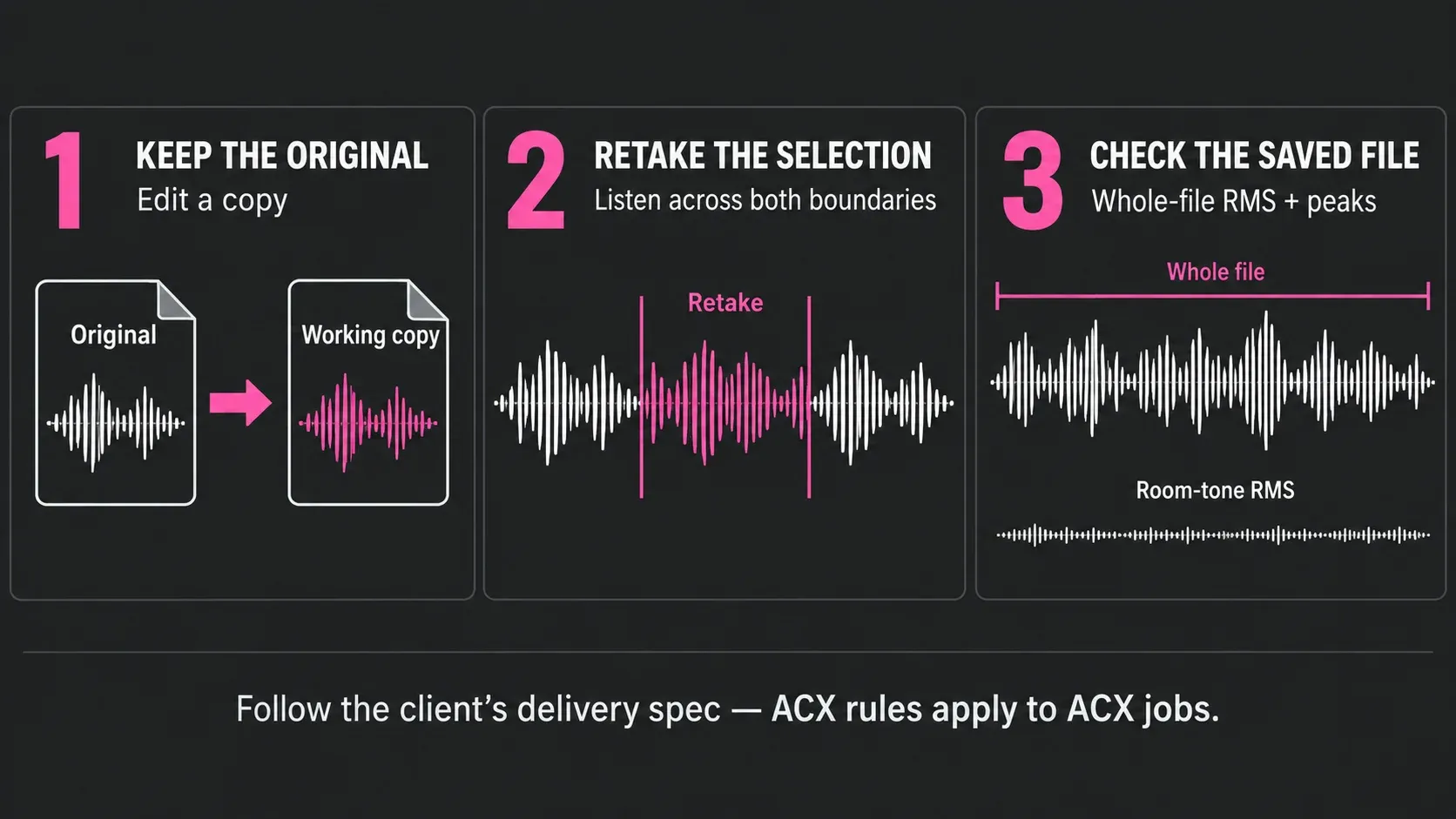
This keeps the performance moving and gives the editor a visible correction map. It doesn't remove the retake work: each marker still needs a precise edit, a matched replacement, and a listen across both boundaries.
After the test, choose one marking method and use it consistently. A short note alongside the script can identify why a marker needs attention, such as a pronunciation correction rather than a whole-sentence retake.
Punch-In Recording for Retakes
Punch-in records over a specific section of an existing recording without affecting the rest of the file. In SF Pro, place the cursor at the start of the section to replace, or select the region to overwrite.
Set Method to Manual and turn Loop Playback off for a single take. Select the exact range when the correction must stop at a defined point. The 2026 help states that recording stops automatically at the end of a selection. Without a selection, recording overwrites from the cursor until you stop. Keep the original file so every punch-in is recoverable after the session closes.
Match microphone distance, angle, gain, room, and performance before the punch. Listen across both edit boundaries before processing. Don’t use noise reduction to hide a mismatched retake by default. Re-recording under the same conditions is usually cleaner than forcing two different rooms to match.
EQ for Voice-Over: The Specific Moves
Start with the current Modern Equalizer as a VST effect when you want its analyzer and adjustable bands. Paragraphic EQ is another option through Process → EQ. Use the controls documented for the effect you choose. Before reaching for EQ at all, fix the recording and microphone position. From there, make the smallest change that improves intelligibility at a matched output level.
Use a high-pass filter only when there's unwanted low-frequency energy. Move the cutoff upward while previewing and stop before the voice loses body. There's no universal 80, 100, or 120 Hz setting, and microphone type alone doesn't determine the correct cutoff.
If the low end is already clean, leave it alone. A filter applied to every file by habit can thin voices, remove useful chest resonance, and make chapter-to-chapter consistency harder to maintain.
For boxiness or resonance, listen first, then use Spectrum Analysis and a temporary narrow sweep to confirm the frequency. Cut gently and choose a bandwidth that removes the resonance without thinning nearby wanted notes. A narrow ring doesn't always need a wider cut. A graph peak isn't automatically a defect, and 200–400 Hz isn't a preset for every room or voice.
A broad presence boost can improve intelligibility, but it can also exaggerate sibilance, mouth noise, and fatigue. Compare on headphones, small speakers, and the client's reference. Skip the boost when articulation is already clear.
An air shelf is optional. Use it only after de-essing and noise checks because it can lift hiss and mouth noise with the voice. Use the narrator’s recording to choose the curve. An example from another microphone or room isn’t a ready-made preset.
De-essing: Controlling Sibilance
Check the installed essentialFX plug-ins before buying a de-esser: the current Sound Forge feature list includes essentialFX, and that family has eFX DeEsser and VocalStrip. Availability still depends on the installation and license. A compatible VST2/VST3 de-esser is another option, and Dynamic Equalizer can compress a selected frequency band. For a few isolated syllables, reducing their local gain may be enough.
A static EQ cut reduces that band for the entire file, including non-sibilant words, so use it only for mild, consistent harshness. For changing sibilance, try a de-esser, gain automation or a compressing Dynamic EQ band. Enable Band Dynamics and set Frequency, Q and Threshold from the actual sibilant passages, and compare non-sibilant words as well. Level-match the comparison so a quieter result isn't mistaken for a better one.
The Dynamic Equalizer help documents Band Dynamics, Threshold, Ratio and Attack/Release. Its older Suite-only note conflicts with the current shared feature list, so confirm the installed effect and entitlement before buying an extra plug-in.
Mouth De-click and de-essing solve different problems: one targets mouth transients, the other reduces sibilant energy. Old MAGIX bundles and current Boris FX packages aren't interchangeable, so confirm the plug-in license you own, then test it through the Plug-In Chainer before building a repeatable preset.
Set the detector and reduction controls on the actual narrator, audition the difference signal if offered, and listen for softened consonants. Controls differ: the MAGIX manual’s eFX DeEsser section describes adaptive detection rather than an adjustable threshold. A saved preset is only a starting point when microphone position or performance changes.
Editing Breaths and Room Tone
Breath sounds between sentences divide opinion in VO production. Some clients want all breaths removed. Others want natural breathing kept because breath removal makes recordings sound clinical. Know your client's preference before starting the editing pass.
Reduce only distracting breaths. Select conservatively so the next consonant and the phrase timing remain intact. Lowering gain often sounds more natural than deletion. When a replacement is necessary, use room tone from the same session rather than digital zero and cross-check both edit boundaries on headphones.
Capture room tone at the start of every session without moving the microphone or changing gain. Keep a clean section for edits. For ACX delivery, ACX recommends 1–5 seconds of room tone at the beginning and end of each file and requires the spacing not to exceed five seconds. Internal pauses still need natural timing rather than a fixed duration.
Don’t batch-delete breaths across an audiobook. The risk is clipped phrasing, digital silence, and inconsistent pacing. Keyboard shortcuts can speed up reviewed edits, but listen across every cut in context to catch gaps or clicks.
Save the Processed File and Check the Client’s Specification
Agree on sample rate, bit depth, mono or stereo, naming, and raw versus processed delivery before the session. Commercials, auditions and e-learning jobs don't automatically use audiobook specifications. Keep a lossless working master and export the format the client requests.
If you used View → Plug-In Chain, its real-time processing is committed when saving. Save a separate processed lossless copy and reopen it with the chain empty or bypassed. Do not apply the same effects twice. Select the whole file for Tools → Statistics to inspect RMS and sample peaks. Select representative room tone separately when you check background noise. Export and inspect the delivery file itself, especially after lossy encoding.
ACX and Audiobook Delivery Standards
For Audible/ACX delivery, master and inspect every finished file against the current ACX audio submission requirements. The official page was updated on April 15, 2026 and is the source of truth if a number changes after this guide is published.
ACX currently requires each file to measure between -23 and -18 dB RMS, keep peak values no higher than -3 dB, and keep the noise floor no higher than -60 dB RMS. Submit a 44.1 kHz MP3 at 192 kbps or higher CBR. Use the same mono or stereo format for every file, put one chapter or section in each file, keep each file at 120 minutes or less, and follow ACX’s recommended 1–5 seconds of opening and closing room tone. Its explicit spacing limit is five seconds. The one-second figure is a recommendation, not a separately stated hard minimum.
Measure representative room tone, not digital silence. If the noise floor fails, fix the room, microphone position, gain staging, or source recording before aggressive processing. Noise reduction has no guaranteed dB improvement and can create artifacts. Use the noise-reduction guide for a controlled pass, then remeasure the exported chapter.
Measure the saved, processed chapter across the whole file, and select room tone separately for its noise measurement. Adjust level, then check RMS and peaks again. ACX specifies peak level, not a substitute true-peak target. Listen after limiting or gain changes: compliant numbers alone don't establish clean narration.
Sound Forge Pro 2026 documents ACX Check and ACX Export in View → Instant Actions. Run ACX Check on the finished chapter, export with ACX Export, then inspect the MP3 itself and use ACX's own audio analysis tool before submission. A wizard result doesn't replace a full listen-through.
Frequently Asked Questions
Can Sound Forge Pro be used for professional voice-over recording?
Yes. Sound Forge Pro 2026 can record mono or multichannel audio, edit at sample level, run VST2/VST3 processing, and export delivery files. It is not a multitrack DAW: use a DAW when speakers need separate timeline tracks, routing, or later mix revisions.
What recording levels should I use for voice-over in Sound Forge Pro?
Use the interface or device control to set a strong signal that never reaches 0 dBFS. For unpredictable narration, peaks around -12 to -6 dBFS are a conservative editorial starting range, not a Sound Forge requirement. Record the loudest line before the take and leave more margin if the delivery is dynamic.
Where are the voice-over recording controls in Sound Forge Pro 2026?
Open View → Record Options. Choose Manual for general voice-over or punch-in work, choose Normal or Create regions as the recording mode, select monitoring, then use Arm and Record on the main toolbar. For a script-first layout, open the current Remote Record window from its Transport-toolbar button.
How do I do punch-in recording in Sound Forge Pro for voice-over?
Select the exact range to replace, set Method to Manual in View → Record Options, configure pre-roll in Settings, then Arm and record. With Loop Playback off, recording stops at the end of an active selection; without a selection it continues from the cursor and overwrites existing data until you stop. With Loop Playback on, the selected range repeats for additional takes.
What are the ACX audio standards for audiobooks in Sound Forge Pro?
ACX currently requires each file to measure between -23 and -18 dB RMS, keep peaks no higher than -3 dB, and have a noise floor no higher than -60 dB RMS. Submit 44.1 kHz MP3 at 192 kbps or higher CBR, one chapter or section per file, no longer than 120 minutes, with opening and closing room tone: ACX recommends 1–5 seconds and requires that the spacing not exceed five seconds. Sound Forge 2026 includes ACX Check and ACX Export in Instant Actions.
How do I remove breaths from voice-over in Sound Forge Pro?
Don’t remove every breath automatically. Reduce or replace only distracting breaths, keep consonants and phrase timing intact, and use matching room tone instead of digital zero when a cut exposes silence. Follow the client's style guide for commercials, e-learning, or audiobooks.
Does Sound Forge Pro have a de-esser for voice-over?
Check your installed essentialFX effects for eFX DeEsser or VocalStrip before buying another plug-in. The current Sound Forge feature list includes essentialFX, but confirm the actual installation and license. Dynamic Equalizer can reduce sibilant bands dynamically; a compatible VST de-esser or local gain editing is another option. Mouth De-click treats mouth transients, not sibilance.
For the next pass, use the recording setup guide if the meter never moves, the playback troubleshooting guide if the take records but cannot be heard, and the hiss and hum workflow only when the source actually needs repair.
Last fact-checked: September 12, 2026.