
To export an MP3 from Sound Forge Pro 2026, click the data window, choose File → Save As, select MP3 in Save as type, choose a template whose stated properties match the destination, and click Save. Open Custom to inspect the settings supported by the selected MP3 format. The current Boris FX Save As documentation makes those controls format-dependent, so do not assume every bitrate, sample-rate and channel combination is available.
If you are working in a Sound Forge Pro project rather than directly in a media file, choose File → Render As to create the delivered MP3. In a project, Save As saves the project under another name or location; Render As commits the edits to a media file. That is the current distinction in the Boris FX Save As/Render As workflow.
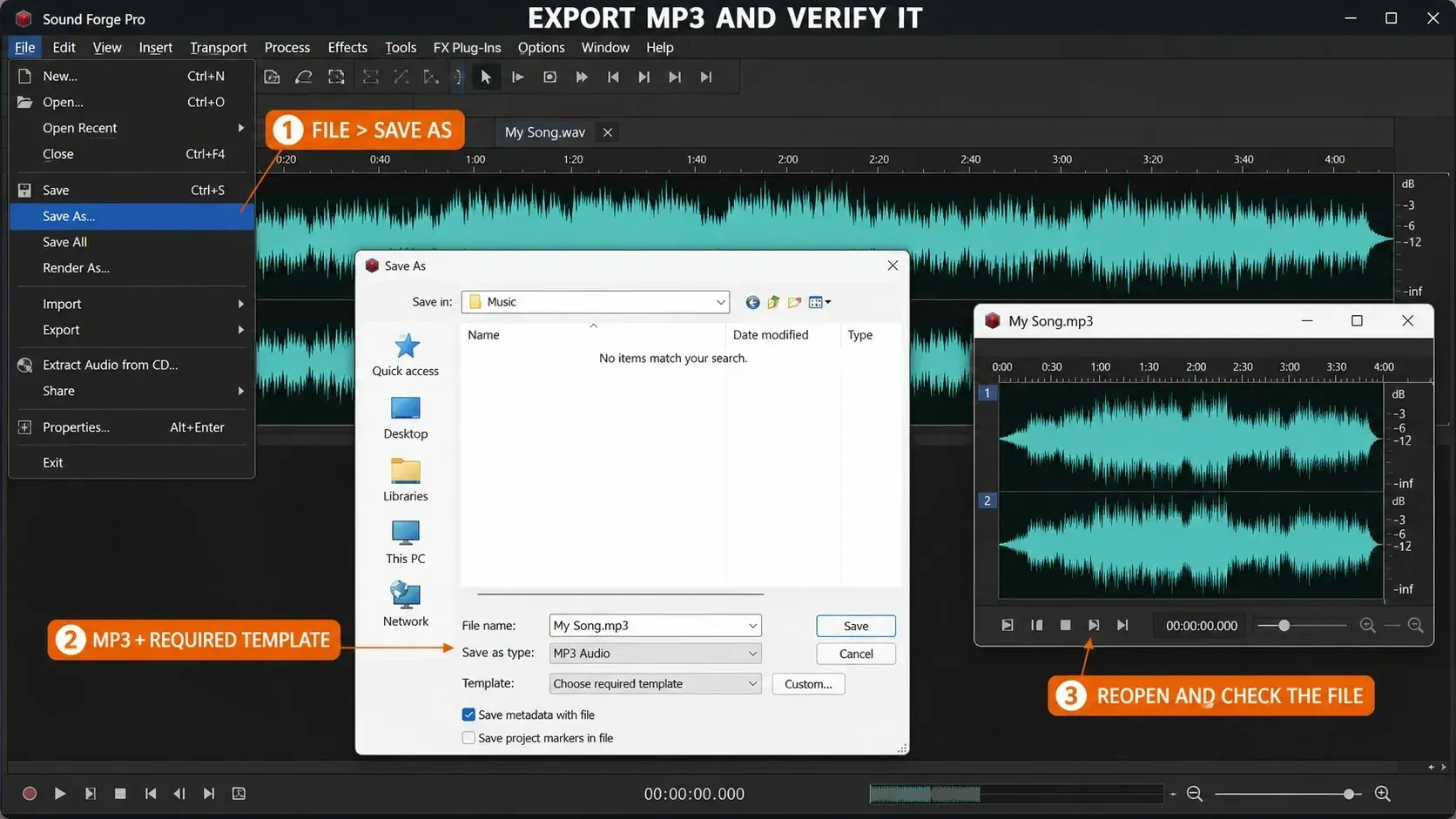
Export MP3 in seven steps
- Keep a lossless master. Finish the edit and retain a WAV or another accepted lossless master.
- Select the data window. Click inside the sound data window you intend to export.
- Open Save As or Render As. Choose File → Save As for sound data, or File → Render As for a Sound Forge Pro project.
- Choose MP3. Enter the output filename and select MP3 in Save as type.
- Choose or inspect the template. Select a template that matches the written delivery specification, or click Custom to inspect the format-specific properties available.
- Choose metadata handling. Enable Save metadata with file only when the required fields have been reviewed.
- Save, reopen and verify. Click Save, reopen the MP3, then check duration, channels, bitrate mode, sample rate, metadata and the audible beginning and end.
The current dialog uses a Template list and a Custom button. Older screenshots may call this area “Format Settings,” and encoder-specific controls can differ. The current Custom File Templates help tells you to use the Help button inside the selected format’s Custom Template dialog for its exact controls.
Which export command should you use?
| Command | Use it for | Main risk |
|---|---|---|
| File → Save | Writing the current sound data back to its existing file | A lossy source can be encoded again without creating a separate master |
| File → Save As | Creating a different filename and/or format | Overwriting the source if the destination name is not checked |
| File → Render As | Committing a Sound Forge Pro project to a media file | Using Save As and ending up with another project instead of a delivered MP3 |
| File → Export | Rendering selected open audio files with an export preset | Exporting unintended files or applying settings left in the preset |
Keep a lossless working master and create the delivery MP3 from it. Saving an existing MP3 is not a reliable way to select a new delivery bitrate; use an explicit export template and verify the saved file. Editing and re-encoding an MP3 adds another lossy generation.
Export open files with File → Export
For several files already open in the editor, File → Export provides an export-preset workflow. Choose or prepare a preset with MP3 under Export Formats → Renderer, select its Template, and use Edit if the format settings need changing. Set a separate output folder or filename suffix.
Before starting, inspect Normalization/Conversions, Metadata and Watermark. Leave unnecessary processing off and remove any unwanted watermark file. With metadata Overwrite enabled, an empty field can erase an existing value. This preset controls more than the MP3 encoder.
All open audio files are checked by default in Export Files. Uncheck everything you do not intend to deliver, then click Export. For files still in folders rather than open windows, use Batch Converter below. Its input list is a separate step.
Choose bitrate from the destination requirement
No single bitrate is correct for every delivery. Read the receiving platform’s current specification first, then choose a template whose displayed properties match it. Bitrate, sample rate and bit depth are different values, and changing one doesn't automatically satisfy the others.
- Music reference copy: a high-rate stereo MP3 can be convenient, but keep and deliver the lossless master whenever the recipient accepts it.
- Speech: keep genuinely mono speech mono if the receiver accepts it. At the same CBR and duration, mono does not halve the MP3 file size; size follows the total bitrate. Don’t collapse a stereo production just because it contains voice.
- Audiobooks for ACX: the current ACX submission requirements call for 44.1 kHz MP3, 192 kbps or higher CBR, and consistent mono or stereo across the title. These are ACX rules, not universal podcast settings.
- Music distribution: send a lossless file when the distributor accepts one. Encoding a WAV master to MP3 and then having the service encode that MP3 again adds a lossy generation.
CBR writes a constant target bitrate; VBR varies allocation according to the material and quality mode. Compatibility requirements decide between them. If a client or submission portal specifies CBR, choose a template that explicitly reports CBR. If it accepts VBR, verify the exported file rather than trusting a remembered default. A 2024 MAGIX community thread about Pro 16 confirms the Custom/preset route but also records encoder-specific limits. Treat that as a warning to inspect the current template, not as proof that the 2026 encoder has the same limitation.
Sample rate is also destination-led. Don’t convert a 48 kHz video source to 44.1 kHz merely because the output is MP3 unless the delivery specification asks for it. When conversion is required, the current Sound Forge Resample guide explains the 2026 phase and aliasing controls.
Create a repeatable custom template
In Save As or Render As, choose MP3 and click Custom. Choose an existing custom template or enter a descriptive name, set the properties that the selected format exposes, then click Save Template. The current template documentation also states that built-in templates cannot be edited.
Name the template for the deliverable rather than “High Quality”: for example, include the intended bitrate mode, bitrate, sample rate and channels. Sound Forge stores custom .sft2 templates below the user’s AppData\Roaming\BorisFX\Render Templates tree. Before trusting one, export a short representative file and inspect it outside the editor. A saved template repeats settings; it doesn't prove that a new client or platform accepts them.
Keep or remove metadata deliberately
The Save As dialog includes Save metadata with file, and the current help lists MP3 among the formats that can store metadata internally. If the selected format cannot store all metadata, Sound Forge can offer an external .sfl sidecar with the same base name instead. Decide whether the recipient needs that sidecar before delivery.
Review metadata before delivery; a public MP3 shouldn't inherit private notes, an obsolete project title or a local workflow comment. The current Metadata Windows documentation uses View → Metadata, followed by the relevant submenu command. Confirm the exported fields in a second player or metadata reader, because applications don't always expose the same fields in the same way.
Can an SFK file be converted to MP3?
No. An .sfk file is a peak/cache sidecar used to help draw an audio waveform; it does not contain the source audio. The current Boris FX glossary entry for Peak Data File describes the waveform-display information stored in this sidecar.
Sound Forge can create an SFK next to a WAV, MP3 or other media file when it analyzes the waveform. Seeing both files doesn't mean the MP3 export failed. If only the SFK remains, you'll need to locate or restore the original media; renaming or converting the cache can't recover the sound.
MP3 is missing or unavailable
- Click the intended sound data window so it is active.
- Use Save As for sound data; use Render As when the active document is a Sound Forge Pro project.
- Open Save as type and look for MP3 before changing the Template list.
- Update Sound Forge to the current build available for your license, restart it, and test a new short mono or stereo file.
- Record the exact edition, build number, active document type and visible file-type list.
- If MP3 is still absent, send that evidence and a screenshot to Boris FX support before changing hidden preferences or reinstalling codecs.
Do not start by deleting registry keys, wiping preferences or using a third-party uninstaller. The current Boris FX documentation does not describe a separate first-use Fraunhofer activation or a universal cache-corruption fix. Destructive resets without evidence can erase useful configuration while leaving the real packaging or installation problem untouched.
Batch-export multiple files to MP3
Choose Tools → Batch Converter. For a format-only batch, first remove unwanted entries from Processing and check that no Watermark file is selected; a loaded preset can add processing or mix in another audio file. Add files or a folder, then add MP3 under Export Formats using Renderer and Template. Click Edit to create or modify the output template, choose the destination and naming rules under Options, and run the job. For input inventory, pilot runs, output naming and sampling rules, use the dedicated Sound Forge batch-processing guide.
The current Batch Converter documentation adds several details older guides omit:
- one job can produce multiple output formats;
- open data windows are added automatically but can be unchecked;
- Add Folder includes that folder’s files, not its subfolders;
- metadata can be preserved or overwritten when the output format supports it;
- output can keep source subfolders and append text to filenames;
- a saved batch preset can become an Instant Action or a Windows Explorer context-menu command.
Test a batch preset on two files with different sample rates or channel layouts before sending a large catalog through it. Inspect both outputs and keep the lossless sources.
Check the MP3 after export
- Confirm the filename and
.mp3extension. - Inspect duration, sample rate, bitrate mode and channel count.
- Listen to the first and last seconds for clipped attacks, truncated fades or added silence.
- Spot-check the loudest and most complex passage for codec artifacts.
- Verify title, artist, artwork and other required metadata in a second application.
- Keep the WAV master and the exact export requirement with the project notes.
- If loudness is part of the specification, use Tools → Generate Loudness Log on the saved MP3. The current Boris FX guidance says the log option inside Save As is measured before the codec is applied.
Frequently Asked Questions
How do I export an MP3 from Sound Forge Pro?
Choose File → Save As for a sound data window, select MP3 in Save as type, choose a suitable Template or inspect Custom, decide whether to save metadata, and click Save. Use File → Render As when the active document is a Sound Forge Pro project.
What bitrate should I use?
Use the receiving platform’s current requirement and verify the exported file. There is no universal best value. ACX currently requires 44.1 kHz MP3 at 192 kbps or higher CBR, while a music distributor may prefer a lossless master instead of MP3.
Should I choose CBR or VBR?
Choose CBR when the destination specifies it or compatibility is strict. Use VBR only when the receiver accepts it. Confirm that the selected template explicitly reports the required mode; available combinations can depend on the encoder.
Why did Sound Forge create an SFK file?
SFK is waveform peak/cache data created alongside media. It is not the exported audio and cannot be converted into MP3 without the original sound file.
Why is MP3 missing from Save As?
Confirm that a sound data window is active, use Render As for a project, update and restart Sound Forge, and test a new short mono or stereo file. If MP3 remains absent, send Boris FX support the exact edition, build, document type and screenshot instead of changing hidden settings blindly.
Can Sound Forge export many MP3 files at once?
Yes. Use File → Export for selected open audio files, or Tools → Batch Converter to add files and folders. Check the MP3 renderer/template, processing, metadata and destination before running either workflow.
Should the master be MP3 or WAV?
Keep the working and archival master lossless, normally WAV or another accepted lossless format. Create MP3 once for a destination that requests it; do not repeatedly edit and re-encode the delivery copy.
If the job also changes format, sample rate or bit depth, use the complete Sound Forge conversion workflow before encoding the MP3. If the level needs adjustment, work on the lossless master using the normalization guide. Then encode a fresh MP3 and measure that delivery file; a pre-export reading does not verify the encoded result.