
Quick answer: to digitize vinyl records well, get the playback chain right before opening a restoration effect. Clean the record, send the turntable through one correct phono/RIAA stage into a line input or USB converter, capture each side uninterrupted at the converter’s actual resolution—preferably 24-bit for preservation, save that file as an untouched raw master, then repair a copy. In Sound Forge, remove only defects you can identify, place track markers, convert them to regions, extract the tracks, and keep lossless archive files separate from listening copies.
The safe order is clean → capture → raw master → repair copy → split tracks → archive. Run it backwards and you create problems no “vinyl preset” can solve. A missing phono stage needs a routing fix, not a noise-reduction preset. De-clicking cannot restore samples lost at an overloaded converter, and normalization cannot undo mistracking or physical damage.
This guide uses Sound Forge on Windows because a single-file waveform editor fits the job: one side comes in as one long file, defects are repaired at sample level, and regions become separate tracks. The same preservation logic applies in other editors. If capture itself is already working, jump to the click-and-pop repair workflow or the track-splitting guide.
This is the complete transfer-and-archive workflow in the Sound Forge workflow guides, not a review of turntables or a replacement for the separate repair tutorials. Sound Forge Pro 2026 is the editor used below; old Audio Studio and Audio Cleaning Lab vinyl wizards have different controls.
Build the Vinyl Transfer Chain Correctly
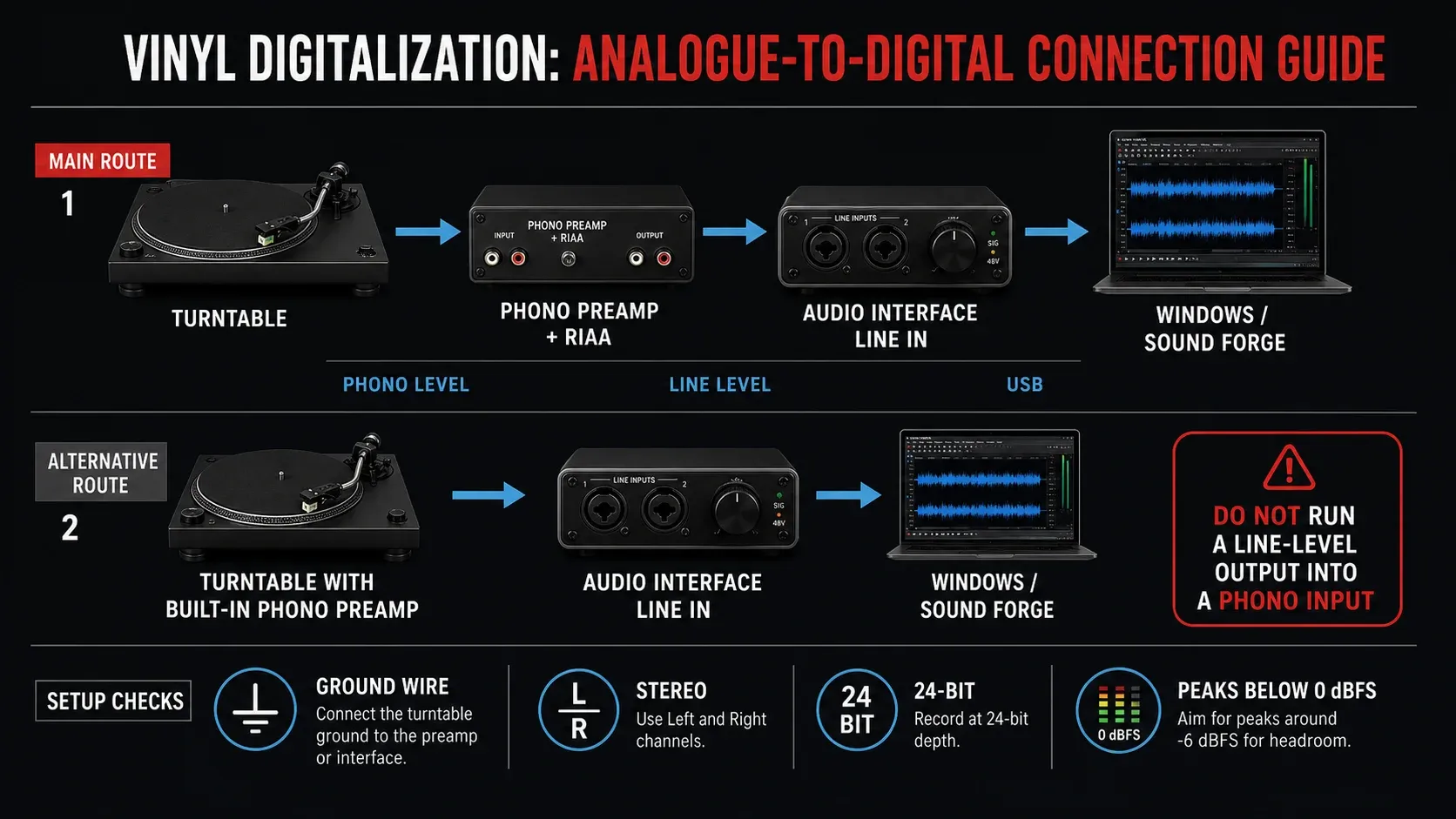
A magnetic cartridge doesn't normally produce a line-level, tonally flat signal. Its output is quiet and still reflects the recording emphasis used when the disc was cut. The playback phono stage applies the complementary correction. A phono stage raises that signal to line level and applies playback equalization, usually RIAA for modern LPs and 45s. The official Audacity equipment guide therefore routes a conventional turntable through a phono preamp or receiver PHONO stage before a computer line input.
| Your turntable output | Correct path to the computer | Common mistake |
|---|---|---|
| PHONO output | Turntable → phono preamp or receiver PHONO input → line/tape output → interface LINE input | Going straight into LINE produces a very quiet, thin, bass-light transfer |
| Switchable PHONO/LINE | Set the deck to LINE → interface LINE input | LINE output into another PHONO input applies gain and RIAA twice |
| USB turntable | USB directly to Windows; select the turntable's USB input in Sound Forge | Assuming the USB converter supports every sample rate or has adjustable analog headroom |
| External USB phono stage | Turntable PHONO output → USB phono stage → Windows | Adding a second phono preamp before it |
Match the phono input to the cartridge: moving-magnet (MM) and low-output moving-coil (MC) cartridges need appropriate gain and loading. Check both manuals; a socket labelled PHONO alone does not establish compatibility. On an interface with combined inputs, select LINE rather than instrument gain. A laptop headset jack is not a substitute for a specified stereo line input.
If the first test sounds unusually thin and quiet, stop and inspect the signal path. Extremely loud, bass-heavy and distorted points the other way: check for two phono stages in series. Don't “fix” either fault with EQ after capture; the wrong gain and equalization have already reduced headroom and raised noise.
Ground hum belongs upstream too. Connect the turntable ground wire where the phono stage provides a ground terminal, keep unbalanced cables short, and separate power bricks from cartridge leads. The hiss and hum diagnosis guide distinguishes 50/60 Hz mains hum from broadband surface noise before you reach for a filter.
Clean and Set Up the Record Before Capture
Physical cleaning is restoration. Dust in a groove becomes an impulse in the transfer, and removing dust before playback is more transparent than interpolating over the click afterward. IASA's microgroove cleaning guidance explains that vinyl attracts dust electrostatically and that groove-sized particles cause clicks and frying noise.
- Inspect the record, stylus and cantilever under good light. Replace a damaged or unknown stylus before it traces a valuable disc.
- Remove loose dust with a suitable anti-static record brush. For wet cleaning, follow the cleaner and record manufacturer's method; do not improvise a solvent on shellac or a rare disc.
- Confirm speed, tracking force, anti-skate and cartridge alignment for the turntable and cartridge in use.
- Photograph both labels and the sleeve. Record catalog number, matrix/runout, side, speed, stylus and playback chain while the evidence is in front of you.
- Play a short test at the beginning, a loud passage and the inner groove. Listen for mistracking, one weak channel, hum, mechanical rumble and obvious overload.
A badly worn or mold-affected disc is not a practice record. If the item is rare, cracked, delaminating or historically important, stop before cleaning or playback and use a specialist. Software cannot reverse physical damage caused during the transfer.
Choose 24-Bit Capture and a Defensible Sample Rate
Choose a converter that genuinely supplies 24-bit PCM for a preservation transfer. The extra word length doesn't reveal ultrasonic music hidden in vinyl; what it buys you is recording headroom, and it keeps level changes and repair work comfortably above the quantization floor. IASA's Key Digital Principles recommends at least 24-bit encoding for analogue materials.
Sample rate needs a less dogmatic answer. IASA lists 48 kHz/24-bit LPCM as a minimum and notes that 96 kHz/24-bit is widely adopted in memory institutions. For a serious archive, 96/24 is a defensible default. For a large personal collection where storage and processing matter, 48/24 is still a standards-grounded capture, not a failed transfer.
| Use case | Capture | Master format | Why |
|---|---|---|---|
| Preservation or rare source | 96 kHz / 24-bit PCM | BWF where supported; otherwise WAV plus sidecar metadata | Common heritage profile with room for later analysis and processing |
| Personal listening archive | 48 or 96 kHz / 24-bit PCM | WAV or lossless FLAC after the raw WAV is secured | 24-bit headroom matters more than chasing 192 kHz |
| CD derivative | Capture at archive rate first | 44.1 kHz / 16-bit WAV derivative | Resample and dither once after restoration |
| Phone or streaming copy | Never capture directly to lossy | AAC/MP3 derivative from a verified lossless master | Keeps future exports independent of a lossy generation |
Check the hardware before selecting the profile. For example, the NAD PP 4 specification lists 16-bit/48 kHz USB output. An existing device like this can make a personal listening transfer, but it does not meet the 24-bit preservation profile merely because the editor saves a larger word length. For a rare source, arrange a suitable capture chain before playback; for a personal transfer, preserve the real input resolution and record that limitation in the notes.
IASA recommends WAV or, preferably, BWF WAV; the BWF headers can carry metadata used to organise and manage the recording. A well-documented WAV is still better than a BWF whose embedded fields you never verify. Keep the original stereo or mono channel structure, and don't collapse channels casually during capture.
Record One Side in Sound Forge Without Clipping
- In Windows and Sound Forge, select the intended USB interface or turntable—not the laptop microphone. The Sound Forge recording guide covers the current device and input settings.
- Confirm the converter’s actual USB/driver output, then create the file at a supported sample rate, appropriate bit depth and correct channel count. A 24-bit destination cannot turn a 16-bit converter into a 24-bit capture.
- Run the loudest passage you can identify. Set analog gain so the largest peaks stay comfortably below 0 dBFS; roughly −12 to −6 dBFS is practical headroom for unpredictable discs.
- Start recording before lowering the stylus. Capture the whole side without pausing, processing or changing gain.
- Let the run-out finish, then stop. Listen to the start, loud passage, inner groove and end before putting the record away.
Hear the transfer while it records. Use the interface’s direct-monitor output if it provides one, or configure the monitoring route described in the recording guide. A moving input meter does not prove that your headphone output is routed correctly. Make and replay a short test before starting the full side; avoid listening through two monitoring paths at once.
Don’t chase a “full” waveform. With a suitable 24-bit converter, leaving this headroom is preferable to risking an overloaded transient. An analog preamp, USB turntable or interface can clip before Sound Forge's meter reaches zero, so watch the hardware indicators and listen for harshness. If any stage overloaded, lower the gain and capture the side again; de-clipping exists for irreplaceable damage, not as a substitute for a clean second pass.
Check channel balance and polarity while you're at it. A large steady imbalance may point to cartridge alignment, cable, connector or preamp trouble. Pitch that drifts is a turntable matter, speed or belt/drive behavior, and click removal or noise reduction won't fix wow and flutter.
Preserve the Raw Master Before Touching the Audio
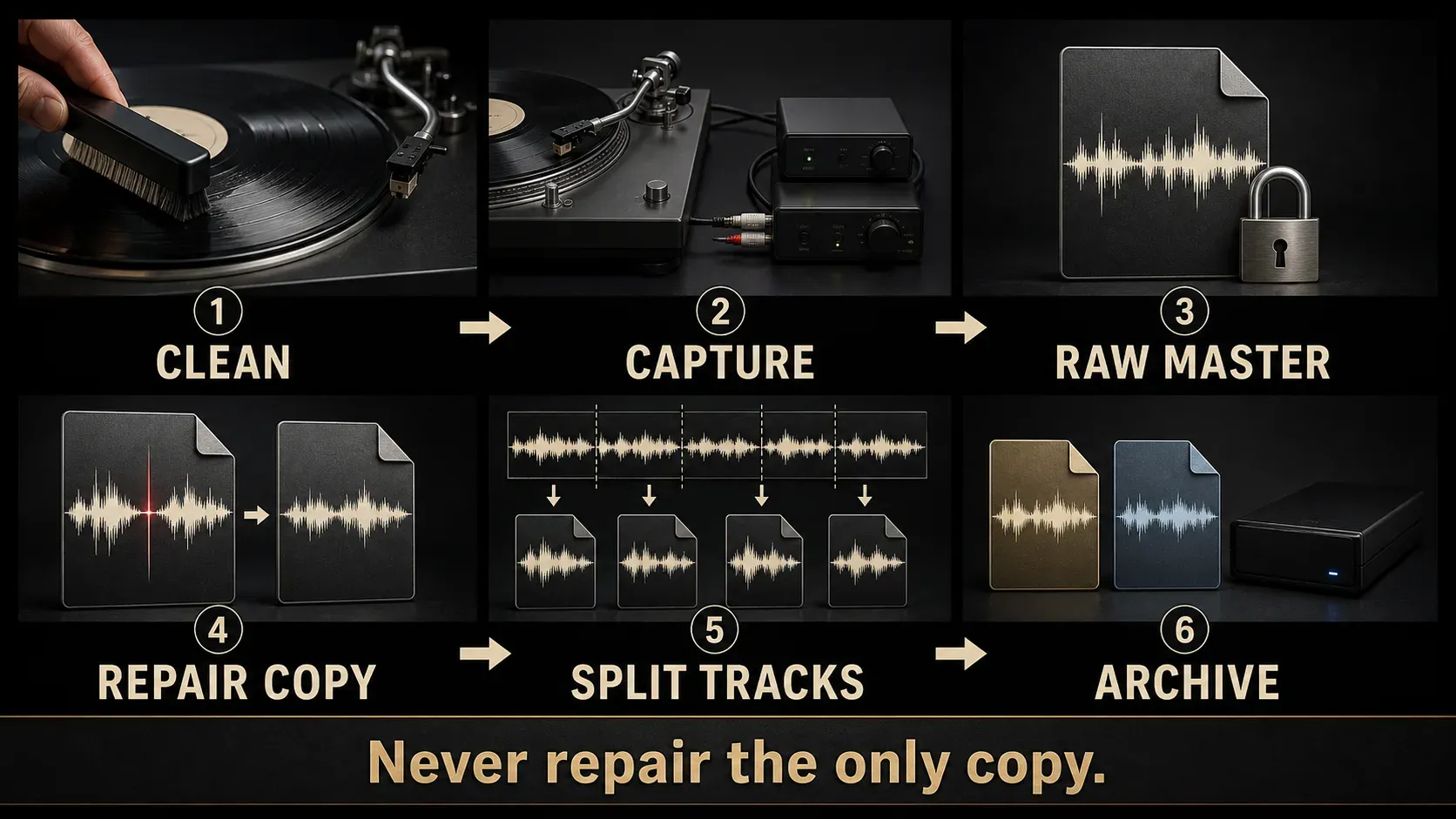
Save the untouched side immediately and make a working copy. A practical folder might contain:
- preservation/LP123_sideA_raw_96k24.wav — untouched capture;
- working/LP123_sideA_restore_v01.wav — editable duplicate;
- access/01_track-title.flac — lossless listening track;
- metadata/LP123_transfer.txt — source, equipment, settings, date and processing notes;
- images/LP123_label_A.jpg — label, sleeve and runout photographs.
Set the raw file read-only or store it outside the active edit folder. Generate a SHA-256 checksum if the transfer matters, and keep a second copy on independent storage; a checksum only tells you something changed, it won't replace a backup. Re-open the copied file and confirm duration, channels and a few playback points before processing the recording.
Identify the Defect Before Choosing a Tool
“Vinyl noise” isn't one problem. Put on headphones, zoom into the waveform and use the Sound Forge spectral analysis workflow to decide what's actually there.
| What you hear | Likely cause | First response | Do not assume |
|---|---|---|---|
| Single pop or tick | Dust, scratch, static or splice | Very short manual repair or conservative DeClicker | That the whole side needs the same setting |
| Dense crackle | Wear, contamination or many small impulses | Clean/re-capture if possible; test DeCrackler on a copy | That broadband noise reduction is the right first tool |
| Steady hiss | Groove noise, electronics or previous recording chain | Profile cautiously after click repair | That silence between tracks represents only removable noise |
| 50/60 Hz hum and harmonics | Ground loop, cable, power or phono setup | Fix the chain and re-capture; notch only an irreplaceable transfer | That a noise print will remove it cleanly |
| Low rumble | Turntable bearing, footfall, warp or arm/cartridge resonance | Correct mechanics first; high-pass only after spectrum and listening checks | That every LP should be filtered at one frequency |
| Pitch wander | Wow, flutter, off-center hole or wrong speed | Correct playback hardware or use specialized time correction | That EQ or de-noise can repair timing |
Work from discrete defects toward continuous ones: large clicks can corrupt a noise profile and make later processing pump or smear. Hum gets corrected at the source before you profile hiss, and tonal EQ and level changes can wait until the defects are stable.
Remove Clicks and Crackle Conservatively
Start with the obvious isolated clicks. Zoom to the impulse, select only the damaged samples, and use the smallest Repair operation that works. Sound Forge's current Repair documentation covers sample-level Interpolate, Replace and channel-copy choices. A tiny manual fix often protects a snare, piano attack or consonant better than processing an entire side.
For repeated clicks, the current Sound Forge 2026 repair help lists DeClicker/DeCrackler under Effects; older classic restoration tools are under Tools. Preview the installed effect on three places: the worst defect, an average musical passage and clean transient-heavy audio. Listen to the removed component if the tool offers that mode. If you can recognize cymbals, percussion, consonants or musical pitch in what is being removed, reduce sensitivity or shorten the selection. If crackle survives a conservative pass, the RX vinyl restoration workflow covers the next stage.
Use DeCrackler only when the texture is genuinely continuous. One strong pass isn't automatically better than a light pass plus a few manual fixes. The goal isn't a black background between notes; it's fewer distractions without sanding away the performance.
Reduce Surface Noise Only When It Beats the Original
Broadband noise reduction is optional. A clean pressing may need none. A worn speech or historical disc may benefit, but the noise print must contain only the steady unwanted bed: no reverb tail, no room tone that belongs to the recording, no music fading into silence.
- Repair large clicks first.
- Find the longest representative noise-only segment available.
- If the installed noise-reduction effect supports a noise print, capture that segment as its profile; use that effect’s help rather than assuming every de-hisser has a profile control.
- Preview a low amount across quiet and dense passages.
- Level-match Bypass. Louder is not cleaner.
- Stop when ambience breathes, cymbals turn watery, or a metallic/bird-like residue appears.
The background-noise guide explains profiles and artifact checks. There's no honest universal reduction number for vinyl; surface condition, cartridge, music and plug-in edition all move the limit.
Handle Rumble, Tone and Level After Repair
Don’t high-pass by habit. Inspect the spectrum and compare musical bass against the suspected rumble. A warp or turntable resonance may sit below useful content; an organ, electronic bass or orchestral recording may not. Use a gentle filter only when it removes measured unwanted energy without thinning the record.
The same caution applies to treble: a dull old pressing isn't a reason to boost it, since that can raise hiss and expose click residue. Use the Sound Forge equalizer workflow, match output level for Bypass, and keep the change only when the music improves at equal loudness.
If you used real-time effects, first save their output as a separate lossless restored copy and reopen it with the chain empty or bypassed. Then normalize only if a derivative needs a defined peak or loudness. Peak normalization is a constant gain change and does not repair dynamics. Loudness normalization can also change dynamics when true-peak or loudness-range constraints engage; the normalization guide explains the difference. Leave the preservation master at its captured level and document any change made to restored derivatives.
Split the Vinyl Side into Verified Tracks
Extract the processed audio, not just its playback preview. If you used View → Plug-In Chain, the real-time chain help explains that processing is committed when saving. Save a separate lossless restored side, reopen it with an empty or bypassed chain, and verify the repairs before making track regions. Do not apply a chain twice if its effects were already committed to the audio.
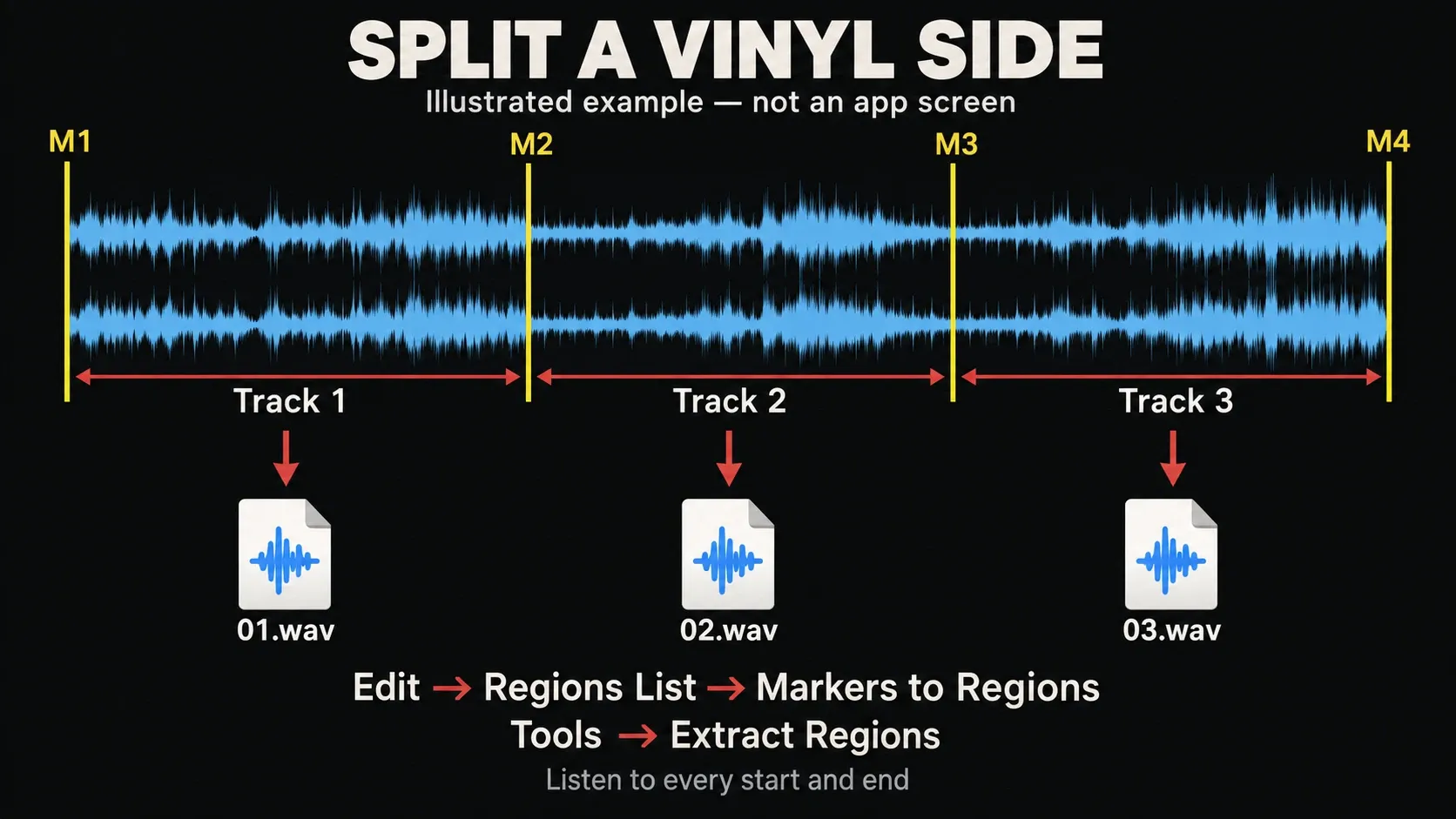
- On the restored side copy, place a marker at each intended track start and one at the final end.
- Include a natural amount of lead-in and decay. Don’t cut a quiet attack or trailing reverb just to make the gap look tidy. Listen across the boundary before accepting it.
- Choose Edit → Regions List → Markers to Regions. The current Boris FX marker-to-region guide confirms that regions are built between consecutive markers.
- Name regions with track numbers and titles.
- Choose Tools → Extract Regions, select the destination and naming options, including prefix or region names, then extract. The current Extract Regions help documents the command.
- Play the first and last seconds of every file. Check count, order, channel layout and gaps before tagging.
Automatic silence detection can help on clean, conventionally sequenced albums, but vinyl noise, crossfades and live applause confuse it. Boundaries deserve a human listen. Keep the full-side restored master even after the tracks pass QA; it preserves the exact spacing and gives you a clean source for later exports.
Archive the Transfer and Create Derivatives
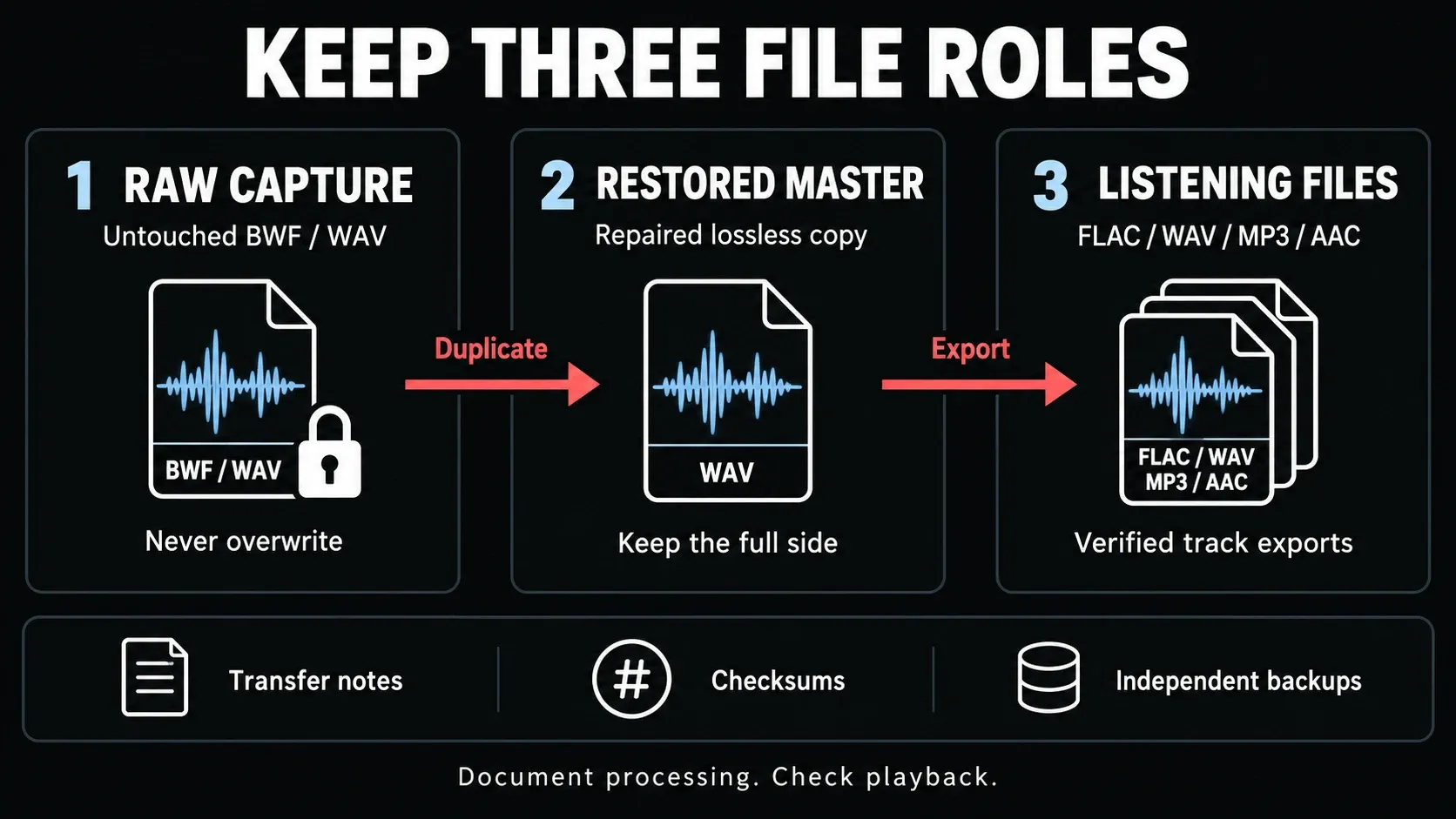
Keep three roles separate:
- Raw preservation master: untouched side capture at the converter’s actual resolution and sample rate; use a suitable 24-bit chain for the preservation profile above.
- Restored master: lossless full-side file with documented repairs, no lossy encoding and no unnecessary bit-depth reduction.
- Access derivatives: split FLAC/WAV tracks, 16-bit CD files, or AAC/MP3 copies for devices and sharing.
An unchanged integer copy needs no additional dither. After floating-point processing, an integer export is a new quantization step even if both source and destination files say 24-bit. Keep a floating-point working file while more processing remains, and handle dither once at the final fixed-point delivery stage, after EQ, level and sample-rate changes; avoid two active dither stages. The current Sound Forge Bit-Depth Converter help notes that the best noise-shaping mode depends on the signal; the bit-depth and dither guide covers the decision.
Tag access files with artist, album, title, track number, date, label and catalog number. Keep transfer-specific data (turntable, cartridge/stylus, phono stage, interface, sample rate, bit depth, date, operator, software version and processing steps) in BWF fields or a sidecar text/CSV file. Store label and sleeve photographs beside the audio. The format-conversion guide covers controlled WAV, FLAC and listening-copy exports.
Use the CHIN digitization workflow as a model for separating capture, quality review and archiving. For a preservation transfer, listen through the saved side for dropouts or missing audio; spot checks alone cannot establish that the whole capture is intact.
Verify the archive from another device or application. Compare file counts, durations and checksums, then keep at least two independent copies. Cloud sync can be one copy, but synchronization alone can propagate an accidental deletion.
Know When Sound Forge Is Not Enough
Sound Forge is a good fit for precise waveform editing, isolated repair, whole-side files, markers, regions and export. It's less comfortable when the job calls for extensive spectral painting, automatic wow-and-flutter correction, azimuth research across historical formats, or hundreds of side-specific restoration decisions. For detailed spectral selection, check a dedicated editor such as iZotope RX against the defect you need to remove; its presence or licence is not guaranteed by this Sound Forge workflow. Use a transfer specialist for fragile or unique media.
Don’t let tool capability determine how much processing you apply. If the restored version sounds smaller, phasey or less alive than the raw transfer, the quieter noise floor is not a win. Preserve the source, back off, and keep the least destructive version.
Treat 78 rpm and Historical Discs as a Different Job
A shellac 78 is not merely a noisy LP. Groove dimensions, stylus size, material, actual playback speed and equalization can differ. “78 rpm” was not always the exact recorded speed, and pre-standardization labels did not all use modern RIAA playback. IASA's historical-disc speed guidance and coarse-groove equalization tables show why one cartridge, stylus and curve cannot cover every era.
Don’t apply a vinyl wet-cleaning recipe to shellac without confirming material compatibility. For a rare disc, capture flat or with the correct documented playback curve only when you understand the chain, and preserve all transfer notes. If the speed, stylus or curve is uncertain, consult a specialist before the first pass.
Digitize Vinyl Records FAQ
Should I digitize vinyl at 24-bit/96 kHz?
For preservation, use hardware that actually captures 24-bit audio; 96 kHz is a defensible archive profile and IASA also specifies at least 48 kHz/24-bit for analogue material. If an existing USB device outputs only 16-bit audio, retain that original accurately and document the limitation. Saving it in a 24-bit file does not restore converter resolution.
Do I need a phono preamp to record vinyl?
Yes, unless the turntable or USB converter already includes one. A conventional PHONO output needs phono gain and playback equalization before a line input. Never run a LINE output through a second PHONO input.
Is WAV or FLAC better for a vinyl archive?
Keep the raw capture as BWF/WAV when possible because that is the established preservation path and carries PCM without compression. FLAC is lossless and excellent for verified access or listening copies. Whatever you choose, maintain metadata, checksums and more than one storage copy.
Should I clean a record before digitizing it?
Yes. Removing safe-to-clean dust before playback prevents clicks more transparently than software repair. Use a method appropriate to the record material, and do not improvise wet cleaning on shellac, moldy or historically valuable discs.
What is the best click-removal setting for vinyl?
There is no universal setting. Test the worst click, an average passage and clean transient-heavy music. Reduce processing if the removed signal contains wanted attacks, consonants or pitch. Manual repair is often better for a few isolated pops.
Should I remove all vinyl surface noise?
No. Broadband reduction can remove ambience and high-frequency detail with the noise. Keep it only when a level-matched comparison is less distracting without watery, metallic or breathing artifacts.
Should I record each track separately?
Record each side as one uninterrupted file. That avoids repeated level changes and preserves spacing. After repair, place markers, convert them to regions, extract the tracks and verify every boundary.
Should I normalize before removing clicks and noise?
No. Preserve the captured level while diagnosing defects. Repair clicks and continuous noise first, then apply documented EQ or level changes to a derivative. Normalization cannot recover a clipped capture or improve the playback chain.
Last fact-checked: September 12, 2026 against Boris FX Sound Forge 2026 help, IASA preservation guidance, CHIN’s audio digitization guide and the cited hardware and routing documentation.
Related Sound Forge guides
- How to Remove Clicks and Pops in Sound Forge Pro
- Remove Hiss From Audio: 50/60 Hz Hum Repair on Windows
- Split a Long Recording into Tracks in Sound Forge
- How to Record Audio in Sound Forge Pro 2026
- Sound Forge Markers and Regions: Navigate & Export
- Sound Forge: The 2026 Guide (start here)
- Open the Sound Forge workflows hub