
This audio latency test measures how late sound arrives on your current setup, in milliseconds, with nothing to install. A/V sync needs no microphone and works with Bluetooth: you line up a flash with a click until they land together. Round trip plays clicks and times them back through your microphone, so one number covers the output, the air gap and the input path.
Browser tool · sound stays in this tab
Measure audio latency
A/V sync needs no microphone. Round trip asks for the mic only after you press Start, records about 10 seconds and analyzes it in this tab. Nothing is uploaded.
Lower system volume before Start. Clicks begin at 10% and cap at 25% of full scale. The flash changes once per second. Press Stop or Escape at any time.
Press Start, then line up flash and click.
Watch the box and listen. Move the slider until each flash and its click land together, then press Save match. After each save the slider jumps away, so the next match starts fresh.
Saved matches: none yet. Save three or more.
Hold the mic close to the speaker, or press one earcup of your headphones against the mic. Keep the room quiet, then press Start. The page plays 10 clicks and times each one at the mic.
- Sample rate
- after Start
- Samples per second. Buffer sizes turn into milliseconds at this rate.
baseLatency- after Start
- Hand-off from this page to the operating system.
outputLatency- after Start
- The browser's estimate from the operating system to the device. Wireless delay is often missing or low here.
- Output timestamp gap
- after Start
- Graph-to-output time from
getOutputTimestamp(). A/V sync uses it to place the flash. - Mic latency setting
- mic not opened
- A target the browser reports for the input, not a measurement.
How to run the audio latency test
Both modes take under a minute. I'd start with A/V sync on whatever you listen through most, then run Round trip only if you record or play an instrument through this computer.
- Lower the volume. Turn the system volume down before you press Start. The clicks begin at 10% of full scale and the level slider stops at 25%, which is plenty for a mic a few centimeters from the speaker.
- Pick the mode. Choose A/V sync for Bluetooth headphones, earbuds, a TV or a soundbar, or any output where lip sync matters. Choose Round trip when a microphone is available and you want the full output-plus-input delay, the figure that matters when you monitor yourself while recording.
- Line up flash and click. In A/V sync, press Start, watch the box and listen. Drag the slider until each flash and its click feel like one event, then settle it with the 5 ms and 1 ms buttons.
- Save at least three matches. Press Save match. The slider jumps to a new position after every save, so each match starts from scratch instead of from your last answer, and the readout switches to the median of your matches.
- Run the round trip. Switch to Round trip, enter the speaker-to-mic distance, hold the mic close to the speaker or press one earcup against it, and press Start. Allow the microphone when the browser asks. The page plays 10 clicks over about 10 seconds, then closes the mic.
- Read and repeat. Check the median, the range and how many clicks were timed. Change one thing, such as the output device, the codec or the buffer size, and run the same mode again so the two numbers compare like for like.
Before Round trip, a quick pass through the microphone test confirms that the browser hears the right input, and the headphone test confirms that both earcups play. A silent mic or a dead channel produces a failed latency run rather than a slow one.
Reading your results
In A/V sync, the big number is the median of your saved matches: how far the sound lands behind the picture on this output and this screen. A spread under about two display frames, roughly 33 ms on a 60 Hz screen, means your matches agree. A wider spread usually means the click was hard to judge at that level, or the output path changed while you were matching.
Two chips sit under the median. Browser pipeline is the delay the browser itself accounts for, taken from its output timestamp. Beyond the browser estimate is your median minus that figure: the part of the delay the browser can't see, minus the time your screen takes to show a frame. When that remainder is large on Bluetooth and small on wired output through the same screen, the wireless link is the part the browser misses. Jeff Kaufman made the same point in his browser audio latency measurements: "Bluetooth headsets are notorious for reporting much lower latencies than they actually implement."
A negative median means the picture is the slower path: this screen takes longer to show a frame than the output takes to play the click. It's the opposite problem to Bluetooth lag.
Round trip shows the median delay across the timed clicks, the range, how many of the 10 clicks it kept after dropping outliers, and the same median with the air gap removed. Air adds about 2.9 ms per meter, since sound travels at about 344 m/s in air at 20 °C; at a 10 cm mic distance that's 0.3 ms, which only matters when you compare interfaces. The per-click list shows every value, and a click marked ignored sat far from the others, usually a room reflection or a noise burst.
Quality notes tell you whether to trust the run. Too quiet means a click didn't rise clearly above the room noise. Clipped means the input overloaded, which can hide where the click starts. Fewer than five timed clicks, or a spread over 15 ms, means the median is rough and worth a second run.
The bottom panel lists what the browser reports about itself. Sample rate is how many samples per second the page runs at. baseLatency is the hand-off from the page to the operating system, and outputLatency is the browser's estimate from the operating system to the device. Mic latency setting is the input figure the browser reports, which MDN describes as a target value that real latency can drift from. Kaufman found that Chrome always returned 10 ms there in his test, so I'd trust the measured round trip over any sum of reported values.
What each mode measures
A/V sync and Round trip cover different stretches of the same chain, which is why they rarely give the same number.
A/V sync: sound against picture
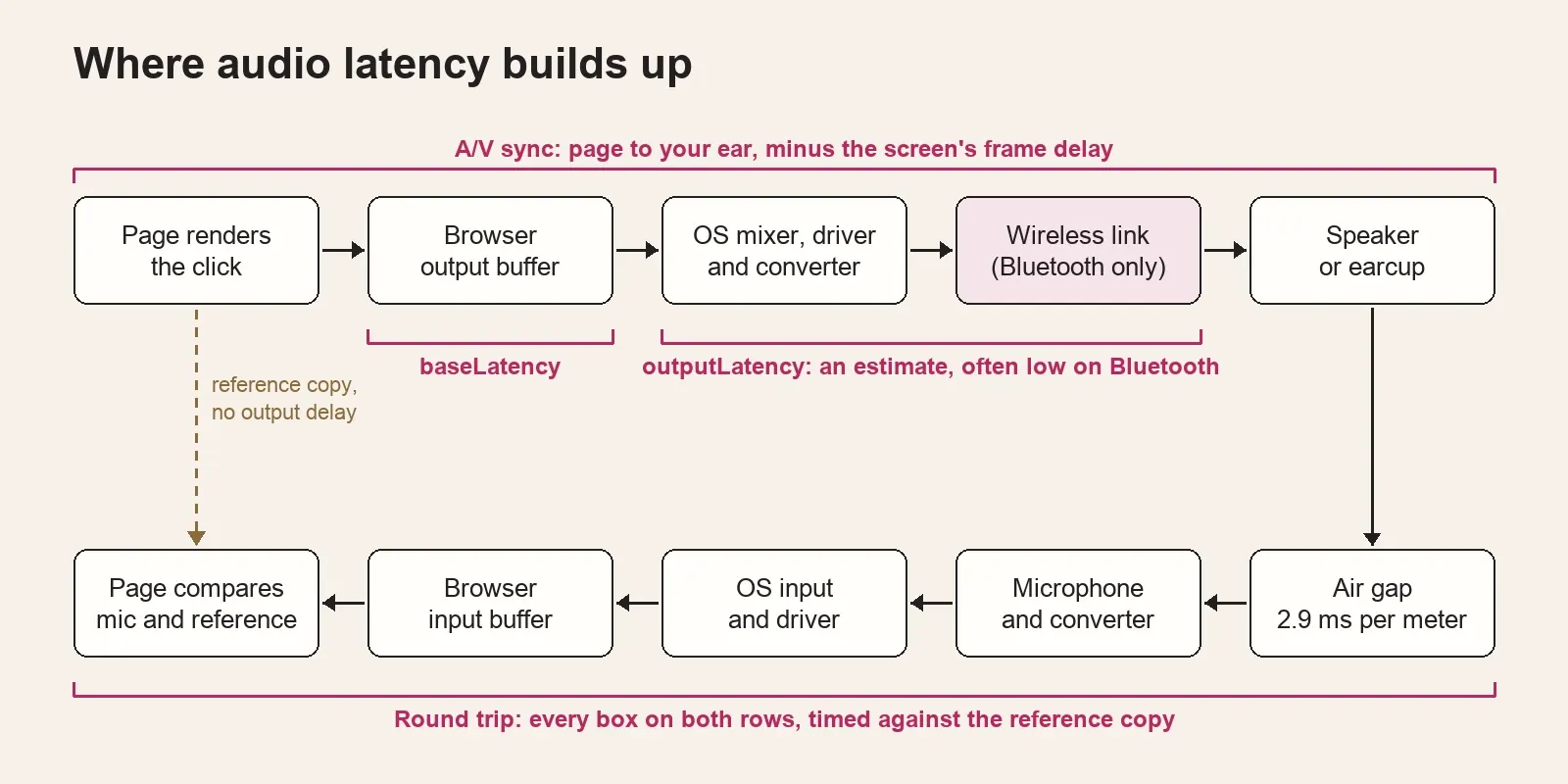
The page schedules every click on the audio clock, one per second. It then uses getOutputTimestamp() to map that clock onto the display clock and puts the flash at the moment the browser renders the click. The slider pushes the flash later. When flash and click feel simultaneous, the slider equals the full sound delay after the browser renders the click, minus the time your screen takes to show the frame.
That difference is the number that matters for watching video, because a picture and its sound reach you through those two paths. The method needs no microphone, so it works with Bluetooth headphones, earbuds and TVs. Its precision is set by the display, about one frame (16.7 ms at 60 Hz), and by your own judgment, which is why the median of several matches beats a single try.
Round trip: output, air and input
Each click goes to your speakers and, at the same instant, into a hidden reference channel that the page records alongside the microphone. The delay is the gap between the reference click and the first arrival of that click at the mic. Because both channels pass through the same recording node, that node's buffer delay cancels out, and the clock starts when the browser renders the click.
What remains is the whole physical path: the browser's output buffer, the operating system and driver, the converter, the wireless link if there is one, the speaker or earcup, the air gap, the microphone and the input side back into the browser. The page asks for raw input with echo cancellation, noise suppression and auto gain switched off, since echo cancellation exists to remove exactly this kind of speaker sound from a mic. Some browsers keep part of that processing on regardless, and the card warns you when the track settings show echo cancellation or auto gain stayed on.
How much latency is noticeable
The answer depends on the job. Watching a video tolerates far more delay than playing an instrument through headphones, and published thresholds show a spread of more than a hundred milliseconds between the two.
| Situation | Where delay starts to show | Basis |
|---|---|---|
| Video, sound after picture | Noticed near 125 ms; unacceptable near 185 ms | ITU-R BT.1359 viewing tests, average values |
| Video, sound before picture | Noticed near 45 ms; unacceptable near 90 ms | ITU-R BT.1359, same tests |
| Pressing a key and hearing it | A 49 ms change noticed from zero; 27 ms on top of a 64 ms base; 77 ms on top of 512 ms | Schmid et al., 2024, 37 participants |
| Playing or singing with monitoring | Accepted latency from 1.4 to 42 ms, varying by instrument and by wedge or in-ear monitoring | Lester and Boley, cited in Schmid et al., 2024 |
| First-person shooter audio | 40 ms added showed no effect on play or experience | Study cited in Schmid et al., 2024 |
Read the table against your mode. An A/V sync median below about 125 ms stays under the average point where viewers in the ITU-R BT.1359 tests noticed late sound, and a lower figure leaves margin for sharper viewers. Above 125 ms the delay starts to show unless the video player holds the picture back by the same amount. A negative median, sound ahead of picture, is noticed sooner, from about 45 ms.
Musical timing makes the scale easier to feel. At 120 BPM a sixteenth note lasts 125 ms, so the 256 ms Bluetooth median below, timed from tap or playback to sound, would put a played note two sixteenths late; the BPM to ms calculator gives the figure for your tempo. For monitoring a live mic, I'd aim for a round trip in single digits, which a USB interface at a 128-sample buffer reaches in the loopback results below.
Typical latency by connection
These are aggregated test results from published measurements, grouped by method so like is compared with like. Phone and tablet timings start at a tap, a key press or an app's playback call, so they include the device's own audio path and read higher than the wireless link alone; interface loopbacks measure the full round trip through the converters.
| Connection and method | Median | Range | Results |
|---|---|---|---|
| Bluetooth headphones and speakers on phones and tablets, tap, key or playback to sound | 256 ms | 126–369 ms | 10 results, 2 test series |
| Wired and built-in outputs, same tap-to-sound method | 83 ms | 61–106 ms | 3 results, 1 series |
| USB audio interface round trip, 128 samples at 48 kHz | 7.85 ms | 6.8–9.1 ms | 10 interfaces |
| USB audio interface round trip, 256 samples at 48 kHz | 13.2 ms | 12.2–14.3 ms | 10 interfaces |
The Bluetooth row combines two independent series. Stephen Coyle timed AirPods and two other Bluetooth models on iPhone and iPad across three rounds, averaging his tap and key-press timings where he logged both, from 274 ms for first-generation AirPods to 178 ms for the second generation, down to 126 ms for AirPods Pro 2. SoundGuys timed file playback to sound on four Android phones, with 100 runs per codec, and found averages of 308 ms for SBC and 316 ms for aptX, with LDAC at 324 ms and AAC at 369 ms. In the same SoundGuys data the phone mattered more than the codec: the Pixel 3 XL averaged 244 ms across codecs, while the Huawei Mate 20 Pro averaged 484 ms.
Coyle's earliest round supplies the wired row, 61 ms in the Tapt app and 106 ms from the iOS keyboard, plus 83 ms for the iPad's built-in speakers in his 2022 round. The cleanest view of the wireless share is that 2022 pair on one iPad: 126 ms with AirPods Pro 2 against 83 ms built in, a 43 ms gap on the newest model in the series.
The interface rows come from a 2026 roundup of ten USB interfaces measured with jack_iodelay loopbacks under PipeWire on Linux, where the buffer math alone is 5.33 ms at a 128-sample quantum and every interface landed between 6.8 and 9.1 ms. Lower buffers go further: Sound On Sound's review of the RME Babyface Pro FS measured a round trip down to 3.1 ms with 48 samples at 44.1 kHz.
Bluetooth microphones stack the delay twice. Kaufman found that a wireless headset added 325 ms of round-trip latency over a wired one, and Antmicro's tester measured an average of 375 ms from a Bluetooth 5.2 headset's mic back to its own speakers. The two setups differ, so they aren't averaged here.
Codec specifications are vendor claims rather than measurements. Qualcomm lists low system latency of approx. 80 ms for aptX Adaptive, and the Bluetooth LC3 codec works in frame intervals of 7.5 ms and 10 ms, which is one codec frame, not the end-to-end delay. Your own A/V sync result is the figure to compare against those claims.
Why browsers add latency
A browser renders audio in blocks and hands them to the operating system through its own buffers. The Web Audio specification's worked example uses 128-frame blocks at 44.1 kHz with double buffering, which comes to about 5.8 ms of base latency before the operating system is involved. The page asks for the lowest output latency the browser can run without glitches, but the browser may ignore that request.
The rest of the output side sits in outputLatency: operating system mixing, the driver and the device. Google's Chrome team describes it as an estimate that can include Bluetooth earbuds or an external USB audio interface, and support only reached all major browsers in 2025, with Safari adding it in version 18.4. How well it tracks reality depends on the platform. One developer saw Firefox on macOS report 177.8 ms for AirPods and 24.9 ms for the built-in speakers, with the first reading returning zero.
Measured end to end, a browser adds real time. Kaufman timed a round trip on a 2016 MacBook at about 67 ms in Chrome and 55 ms in Firefox with default settings, and about 19 ms and 14 ms after tuning his test page. His conclusion that the full end-to-end delay has to be measured still stands: outputLatency covers only the output side, and the mic figure is a target, so no browser value adds up to the round trip.
How to reduce audio latency
Start with the stage that dominates your result. On Bluetooth that's the link; on a wired computer setup it's usually the buffer.
- Go wired for timing-critical work. Every published Bluetooth figure above sits several times beyond the top of the musician range. Plug headphones into the interface or the computer for recording, practice and rhythm games, and keep Bluetooth for listening.
- Try the low-latency or game mode. If your earbuds or phone offer one, run A/V sync with it off and on. The result shows whether it changes anything on your device, which a spec sheet can't.
- Compare codecs and phones before buying. In the SoundGuys data, the codecs spanned about 60 ms of average latency, while two of the phones sat 240 ms apart. An A/V sync run on the phone you own is worth more than a codec logo on the box.
- Lower the driver buffer. In a DAW, the buffer size under ASIO on Windows or Core Audio on a Mac sets most of the delay you can control. The audio latency calculator turns a buffer size and sample rate into milliseconds. I'd start at 128 samples and go lower only while playback stays free of crackles.
- Monitor before the computer. An interface with a direct monitoring switch or knob sends the mic straight to the headphones inside the interface, so that path skips the driver buffers entirely.
- Calibrate the DAW, not the browser. Recording software lines up overdubs with its own latency compensation. Audacity's manual notes that this latency is typically around 130 ms for consumer level equipment and expects you to set it for your hardware. Measure inside the DAW with a loopback recording, the method Android's audio documentation describes for round-trip tests, because a browser's buffers aren't the DAW's.
What this test cannot tell you
The page measures the browser's path, and other apps use their own. A DAW with an ASIO driver, a game engine or a video player can run faster or slower on the same hardware, so treat the browser number as a measure of the device and connection rather than a setting to copy into another program.
A/V sync depends on your eyes and ears and on the screen. It can't separate audio delay from display delay, it can't get finer than about one frame, and a fast screen and a slow one will give different medians for the same headphones. Round trip can't split the output from the input, so a mic latency figure on its own isn't available from a browser.
Bluetooth results can change between connections. A reconnect, a codec switch or a different phone can move the number, so run the test again after any change you want to judge. The clicks stay at a capped level, but keep headphones at a comfortable volume throughout; this is a timing test, not a hearing test.
Which connection for which job
For listening and video, the A/V sync median is the deciding number. Below about 125 ms of sound after picture you're under the average broadcast detection point, and lower leaves more margin; above it the delay shows unless the player compensates. Sound ahead of picture shows sooner, from about 45 ms. For recording, playing and monitoring, the round trip decides, and it belongs in single digits.
My verdict: keep Bluetooth for listening and for video players that hold the picture back, and use a wired interface for anything you play or sing along to. The published Bluetooth median of 256 ms sits several times above the musician range, while ten USB interfaces at 128 samples completed a full round trip in under 10 ms. Before paying for low-latency earbuds or a new interface, run both modes on what you already own; the numbers show which stage is costing you time.
Audio latency test FAQ
How do I test Bluetooth headphone latency?
Use the A/V sync mode, which needs no microphone. Connect the headphones, press Start, move the slider until each flash lands on its click and save three or more matches. The median is how late the sound arrives behind the picture; run it again with wired headphones on the same screen to see how much of that delay belongs to the Bluetooth link.
What is a good audio latency?
It depends on the task. For video, sound after picture is noticed near 125 ms in the ITU-R BT.1359 tests and sound before picture near 45 ms, so a result well under 125 ms is comfortable and a negative one should stay smaller than 45 ms. For playing or singing with monitoring, the latency musicians accepted ranged from 1.4 to 42 ms, and USB interfaces at a 128-sample buffer measured a median 7.85 ms round trip.
Can I test microphone latency online?
Partly. A browser can time a click from the speakers back into the mic, which is the Round trip mode, but that figure includes the output, the air gap and the input together. The mic latency value that browsers report is a target setting, not a measurement, so the round trip is the honest number to work with.
Why does my browser report lower latency than the test measures?
The reported values are estimates. baseLatency covers only the hand-off to the operating system, and outputLatency relies on what the system and device report, which for Bluetooth is often too low. The measured result includes everything those figures leave out.
Does buffer size change audio latency?
Yes. Each buffer adds its length divided by the sample rate, so 128 samples at 48 kHz is 2.67 ms per buffer and 256 samples is 5.33 ms. A round trip passes through several buffers, which is why interfaces measured about 7.85 ms at 128 samples and 13.2 ms at 256. The audio latency calculator converts any buffer size for you.
Why does my latency result change between runs?
Something in the path changed, or the run was hard to time. Bluetooth links can settle differently after a reconnect or a codec switch, a busy computer can change buffer timing, and a quiet click or a loud room makes onsets harder to find. Check the spread and the quality notes, fix what they point to, and compare medians from several runs.