
A useful headphone test should answer one question at a time: are the channels routed correctly, does the center stay centered, is there an obvious rattle, and does either side drop out during a controlled sweep? Start with your system volume low, then run the five short checks below. The signals are generated on this device; the page doesn't request a microphone or upload audio.
Browser tool · no microphone
Run a five-step headphone check
Signals are generated on this device. The page doesn't record, upload, or listen to anything.
Lower system volume before the first test. Tool level starts at 5%, stops at 20%, and is not dB SPL. Never turn up a missing high or low tone sharply.
1. Confirm left, center, and right
The highlighted output should match the ear that hears the tone.
Mark the step only after testing all three positions.
2. Compare the center and each side
Use both signals. A center that pulls sideways is a symptom; it isn't proof of a failed driver.
If the pull stays with one ear after reversing the headphones, this page can't diagnose it. Stop and compare another source.
3. Listen for low-frequency rattle
Start at 80 Hz and step down. Each preset stops after two seconds.
Quiet or missing deep bass can reflect seal, fit, playback chain, hearing, or the headphones.
4. Run a controlled listening sweep
The 40 Hz–12 kHz sweep is a comparison, not a hearing test or frequency-response measurement.
Do not chase a faint 8 or 12 kHz tone by raising the level.
5. Compare in-phase and inverted
The two states should feel different. This optional comparison isn't a standalone wiring diagnosis.
If several checks need attention, repeat at low level on another device before blaming the headphones.
How to run the headphone test
- Confirm left, center, and right. Put the headphones on in their marked orientation. Left should play only through the physical left side, Right only through the right, and Center through both.
- Compare the center image. Try both pink noise and the 500 Hz tone. The image should sit near the middle rather than leaning obviously to one side.
- Check low frequencies at a restrained level. Start at 80 Hz and work down. Each preset is short. Listen for a buzz or rattle; do not turn up a quiet 30 or 40 Hz tone to force audibility.
- Run the controlled sweep. The sweep moves from 40 Hz to 12 kHz over 12 seconds. Listen for a one-sided dropout, a repeatable rattle, or a sudden change between the earcups.
- Compare phase only if useful. The in-phase signal often feels more centered than the right-inverted version. Treat this as an optional comparison, not proof of a wiring fault.
Mark each step as you go. The summary stays in the current page only; it isn't saved or sent with analytics. Press Stop before changing headphones, adapters, cables, or output devices. Escape also stops playback.
What your headphone-test result means
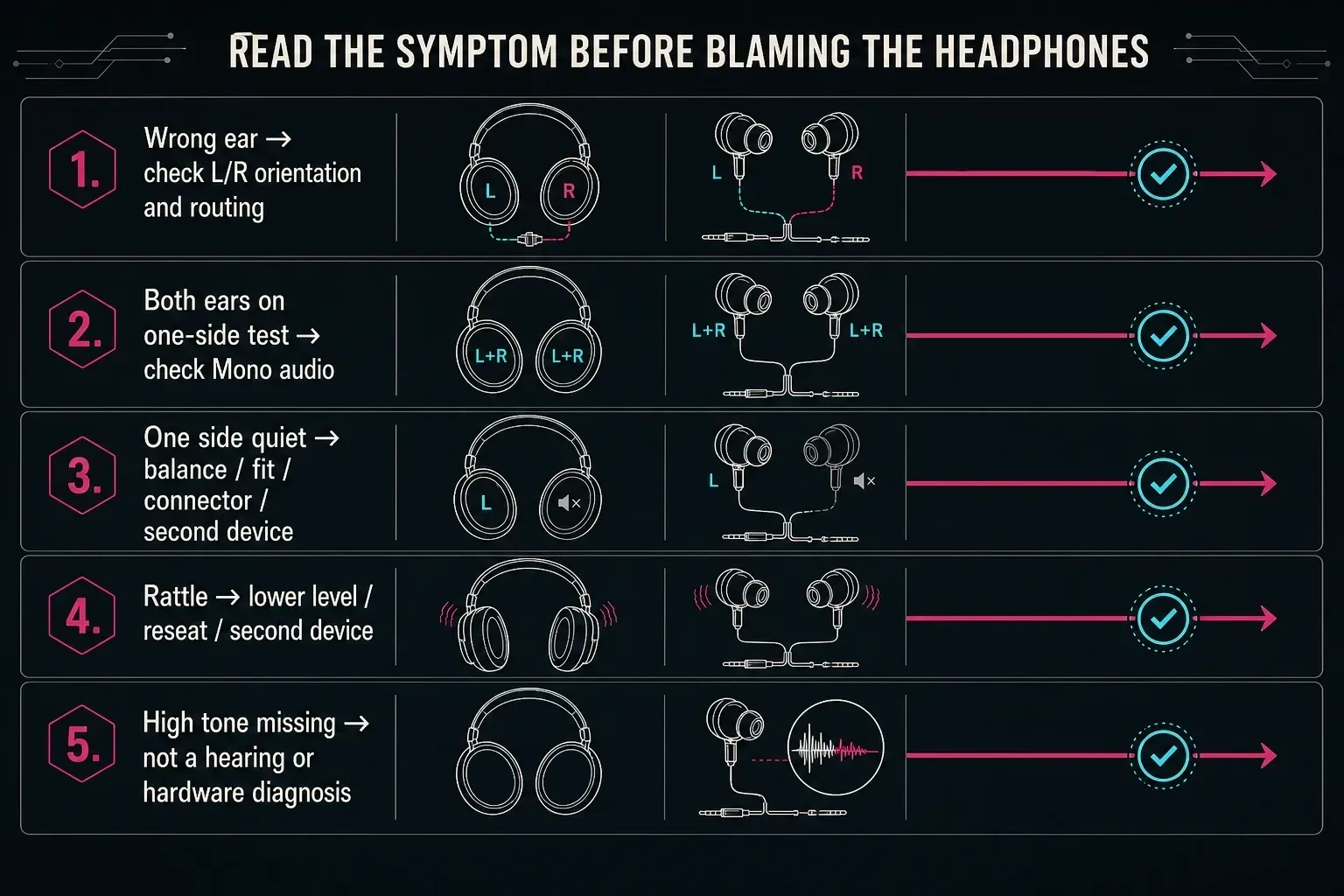
| What you hear | Check next | What it does not prove |
|---|---|---|
| Left and right are reversed | Confirm the earcup markings, cable orientation, adapter, interface routing, and app output | It does not immediately prove the headphones were wired incorrectly |
| Both sides play during a one-side test | Turn off Mono audio in the operating system and check any app or interface downmix | It does not mean the stereo test itself is broken |
| The center pulls left or right | Check system balance, fit or earbud seal, debris, cable seating, and a second source | It does not isolate the driver, your hearing, or the source by itself |
| One side is silent | Reseat the plug, charge and re-pair wireless earbuds, compare another app, then test another device | A silent side alone cannot distinguish a driver fault from a connection, pairing, or source problem |
| Bass buzzes or rattles | Stop, lower the level, reseat the headphones, and repeat on another device | It does not prove permanent damage; fit, hair, debris, enclosure parts, or the source can also rattle |
| A sweep range becomes quiet | Repeat at low level, swap the headphones left-to-right, and compare another output | It is not a calibrated frequency-response or hearing measurement |
If your only question is whether a channel is silent, reversed, or collapsed to mono, the dedicated left/right channel test and routing checklist goes deeper. If you need an arbitrary reference frequency rather than a guided headphone check, use the 20 Hz–20 kHz online tone generator. Use this guided check when you want to compare several symptoms in one place.
Separate a headphone problem from a source problem
I wouldn't keep repeating the same test on the same setup. A second path tells you more than another ten clicks. Follow this order to change one variable at a time:
- Repeat at a lower level. A rattle that disappears may have been caused by the playback level or something physically touching the earcup.
- Reseat the connection. Push a wired plug fully home, remove a questionable adapter, or reconnect both wireless earbuds.
- Try another app or browser tab. This separates a page or app route from the device-wide route.
- Try a second phone, computer, interface, or headphone output. If the symptom follows the headphones, hardware or fit becomes more likely. If it stays with the source, inspect that source first.
- Reverse the headphones on your head for the center check. If the quieter side moves with the earcup, investigate the headphone path. If it stays with the same ear, stop treating the web test as a hardware diagnosis.
This process still doesn't replace measurement equipment or a hearing assessment. It simply keeps an operating-system setting, loose connector, pairing problem, or poor seal from being mistaken for a dead driver.
Check mono and balance in Windows or macOS
When Left or Right plays through both ears, check mono before changing hardware. Microsoft documents the current Windows 11 path as Settings → Accessibility → Audio → Mono audio in its guide to making Windows easier to hear. Turn Mono audio off for a stereo channel test. Windows 10 uses the corresponding Ease of Access audio setting.
If one side is quiet on Windows, select the active output under Settings → System → Sound and inspect its left/right levels when the device exposes them. Microsoft’s current one-channel Bluetooth troubleshooting also covers balance, re-pairing both earbuds, charging, firmware, and a second-device comparison. Not every driver presents the same controls, so use the labels shown for your actual output.
On a Mac, Apple lists the output-device Balance control under System Settings → Sound → Output in its current sound-output guide. Apple also provides Play stereo audio as mono under Accessibility audio settings. Center the balance and turn mono off before interpreting a hard-panned channel test.
Testing Bluetooth headphones, earbuds, and AirPods
The tool works with a Bluetooth output selected by the browser and operating system. Channel orientation and broad level comparisons do not depend on low latency, so a small wireless delay is usually irrelevant here. Pairing state, however, matters: true-wireless earbuds can end up with only one side connected, and a calling or communication mode can change how the playback chain behaves.
Charge both earbuds, return them to the case if the manufacturer’s pairing procedure requires it, reconnect the complete set, and confirm that normal stereo music plays before blaming the web test. If one side fails on only one computer or phone, inspect that source. If it fails on every source, the earbud or its charging/pairing state deserves closer attention.
Why the sweep is not a frequency-response test
A browser can set a digital oscillator frequency accurately, but this page has no measurement microphone, acoustic fixture, ear simulator, calibration file, or reference sound-pressure level. What reaches you also depends on the converter, amplifier, headphone driver, pad or ear-tip seal, fit, operating-system processing, and your own hearing.
That makes the sweep useful for comparison rather than measurement. A repeatable buzz in one earcup is worth isolating, and a quiet patch can be worth comparing on another output, but neither result is a frequency-response graph. Failing to hear a 12 kHz preset also doesn't diagnose hearing loss or prove a tweeter or driver is broken. Never raise an extreme tone sharply to chase it.
What the phase comparison can tell you
The optional phase step sends the same 500 Hz waveform to both channels, then inverts the right channel for comparison. Many listeners hear the in-phase signal as more compact or centered and the inverted version as more diffuse. The difference can be less obvious with a loose earbud seal, unusual processing, spatial-audio features, or individual perception.
If both versions sound identical, I'd first disable spatial effects and repeat on a second source. Don't turn that one observation into a wiring verdict. Confirm suspected polarity problems with known equipment or an acoustic/electrical measurement path.
How the browser test works and what it sends
The tones use the Web Audio API’s OscillatorNode, while the channel buttons use StereoPannerNode to position the signal left, center, or right. The pink-noise buffer, sweep, gain, and phase comparison are built in the current page after you press a control.
The component has no microphone request, upload control, file picker, or audio-network request. When site analytics is available, playback events can include the selected test mode, signal type or preset frequency; blocked-playback events can include an error category. The Sounds right/Needs checking answers you mark are not sent. Audio itself is not uploaded. Leaving or hiding the page stops playback.
Keep headphone test tones short and quiet
The tool-level control starts at 5% and stops at 20%, but that percentage isn't dB SPL. The physical output still depends on the phone, computer, interface, amplifier, and headphones. Lower the system volume before pressing the first test, keep checks short, and stop at discomfort.
The World Health Organization’s safe-listening guidance emphasizes both level and duration, recommends keeping personal-device volume below 60% of maximum, and advises breaks from loud sound. The practical rule for this page is stricter: begin low, do not chase missing extreme frequencies with more level, and stop immediately if a tone feels sharp or uncomfortable.
Online headphone test FAQ
Is this a hearing test?
No. It has no calibrated headphone, sound-pressure reference, clinical protocol, or response recording. It can reveal a symptom worth checking, but it cannot measure hearing or provide a diagnosis.
Can I test Bluetooth headphones or AirPods?
Yes, if the browser is playing through that output. First confirm that both earbuds are connected and normal stereo audio works. Wireless delay does not stop a channel check, but pairing, mono, balance, communication mode, or spatial processing can affect what you hear.
Why do both ears play during the Left or Right test?
The system, app, interface, or accessibility settings may be combining stereo into mono. Turn off Mono audio, confirm the correct output, and repeat. Use the dedicated left/right guide if the route still collapses.
Why is one side of my headphones quieter?
Check balance, earbud seal or pad fit, debris, plug seating, wireless pairing, the current source, and a second device. If the symptom follows the same physical earcup across sources, the headphone path becomes more likely; one browser result alone is not enough to identify the cause.
Can the sweep measure headphone frequency response?
No. It is an uncalibrated listening comparison. Measuring frequency response requires a controlled acoustic measurement chain; this page cannot separate the headphones from fit, source, processing, room leakage, or the listener.