

Use this left and right speaker test as a quick left and right sound test: play Left, Center and Right. Then use L → R for a smooth pan.
Browser stereo test · no microphone
Stereo test: left, center and right
This test generates audio locally. It does not access your microphone, read files or upload audio.
Start with your system volume low. The tool level starts at 8% and is capped at 30%; it is not a sound-pressure reading. Stop immediately if the signal feels uncomfortable.
Choose Left, Center or Right. The highlighted side should match what you hear.
Ready. Choose a test button to start. Keyboard: L = left, R = right, B = center; Escape = stop.
This checks browser output routing. It won’t test hearing or calibrated speaker performance.
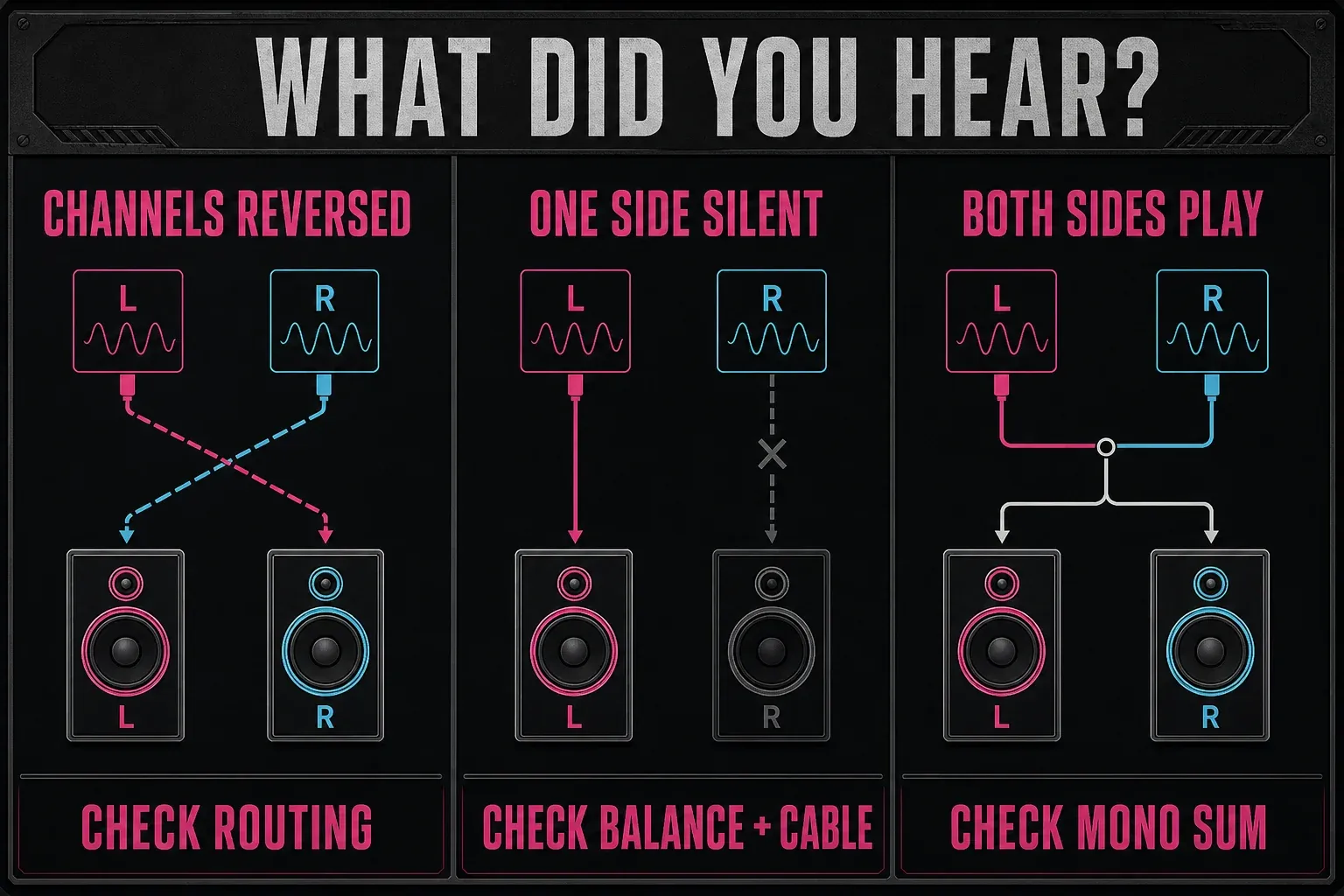
It also works as a left and right audio test for checking channel identity through speakers, headphones or earbuds. If a side is swapped, silent or playing through both outputs, match the symptom below. The test requests no microphone and uploads no audio.
How to run the stereo test
- Start low. Set the computer, phone, amplifier or headphone volume to a comfortable low level. The tool-level control starts at 8%; keep your system volume low too.
- Press Left. You should hear the signal only from the physical left speaker or left earbud.
- Press Right. The same signal should move completely to the physical right side.
- Press Center. With matching speakers or headphones, the sound should appear centered rather than pulling clearly to one side.
- Try L → R. The signal should move smoothly across the stereo image. Press Stop before unplugging a cable or changing an output device.
I'd use the 440 Hz sine for a clear routing check. Pink noise spreads energy across a wider range and can make an obvious left/right tonal difference easier to hear. Neither mode measures frequency response or acoustic level.
What your result means
| What you hear | What the test establishes | What to check next |
|---|---|---|
| Left plays left; Right plays right | The browser reaches the expected stereo channels | If one app is still wrong, check that app’s output and channel settings |
| Left plays right; Right plays left | This test reaches the opposite physical sides; compare a known-good stereo source | Speaker position, left/right cable mapping, interface mixer or virtual channel mapping |
| One side is silent | One output path is missing during this test | OS balance, connector seating, cable swap, interface channel and a second device |
| Left or Right plays through both sides | The stereo signal is being collapsed or mirrored | Mono accessibility settings, mono speaker hardware, Bluetooth profile or a routing utility |
| Nothing plays | The browser has no audible route or playback was blocked | Mute state, selected output, site sound permission and the system sound test |
This is a routing test rather than a component tester. A silent side can come from software balance, a loose connector, a cable, an interface, an amplifier channel, the speaker itself or the output device the operating system has selected. Change one thing at a time.
If left and right are reversed
First confirm that you are facing the speakers from the normal listening position and that the earcups are worn on the marked sides. Then trace the signal from the output toward the speakers:
- Check any explicit left/right swap or channel-mapping control. Ordinary balance changes level, and mono combines channels; neither is a reversal fix.
- Bypass virtual mixers, spatial-audio utilities and interface loopback software.
- Verify that the left physical output feeds the left speaker or amplifier input.
- Compare a known-good stereo recording in another player. If it is reversed too, correct the physical or software mapping you identified; do not change several connections at once.
Do not reconnect powered speaker-level wiring while equipment is live. Follow the hardware maker’s shutdown instructions.
If one speaker or earbud is silent
Open the operating system’s balance control and make sure one channel hasn’t been turned down. Then reseat the connector, remove adapters temporarily and repeat the test with another known-good headphone or speaker output. That comparison separates an output-route problem from a fault that follows one headset or speaker pair.
For a wired setup with separate, compatible left/right line-level cables, a controlled check can narrow the silent-side fault. Stop playback and shut down as the hardware maker directs. Swap only the cable ends at the source outputs, keeping each cable connected to the same physical speaker or amplifier input. Replay Center at low volume. If the silence moves to the other physical side, suspect the source output or its upstream routing; if it stays, investigate that cable and downstream branch with a known-good cable. This is not an instruction to swap mains, powered speaker-level wiring or wireless connections.
If every browser and the system sound test work but Sound Forge does not, use the Sound Forge no-sound troubleshooting order. It checks the selected playback device, Windows audio path and driver mode without starting with a reinstall.
If Left or Right plays through both sides
A stereo test can be collapsed to mono before it reaches the speakers. Check mono-audio accessibility settings, a mono Bluetooth or call profile, a single-speaker device, an interface mixer that sums channels, and any virtual cable or broadcast software in the route.
For output balance, Microsoft’s channel troubleshooting guide explains how to compare the selected output’s Left and Right levels. Mono audio is a separate accessibility setting. On iPhone, Apple puts both controls under Settings > Accessibility > Audio & Visual. On macOS, disable mono in Accessibility > Audio and center the output balance under Sound > Output.
For a stereo check, temporarily disable Windows mono audio: on Windows 11, open Settings > Accessibility > Audio; on Windows 10, open Settings > Ease of Access > Audio. Restore any accessibility setting you rely on after testing.
A phone’s single built-in speaker can’t tell you anything about stereo separation. Use wired or stereo Bluetooth headphones, a known stereo speaker pair or an audio interface with separate left and right outputs.
How the browser routes the signal
The page creates either a 440 Hz sine wave or a short locally generated pink-noise buffer with the Web Audio API. A stereo panner routes that source from full left (−1) through center (0) to full right (+1), the range defined for StereoPannerNode. A gain stage applies the visible tool-level control and a short fade to avoid a hard start or stop.
The mono source uses equal-power stereo panning: at Center it feeds both channels at about 0.707 of the hard-panned amplitude per channel. That describes digital routing, not a guaranteed acoustic center or equal loudness in the room. Speaker placement, reflections and downstream processing still matter.
Playback starts from a test button or the L, R and B keyboard shortcuts. Browsers can block audible Web Audio without user activation, as explained in MDN’s autoplay guidance. The implementation does not call the microphone API, read a local file or send an audio stream to the server.
What this test cannot tell you
- It is not a hearing test and cannot distinguish an ear difference from an equipment difference.
- It does not calibrate sound-pressure level, speaker sensitivity or frequency response.
- It cannot name the failed component from one silent-channel result.
- Center is a practical phantom-center check, not a matched-speaker measurement or a separate surround center channel.
- Phone speakers, soundbars and Bluetooth devices may apply their own mixing or processing.
When the file—not the speakers—is wrong
If this browser test routes correctly but an exported file has a missing, swapped or one-sided channel, inspect the file rather than the playback hardware. The Sound Forge Channel Converter guide explains mono/stereo conversion and channel selection, while the browser spectrum analyzer can show whether a file contains different left and right content.
Frequently asked questions
What does this stereo test check?
It checks whether left and right stay on the correct sides, whether the same signal reaches both channels as a practical center check, and whether a pan moves smoothly across the stereo image. It does not identify a failed component or measure hearing, sound-pressure level or frequency response.
Does the stereo test use my microphone?
No. It generates a signal in the browser and sends it to the current audio output. It does not request microphone access, record sound or upload audio.
Can I use it to test headphones and earbuds?
This tool checks left/right routing and the smooth pan on headphones or earbuds. For balance, frequency sweeps and a broader listening check, use the full headphone test.
Why does Left play through my right speaker?
This test is reaching the opposite physical sides. Compare a known-good stereo recording in another player, then check speaker placement, cable mapping and any interface or virtual-mixer channel swap. Ordinary balance changes levels rather than swapping channels.
Why do both sides play when I press Left?
The route may be summing stereo to mono. Check mono accessibility settings, Bluetooth call mode, a mono playback device and any mixer or routing software between the browser and the speakers.
Is pink noise better than the 440 Hz tone?
They answer slightly different practical questions. The steady tone makes channel identity clear; pink noise can make a broad tonal or level difference easier to notice. Neither is a calibrated speaker measurement.