
Set a frequency, keep the level low, choose a waveform and press Play tone. Sine is the shape for one clear reference frequency. The other shapes are there when you deliberately want harmonics. For broadband checking rather than one-frequency isolation, the pink noise generator is the better fit. The signal is generated in this browser and stops when the tab is hidden.
Browser tool · no upload
Generate a test tone
The oscillator runs on this device. The page does not request a microphone, read a file or upload audio.
Lower system volume before Play. Tool level starts at 5%, caps at 25%, and is not dB SPL. Stop if uncomfortable.
Choose a frequency and press Play tone.
Frequency & presetsExact tuning from 20 Hz to 20 kHz
Frequency sweepSet start, end and duration
How to generate an exact tone
- Turn down the physical output first. Lower the computer, phone, interface, amplifier or headphone level before starting. The tool-level percentage cannot tell you the sound pressure reaching your ears.
- Enter the frequency in hertz. Enter 20 to 20,000 Hz, using up to two decimal places. You can also drag the logarithmic slider or choose a preset. If you are starting from a note name, use the note frequency chart to look up its hertz value.
- Start with Sine. It isolates the chosen fundamental without the strong harmonics produced by square and sawtooth waves.
- Press Play tone. Adjust the tool level only as far as needed for a short check. Press Stop before changing cables, outputs or headphones.
- Use Sweep only for a controlled scan. Set the start, end and duration. The sweep stops automatically at the end.
Space toggles continuous playback when focus is outside a control. Escape stops it immediately. The tool also stops when the page is hidden, so a high tone shouldn’t keep sounding unnoticed in another tab. If you need to identify a live note from a microphone rather than generate a reference tone, use the Pitch Detector.
Pressed Play but hear no sound?
Press Stop first and keep system volume low. Select Sine at 440 Hz for the retry. Do not troubleshoot with an extreme frequency. Confirm the intended media output, check mute and any Bluetooth device that may have taken the sound, then return to this tab and tap Play tone explicitly. A hidden tab is intentionally stopped.
If the status says Blocked, the browser didn’t start its audio context. A direct tap can retry activation. The page can’t override browser policy or select every system output. If the status says Playing but stays silent, compare ordinary audio in another app, then try this page in another browser. Report the phone model, OS and browser versions if only this tool fails. A Playing label isn’t proof that sound reached the speaker.
What the tone-generator settings change
| Control | What it changes | Useful starting point |
|---|---|---|
| Frequency | Oscillator cycles per second, shown in hertz | 440 Hz for an A4 reference; 1 kHz for a clear midrange test signal |
| Waveform | The shape of each cycle and therefore its harmonic content | Sine for one target frequency |
| Tool level | Digital gain before the browser output | 5%, then only as high as needed |
| Sweep | Moves exponentially from the start frequency to the end frequency | Short, low-level scans over the band you actually need |
The readout also gives the nearest note in twelve-tone equal temperament relative to A4 = 440 Hz. That’s a convenience for tuning and pitch comparison; it doesn’t claim that every instrument, ensemble or historical tuning uses 440 Hz.
Sine, square, triangle or sawtooth?
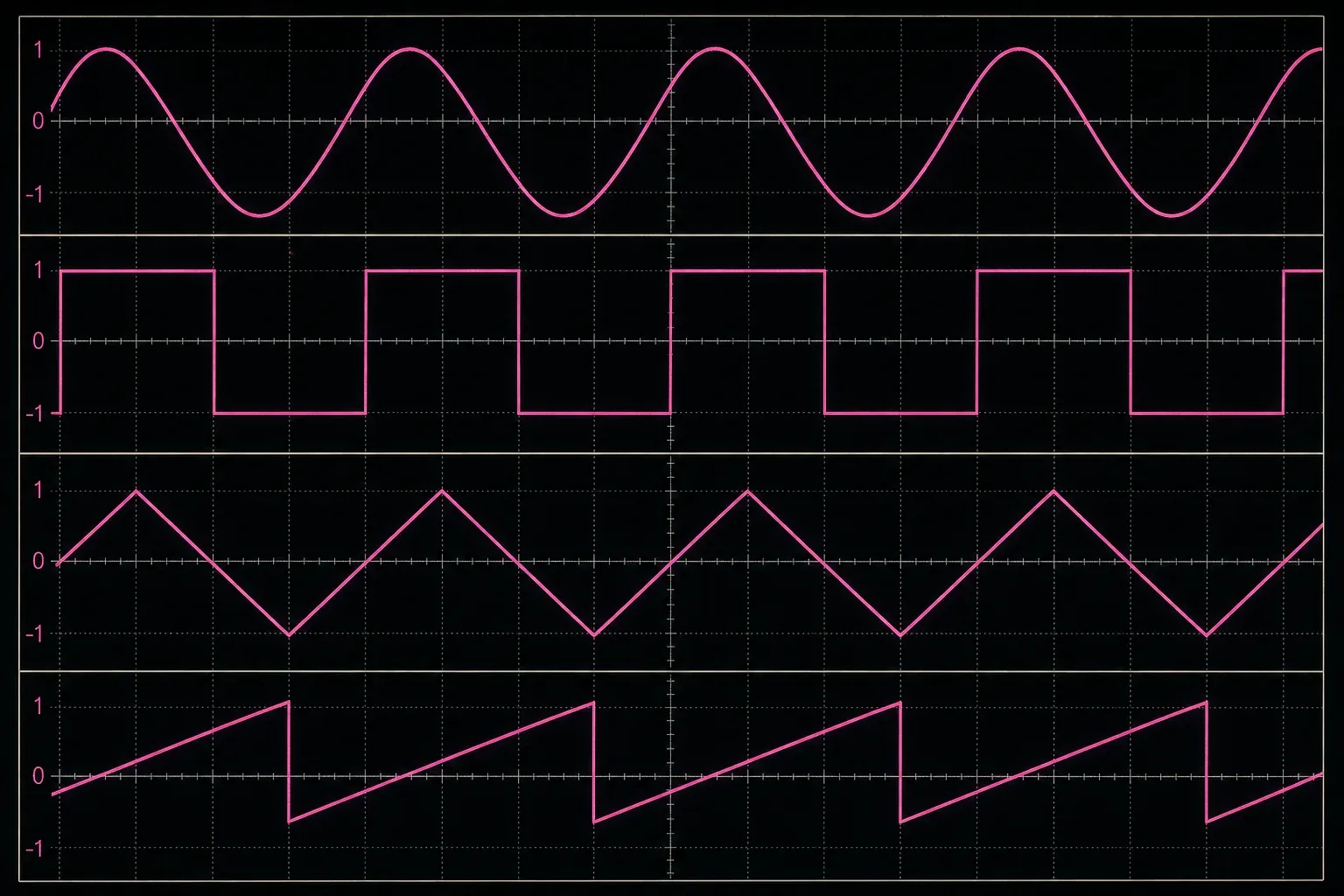
Sine is the right default for locating one frequency. Square adds strong odd harmonics and sounds hollow or buzzy, while Triangle carries odd harmonics too, though they fall away faster, so it comes across softer than square. Sawtooth contains a dense harmonic series and usually sounds brightest. Penn State’s Fourier synthesis demonstration shows the difference: sawtooth uses all integer harmonics, while square and triangle use only odd ones.
Those extra harmonics matter. A 100 Hz square wave isn’t only a 100 Hz test: the playback chain also receives energy at higher multiples. If you’re tracing a single hum frequency, comparing a crossover region or checking where a rattle begins, I'd start with sine and change shape only when those extra frequencies are part of the test.
Those are ideal harmonic series. The Web Audio oscillator specification requires filtering above half the context sample rate to limit aliasing. At high fundamentals, fewer harmonics remain, so the browser’s output doesn’t retain every harmonic of an ideal square or sawtooth.
Practical frequencies and what they can tell you
- 50 or 60 Hz: compare a suspected mains-related hum with the local electrical frequency. A real recording can also contain 100 or 120 Hz and higher harmonics, so a match is a clue rather than a full diagnosis. The 50/60 Hz hum repair guide shows how to confirm the recorded peak before filtering.
- 100 Hz: a simple low-frequency check for small speakers, headphones and obvious buzzes. Keep the level conservative; a quiet or distorted result can come from the output device, enclosure, room or routing.
- 440 Hz: an A4 pitch reference and an easy-to-hear routing signal.
- 1 kHz: a common midrange reference that is useful for tracing signal flow and checking whether an output is alive.
- 5 kHz: a short high-frequency check. Do not compensate for reduced audibility by turning it up aggressively.
If the job is simply to confirm which physical side is left or right, use the dedicated left/right speaker test. It has channel-specific controls and a symptom-led routing checklist. This page handles frequency generation and leaves stereo diagnosis to that one.
How to use a frequency sweep without over-reading it
A sweep is useful for finding the point where a rattle starts, a speaker stops producing useful output or the perceived level changes sharply. Narrow the range first. For example, if a cabinet buzz seems confined to bass, scan 40–200 Hz instead of running 20 Hz–20 kHz every time.
What you hear is the combined result of the digital tone, output route, converter, amplifier, transducer, room and listener. A louder patch during the sweep doesn’t by itself measure frequency response, and a quiet patch won’t tell you which part of that chain caused it. I'd repeat at a lower level, move the listening position and compare a second output before blaming a component.
To inspect frequencies inside an existing recording rather than generate them, open the file in the audio spectrum analyzer. It reports FFT peaks from the selected local file. The tone generator doesn’t analyze incoming audio.
How the browser makes the signal
The control uses the Web Audio API’s OscillatorNode. Its frequency parameter is expressed in hertz, and its standard waveform types include sine, square, triangle and sawtooth. A GainNode applies the visible tool-level setting, and short ramps at the start and stop reduce hard-edge clicks.
The sweep schedules an exponential change between two positive frequencies. Playback starts only after an explicit Play action or the Space shortcut. That’s because browsers may block audible Web Audio without user activation, as MDN’s Web Audio best practices explains. No microphone or file API is used.
Keep test tones short and quiet
The page deliberately starts low and limits its own gain, but your device, interface and amplifier still determine the physical output. A browser percentage isn’t dB SPL and can’t guarantee a safe listening level. The World Health Organization’s safe-listening guidance recommends keeping personal-device volume to no more than 60% of maximum and, where level monitoring is available, below an 80 dB average. These are general listening guidelines, not a starting volume or a guarantee for test tones. Begin much lower and do not raise an inaudible high or low tone to reach a percentage.
Duration matters as well as loudness. NIOSH identifies repeated occupational exposure at 85 dBA or higher as hazardous, although its limit is an occupational recommendation rather than a calibration for this browser tool. The practical rule here is simpler: begin low, use short checks, never raise an inaudible extreme tone abruptly and stop at any discomfort.
What this tool does not prove
- It does not measure acoustic level, distortion, frequency response or room response.
- It does not certify a speaker, headphone, converter or broadcast chain.
- It cannot diagnose hearing or replace calibrated audiometry.
- It does not guarantee that the physical output exactly matches the digital level shown on the page.
- It does not save or export a WAV file in this version.
Online tone generator FAQ
Can I generate an exact frequency?
You can enter 20 to 20,000 Hz, with up to two decimal places. The page rounds extra decimal places when you finish editing the field. Playback requires the requested frequency and both sweep endpoints to stay below half the current audio-context sample rate. An unavailable request stops playback and shows a message. This sets the digital oscillator; it does not calibrate your converter, speaker or listening environment.
Why can I not hear a very high or low tone?
The output device, level, route and listener can all limit audibility at the extremes. Do not keep raising the volume to force an inaudible tone. Compare another known output and treat the result as a clue, not a hearing diagnosis.
Which waveform should I use for a speaker test?
Start with sine when you want to isolate one frequency. Square, triangle and sawtooth add harmonics, so they can excite other parts of the playback chain and sound much brighter at the same tool setting.
Can I use this as an online hearing test?
No. The page has no calibrated headphones, reference sound-pressure level or clinical procedure. It can generate a reference signal, but it cannot measure hearing or provide a diagnosis.
Does the tone generator record or upload audio?
No. It creates the oscillator and gain stages in the current browser. It does not request microphone access, read a local audio file or send an audio stream to the server.