

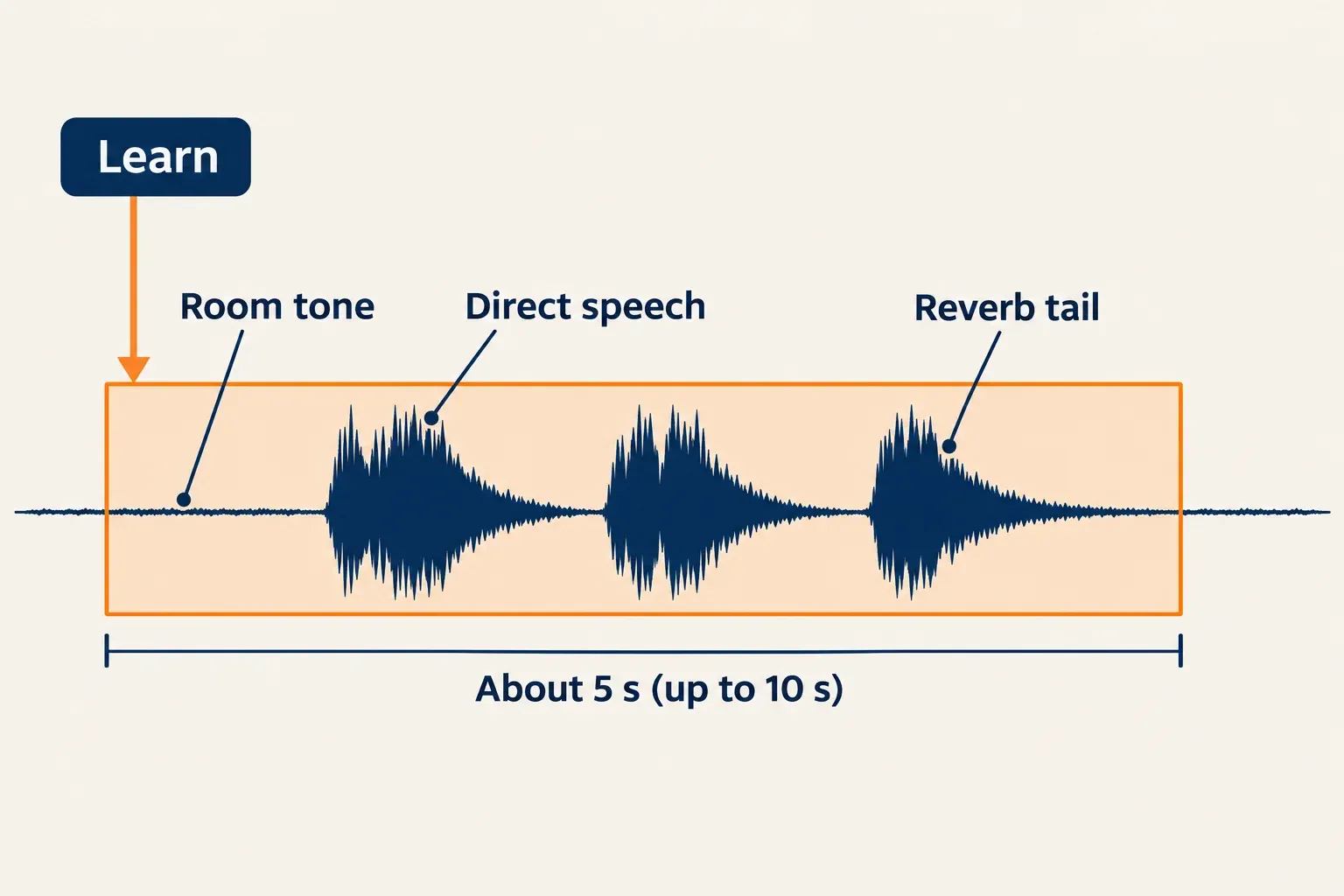
iZotope RX De-reverb lowers room reverb by estimating how much of each frequency band is reflected sound and how quickly that sound decays. Select about five seconds that opens on room tone, click Learn, check the suggested Reverb Profile and Tail length, then raise Reduction until the voice starts to sound processed and back it off a step. According to iZotope's RX 12 De-reverb documentation, it is both an RX Audio Editor module and a real-time plug-in, and RX Elements gets the plug-in only. The 12.1.0 update of October 15, 2026 lists no De-reverb changes in the RX release notes, so the RX 12 workflow below is current.
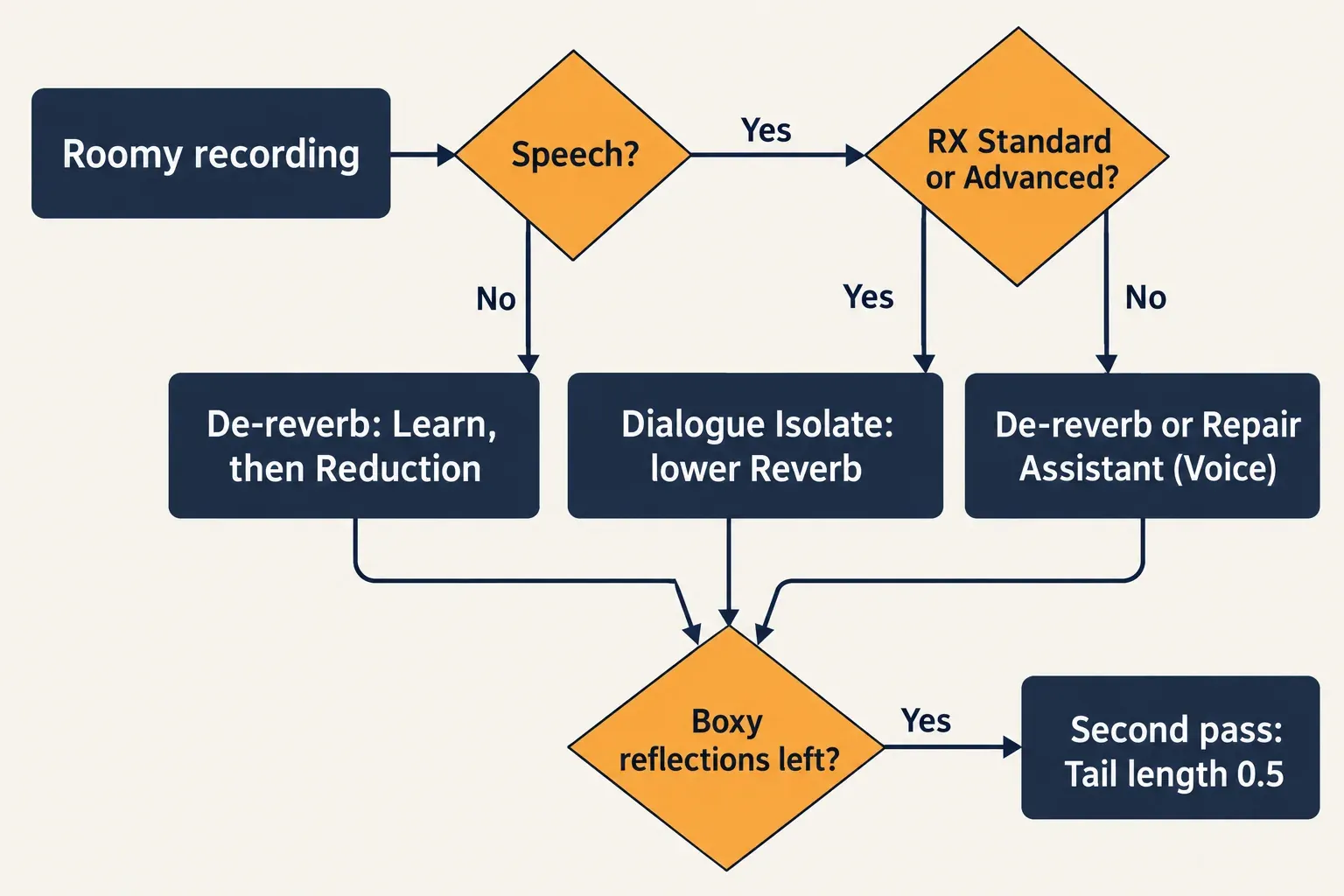
My rule is short. If the recording is speech and you own RX Standard or Advanced, I would try Dialogue Isolate's Reverb control first, because it is trained on dialogue, and keep De-reverb for music, full mixes, Elements setups and a short-tail cleanup pass. Either way, expect less room rather than a dry studio voice: no iZotope reverb tool won a single reverb test in the published comparisons against rival tools, and the test results section shows by how much.
De-reverb or Dialogue Isolate: pick the right RX tool first
Use De-reverb for anything that is not a single speaking voice, and for speech when RX Elements is all you have. For dialogue in Standard or Advanced, Dialogue Isolate deserves the first attempt; its own Dialogue Isolate manual page sends general, non-dialogue reverb reduction back to De-reverb.
| Situation | First tool | Edition | Why |
|---|---|---|---|
| Dialogue or a podcast voice in a live room | Dialogue Isolate, Reverb gain lowered | Standard, Advanced | It splits voice, reverb and noise into three parts with separate gain controls |
| Dialogue with RX Elements only | De-reverb plug-in, or Repair Assistant in Voice mode | Elements | Elements has no Dialogue Isolate, but both of these plug-ins are included |
| Music, a sung vocal in a hall, a full mix | De-reverb | All three | Learn works on any reverberant audio; Dialogue Isolate is built for speech |
| A quick first pass on a voice clip | Repair Assistant, Voice mode | All three (plug-in) | Voice mode has a De-reverb amount; Music mode has no De-reverb control |
| Boxy, short reflections left after a first pass | A second De-reverb pass at Tail length 0.5 | All three | The shortest tail settings go after early reflections |
Repair Assistant comes with a Pro Tools catch: in AudioSuite the Repair Assistant documentation says clips must be longer than 7 seconds, or Learn appears to hang. Distinct repeats and slapback are a different problem, covered at the end of this guide.
Which RX 12 editions include De-reverb, and where it runs
Every RX 12 edition can reduce reverb, but only Standard and Advanced give you the De-reverb module inside the RX Audio Editor. RX Elements is a set of six plug-ins without the standalone editor, so in Elements De-reverb lives in your DAW or audio editor.
| Edition | De-reverb | Dialogue Isolate | Repair Assistant | US price, Oct 21, 2026 |
|---|---|---|---|---|
| RX 12 Elements | Plug-in only | Not included | Plug-in | $99 |
| RX 12 Standard | Module and plug-in | Module and plug-in | Module and plug-in | $399 |
| RX 12 Advanced | Module and plug-in | Module and plug-in, plus Best / Offline quality and four-band processing | Module and plug-in | $1,399 |
Those are iZotope US store prices on October 21, 2026, from the pages for RX 12 Elements, RX 12 Standard and RX 12 Advanced; the Standard page also listed a $299 upgrade from Elements. The RX Elements vs Standard vs Advanced comparison walks through the rest of the module list, and the RX price, trial and license guide covers upgrades and the trial.
The plug-in ships as AU, AAX (including AudioSuite in Pro Tools) and VST3, 64-bit only; RX has had no VST2 version since RX 11. The RX 12.0.0 notes list macOS Sonoma, Sequoia and Tahoe on Intel and Apple silicon, plus Windows 10 (22H2) and Windows 11 (24H2). To run it inside Sound Forge Pro, the guide to loading VST3 plug-ins in Sound Forge applies, and if De-reverb never appears in your host, work through the fixes for RX plug-ins not showing up.
iZotope also warns that the real-time plug-in can be resource intensive and says the best results come from opening the file in the RX Audio Editor, directly or through RX Connect, processing it there and sending it back to the session. With Standard or Advanced, follow that advice for anything you plan to deliver, and keep the plug-in for auditioning. Every other RX guide on this site sits on the iZotope RX hub.
How to learn a reverb profile
Give Learn about five seconds that starts on room tone and contains words plus the reverb hanging after them. The manual asks for exactly that mix because De-reverb needs the noise floor, the direct sound and the tail to judge the wet/dry ratio and decay without overprocessing the quiet parts.
- Open the file in the RX Audio Editor (Standard or Advanced), or insert the De-reverb plug-in on the track in your host.
- Select roughly five seconds that begins with a moment of room tone and runs through a phrase or two and the tail that follows.
- Click Learn. In the editor it analyzes the selection; in a host, activate Learn and play the passage through the plug-in.
- When Learn finishes, Reverb Profile and Tail length hold suggested values. Preview, then move to Reduction in the next section.
If the learned profile sounds wrong, the manual offers three remedies:
- learn on transient, broadband material such as drum hits, claps or coughs;
- learn on any passage that is obviously reverberant;
- learn for longer, because most reverb analyzes in a few seconds but some profiles need up to ten.
Learn again whenever the room or the mic position changes, since a profile describes one acoustic space. If the take has no clean pause to start from, learn on an obviously reverberant passage instead; for future sessions, the guide to recording and editing room tone covers capturing a clean stretch. If the editor itself is new to you, the RX 12 tutorial for beginners walks through a first repair.
Pro Tools users have one more trap. iZotope's guide to using RX plug-ins explains that the Learn button on the AudioSuite wrapper also feeds the clip handles into the learn pass, 2.00 seconds on each side by default. That can pull dialogue or noise from outside your five seconds into the profile. Set handles to 0 in the box next to Render, or activate Learn inside the plug-in window and press Preview so only the selection plays into it.
One version note: RX 10.4.2 (September 28, 2023) fixed a bug that stopped the De-reverb module from learning a valid reverb profile, so an older install that refuses to learn should be updated before you blame the selection.
De-reverb settings: what each control does and where to start
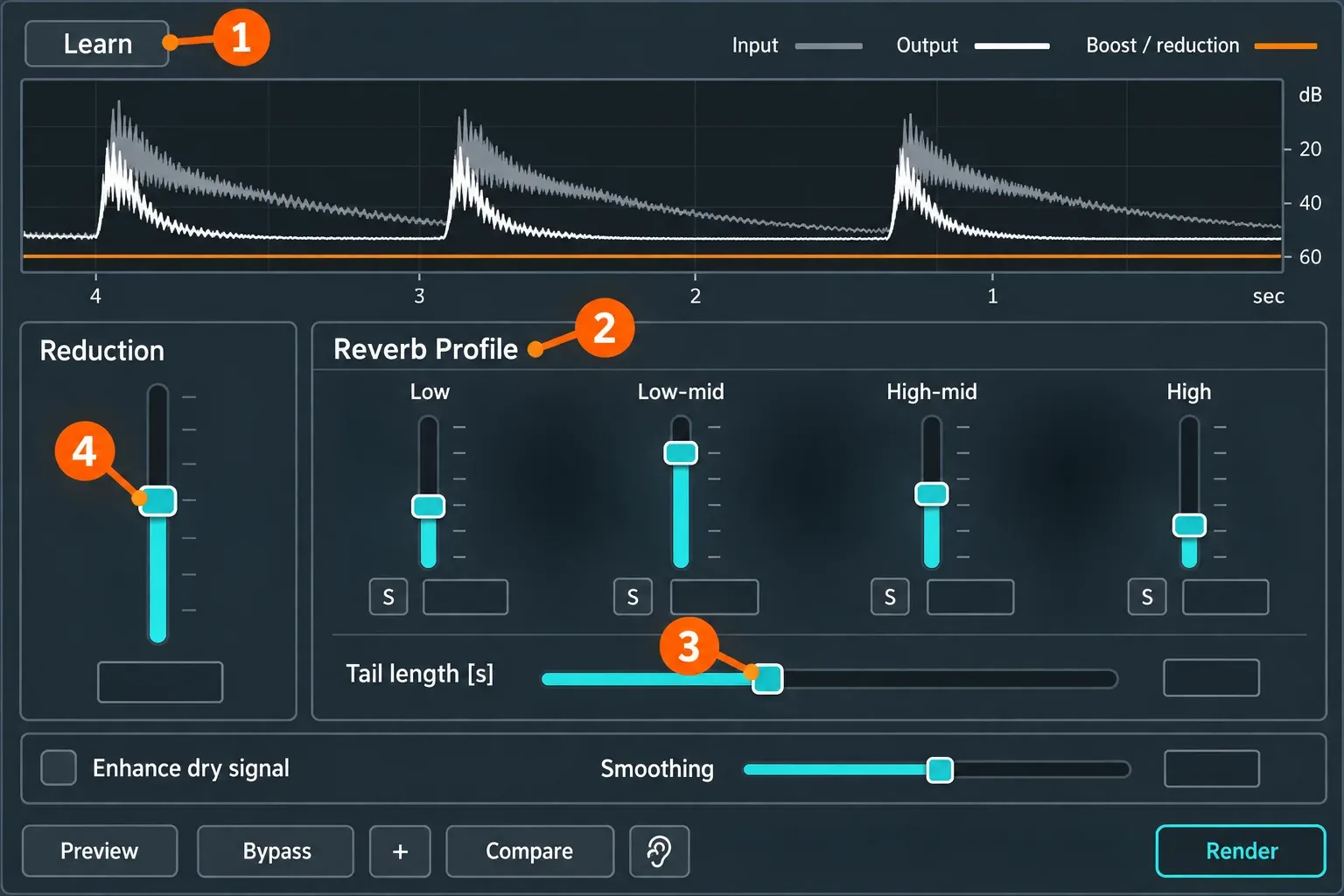
Let Learn set Reverb Profile and Tail length, then spend your time on Reduction. iZotope's article on reducing reverb with RX recommends pushing Reduction up until a little weirdness appears, then pulling it down slightly; if the learned result already sounds unnatural, the manual says to lower Reduction slowly.
| Control | What it does | Where I would start | Change it when |
|---|---|---|---|
| Reduction | Sets the target wet/dry ratio: higher values remove more reverb, negative values add it | Raise it from the learned result until artifacts appear, then back off a step | Lower it whenever the voice turns unnatural |
| Reverb Profile (Low, Low-mid, High-mid, High) | Sets the De-reverb amount per band; Learn fills it in | The learned values | Raise a band where reverb lasts longer or is louder; the low band can clear a muddy, resonant bass guitar, the high band can tame ringing sibilance on live vocals |
| Tail length [s] | Approximates RT60, the time reverb takes to fall by 60 dB | The learned value, or roughly how long the tail lasts (about 3 s for a three-second tail) | Raise it if tails return or early reflections stay obvious; lower it if tails and the noise floor sound overprocessed or the result turns dull |
| Smoothing (Artifact Smoothing) | Controls frequency accuracy; the default is very high because reverb is smooth across the spectrum | Leave it high | Lower it to chase room resonances, accepting more artifacts and rebalancing Reduction |
| Enhance dry signal | Raises the level of the direct sound | Off, then try it on voice or transient material | Turn it on when speech needs more dynamic range or a de-noise pass comes next |
The tail-length rule of thumb also comes from iZotope's reverb article: if the reverb rings for about three seconds after the source stops, set Tail length to about three seconds. I would adjust Reduction first, Tail length second and Reverb Profile third, and touch Smoothing only when a single resonant room tone survives everything else.
Check what you remove before you render
Turn on Output Reverb Only while you adjust, then switch it off before you render. The option replaces the processed signal with the part De-reverb is removing, which helps you hear how Reduction, Reverb Profile, Tail length and Smoothing change the result. The manual adds a warning: this output may not sound much like reverb, because it is the difference against the original with some enhancement. I would judge it by how it changes as you move a control, not by how it sounds on its own.
The two meters do the same job visually. The top meter compares input and output energy over the last five seconds of playback, and the bottom meter plots the reduction over time. Together they show what De-reverb treats as reverb.
In the Audio Editor the module footer gives you three more checks, per the RX 12 common module controls page:
- Preview plays a pre-rendered buffer of the current settings on your selection, about half a second for most modules, and Preview Options lengthens it.
- Bypass switches that preview to the unprocessed sound.
- Compare sends the current settings to a Compare Settings window, where you can audition several versions side by side and render the one you pick.
Compare is the most useful of the three here: sending two or three Reduction values to it and hearing them back to back on the same phrase is a quick way to find where the voice starts to suffer.
Two passes for boxy rooms and early reflections
When a recording has both a long tail and short, boxy reflections, split the job into two passes. The manual's method for complex reverb is a first pass tuned on the long tail, then a fresh Learn with Tail length at 0.5, Smoothing around 3.0 and more Reduction aimed at the early reflections.
- Learn on the full five-second selection and set Reduction for the long tail only. Render.
- Learn again on the processed audio.
- Set Tail length to 0.5 and Smoothing to about 3.0, then raise Reduction until the boxiness drops.
- Preview, compare and render.
Early reflections are the fast echoes from nearby surfaces. The manual places them in the first 5 to 100 milliseconds of a reverb tail and notes that the minimum Tail length setting works on them. This also matches iZotope's broader advice that a few light passes are more transparent than one pass with everything maxed out. For very reverberant material, the manual adds that De-reverb and Spectral De-noise can be combined.
Dialogue reverb: Dialogue Isolate and the old Dialogue De-reverb
In RX 12 the speech-specific reverb control lives in Dialogue Isolate: lower its Reverb gain and leave Voice where it is. Tutorials that show a separate Dialogue De-reverb module describe RX 10 and earlier.
Dialogue Isolate separates dialogue, noise and reverberation into three components with Voice, Reverb and Noise gain controls. I would set Sensitivity last and keep it modest, because the manual says raising it classes more audio as noise and reverb, which can add artifacts and reduce dialogue clarity. In RX 12 Advanced, the Quality menu offers Good / Real-time for plug-in use and Best / Offline for the final render; always print with Best / Offline. Stem Split writes voice, reverb and noise to separate stems, but it ignores the gain slider positions and treats every stem at 0 dB.
The history explains the confusion around older guides. The RX 11.0.0 release of May 14, 2024 rebuilt Dialogue Isolate on a new neural net that includes Dialogue De-reverb, and the RX 12 module and plug-in tables list no separate Dialogue De-reverb. Production Expert's RX 11 review from Post Expert reported the old module removed, and judged Dialogue Isolate's reverb reduction significantly better: less impact on the voice, more reverb removed, fewer obvious artifacts. iZotope's June 2026 guide to cleaning up vocals still says Dialogue De-reverb is hidden in RX and may need a key command to reach. The current manual documents no menu path for it, so I would not build a workflow on it. If you do reach it, the same article's advice is subtlety.
The full control walkthrough is in the RX Dialogue Isolate guide, and the RX 12 vs RX 11 comparison lists what changed between the two versions.
De-reverb and noise reduction: which goes first
Order is not critical: the manual says it does not matter whether De-reverb or Spectral De-noise runs first. I would still put De-reverb first with Enhance dry signal on when steady noise sits under the room, because iZotope says that option can help prepare material for later de-noising.
For speech in Standard or Advanced, Dialogue Isolate can handle noise and reverb in one pass, which saves a step. Module choices and settings for steady background noise are in removing background noise in iZotope RX 12, and if you finish inside Sound Forge Pro, its own tools are in the Sound Forge noise reduction guide.
Test results: what published listening tests show
Composite result: 7 published evaluations from 2 outlets, 2023 to 2026. In the 6 that set iZotope against other tools, an iZotope reverb tool won 0 reverb tests. The general De-reverb module placed between 3rd and 6th in all 8 Production Expert clip polls it entered. Each vote share below stays with its own poll. The line-ups, settings policies and RX versions differ too much to pool them into one average.
| Evaluation | Date | iZotope tool | Conditions | Result |
|---|---|---|---|---|
| Production Expert de-reverb listening test | Feb 14, 2023 | RX De-Reverb | Blind reader poll, five real-time plug-ins, four dialogue clips, each set for the best balance of reduction and artifacts | 3rd, 3rd, tied 4th, 3rd; 229 of 1,774 votes (12.9%). Acon DeVerberate 3 won three clips, Accentize DeRoom Pro 2 won the bathroom clip |
| Production Expert round 2 | Mar 9, 2023 | RX Dialogue De-Reverb, rendered in RX Advanced | Same four clips against the two round-one leaders | 3rd, 2nd, 2nd, 2nd; 242 of 881 votes (27.5%); no clip won |
| Production Expert reverb reduction listening test | Jan 25, 2024 | RX DeReverb | Six tools, four clips, deliberately extreme settings | 5th, 6th, 5th, 6th; 17 of 1,411 votes (about 1.2%). Hush Pro won three clips, Accentize dxRevive Pro one |
| Production Expert RX 11 review | May 15, 2024 | RX 11 Dialogue Isolate vs RX 10 Dialogue De-reverb | Version comparison on dialogue | Dialogue Isolate significantly better: less voice impact, more reverb removed, fewer artifacts |
| ProVideo Coalition RX 11 shootout | May 24, 2024 | RX 11 dialogue tools | Dialogue with traffic and heavy reverb, against rival tools | Very little improvement over RX 10; Waves Clarity Vx took the win as the best of the non-enhancer tools |
| Production Expert dialogue shootout 2025 | Jun 27, 2025 | RX Dialogue Isolate | Four dialogue examples, two with reverb | Hush Pro won both reverb examples and was named best at reducing reverb |
| ProVideo Coalition RX 12 shootout | May 1, 2026 | RX 12 dialogue tools | Reverberant phone recording; heavy-traffic dialogue | Little or no gain over RX 11 on the phone clip, which Adobe Enhance Speech won; an occasional booming reverb artifact on the traffic clip |
Read the 2024 poll with its settings in mind. Production Expert pushed every tool to extreme reduction and said that in actual use, “you’re more likely to only require a moderate amount of reverb reduction.” The 2023 round, set for the best balance, is the fairer picture of De-reverb, and there it finished mid-pack: third in three of four clips, behind Acon Digital and Accentize in every one. Acon DeVerberate 3 took the long stereo clip with 58.91% of the votes, against 16.93% for RX.
My verdict: RX De-reverb is the right tool inside RX for music, mixed material and moderate room sound, and the learn-then-reduce workflow above gets the most from it. It is not the strongest dialogue de-reverber on the market. Production Expert's RX 11 verdict is the reason I send speech to Dialogue Isolate first. If heavily reverberant dialogue is a weekly job, trial one of the tools that won these polls; the RX alternatives guide covers the dialogue plug-ins worth a look.
When De-reverb is the wrong tool
- Distinct repeats, slapback or a doubled voice. De-reverb models a decaying tail, not separate copies of the sound. Start with the guide to removing echo from audio without wrecking speech.
- A distant mic where the room is louder than the voice. Expect a partial fix. The manual's own example of a distant speaker uses a long-tail pass followed by a second, short-tail pass.
- A dull or unnatural result. That is overprocessing. Lower Reduction first, then shorten Tail length if the tails and noise floor still sound treated.
- You want more space, not less. Negative Reduction values do add reverb, but designed space belongs in a reverb plug-in; see adding reverb in Sound Forge Pro.