
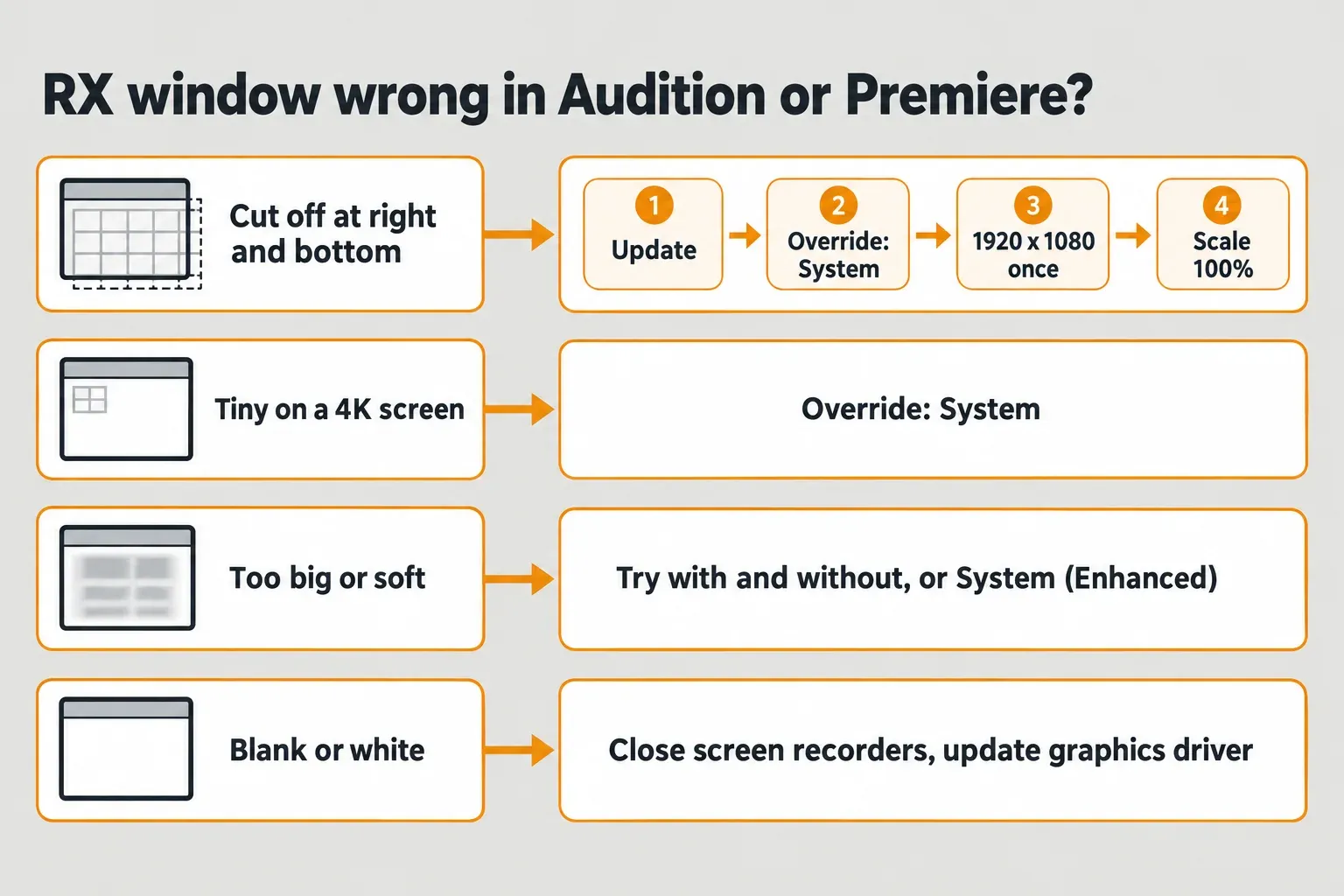
When iZotope RX shows only half its window in Adobe Audition or Premiere Pro, check your Windows display scale first. Every Adobe-host report of a cut-off or tiny RX window that names its display is on Windows at 125% or more or on a 4K screen, and every fix that worked changes how that scaling reaches the Adobe app. Four fixes follow, in this order: update RX and the Adobe app, set the app's high DPI override to System, open RX once at 1920x1080, and only then drop Windows to 100%.
I'd try the System override before touching the resolution, because it's a one-time setting on the Adobe app and leaves the rest of Windows alone. Neither iZotope nor Adobe has published a fix for this, so everything below is a workaround that users confirmed, not a vendor patch. If RX doesn't appear in the effects list at all, the window isn't the problem yet, and the rescan steps for RX plug-ins that aren't showing up come first.
Why the RX window gets cut off in Adobe apps
The reports point at display scaling. Windows lets each app declare how it handles a scale above 100%, and Microsoft's guide to high DPI desktop apps says an app that doesn't respond to a DPI change can look blurry or the wrong size. By default, Windows treats a desktop app as unaware of scaling and stretches its window like a bitmap. A plug-in adds a layer: it's third-party interface drawn inside the host's window (the VST plug-in explainer covers how hosts load them), and the same guide says child windows have to keep matching their parent's scaling.
When the host and the plug-in disagree about the scale, the RX interface comes out larger than the frame Audition or Premiere gives it, and the right and bottom edges fall outside. Neither vendor has confirmed that mechanism, but it matches what users describe. In the Audition bug report on cut-off RX 11 Elements plug-ins, stretching the window made the frame bigger while the RX area stayed cropped, and the fixes that work elsewhere all change the scale the host sees.
The RX version shapes the symptom. iZotope's RX release notes record that 11.2.0, released September 20, 2024, added Windows HiDPI support for high-resolution monitors to the RX app and plug-ins, and RX 11 Elements 11.2.0 brought the same support to its plug-ins. Both reports of a tiny window on a 4K screen involve older versions, RX 8 and RX 10 Elements. The dated cut-off reports involve RX 11 and run from October 2024 to April 2025, after HiDPI support arrived, though none states an exact RX build.
Fix 1: update RX and the Adobe app
Start with versions. iZotope's Windows 11 compatibility note asks users to install the latest updates for Windows 11 and for every iZotope product, and Adobe's community manager gave the same first advice in the Premiere Pro 25.2.3 report of a cropped RX 11 window: update the plug-in, get current drivers through Windows Update, then contact iZotope. The current release is RX 12.1.0, from October 15, 2026, and the RX 12 product page lists Adobe Audition 2026 and Premiere Pro 2026 among its supported hosts, on Windows 10 22H2 and Windows 11 24H2.
Update for support, not for a named fix. No RX release note from 11.2.0 to 12.1.0 mentions Audition, Premiere or a cropped plug-in window. The two later window fixes in RX 11 concern the RX app itself: 11.3.0 fixed a clipped Export Screenshot window, and 11.4.0 fixed a plug-in module GUI issue inside the RX app. The compatibility section of the RX 12 review lists the full host and system set, and the RX 12 vs RX 11 comparison weighs what else changes before you update.
On the Adobe side, the current versions are Audition 26.5 and Premiere Pro 26.5.2, with Premiere 25.6.6 as the long-term-support release. Adobe has fixed a display-scale bug in one of Audition's own dialogs in a point release, but Adobe's list of fixed Audition issues from 22.0 to 26.5 has nothing for third-party plug-in windows, and neither do Premiere Pro's release notes through 26.5.2.
After an update, make the host read the plug-in again. In Audition, choose Effects > Audio Plug-in Manager and click Rescan Existing Plug-ins, as Adobe's guide to third-party plug-ins in Audition describes; a plug-in marked Not Working can be reloaded from the same list. In Premiere Pro the manager opens from Preferences > Audio > Manage Audio Plug-ins, according to Premiere's audio preferences. If the RX installer itself misbehaves, follow the reinstall order for iZotope products.
Updates can also start the problem. In the Premiere report, the Repair Assistant window turned cropped as soon as the user moved from Premiere 24.6.3 to 25.2.3. When the window broke right after a host update, go straight to the override below.
Fix 2: set the high DPI override to System
This fix changes one program and comes undone with a single checkbox, which is why it sits ahead of the resolution and scale changes. Windows has a per-program scaling override, in the form Microsoft introduced in the Windows 10 Creators Update. Set it on Audition or Premiere Pro, not on RX: the plug-in loads inside that program, so the program's setting is the one that applies.
- Close Audition or Premiere Pro.
- Right-click the Audition or Premiere Pro program file, or the shortcut you start it from, and choose Properties.
- Open the Compatibility tab and click Change high DPI settings.
- Tick Override high DPI scaling behavior.
- Under Scaling performed by, choose System. Click OK, then Apply.
- Start the app and open the RX plug-in again.
Microsoft's own steps for the override tick the same checkbox on the Compatibility tab and use System (Enhanced) as their example; System is the value two Adobe-host reports below confirm.
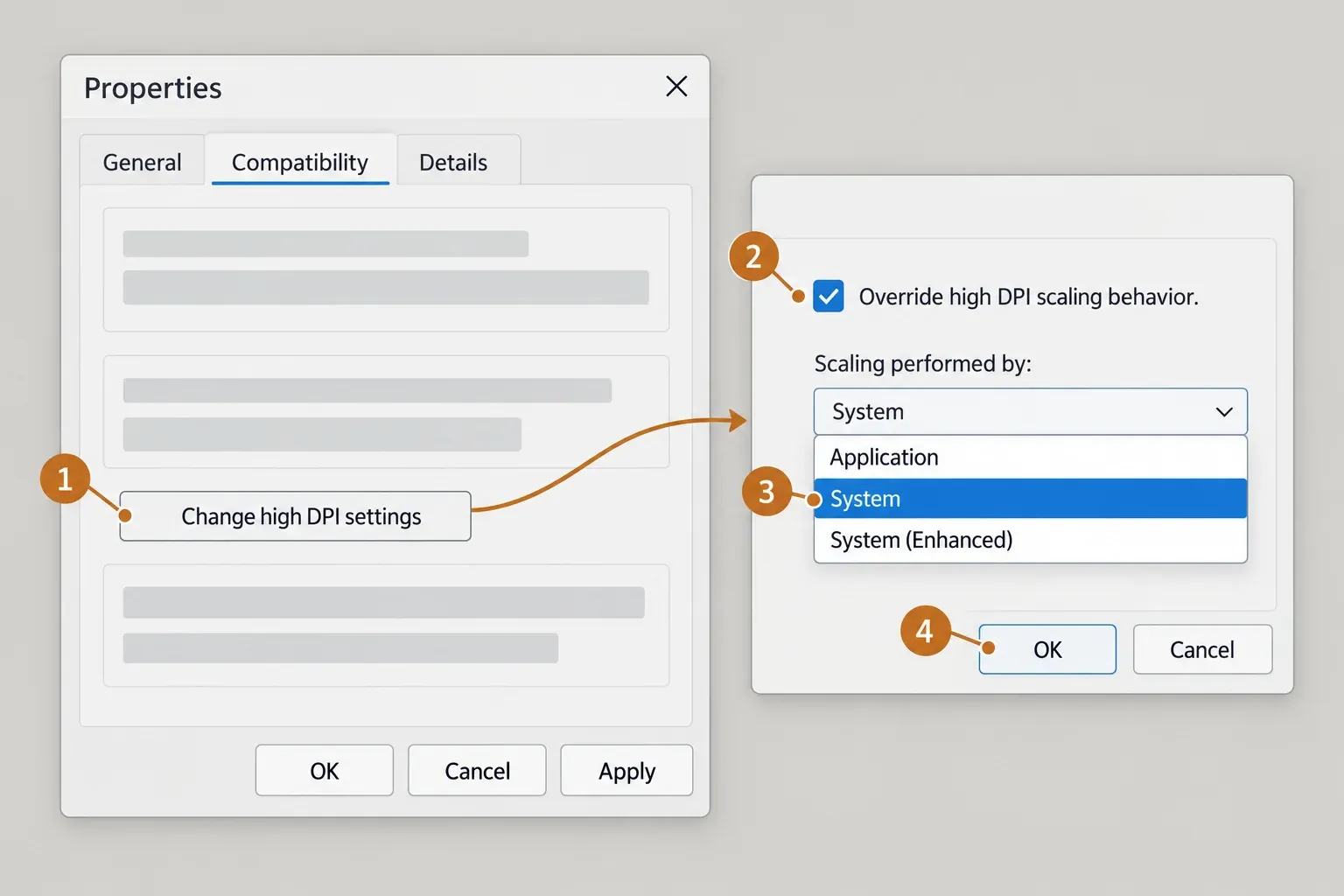
The list has three values, and Microsoft's description of the override explains each one. Application forces the program to handle scaling per monitor, and Windows stops stretching its interface. System is Windows' standard handling for apps that know only one scale: when the scale changes, Windows stretches the interface as a bitmap, so it can look softer. System (Enhanced) is GDI Scaling, which sharpens classic Windows text but leaves GDI+ and DirectX content unscaled and bitmaps soft.
Two reports say System worked. In the Premiere 25.2.3 thread, on Windows 11 with a native 4K screen set to 250%, the user wrote that Premiere with the System override "just works fine". In a Premiere Pro CC 2023 thread about RX 10 Elements on a 4K monitor, the plug-in went from "tiny small" to "really big" with every option visible. One report says System failed: in 2021, on Windows 10 at 4K, setting it on the Audition shortcut and on RX 8 changed only the programs' interface and cursor, and the RX 8 plug-ins stayed small. A second, from November 2024 in the Audition bug report, is ambiguous: the user "went into the program properties and made adjustments but it didn't help anything", without saying which setting or value.
The override affects the whole program. Text in Audition or Premiere may look softer under System, and the setting covers every plug-in window that program opens. Microsoft advises running an app both with and without the override before keeping it, and that's the right test here: open two or three plug-ins you use daily, compare, and untick the box if the trade isn't worth it.
Fix 3: open RX once at 1920x1080
When the override doesn't take, a temporary resolution change has two confirmations. ChrisKane posted it in the Audition bug report for a cropped Neutron 5 window, so the trick isn't limited to RX, and another user confirmed in February 2025 that it "seems to have worked". The Premiere 25.2.3 user also got the full plug-in back this way, and for that one launch also set the 250% scale back to 100%.
- Close Audition or Premiere Pro.
- Open Start > Settings > System > Display and set Display resolution to 1920 x 1080. If the screen is natively 1920 x 1080, set Scale to 100% for this launch instead.
- Start the Adobe app, open the RX plug-in once, then close the app.
- Set Display resolution, or Scale, back to the value marked (Recommended) and start working.
I'd treat this as a reset, not a setting. Microsoft's display settings page warns that a resolution below the screen's native one makes text less sharp, which is why you switch back straight away. If the cut-off returns after a later update, run the reset again before moving on to Fix 4.
Fix 4: set Windows scale to 100%, last
Dropping Windows to 100% removes scaling altogether, and it's the bluntest fix on the list. The path is Start > Settings > System > Display > Scale & layout > Scale, and Microsoft's advice on the same display settings page is to keep the option marked (Recommended). The Reddit thread on a cut-off RX 11 window in Audition describes the routine: switch Scale from 125% (Recommended) to 100% before opening Audition.
I wouldn't keep 100% on a 4K screen unless the first three fixes failed, because it shrinks the whole desktop to fix one window. It was once iZotope's standard answer: in a 2022 Image-Line forum post, an FL Studio user quoted iZotope support saying its plug-ins didn't support UI scaling and recommending 100% on Windows. RX 11.2.0 added HiDPI support later, so that advice predates the current plug-ins.
Sign out and back in after changing the scale, before you judge the result. Microsoft's high DPI guide notes that apps aware only of the system scale take it from the main display at sign-in. For the same reason, if your monitors use different scales, test with Audition or Premiere on the main display.
In Premiere Pro: use the Audio Track Mixer meanwhile
Premiere has a stopgap: run the RX effect from the Audio Track Mixer and set its parameters there, without opening the plug-in window. Open Window > Audio Track Mixer, click Show/Hide Effects and Sends, then the Effect Selection icon, and choose the RX effect. Adobe's Audio Track Mixer guide says the chosen effect's parameters appear in the lower-right corner of the Effects and Sends panel.
A Premiere user in the Audition bug report worked this way and called it "Not a solution", because the plug-in's visual display is gone. That's fair for Repair Assistant or anything you judge on screen, but it keeps a deadline moving while you sort out the scaling. The guide to RX as a Premiere track effect covers the rest of that workflow.
RX window too big, too small or soft
A tiny RX window on a 4K screen is the same mismatch in the other direction. Both tiny-window reports involve older RX, and the System override is the fix with a success on record. I'd leave Application alone here: Microsoft describes it as telling Windows not to stretch the program's interface at all, which leaves the sizing to Audition or Premiere. If RX comes out the wrong size under any of the three values, go back to System or untick the override.
Soft text is the price of System, since Windows stretches the interface as a bitmap. System (Enhanced) can sharpen classic Windows text, but Microsoft lists its limits: GDI+ and DirectX content doesn't scale, bitmaps stay soft, and the only way to know whether an app benefits is to try it app by app.
Don't look for a size control in the plug-in. The RX 12 manual's page on using the plug-ins lists Options for authorization and updates, host performance, I/O and latency, and nothing for interface scale. The one documented resize handle belongs to the RX Spectral Editor, the ARA plug-in, whose Resize control drags its window to a new size.
iZotope's only host-specific scaling instruction is for Ableton Live on 4K Windows screens, where the release notes say to untick Auto-Scale Plug-In Window for each RX plug-in. There's no equivalent note for Adobe hosts, and an Adobe Community Expert said in the RX 8 thread in 2022 that Audition has no way to scale the window of any plug-in.
Blank, crashing or Connect problems: different fixes
A blank RX window isn't a scaling problem, and iZotope has a support article for it. iZotope's blank-window article ties a blank interface on Windows to the 1803 update combined with apps that use display settings, such as screen recorders and screen-sharing tools, and names Bandicam, Playstv and Duet Display. Close those in Task Manager, then update the graphics driver: run dxdiag, open its Display tab to see which card you have, and get the driver for it. Windows Update also delivers drivers through Start > Settings > Windows Update > Check for updates.
Three neighbors look similar and have their own fixes. When the plug-in window never opens in Audition after a scan, update Audition first, since 26.0 fixed a scan bug that made plug-in interfaces fail to open. When Audition or Premiere closes as the RX window opens, start with the RX crash checks for plug-ins inside a host. When the trouble is sending audio to the RX Audio Editor, that's RX Connect, which works only as a VST3 plug-in in Audition, and the RX Connect fixes for Audition cover it.
On a Mac
Every cut-off report with a stated system is on Windows. In the Premiere 25.2.3 thread an Adobe Community Expert said the same RX setup looked fine on a Mac, and that's the only Mac data point in the reports. The only Mac display fix in the RX notes from 11.2.0 to 12.1.0 arrived in 12.1.0, for obscured or overlapping text in inline edit fields on macOS Tahoe. RX 12 supports macOS Sonoma 14.7, Sequoia 15.8 and Tahoe 26.x.
I'd look past scaling on a Mac. Update to 12.1.0 if you're on Tahoe, rescan in Premiere's Audio Plug-in Manager, which handles VST3 and AU on macOS, and report a window that stays cropped to iZotope with your host and RX versions.
Test results: what fixed it in six Adobe-host reports
No benchmark measures a cut-off plug-in window, so this composite result counts reported symptoms and fixes. The sample is six threads about iZotope plug-ins in Audition or Premiere Pro, dated 2021–2025: four from the Adobe Community, one from the Native Instruments Community and one Reddit thread readable only as a search snippet. One thread can count in more than one row. Six threads is a small sample, so read the counts as which fixes held up, not how often.
| Reported setup, symptom or fix | Threads (of 6) | Representative thread |
|---|---|---|
| Windows at a scale above 100% or on a 4K screen | 5 | iZotope products at 125% in Audition (2025) |
| Window opens cut off | 3 | RX 11 Repair Assistant in Premiere 25.2.3 (2025) |
| Plug-in tiny on a 4K screen | 2 | RX 8 in Audition on Windows 10 (2021) |
| High DPI override set to System worked | 2 | RX 10 Elements in Premiere CC 2023 (2024) |
| Temporary 1920x1080 relaunch worked | 2 | RX 11 Elements in Audition (2024–2025) |
| Override tried without success | 1 | RX 8 in Audition (2021) |
| Program properties changed, setting not stated, no help | 1 | RX 11 Elements in Audition (2024) |
| Windows scale dropped to 100% | 1 | RX 11 in Audition on Reddit |
| Problem started after a host update | 1 | Premiere 24.6.3 to 25.2.3 (2025) |
| Fix from iZotope or Adobe | 0 | None posted |
Scaling appears in 5 of 6 reports; the sixth, the Audition bug report, never states a display scale. The fixes that worked all change how Windows scaling reaches the host: the System override in 2 of 6, the 1920x1080 relaunch in 2 of 6 and 100% scale in 1 of 6. The override is the only fix with a clear failure on record, RX 8 in 2021, before RX 11.2.0 added Windows HiDPI support. The 2024 reply about program properties gets its own row rather than counting as an override failure, because it never names the setting or the value. Two threads also show that dragging the frame larger doesn't help, which fits a mismatch inside the window rather than a window that's simply too small.
No thread has a fix from iZotope or Adobe. Adobe's community manager pointed the Premiere user to plug-in updates, Windows Update drivers and iZotope support, and the Audition bug report sits at Open for Voting. The pattern is older than RX 11, too: outside the count, a 2018 Premiere thread describes cropped audio plug-in windows from an unnamed vendor on a 2560x1440 monitor at 125%, cured by switching to 100%.
For your order of work, the counts can't rank the fixes by success, so cost ranks them: the override first because it touches one program and undoes in a click, the resolution reset when the override doesn't take, and 100% scale only when both fail.
Verdict: the order I'd follow
My verdict: treat a cut-off RX window in Audition or Premiere Pro as a Windows scaling problem until it proves otherwise, and fix it at the Adobe app rather than across the whole desktop.
- Update RX and the Adobe app, then rescan plug-ins in the host.
- Override: set Scaling performed by to System on the Audition or Premiere Pro program file, and compare with and without it.
- Reset: open the plug-in once at 1920x1080, or at 100% scale on a native 1080p screen, then restore the recommended setting.
- Scale: drop Windows to 100% only if the first three fail, then sign out and back in.
In Premiere, the Audio Track Mixer keeps the RX effect usable while you work through the list. A blank window, a crash and RX Connect each have their own fixes above. For the rest of the RX family, from editions to modules, start at the iZotope RX hub.