

To clear the VEGAS Pro cache, close VEGAS, hold Ctrl+Shift, double-click the VEGAS shortcut on your desktop and keep holding until VEGAS asks whether to reset all preferences to default values. Tick "Delete all cached application data." and click Yes. Start it from the desktop shortcut or the program file, never the Start menu, which the reset guide a moderator posted on the Boris FX forum rules out. In VEGAS Pro 22 the cache sits in C:\Users\<you>\AppData\Local\VEGAS Pro\22.0, and the reset takes your preferences with it, so export them first.
My rule is simple: back up first, reset second, and delete folders by hand only when the reset hasn't helped. A reset is a quick test, not a cure. In 10 forum threads where someone ran it and reported back, it fixed the problem twice. The order below follows that logic: five things to save, the reset itself, what each action removes, the temporary files folder, cleanup for when you only want disk space back, the plugin cache, and eight steps to try when the reset changes nothing.
"Clearing the cache" covers three different jobs in VEGAS. The reset checkbox deletes cached application data in the version folder. That folder also holds thumbnails, recovery projects and copies of media, and you can empty parts of it by hand. Peak files (.sfk), video proxies (.sfvp0) and prerendered video sit next to your media or in the project's prerender folder, and each has its own cleanup.
Back up these five things before you reset
A reset returns VEGAS to factory preferences, and the moderator's reset guide doesn't list everything else it takes along, so save whatever you'd hate to rebuild. The same guide advises backing up your C: drive first if you've spent real effort on personalized settings. Five items cover most setups:
- Preferences. Choose Options > Export Preferences and save the .vegprefs file outside AppData. The VEGAS Pro preferences overview documents the command and its partner, Options > Import Preferences. A forum user notes that the export leaves out menu customization, which in that user's experience gets lost after a reset, so note any menu changes you rely on. If your build has no Export Preferences command, the drive backup in item 5 covers preferences too.
- Keyboard map. In Options > Customize Keyboard, click Save as and name the map. The VEGAS Pro 2027 keyboard help puts that .ini file in
C:\Users\<you>\AppData\Roaming\Vegas\Vegas Pro\2027. Copy it somewhere safe. - Window layouts. Use View > Window Layouts > Save Layout As, give the layout a name and, if you like, a shortcut. A saved window layout also keeps the size and state of the docking areas. Then copy whichever Roaming folder exists on your PC. The clean-uninstall guide on the Boris FX forum names
%AppData%\VEGAS Proas the home of custom layouts and keyboard settings, while the 2027 help uses theRoaming\Vegas\Vegas Pro\2027path above. Back up the one you find, or both. - Recovery and backup projects. Auto-saved and crash-recovery projects with names like
00000000.restored.vegcan sit in the temporary files folder, as the Movie Studio Zen reset FAQ points out. Copy every .veg and .veg.bak file out of the version folder before you tick the cache box. - Everything else. No Boris FX page or forum report says whether custom render templates survive a reset, so treat them as at risk and let a drive backup cover them, along with toolbar changes, which a 2019 Creative COW thread on a full VEGAS reset reports losing.
An export also beats copying the preferences file by hand. Most preferences live in a file called persist.prefs, and a Boris FX staff member explained in that same preferences thread that VEGAS has historically written preferences only on exit. After a crash, that file can be out of date.
How to reset VEGAS Pro with Ctrl+Shift (22, 23, 2026 and 2027)
The keyboard reset is the same in VEGAS Pro 22, 23, 2026 and 2027, and it has one rule: the key hold starts before VEGAS does. Here is the sequence from the moderator's guide, with the details that trip people up:
- Save your project and close VEGAS Pro.
- Find the VEGAS shortcut on your desktop. Without one, open the install folder:
C:\Program Files\VEGAS\VEGAS Pro 22.0for VEGAS Pro 22 orC:\Program Files\VEGAS\VEGAS Pro 23.0for 23, orC:\Program Files\BorisFX\Vegas Pro XXXXfor 2026 and later, where XXXX is the year. The 2026 program file isvegas2026.exe. - Press and hold Ctrl+Shift, then double-click the shortcut or the program file.
- Keep holding both keys until a dialog asks "Do you want to reset all Vegas Pro preferences to default values?"
- Tick "Delete all cached application data."
- Click Yes.
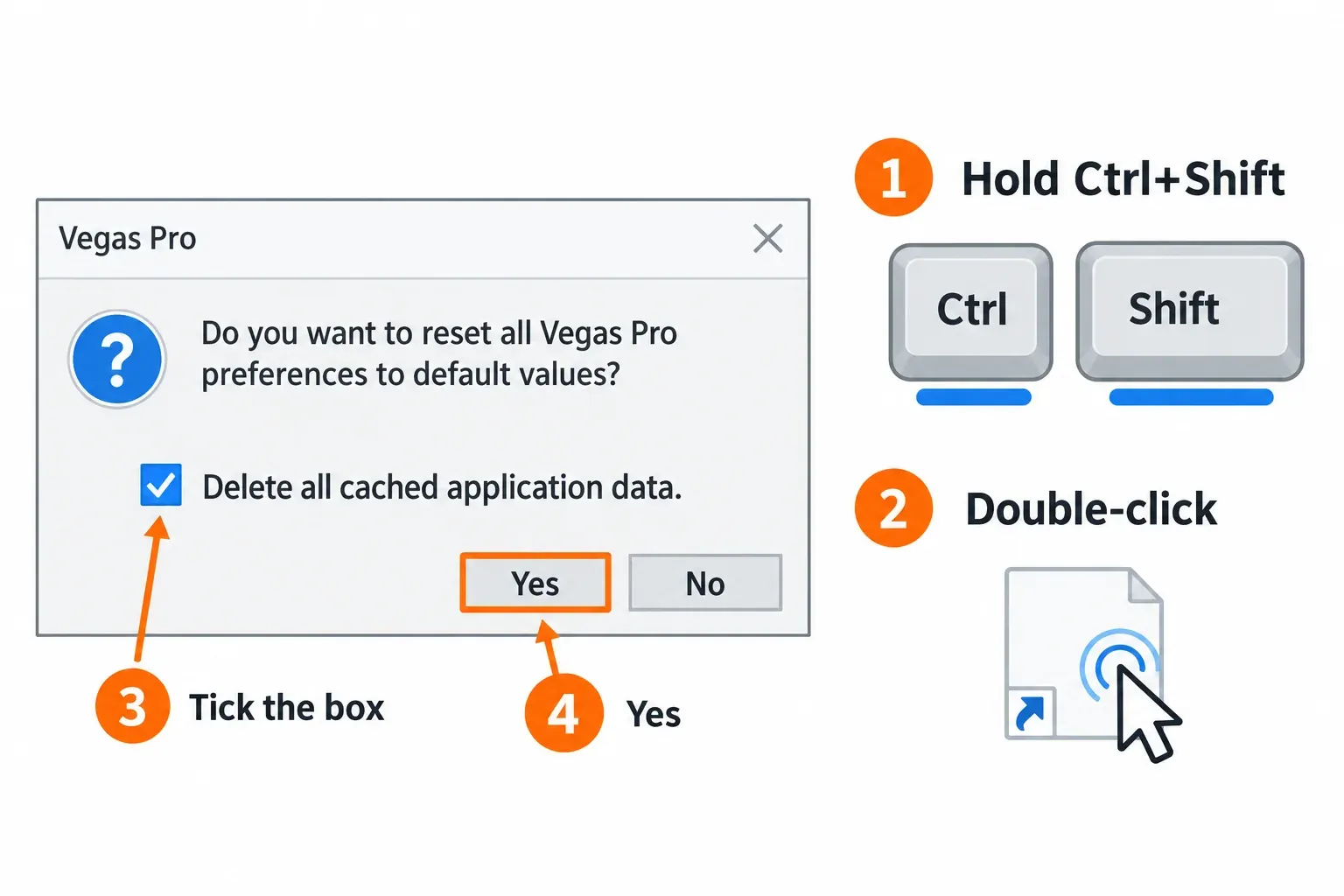
The checkbox turns a preference reset into a cache clear. A Boris FX staff member confirmed in a 2026 thread about a startup crash after a plugin install that the reset also resets the plugin caches, so VEGAS scans your plugins again on the next start.
On VEGAS Pro 2027, install the latest update before you reset, which is also step one in the forum's startup troubleshooting guide. In the VEGAS Pro release history, the entry for build 31, the first 2027 release, dated October 23, 2026, reads: "Fixed a factory reset (with cache deletion) wiping the ULangID registry entry."
Put your setup back in stages. I'd run VEGAS on defaults for one session before importing anything, because a full import can bring back the setting that caused the trouble. Once the problem is gone, choose Options > Import Preferences and pick your .vegprefs file; VEGAS may ask for a restart, so save your project first. Copy the keyboard .ini back into its Roaming folder, and it shows up in the Keyboard map list of Options > Customize Keyboard the next time VEGAS starts. Recall your layout from View > Window Layouts or with the shortcut you gave it.
Reset dialog not appearing? Three causes
When VEGAS opens normally instead of asking the question, check the launch route and the timing first. Three causes come up in Boris FX forum threads:
- Start menu or taskbar launch. The moderator's reset guide says not to start from the Start menu, and a forum user adds that the taskbar pin doesn't work either. Use the desktop shortcut or the program file.
- Keys pressed too late. In a 2026 thread about 3D titling problems, the poster pressed Ctrl+Shift while VEGAS was already initializing and got no popup. Hold the keys first, then double-click, and keep holding.
- VEGAS fails before the check. The forum's startup troubleshooting guide warns that you may not get as far as the reset when VEGAS isn't starting. Skip to the version-folder delete and the startup fixes further down.
I'd make a desktop shortcut to the program file once and keep it, because the desktop route is the one every reset instruction on the Boris FX forum accepts. Right-click the program file in the install folder and choose Show more options > Send to > Desktop (create shortcut); some Windows installs show Send to straight away. In 2 of the 10 forum threads counted in the test results below, the poster couldn't trigger the reset at all.
What each reset and cleanup deletes
Only one of these actions wipes all your preferences, so pick the smallest one that matches the problem:
| Action | Where | What it removes | What survives | Source type |
|---|---|---|---|---|
| Ctrl+Shift reset, box clear | Desktop shortcut with Ctrl+Shift held, then Yes | Preferences go back to defaults | Cached application data, projects, media | Forum moderator guide |
| Ctrl+Shift reset, box ticked | Same, with "Delete all cached application data." ticked | Preferences and cached application data, including the plugin caches; users report losing menu customization and, in a 2019 thread, a custom toolbar | Not fully documented; one 2026 hang survived a reset and needed the manual folder delete | Boris FX staff, user reports |
| Default All | Options > Preferences > General | General page options only | Every other preference page, caches, layouts | Official help |
| Default Layout | View > Window Layouts > Default Layout | The current window arrangement | Preferences and caches | Forum moderator and user replies |
| Clean Up Prerendered Video | Tools menu | Prerendered preview files: inactive ones, all, or those within the time selection | Project and source media | Official help |
| Clear all backups | Tools > Advanced Save | Advanced Save backups (or only the current project's, with Clear current project backups) | The saved project itself | Official help |
| Delete .sfk files | Next to each audio file | Waveform peak data | Audio; VEGAS rebuilds the peaks when the file is added again or the project reopens | Official help |
| Delete .sfvp0 files | Next to each original video file | Video proxies | Your render, since VEGAS uses proxies only at Draft or Preview quality | Official help |
| Delete the version folder by hand | %LocalAppData%\VEGAS Pro\<version> | Everything in it: preferences file, logs, caches, thumbnails, recovery projects | Projects and media saved elsewhere; the Roaming folders | One 2026 user thread |
The ticked-box row is the least certain one. A Movie Studio Zen moderator wrote in a VEGAS Pro 15 thread about lost temp files that a full reset deletes all files in the version folder. Yet in a 2026 thread about a startup hang, a Ctrl+Shift reset left the hang in place and deleting that folder by hand cured it; the poster didn't say whether the box was ticked. Treat the reset and the manual delete as two separate steps.
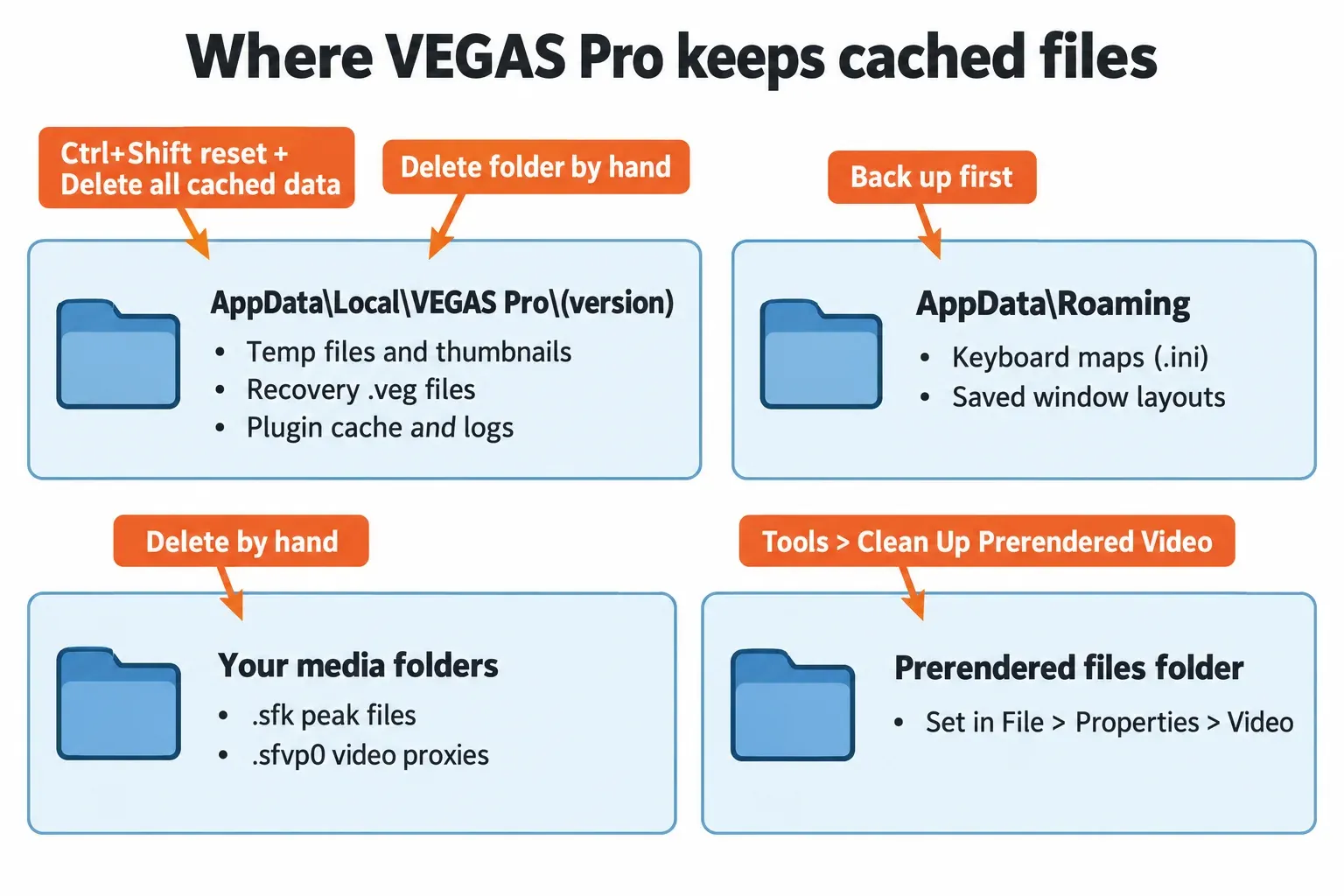
Where the VEGAS Pro temp files folder is
The exact path for your install is in Options > Preferences > General, in the Temporary files folder box. By default it's C:\Users\<you>\AppData\Local\VEGAS Pro\<version>, and the VEGAS Pro 22 General tab help describes the box and its Browse button. VEGAS Pro 22 and 23 are MAGIX-era releases with numbered folders, while Boris FX names its releases by year:
| Version | Default folder | How it's known |
|---|---|---|
| VEGAS Pro 22 | ...\AppData\Local\VEGAS Pro\22.0 | Listed in a forum moderator's crash report |
| VEGAS Pro 23 | ...\AppData\Local\VEGAS Pro\23.0 | Reported by forum users |
| VEGAS Pro 2026 | ...\AppData\Local\VEGAS Pro\2026.0 | Reported by forum users |
| VEGAS Pro 2027 | Copy it from Options > Preferences > General | No published path yet |
AppData is hidden in File Explorer. Paste the full path into the address bar, or paste %LocalAppData%\VEGAS Pro to open the parent folder and see the folder for each version you've installed.
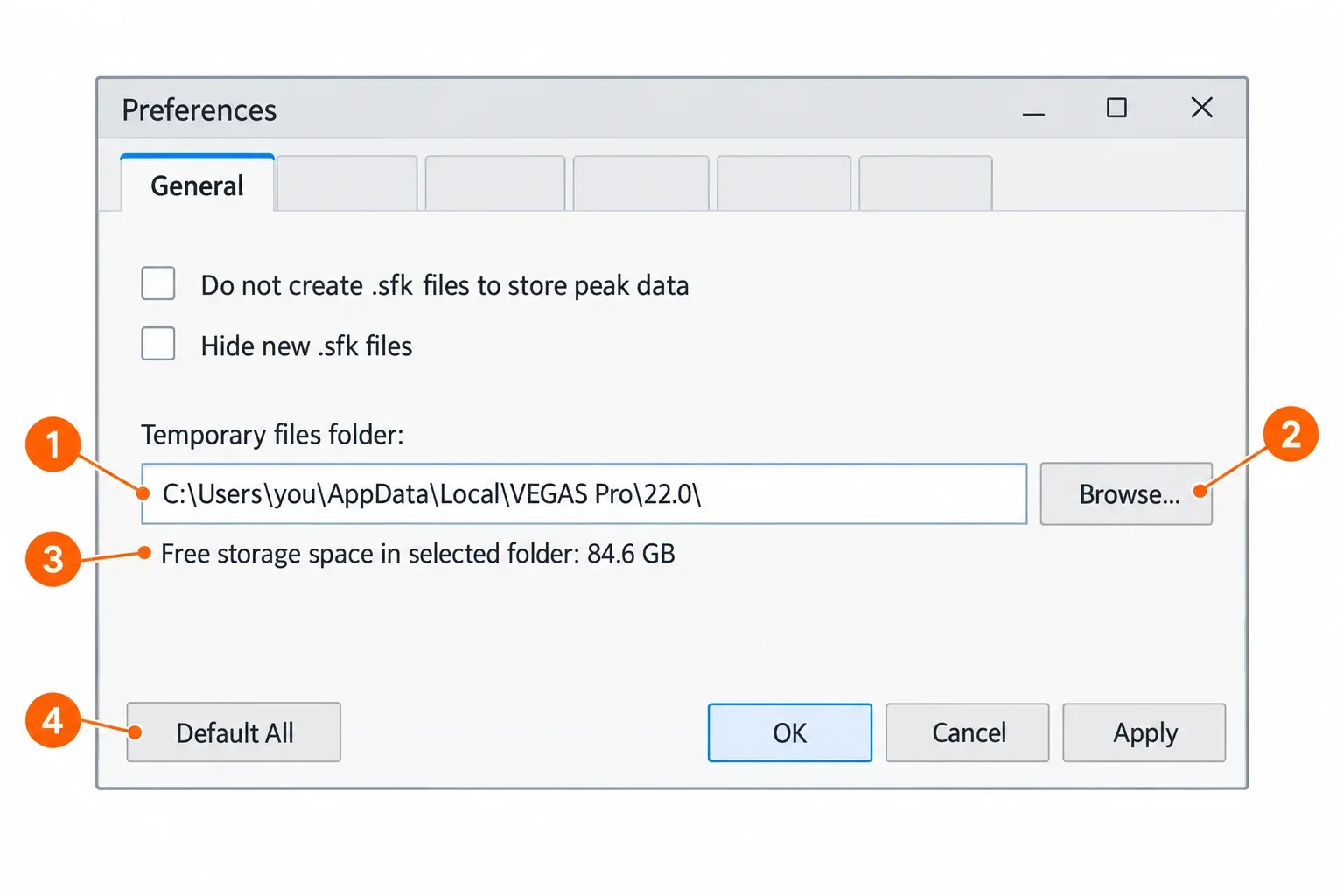
Inside, a Movie Studio Zen moderator's map of VEGAS files lists files for the Video FX that VEGAS scans at startup, thumbnails and crash-recovery projects. The moderator's crash report above adds persist.prefs and log files. Media added from a removable device also lands here: the help says VEGAS copies it into a subfolder and clears those copies when it closes, but not after an improper close, which is one way the folder grows.
The same tab shows "Free storage space in selected folder" under the path, and Browse moves the folder elsewhere. I'd leave it where it is unless the system drive is short of space. If you do move it, pick an internal drive that's always connected, because the folder holds the removable-media copies and recovery files VEGAS expects to find.
Still on 22 or 23 and weighing an upgrade instead of another reset? My VEGAS Pro 23 review covers why VEGAS Pro 2026 replaced 23 and which edition to buy.
Free disk space without a reset
When disk space is the only problem, skip the reset, which costs you your preferences, and clear these five items instead. I'd start with prerendered video, because the help warns that prerendered files can consume significant drive space: about 228 MB per minute for DV.
- Prerendered video. Choose Tools > Clean Up Prerendered Video and remove only inactive files, all prerendered files, or those within the time selection. The files live in the Prerendered files folder set in File > Properties > Video. They come from Tools > Selectively Prerender Video (Shift+M), which writes sections of no more than 300 frames, in AVC (H.264) by default.
- Peak files (.sfk). They sit next to each audio file, and VEGAS rebuilds them when you add the file again or reopen the project. On the General tab, "Do not create .sfk files to store peak data" keeps new peak data in memory instead, so it's rebuilt each time the project opens, while existing .sfk files still get used. "Hide new .sfk files" hides only files created after you turn it on.
- Video proxies (.sfvp0). VEGAS writes them next to the original files and hides them from the Project Media window. Deleting them doesn't touch your render; VEGAS uses them only at Draft or Preview quality and creates them automatically for 4K video. Right-click a clip in Project Media and choose Create Video Proxy to make one again.
- Thumbnails. The Movie Studio Zen moderator's file map says the thumbnail folders in the temp folder can be emptied, and VEGAS regenerates them when you reopen the project.
- Old backups. Tools > Advanced Save stores backups in the Temporary Files Folder, the current project folder or a folder you select, and its Clear all backups and Clear current project backups buttons remove them. Plain .veg.bak files sit next to the saved project.
Clear only the plugin cache
The Ctrl+Shift reset with the box ticked already resets the plugin caches, so it's the first move when a plugin disappears or VEGAS crashes right after a plugin install. For a narrower purge, a Boris FX staff member gave VEGAS Pro 18 users this 2021 plugin-cache answer: delete svfx_plugin_cache.bin, plugin_manager_cache.bin and the svfx_Ofx*.log files in the version folder, then start VEGAS so it rescans. Those names come from VEGAS 18, so check that they exist in your folder before you delete anything.
To rule a plugin out, the forum's startup troubleshooting guide advises moving or renaming the plugin folders, then adding them back one at a time: C:\Program Files\Common Files\OFX for shared OFX plugins, and the OFX Video Plug-Ins folder inside the VEGAS install folder: C:\Program Files\VEGAS\VEGAS Pro 22.0\OFX Video Plug-Ins for VEGAS Pro 22, or C:\Program Files\BorisFX\Vegas Pro 2026\OFX Video Plug-Ins for 2026. My VEGAS Pro plugins guide covers where each type installs and how to add them back. When Sapphire is the plugin that went missing, my Sapphire in VEGAS Pro guide walks through that purge step by step.
Test results: what the reset fixed in 10 forum threads
No published test measures how often a VEGAS reset fixes a problem, so the composite result counts outcomes. Across 10 Boris FX forum threads from April to October 2026, covering VEGAS Pro 20 to 2027, a poster ran the Ctrl+Shift reset and reported what happened. It helped in 2 of the 10, ran without fixing the problem in 6 and couldn't be triggered in 2. Six of the 10 were sorted out later by a different step, though two of those posters weren't sure the fix would last. Five more threads suggested a reset but never reported an outcome, so they're left out.
| Symptom | Threads | What the reset did | What fixed it |
|---|---|---|---|
| Crash or hang at startup | 5 of 10 | Helped in 1, but only while VEGAS was launched with Ctrl+Shift each time; no fix in 3; couldn't be triggered in 1 | The reset itself in 1, as long as VEGAS was started that way; deleting the version folder in 1; replacing a Microsoft runtime file in 1, with the poster unsure it would last; temporarily moving the audio plug-in scan-server files out of the VEGAS folder so the VST scan could be aborted in 1; rolling back the AMD display driver in 1, again with the poster unsure it would last |
| Renders won't start or stall (VEGAS Pro 21) | 2 of 10 | No fix in 2 | Rolling back the latest Windows update in 1; the other thread's poster reported no lasting fix |
| Crashes while editing | 1 of 10 | Fixed, with no recurrence reported | The reset |
| Interface or feature problem | 2 of 10 | No fix for 2027 FX and Pan/Crop windows; couldn't be triggered for 2026 3D titling | Pulling the docked tab down so the window floats with its close button in 2027; in 2026, a reinstall through the Boris FX Hub restored factory settings, and the poster worked around the titling problem with a different text type |
The pattern matters more than the totals. The reset worked where cached data could be at fault: a startup crash right after a plugin install, where a Boris FX staff member pointed to the plugin caches, and crashes during editing. It did nothing for renders broken after a Windows update, a startup freeze that ended once a Microsoft runtime file was replaced or a launch crash that a graphics driver rollback cleared. A Boris FX staff member or a forum moderator recommended the reset in 2 of the 10 threads. With 10 threads, the counts show where a reset stops being the answer, not a success rate. Run it once as a test, and when the problem stays or comes back, move to the next steps instead of resetting again. If a render stops with error 0x80660008, follow the version-specific encoder and graphics-driver checks before another reset.
When the reset fails: eight next steps in order
Work down this list after one reset hasn't helped. When VEGAS stops at a named loading message, jump to the matching step; the forum's startup troubleshooting guide puts those fixes ahead of the reset anyway.
- Delete the version folder by hand. Close VEGAS, copy out your .veg files, then remove the folder for your version under
%LocalAppData%\VEGAS Pro. In the 2026 startup hang at "record time (2 channels)", this fixed what the reset didn't. I'd rename the folder rather than delete it, so you can put it back if nothing changes. - Start from a different project. With "Automatically open last project on startup" on, VEGAS reopens the project it was closed with, and that project may be what crashes it. The startup troubleshooting guide suggests opening VEGAS by double-clicking a different project file.
- Hang at "Initializing DirectX plug-ins". Add
/NODXGROVELto the end of the shortcut's Target field, after the closing quote, for example"C:\Program Files\BorisFX\Vegas Pro 2026\vegas2026.exe" /NODXGROVEL. - Hang at "Initializing GPU-accelerated video processing". On a laptop or PC with two graphics processors, the same guide advises forcing VEGAS onto the discrete GPU rather than the integrated one.
- Freeze at "Initializing UI" or no start at all. Install or repair the Microsoft Visual C++ redistributable. In one 2026 thread, an "Initializing UI" freeze went away once a Microsoft OpenMP runtime file was replaced, and one user suspected another program's updater had installed an older copy. Get runtime files only through Microsoft's own installer, never from a DLL download site.
- VEGAS closes right after the VST plugin scan. One VEGAS Pro 20 user who couldn't reach the reset got VEGAS started by moving the four audio plug-in scan-server programs out of the VEGAS install folder and choosing "Abort scan for this technology" at each error message. With the files put back afterwards, VEGAS started without errors. It's one person's report, so move the files to another folder rather than removing them for good, restore them once VEGAS opens, then look for the plugin that trips the scan: a forum moderator in the same thread suggests clearing the VST search folders in Options > Preferences > VST Effects and adding them back one at a time.
- Problems that started with a Windows update. One VEGAS Pro 21 user got renders working again by uninstalling the most recent Windows update after the reset failed. It's a single report, so it's worth trying only when the timing matches.
- Clean reinstall, last. A clean uninstall removes the leftover folders and registry entries along with your settings, and the moderator who wrote the clean-uninstall guide calls the manual procedure potentially hazardous. VEGAS Pro 2026 and later install through the Boris FX Hub, and the 3D titling poster who couldn't trigger the reset got back to factory settings with a reinstall there. That guide suggests an optional registry cleaner as its final step and the startup troubleshooting guide offers one as a last resort, both with a warning that cleaning the registry carries significant risk. I'd skip it, because the clean uninstall already reaches the VEGAS registry entries and a cleaner touches far more than VEGAS.
When it's Sound Forge Pro rather than VEGAS that won't start, my Sound Forge Pro startup crash guide covers that editor's own fixes.
FAQ
Does resetting VEGAS Pro delete my projects?
No. The reset works on preferences and cached application data, and the reset guide on the Boris FX forum describes nothing beyond those two. Projects you saved in your own folders stay where they are. The risk sits in the version folder: crash-recovery projects and Advanced Save backups stored in the Temporary Files Folder can go with the cache, so copy every .veg and .veg.bak file out of it first.
Verdict
My verdict: treat the Ctrl+Shift reset as a quick test, never as a cleanup routine. Export your preferences, save the keyboard map and layout, copy out the .veg files, then reset once with "Delete all cached application data." ticked. It fixed the problem in 2 of 10 forum threads, so when it doesn't, go straight to the version folder and the startup step that matches where VEGAS stops. For disk space, leave the reset alone and clear prerendered video, proxies and .sfk files instead. VEGAS Pro now sits in the Boris FX lineup, and the Boris FX hub maps the rest of it.