
If Sound Forge has no sound, check the playback route before reinstalling or changing the file. Play a short stereo file you know has sound in it and watch the playback cursor and the channel meters. Moving meters point you toward the selected driver, the output assignments and the monitor path, though they don't prove the speakers are getting audio. Flat meters call for a different check: is playback running, does the selected section contain sound, and has the audio device actually opened?
The current Sound Forge 2026 help puts these controls under Options > Preferences > Audio. Select the intended Audio Device Type, click Apply, then look at the Playback channel-to-device assignments. Older Pro versions may label preferences differently, so if the labels don't match, use the help for your installed version.
Before testing: save your work, leave the original audio unchanged, and turn headphone or speaker volume down before you reconnect cables or change routes. Make one change, play the same test file and note the result. What you're after is a working signal path. A pile of unrelated resets won't get you there.
Identify which kind of silence you have
| Symptom | Next check | Do not assume |
|---|---|---|
| Cursor and both playback meters move | Driver, output pair, interface mixer and physical volume | That a moving meter proves the hardware output works |
| Cursor moves, meters stay flat | Selected audio section, playback processing and a known-good file | That the original file is necessarily empty |
| Cursor does not move or a device error appears | Transport state, selected device and exact error message | That normal playback has started |
| Only one side or one file is silent | Compare file channels and routes with a known stereo file | That converting to mono fixes the cause |
| Windows and other apps are also silent | Windows output, hardware and driver status | That Sound Forge caused the system-wide problem |
| Saved files play, but live input is inaudible | Recording and input-monitoring setup | That playback routing alone configures recording |
Watch the playback meters while a file plays; the input meters while you wait to record tell you nothing here. If an existing file plays but a new recording is silent, follow the separate Sound Forge input and recording checks. Hearing a microphone through an interface's direct monitor doesn't prove Sound Forge recorded it.
Choose the driver that reaches your speakers
The current Audio Preferences help lists three driver choices:
- Microsoft Sound Mapper: lets the Windows Sound Mapper choose appropriate playback and recording devices. Use it as a comparison when you want to test the Windows playback path; still verify the actual output rather than assuming the default reached your headphones.
- Windows Classic Wave Driver: lets you choose a specific audio device through a classic Wave driver.
- ASIO: selects a specific low-latency ASIO device. For an interface, use its manufacturer's compatible driver when available and monitor that interface's outputs.
Switching the Windows taskbar output won't select the right device inside Sound Forge for you. A session on an interface's ASIO driver can stay routed to that interface while Windows sends browser audio to a monitor, a Bluetooth headset or the laptop speakers.
Apply the device choice before you open Advanced. If the device is missing, save and close Sound Forge, check that the interface is connected and its manufacturer driver is installed, then reopen the application. Installing an unrelated ASIO wrapper or editing the registry shouldn't be your first no-sound experiment.
Map both channels to the outputs you monitor
Under Audio > Playback, the Channel and Device columns decide which output plays each file channel. Click a Device entry to pick a different output, and for a stereo file check both assignments. An interface's outputs 1/2 aren't automatically its headphone mix, and an unused output pair can stay silent at the speakers you're listening to.
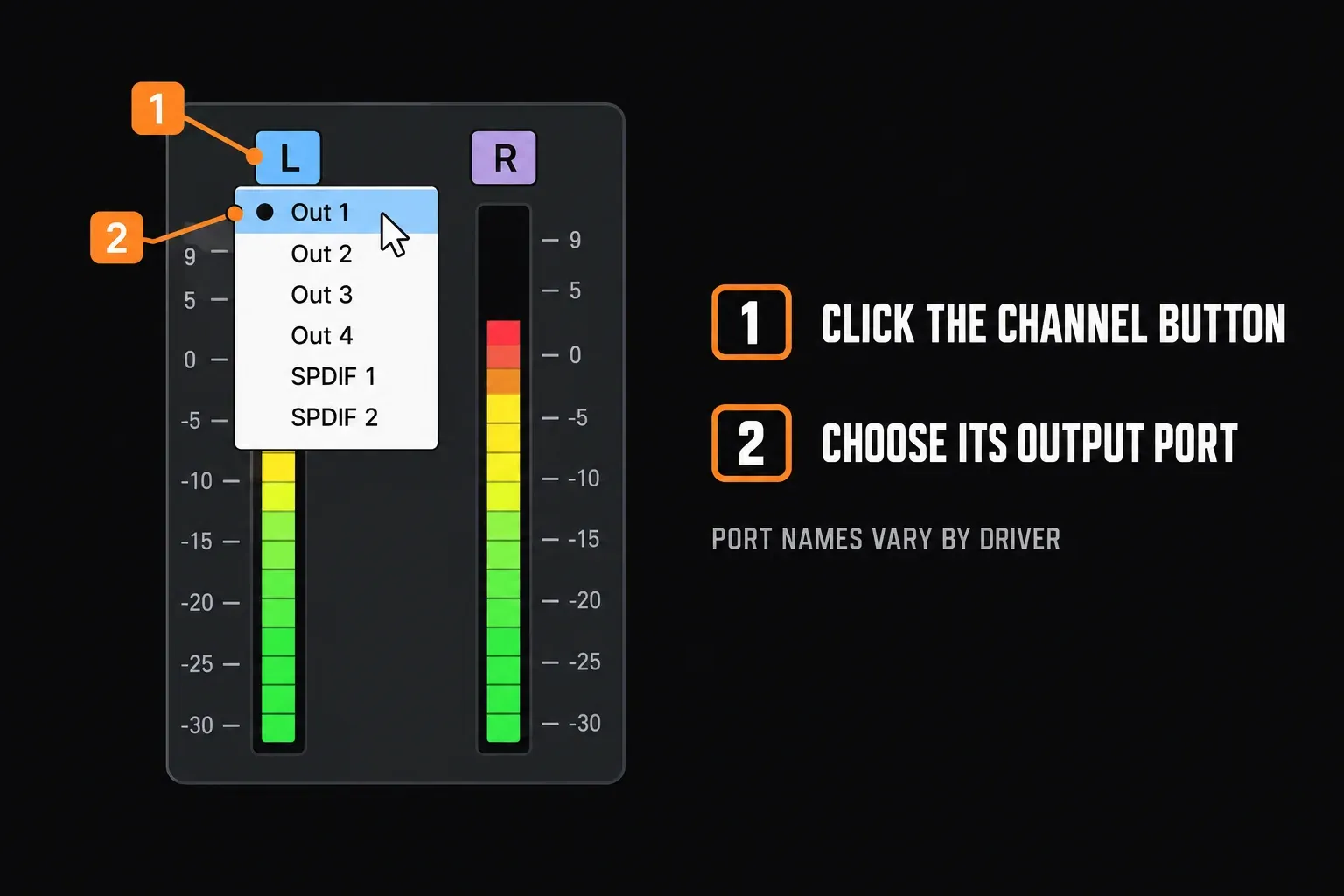
The same Boris FX help documents another route: click a channel number in the Channel Meters window and choose an output port. Use the names your driver actually shows; the port names in the help illustration are only samples.
If your interface has a software mixer, follow that output into the mixer and on to the physical headphone or speaker socket. Focusrite's Scarlett 18i20 routing guide, for example, separates physical outputs from their source, which can be a DAW playback channel or a custom mix. That's one model's layout, and not every interface has that menu. Look for muted software playback, a lowered monitor level or a headphone mix that carries only live inputs.
Check Windows app volume and the actual endpoint
On a Windows playback path, open Settings > System > Sound > Volume mixer in Windows 11. Under Apps, check Sound Forge's mute state, volume and output device. If the application isn't listed, start file playback first. Microsoft's app-audio instructions explain that an app's volume and output can differ from the system settings.
Check where the cable or wireless connection actually ends up. An HDMI monitor without speakers makes no sound. With Bluetooth headphones, confirm that Windows can play through the connected headset first, then try Sound Forge again on the intended Windows route. Don't expect an interface's native ASIO driver to send its output to unrelated Bluetooth headphones.
Windows Volume Mixer is a useful check on the shared path, but it doesn't control native ASIO or exclusive-mode streams. If you use ASIO on purpose, work through the interface driver and its monitored output instead of moving the Windows volume slider again and again.
Handle ASIO and device-busy errors separately
After selecting ASIO and clicking Apply, open Advanced > Configure. The Advanced Audio Configuration documentation says this opens the driver manufacturer's configuration applet. Its buffer, sample-rate and clock controls depend on the device.
Save and close other audio applications, then reopen Sound Forge and retry the same file. If that changes the result, you've found an access conflict worth investigating, though it doesn't prove every ASIO driver is single-client. Follow the manufacturer's sharing restrictions for your exact driver. In the same way, don't assume one native ASIO session can record through an interface while playing through an unrelated laptop output.
For a suspected Windows endpoint conflict, open Settings > System > Sound > More sound settings, select the intended device on Playback, then open Properties > Advanced. If it's there, note the original state of Allow applications to take exclusive control of this device, clear it temporarily, apply, and restart the affected apps. Set it back if the comparison doesn't help or your workflow needs exclusive access.
Microsoft's exclusive-mode documentation explains this endpoint control. It won't turn a native ASIO driver into a shared one. Don't change every device or disable unrelated services while you're testing one output.
When only one file or one channel is silent
Open a known-good stereo WAV next to the troublesome file and play both through the same output. If the WAV plays, compare the original's selected time range and channels. A waveform can hold silent sections or a silent channel, and a waveform showing elsewhere in the file doesn't mean the part you've selected has sound in it.
Temporarily bypass live playback effects with the Plug-In Chain controls, then replay without applying processing to the original. If bypass brings the sound back, isolate the effect and its settings instead of reinstalling the audio driver. If earlier processing already wrote silence into the samples, no output change can bring the missing signal back. Go back to an original copy or an available undo state, and save recovery work separately.
For one-sided playback, compare both waveform channels, both playback meters and both output assignments. Then check the interface balance and the physical connection at low volume. A left/right speaker test can help you identify the sides, but a browser test uses its own audio route and says nothing definite about your ASIO route. Don't process the source with Channel Converter just to investigate the speakers.
An attributed March 2021 Pro 14 forum report describes moving indicators with silence and a driver change that brought playback back. It's a reason to test the actual driver path. That user's Realtek ASIO choice won't be right for every computer.
Separate playback gaps from clicks already in the file
Clicks don't automatically mean the buffer is too small. Replay the same section with live effects bypassed and compare an untouched source in another player. A click that keeps turning up at the same edit point may already be in the file, and a bigger driver buffer won't repair those samples. Gaps that change with processing load are the ones that point to playback delivery.
For ASIO, raise the buffer by one available step in the manufacturer's panel and try again. For the Windows driver path, the Audio Preferences help describes starting Playback buffering at 0.25 seconds and raising it in small steps if playback has gaps. That's the documentation's tuning example. It isn't a guaranteed preset or a sample count to copy into an ASIO panel. Advanced Windows-driver buffer settings also affect how buffering is configured.
Don't resample the source just because a rate mismatch seems possible. Check the driver's supported rates and any reported clock error first. Digital connections and external clocking need the manufacturer's setup instructions, since no single clock setting fits every interface. If only one format fails, try conversion on a copy once you've checked the output path. Interpolate position and Position bias adjust position reporting in Advanced Audio Configuration; they won't fix a general no-sound problem.
If Windows itself is silent or USB audio has stopped
Close Sound Forge and play through the same physical output with Windows or another player. If that fails too, follow Microsoft's Windows audio troubleshooting steps: output selection, connections, mute and device status before any driver changes. Laptop speakers in one app and interface headphones in another aren't the same test.
September 15, 2026 update: Microsoft's KB5124008 release note for Windows 11 24H2 and 25H2 lists a September-update issue limited to some USB Audio Class 1.0 devices. Symptoms include no output, unresponsive volume controls and Device Manager Code 10. The live note says the September 14 out-of-band update KB5129195 partially resolves the issue for 8-channel or 3D-audio modes; other symptoms remain under investigation. Check the current note and your installed update before attributing a failure to this issue. It is not a diagnosis for all USB or ASIO devices, and uninstalling security updates is not the first step.
If a driver change is warranted, use the hardware maker's package for your exact model and Windows version. Record the current driver version and obtain a supported recovery path before replacing a working package. For a failure that began immediately after an update, Microsoft's guide includes Device Manager > device Properties > Driver > Roll Back Driver when that option is available. Save your work before restarting, disconnecting or power-cycling an interface.
A safe final check before escalating
- Save your work and keep an untouched copy of the source.
- Lower the listening volume and test the intended physical output with a known-good file.
- In Sound Forge, select the intended driver, apply it and check both Playback output assignments.
- On a Windows shared path, check the app's Volume mixer settings; on ASIO, check the interface's software-playback route and physical output.
- Retest after closing competing audio apps, changing only one setting at a time.
- If the route still fails, record the Sound Forge version, Windows version, interface and driver version, exact error, file format and results from both playback paths for support.
Don't reset all preferences or reinstall just because a meter moves. Those steps can throw away useful setup information without fixing the selected output. Our Sound Forge troubleshooting hub separates playback, recording, installation and plug-in problems so you can carry on with the branch your tests point to.
Frequently asked questions
Do moving meters prove that Sound Forge's audio driver works?
No. They indicate signal at the displayed playback meter, not successful delivery to the physical speakers. Check the driver, output assignments, interface mixer and monitor volume.
Do flat meters mean my file is silent?
Not necessarily. Check whether playback started, whether the selected section and channels contain audio, whether effects suppress the signal, and whether a device error occurred. Compare a known-good file before changing the original.
Should I use ASIO or Microsoft Sound Mapper?
Use a compatible manufacturer ASIO driver when you need your interface's low-latency path. Microsoft Sound Mapper is a useful Windows-path comparison. Verify the selected outputs in either case rather than treating one driver as a universal cure.
Why does Windows have sound while Sound Forge does not?
The applications may use different devices, output pairs or volume settings. Check Sound Forge's Audio Preferences and the relevant Windows app mixer or ASIO interface mixer.
Will disabling Windows exclusive mode fix ASIO?
It can help test a Windows endpoint conflict, but it does not change a native ASIO driver's sharing design. Close competing audio applications and follow the interface manufacturer's driver-specific guidance.
Why can I hear my microphone but not the recorded file?
Direct monitoring may let you hear the interface input without proving that Sound Forge recorded it. Inspect the recorded waveform and recording-input setup, then test file playback separately.
Will a larger buffer repair clicks already saved in a file?
No. Buffer changes can help playback delivery problems, not clicks already written into the samples. Compare the same section with an untouched source before changing processing or driver settings.
Should I reinstall Sound Forge first?
No. Save the current setup and test the file, driver, output assignments and monitored hardware first. Escalate with the exact error and comparison results if those checks do not identify the problem.
Last fact-checked: September 15, 2026. This guide uses current Boris FX and Microsoft documentation plus an explicitly dated community example. It does not claim a physical Windows, ASIO-interface or acoustic test.