
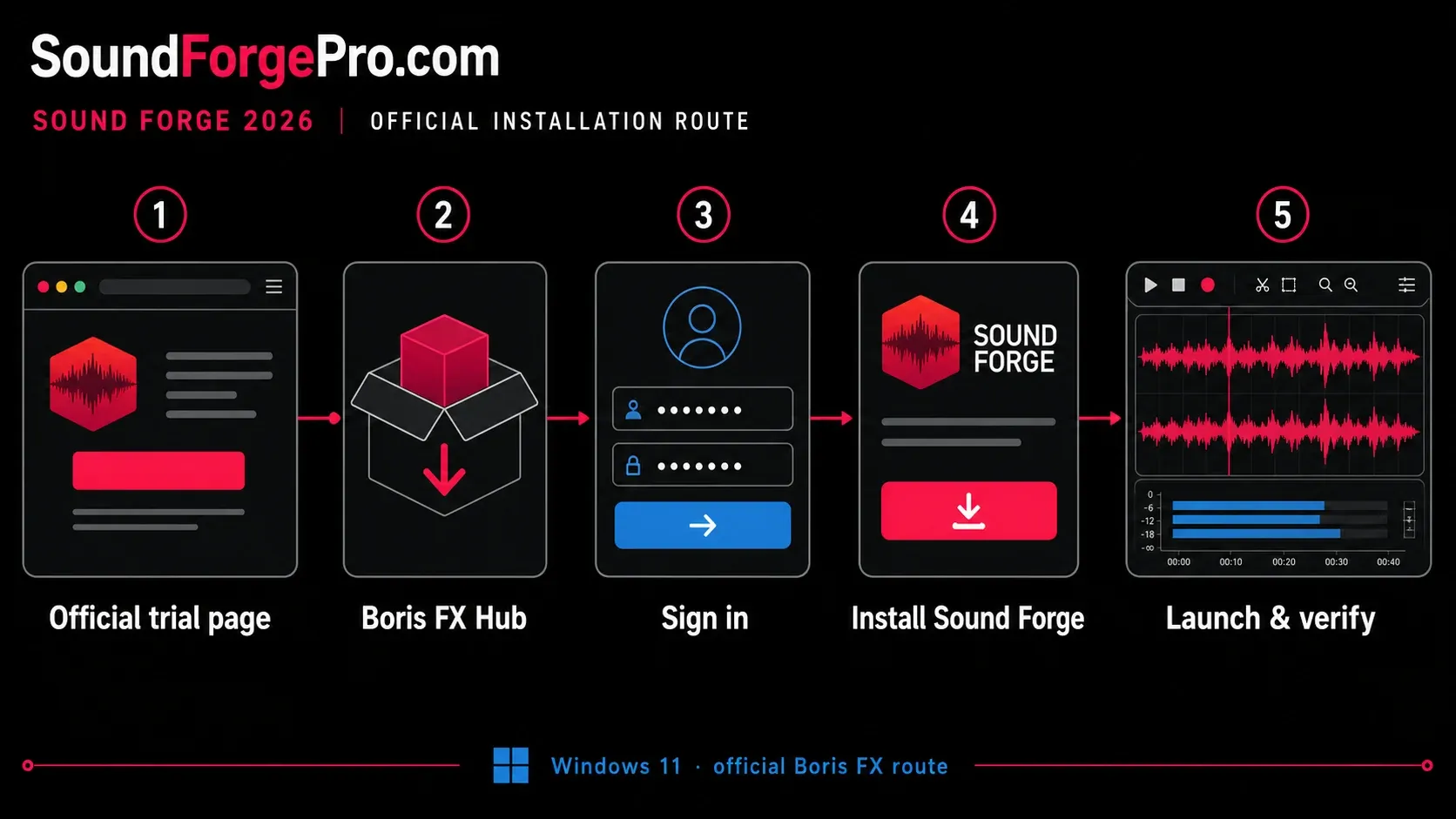
To install Sound Forge 2026, download Boris FX Hub, sign in and choose either the trial or purchased-license route below. Sony and MAGIX installers belong to earlier releases; their serial-number instructions do not apply to current Boris FX login licensing.
This guide is part of the Sound Forge Pro Start Here hub. Use it if you need the full order: trial, install, system requirements, review, pricing and legacy Pro 18 decisions.
Independent walkthrough. The installer and trial are provided by Boris FX.
Allow time for a playback test after installation. Open a known audio file, check the output you actually use and, if you record, test the input too. Download and installation time depends on your connection and PC.
System Requirements: Check These Before Downloading
According to the official Sound Forge system requirements page, the minimum specs are:
- Operating system: Windows 11
- Processor: 1.4 GHz; multicore or multiprocessor recommended
- Graphics: onboard, 1024 × 768 minimum resolution
- RAM: 2 GB listed; 8 GB recommended. Windows 11 itself requires at least 4 GB of RAM.
- Program storage: 1,100 MB for Sound Forge or 1,400 MB for Sound Forge Plus, plus working space for audio and backups
The vendor requirements page does not publish an audio-device or internet line. In practice, the Hub and initial login licensing need connectivity, and recording needs a compatible Windows device or interface. Keep those workflow needs separate from the official minimum block.
Windows 10 isn't listed on the current Boris FX requirements page, and an installer launching there isn't proof of supported operation. For a current purchase, I'd treat Windows 11 as the baseline and test the exact interface, drivers and plug-ins during the trial.
The current Sound Forge release and its trial are Windows-only. Boris FX doesn't list a current macOS installer, Rosetta workflow or Apple-silicon support, so Mac users need a different editor or a documented Windows 11 machine.
Step 1 — Get the Boris FX Hub
For the free trial, open the official 15-day Sound Forge trial page and download Boris FX Hub. If you already bought Sound Forge, sign in to the Boris FX account used for the order and open the Hub. Avoid third-party download pages for the current build.
Boris FX Hub is the installer and license manager for the current release. It handles the package download, installation and the handoff to trial or purchased-license activation.
Submit the official form, download the Hub installer and run it. Windows may ask for administrator permission. Verify that the download came from Boris FX before allowing it to make changes to the PC.
Step 2 — Create a Boris FX Account (or Sign In)
The Hub asks you to sign in when it opens. If you don't have a Boris FX account yet, click the offered account-creation option and fill in your details. This is where your license is stored, so use an email address you'll actually keep access to.
If you already use a Boris FX account for Sapphire, Continuum or Mocha Pro, sign in with that account. Your Sound Forge purchase should appear alongside the other products attached to it.
Former MAGIX customers still use a Boris FX account for the 2026 build. Boris FX says the previous purchase serial must appear in that account before an upgrade can be purchased. If the old license is missing, stop before checkout and ask support to resolve the account record. Current app activation then uses Boris FX login licensing, not the MAGIX Service Center.
Step 3 — Install Sound Forge Through the Hub
For a new trial, first choose "Request an Unrestricted Trial of Sound Forge after installation" in the Hub, as shown in the official trial instructions. Then find Sound Forge and click Install. If your account already holds a paid license, go straight to Install.
The Hub downloads and installs the selected Sound Forge package. Leave the Hub open until it reports success; the time varies with the connection, disk, security scanning and the edition or extras selected.
After the Hub reports success, launch Sound Forge from the Hub or the Windows Start menu. If installation completed but the app is missing, use the installation-failed guide before repeatedly reinstalling unrelated Boris FX products.
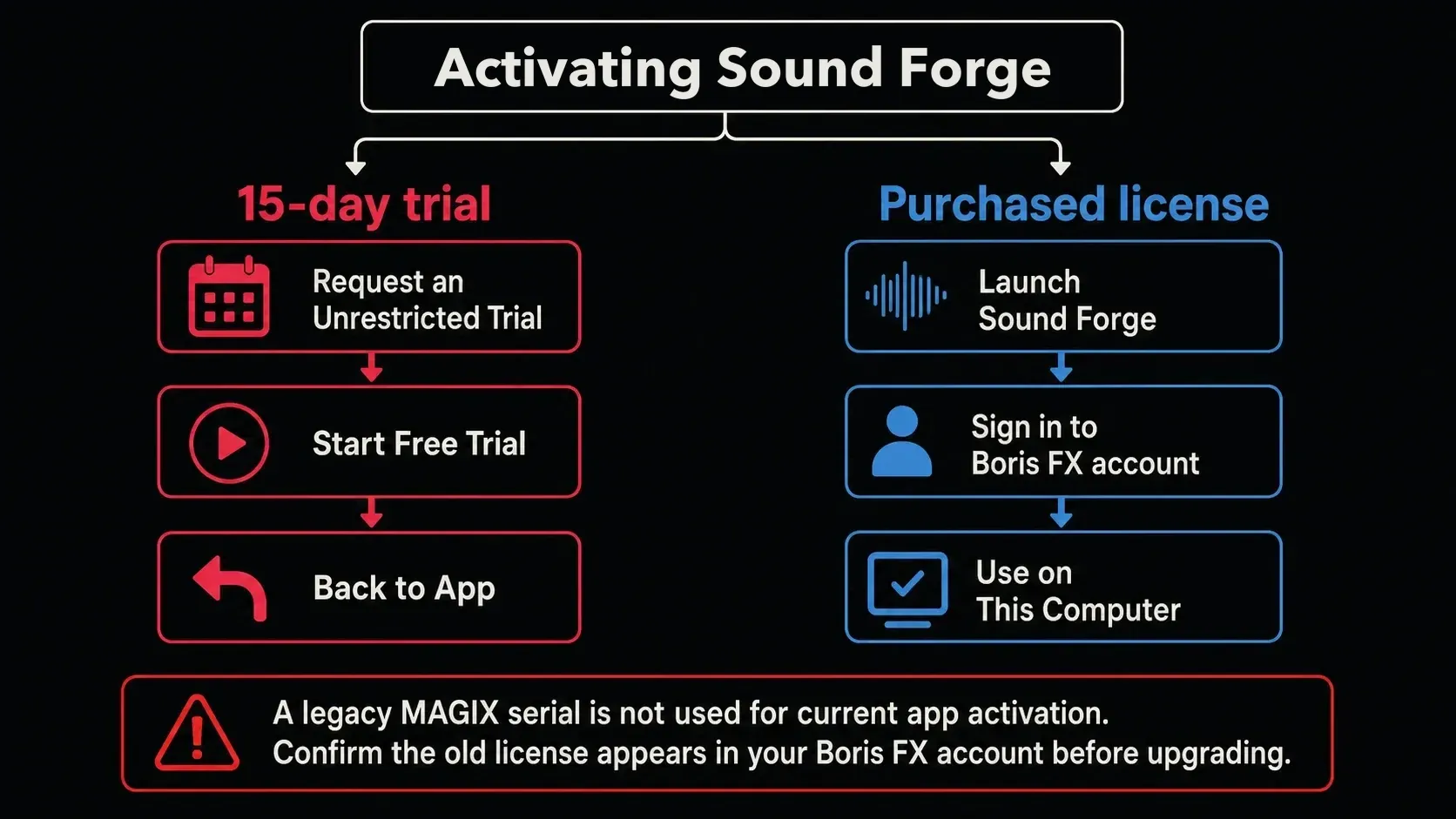
Step 4A — Activate the Free Trial (No Purchase Yet)
After requesting the trial before installation and letting the installation finish, complete activation below. If the account already holds a paid license, use Step 4B instead:
- Click Start Free Trial.
- At the success confirmation, click Back to App.
- Sound Forge launches in full trial mode.
Boris FX describes the trial as 15 days, full-featured and unrestricted, with no credit card required. The trial page doesn't say the Plus-only Melodyne, Vandal, VariVerb II or 3D Reverb additions are included, so verify any Plus component you need before treating the base trial as a Plus evaluation.
I'd start the trial only once your test files, audio interface and critical plug-ins are ready. Boris FX doesn't spell out a pause or extension policy on the trial page, so plan around one 15-day evaluation window.
Step 4B — Activate a Purchased License
For a direct Boris FX purchase, Sound Forge uses login licensing. Sign in with the Boris FX account tied to the order and choose Use on This Computer. Boris FX explicitly says no activation key is required for this current flow.
- Launch Sound Forge after installation.
- Sign in with your Boris FX account when the app asks for a login.
- Choose Use on This Computer to attach your license to this machine.
The first download and login-license activation need internet access, and Boris FX's Sound Forge licensing page doesn't document an offline procedure for the current login flow. If the workstation must stay disconnected, ask support about that exact license before buying; offline key-file instructions for another Boris product or an old Sony release aren't interchangeable.
Step 5 — Set Up Your Audio Device
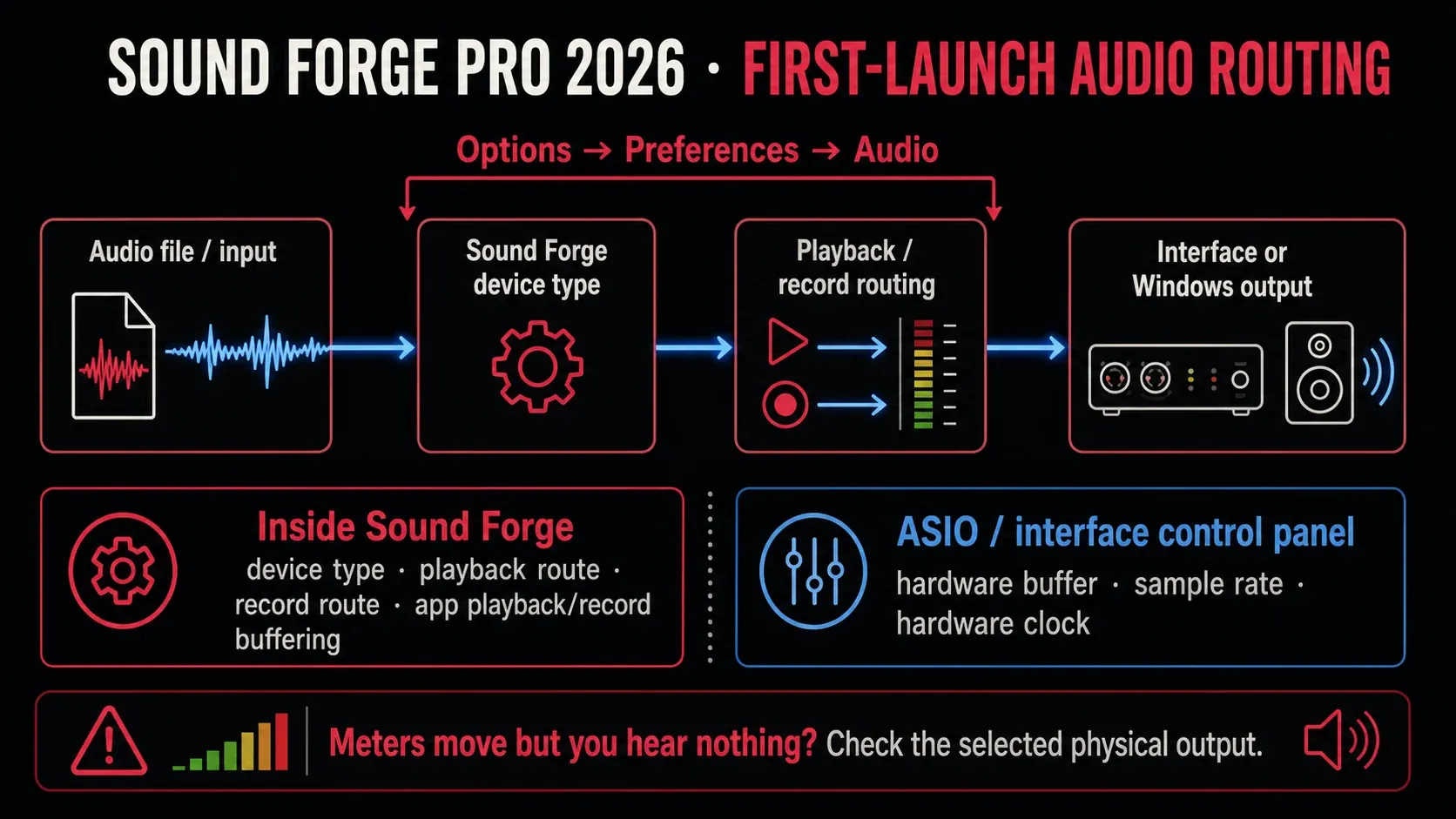
Installation isn't finished just because the program opens. A wrong playback route can produce silence even while the meters move, and an unstable driver setup can crackle on the first real file.
Open Options → Preferences → Audio. This Sound Forge page controls the audio-device type, playback routing, recording routing and the application's playback and record buffering. An ASIO interface can also have its own driver control panel for hardware buffer, sample rate and clock. Treat those as two separate layers.
Check the route in this order:
Playback route: choose the physical output you monitor. Microsoft Sound Mapper follows the Windows default; Windows Classic Wave lets you choose a Windows device; ASIO exposes ports from a compatible interface driver. Play a known stereo file and confirm both the on-screen meters and the actual left/right outputs.
Recording route: select the input that carries the microphone or line signal and make a short recording. If the interface vendor supplies a current Windows 11 ASIO driver, test it for low-latency recording. For simple edit-only playback, Sound Mapper or Classic Wave may be adequate if it stays stable on the actual PC.
Buffering: if playback gaps, adjust Sound Forge's playback buffer in small steps and retest the same file. If an ASIO interface still crackles or reports a rate/clock error, open the manufacturer's control panel and check its hardware buffer, sample rate and clock. Don't copy one universal buffer value from another device.
Step 6 — Install VST Plugins (Optional)
The current Sound Forge feature table documents VST2, VST3 and ARA support. Third-party compatibility still depends on plug-in architecture, authorization and the host features that the vendor supports. Test every critical plug-in during the trial.
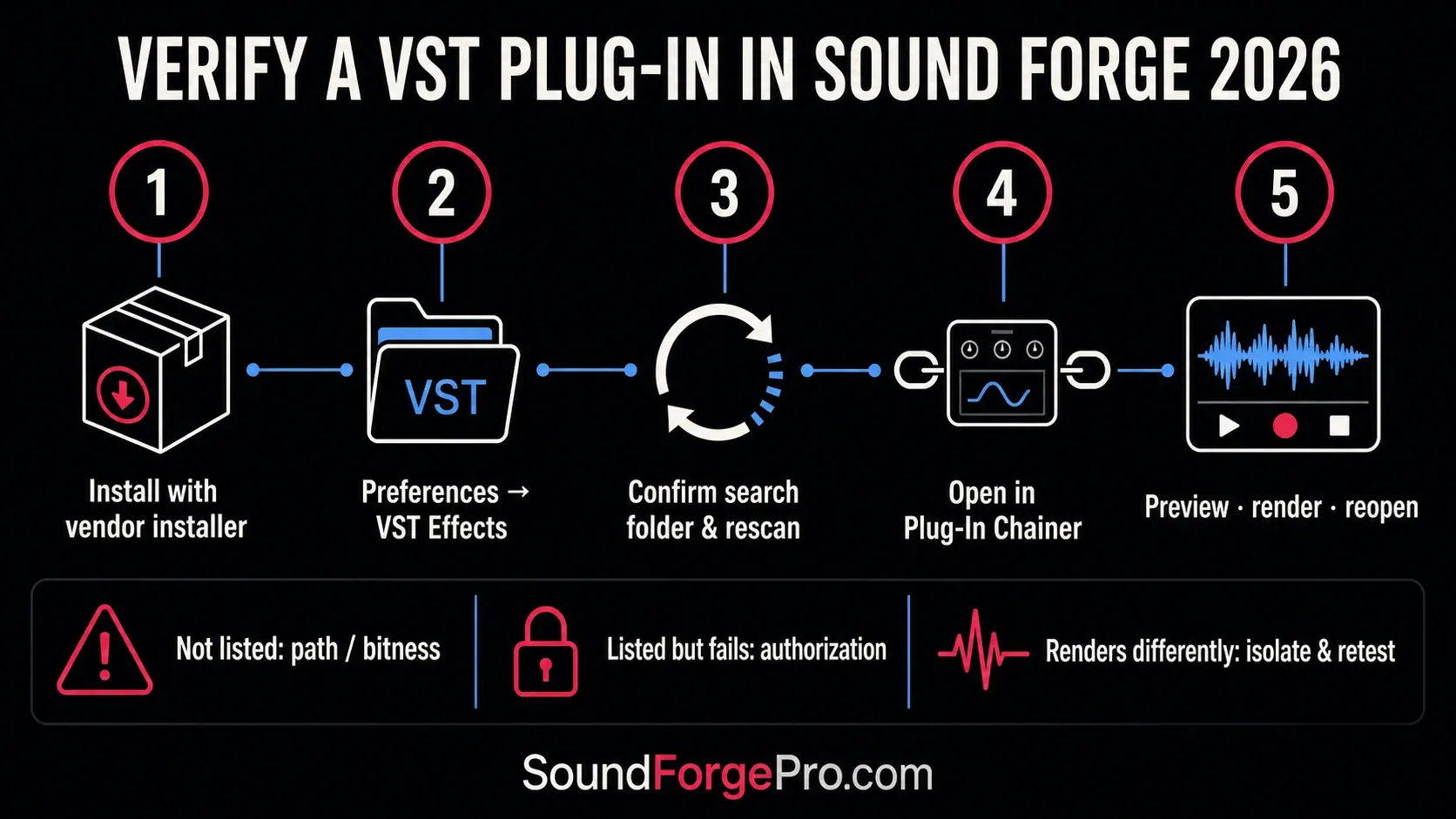
Open Options → Preferences → VST Effects. Confirm the plug-in's installer folder is in the VST search-folder list, click Refresh and enable the effect in the available-plug-ins list. I wouldn't move VST3 files by hand just to match a generic path; I'd use the vendor installer so the plug-in and its authorization components stay together.
Open the effect through Plug-In Chainer, load a preset and preview a known file, then render a copy, close it and reopen the result. Appearing in the list only proves that Sound Forge found the plug-in; it doesn't prove the interface, authorization, processing and rendered output are reliable.
For a missing or rejected plug-in, check its bitness, VST version, installation folder and license status before reinstalling Sound Forge. The dedicated VST troubleshooting guide covers scan-path, cache and plug-in-isolation checks without assuming every legacy effect remains compatible.
Upgrading from Sound Forge Pro 18 (MAGIX Version)
If you own Sound Forge Pro 18 or another MAGIX-era version, confirm that the previous license appears in your Boris FX account before buying an upgrade. Boris FX announced the acquisition on March 30, 2026, and that announcement gives December 5, 2026 as the deadline for the stated legacy upgrade offer. The separate support article explains account eligibility, not a promise of an indefinite offer. Recheck the live terms and price before buying or uninstalling your working version.
Install the 2026 build through Boris FX Hub as a separate migration step. Before upgrading, export presets where possible, record custom VST paths and keep backups of source audio and application-specific project state. Test copies first; do not assume every old preference, plug-in or project detail transfers unchanged.
Common Install Problems
The Hub says installed, but Sound Forge does not appear
Don’t assume the download was interrupted. Confirm first that the Hub reports a successful install, check the Windows Start menu and the installed-apps list, then restart Windows. If the product is absent or the Hub still shows Install, follow the scoped Hub/setup checks in the installation-failed guide.
Activation says "serial number not found"
A standard 2026 purchase doesn't ask for a serial during app activation; you sign in with the Boris FX account instead. A legacy serial belongs to the account-and-upgrade check rather than the current app login. If the old purchase doesn't appear in your Boris FX account, or the app still asks for a serial, stop and send Boris FX support the account email and order details instead of trying unrelated legacy activation screens.
No sound on first launch
Open Options → Preferences and verify the audio device type plus the selected playback device. Play a known file, check Windows output routing and then use the no-sound guide if meters move but nothing reaches the speakers.
Crackling or dropout during playback
Dropouts can come from app buffering, an ASIO hardware-buffer or sample-rate mismatch, a heavy plug-in chain or competing system load. First increase Sound Forge's playback buffer one step and bypass the chain. If the problem is specific to ASIO, open the interface manufacturer's panel and check its hardware buffer, rate and clock against the file and device.
VST plugins aren't showing up
Open Options → Preferences → VST Effects, verify the search folder and rescan. If the plug-in still fails, check its architecture, VST version, authorization and whether it is supported in Sound Forge. Use the VST troubleshooting guide for cache and isolation steps.
Frequently Asked Questions
Is Sound Forge Pro free to try?
Yes. Boris FX offers a 15-day, full-featured Sound Forge trial with no credit card. Start at the official Sound Forge trial page and install through Boris FX Hub; avoid third-party installers that advertise old versions or different trial terms.
Does Sound Forge Pro work on Windows 10?
Boris FX lists Windows 11 as the minimum operating system for Sound Forge 2026 and does not list Windows 10. Treat Windows 11 as the supported purchase baseline even if the installer happens to launch on an older system.
Can I install Sound Forge Pro on more than one computer?
Yes. Boris FX says a login license can be used on up to two computers, such as a desktop and laptop, by one user. It is not intended for simultaneous use on both machines. On each computer, sign in and choose Use on This Computer. If an old machine is unavailable and you cannot manage the assignment, contact Boris FX support instead of trying a legacy serial-number workflow.
Do I need an internet connection after installation?
Internet access is required to download the Hub and complete initial login licensing. Boris FX's Sound Forge licensing article does not promise indefinite offline operation, so verify the current policy with support if the workstation must remain disconnected.
How do I install ASIO drivers for my audio interface?
Download the current Windows 11 ASIO driver from the audio-interface manufacturer's official support page, install it and restart if requested. Select ASIO under Options → Preferences → Audio, then choose the correct playback and recording ports in Sound Forge. Use the manufacturer's panel for hardware buffer, sample rate and clock; use Sound Forge's Audio preferences for its own routing and app buffering.
Can I use my MAGIX Sound Forge Pro 18 serial number in the Boris FX version?
Do not enter a MAGIX serial into current app activation. Boris FX says the previous purchase serial must first appear in your Boris FX account; from there you can buy an eligible upgrade. The 2026 application then uses login licensing: sign in and choose Use on This Computer.
After installation, use the beginner workflow to open, edit and verify one file. If the Hub or setup fails, follow the installation troubleshooting sequence; if login licensing fails, use the activation guide.