

If a VST effect is missing in Sound Forge, check the installed effect build and its folder before reinstalling the editor. In Options → Preferences → VST Effects, add the actual folder if needed and click Refresh. Once the scan discovers the effect, select its availability checkbox. Then search All in View → Plug-In Manager.
These controls follow the Boris FX Sound Forge 2026 help. Older Sony and MAGIX versions can have different folder controls and plug-in support. A file showing up during a scan doesn't prove Sound Forge accepted it, and an effect showing up in a list doesn't prove it can process audio.
Use the Sound Forge troubleshooting hub if your main problem is startup, playback or recording rather than a missing effect. For an incomplete editor installation, follow the Sound Forge installation guide first.
Identify the failure before changing settings
- No entry after Refresh: check the installed format, actual file, search folder and any scan error. Compatibility or failed initialization remains possible even when the path is correct.
- Entry present but unchecked: enable its availability checkbox. That still doesn't tell you whether its license or processing works.
- Present in All but not Favorites: the effect has been discovered; fix the shortcut or filter.
- Listed but blank, silent or asking for authorization: discovery has progressed far enough to expose the effect. Investigate its interface, license and processing separately.
- Scan hangs or closes the application: note the message and the last displayed product, if any. That name is a lead. It hasn't been proven guilty yet.
Before testing, save your work, record the Sound Forge edition/build and the plug-in version, format and install location. Keep a short audio copy for later processing checks. Change one setting at a time and record the result.
The seven-check repair order
- Confirm that the vendor installed a Windows audio-effect format supported by your exact Sound Forge version.
- Locate the installed VST2 file or VST3 file/bundle without moving or renaming it.
- Compare its folder with Options → Preferences → VST Effects and add only the missing, specific search path.
- Run Refresh, let it finish, then enable the discovered effect. Record errors instead of repeatedly rescanning a failed installation.
- Search All in View → Plug-In Manager, clear stale search text and inspect the type filters.
- Separate a rejected or hanging scan from a graphical-editor or licensing problem.
- If you deliberately hid the effect, use version-matched vendor help or support rather than a general registry or cache cleanup.
1. Check format, architecture and edition
You need a Windows audio effect; a standalone program with the same product name won't do. Installing only an AAX or Audio Unit component won't supply the VST effect this list needs. Boris FX documents DirectX and VST effects in Sound Forge. A DirectX-only legacy effect uses a different discovery mechanism, and adding VST folders won't repair its registration.
The current help describes an audio-effect workflow. There's no playable MIDI/VSTi instrument rack. If your missing product is a synthesizer or sampler, use a DAW or instrument host that supports it, render the audio and edit that file in Sound Forge. An instrument and its separately supplied effect version aren't interchangeable.
Don't confuse a plug-in's 32/64-bit architecture with an audio file's bit depth. The host build and plug-in build must be compatible, and converting a WAV file to 32-bit float can't fix a binary mismatch. The historical Pro 12 announcement introduced the 64-bit version and full VST3 support in 2018, so today's VST3 instructions don't apply to Pro 11 as if it were the same host.
Sound Forge 2026's Manager groups entries by VST generation and 32/64-bit type. Those categories don't guarantee every old binary will load. Check the vendor's supported host/build requirements before you install a legacy bridge or buy an upgrade, and use a VST2 alternative only if the vendor actually supplies a compatible one.
2. Locate the actual plug-in file
Read the destination recorded by the vendor installer. On Windows, VST2 plug-ins use .dll; VST3 plug-ins use .vst3. Steinberg's Windows VST3 format reference describes the current bundle directory and the older single-file form. Do not extract an internal DLL from a VST3 bundle or rename a DLL to VST3.
Steinberg's VST3 location specification defines these Windows paths:
C:\Program Files\Common Files\VST3: the usual global 64-bit location on 64-bit Windows.%LOCALAPPDATA%\Programs\Common\VST3: the current user's location, described primarily for development use.C:\Program Files (x86)\Common Files\VST3: 32-bit VST3 on 64-bit Windows. The folder existing doesn't make that build compatible with your host.
These are specification locations. They don't prove every older Sound Forge version scans every path automatically, so check the actual folder in Preferences. VST2 has no single mandatory folder; examples include C:\Program Files\VSTPlugins, C:\Program Files\Steinberg\VSTPlugins and C:\Program Files\Common Files\VST2. Your installer's destination beats any example.
Steinberg's Windows plug-in installation guidance explains why moving a plug-in can break associated files and installation data. Use the manufacturer's repair or reinstall procedure if the install is incomplete. Preserve presets and check license/reactivation requirements first. Do not move an entire shared plug-in folder or download a replacement DLL from an unofficial site.
3. Correct the specific search path
Open Options → Preferences → VST Effects. Under VST search folders, compare the listed paths with the verified installation folder. Use Add path for a missing folder or Edit path for a wrong entry. Remove path only removes a search location; it won't uninstall a plug-in.
The current VST Effects Preferences reference documents these controls and the availability checkboxes. If the effect isn't listed yet, you can't enable it until discovery succeeds. Avoid adding a drive root or the whole of C:\Program Files. A narrow, verified folder makes a failed scan much easier to investigate.
4. Refresh, then enable the discovered effect
Click Refresh in the VST Effects tab and allow the scan to finish. Then select the effect under Select VST effects to be available as audio plug-ins. Clear a checkbox only when you mean to exclude that entry.
Finish the vendor installation before rescanning. If setup or an authorization prompt asks you to do something, follow the instructions for that exact product. A license problem is one possible failure, but it shouldn't be the default explanation for a missing name. A product can also be discovered before authorization succeeds.
If the scanner reports a failure or names a file but never adds it, save the exact message and build details. An effect that never appears has no availability checkbox to enable. The current Preferences reference documents Refresh, but no general blacklist repair sequence. A second rescan after a documented repair is useful. Repeating the same failed scan with nothing changed tells you nothing new.
5. Check All, search text and display filters
Choose View → Plug-In Manager and select All. Clear old search text, then try a distinctive part of the effect name, since a previously renamed entry may not use the vendor's original name. Check Third Party for vendor folders and By Type for format/architecture categories. In the options view, make sure the relevant effect type isn't excluded.
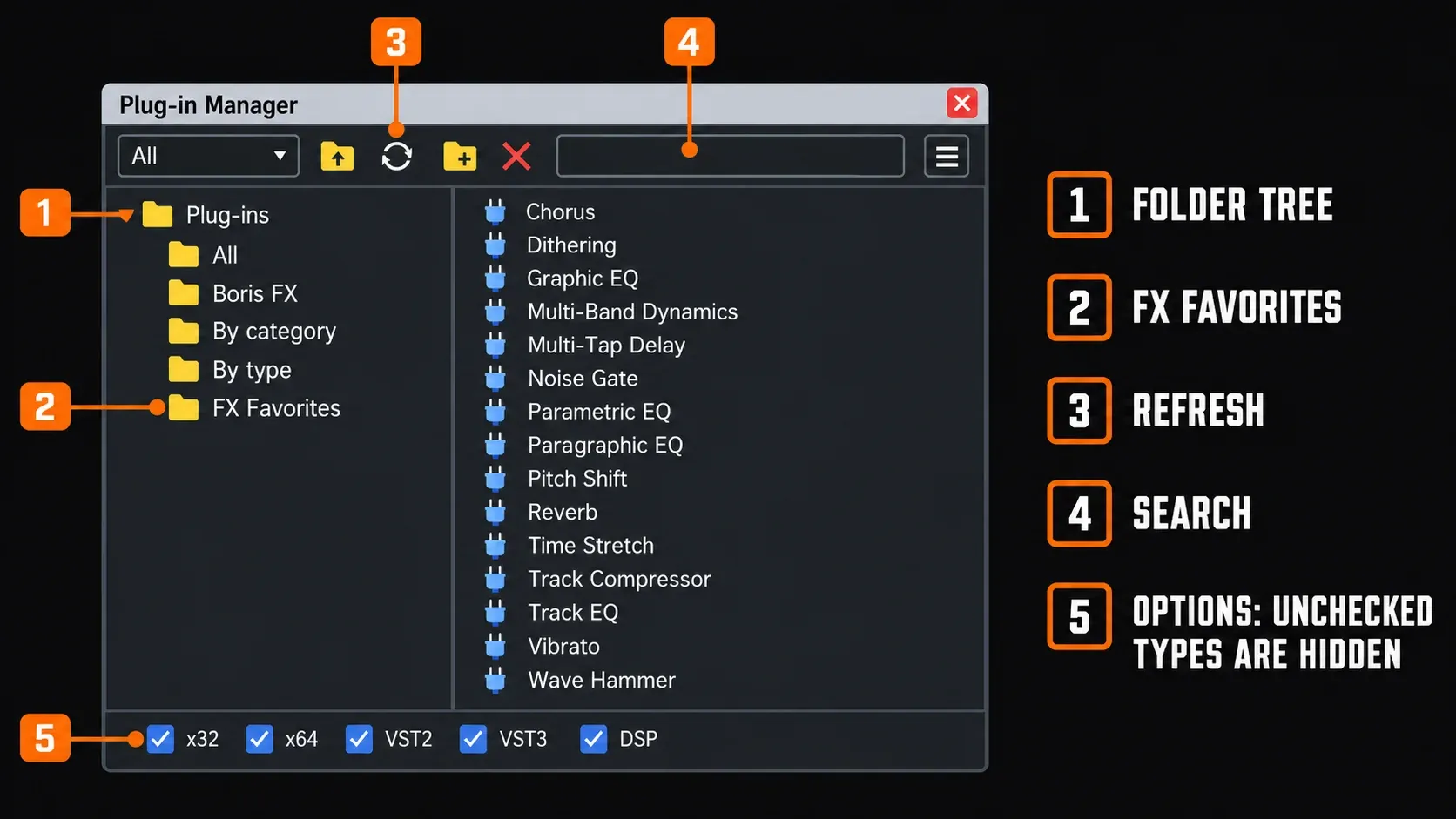
The Plug-In Manager documentation distinguishes its folder refresh from the Preferences rescan. The Manager's refresh button rereads folder contents; Preferences → VST Effects → Refresh is the documented step after a new plug-in installation.
Favorites is a custom shortcut layer. If the effect appears in All, use it there or add a Favorites shortcut afterward. Test on your saved audio copy: double-clicking an effect targets the selection, or the whole file if nothing is selected. Dragging an effect to a data window adds it to that window's chain. The Plug-In Chain guide covers previewing and committing processing after discovery works.
6. Separate scan, GUI and license failures
For a listed effect with a blank or unusable graphical window, try Generic VST editor in VST Effects Preferences. Boris FX documents it as an interface fallback. If the generic controls work, the vendor editor or its interaction with the host is the likely suspect. That still doesn't prove every processing function, preset or authorization state is healthy. Restore the previous setting if the fallback doesn't help.
If a scan hangs, save the last displayed name and error before changing anything. If a suspect VST2 product has its own separate search folder, note that path before temporarily removing it from the search list. Check the remaining paths without opening or saving projects that depend on the excluded effect, then restore the path. This only tests that location and won't prove which file caused the hang. For a shared folder, use vendor-guided product repair or isolation instead of moving all its files.
If the editor cannot open, the startup-crash troubleshooting page addresses that broader symptom. Keep this investigation product-specific: do not copy scanner executables between Sound Forge editions, disable antivirus, clear all application caches or delete registry trees.
Compatibility can still be the problem after the scan path is right. Ozone 12 Advanced's current specifications, for example, list 64-bit AAX, AU and VST3, with no VST2. Sound Forge isn't named in the supported-host list checked for this guide. That doesn't prove it never runs, but it isn't vendor certification either. A VST2 reinstall isn't an option for Ozone 12.
A 2025 Audio Studio 17/Ozone 11 forum discussion describes a file being seen during scanning but never added. It's a historical, build-specific user report and doesn't show that current Sound Forge rejects all iZotope effects. Check the exact vendor requirements and contact support with your edition, build, format, path and error.
For licensing, also separate the purchased edition from the delivery channel. iZotope explains that Ozone Standard supplied through Komplete is activated through Native Access; its Product Portal “Full Trial” label doesn't necessarily restrict an activated installation. Don't stretch that exception to other products or use it to wave away a real authorization failure.
7. Handle deliberately hidden effects separately
In the current Manager, Hide suppresses a plug-in without uninstalling it. It differs from deleting a Favorites shortcut or excluding an effect type from display. If you remember hiding the entry, use the matching Manager help or contact support after checking the ordinary filters.
The 2026 help documents a version-specific DXCache registry reset to restore hidden plug-ins. It isn't a general missing-VST fix, and it shouldn't be transplanted to Sony or MAGIX installations. Ask support to confirm the exact scope and recovery procedure before using it, and save the affected settings first. Do not delete parent keys, licensing data or unrelated cache folders.
Verify that the recovered effect actually works
At low monitoring volume, load the effect on a short, noncritical audio copy. Compare bypassed and processed playback with an obvious but safe setting. If the product ships presets, check that they load. Commit the processing with the appropriate effect/chain workflow, save under a new name and reopen the result, because a visible entry alone doesn't show that rendering works.
Keep the plug-in version, Sound Forge build and the format/path that worked with your notes. If an update breaks it again, that record lets support compare two known states.
Frequently asked questions
Why is the plug-in named during scanning but missing afterward?
The scanner may reach a file without successfully registering or initializing its effect. Verify compatibility and any error, then check availability and Manager filters. Repeated Refresh attempts cannot fix an unsupported build or incomplete installation by themselves.
Does Sound Forge 2026 support VST3 effects?
Yes. The current Manager documentation distinguishes VST2 and VST3 effects. Support for a format is not a guarantee for every vendor build, architecture or license state. Test the exact effect on a disposable audio copy.
Which VST3 folder should I check on Windows?
For a typical 64-bit installation, start with C:\Program Files\Common Files\VST3. Steinberg also defines a per-user location at %LOCALAPPDATA%\Programs\Common\VST3 and an x86 global location for 32-bit VST3. Verify the installer's actual destination and your host's search settings.
Why is the effect absent from FX Favorites?
Favorites contains custom shortcuts. Search All, clear stale search text and check the type filters in Plug-In Manager. If the effect is there, use it from All and add a Favorites shortcut if useful.
Can Generic VST editor fix a missing effect?
It is an interface fallback for a discovered effect with a problematic graphical window. It does not install the plug-in, repair its search path or guarantee authorization and processing.
Will a VST instrument appear as an audio effect?
Do not expect a synth or sampler to become a playable instrument in Sound Forge's documented audio-effect workflow. Use a compatible instrument host to render audio, then edit the rendered file in Sound Forge.
Should I delete DXCache or all plug-in caches?
No general cache deletion is recommended. The 2026 Manager help documents a specific hidden-plug-in reset, not a universal repair. Confirm the exact version, scope and recovery procedure with support before changing registry settings.
Should I switch every failing VST3 plug-in to VST2?
Only consider a compatible VST2 build when the vendor supplies one for your host. Ozone 12 Advanced, for example, lists VST3 but no VST2. Preserve existing projects and presets before changing formats; do not assume the replacement restores saved settings.
Documentation and source checks: September 17, 2026. Historical reports are labeled by version and date.