
To convert one audio file in Sound Forge, open it and choose File → Save As. Pick the destination format in Save as type, choose the output template, give the file a new name, and save. For a folder or a set of files, use Tools → Batch Converter, add the sources, add an export format, open Options to choose a separate output folder, and run representative test files before the full job.
Keep an untouched source and decide what the recipient needs before choosing a template. A file can have the right extension but the wrong sample rate, channel layout or metadata.
Sound Forge 2026 documentation. This guide follows the current Boris FX Save As/Render As help, Custom File Templates help and Batch Converter help. Use the controls described below for the 2026 interface; older versions may arrange them differently. Boris FX lists batch processing as a core Sound Forge feature in both the base and Plus tiers.
Save As or Batch Converter?
| Your job | Use | Menu path |
|---|---|---|
| Convert one open file | Save As | File → Save As |
| Convert many files to one or more formats | Batch Converter | Tools → Batch Converter |
| Change only sample rate | Resample | Process → Resample → Resample |
| Change mono/stereo channel structure | Channel Converter | Process → Channel Converter |
Use Save As when a file needs individual attention. Batch Converter is useful when several sources share an output specification; separate files that need different treatment rather than forcing them through one preset.
How to convert one audio file with Save As
- Open the source file in Sound Forge.
- Choose File → Save As.
- Choose a separate output folder and a new filename; check the final extension after selecting the format.
- Open Save as type and select the required format.
- Choose a Template that matches the delivery specification.
- Save to a new file, not over the source.
- Reopen the export and verify its properties and playback.
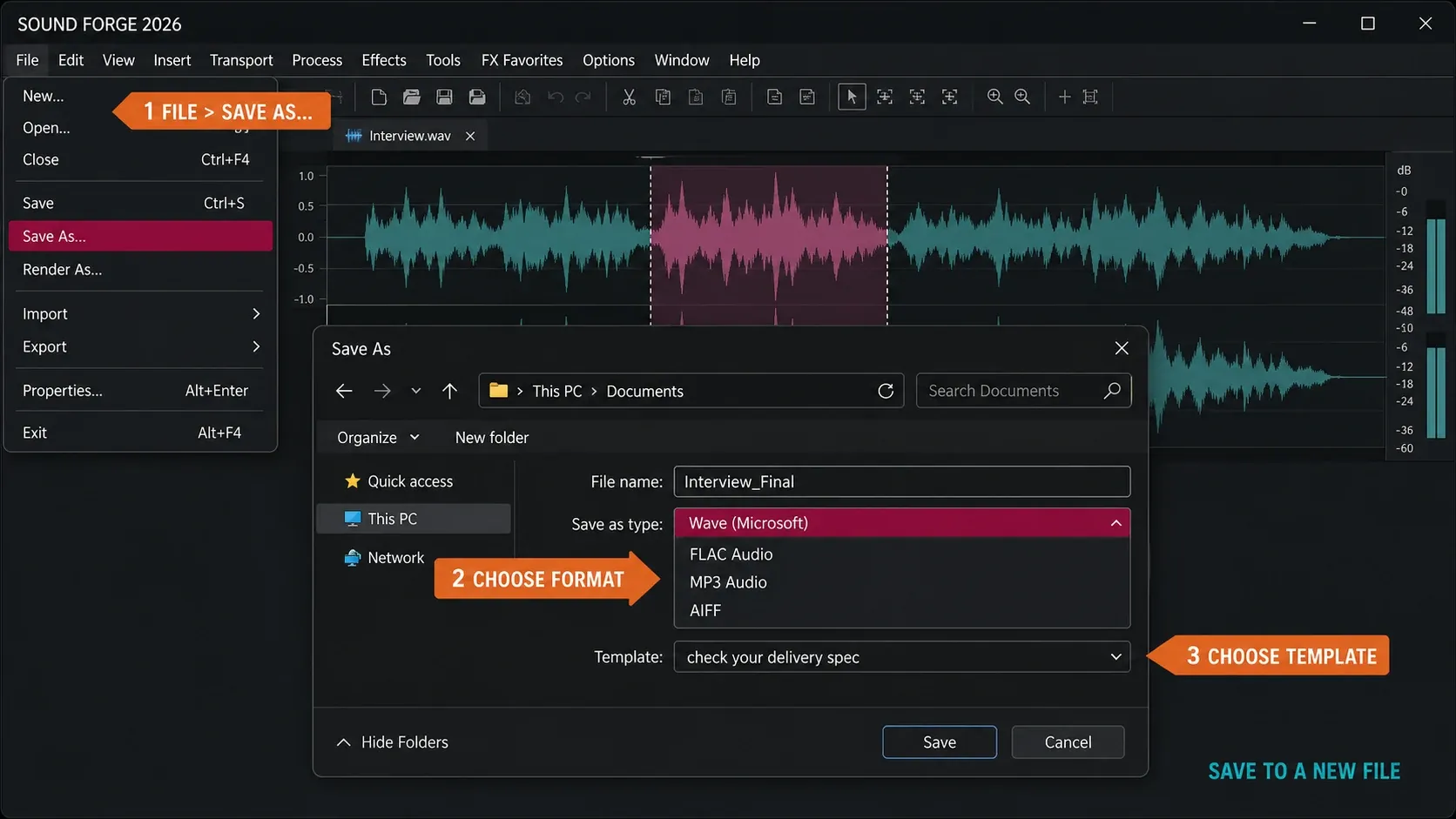
For a normal audio data window, use Save As. If the open document is a Sound Forge project file, the current help says to use Render As to commit its edits to a media file. The exact entries in Save as type can vary by Sound Forge build and installed components. The current supported-format table lists WAV, FLAC, MP3 and AIF export. Check the dropdown and template options in your installed copy for the exact choices.
WAV: uncompressed PCM delivery
Choose WAV when a client, DAW, video editor, archive or mastering engineer asks for uncompressed PCM. Select an uncompressed PCM template if that is what the recipient requests; the WAV extension alone is not a codec specification. The container alone doesn't define sample rate or bit depth, though, so check the template instead of assuming every WAV is the same. If the file is returning to a video timeline, use the Vegas round-trip workflow so you edit the intended event or copy and save it back where VEGAS expects it.
FLAC: lossless compression for compatible PCM
Choose FLAC when the receiver accepts it and you want lossless compression. The official FLAC project defines the format as lossless: decoding reconstructs the original PCM data. That applies when compatible integer PCM samples are preserved without resampling, processing or bit-depth reduction. FLAC does not natively store floating-point samples, so a float WAV is not automatically a bit-perfect FLAC conversion. Keep the float original. File-size savings depend on the audio.
MP3: delivery copy, not working master
MP3 is the pick when compatibility or a delivery requirement specifically calls for it. MP3 is lossy, so its encoder removes information. Keep the WAV or FLAC source and create the MP3 at the end of the workflow. The Sound Forge MP3 export guide covers template selection and final-file checks in more detail.
What conversion can—and cannot—preserve
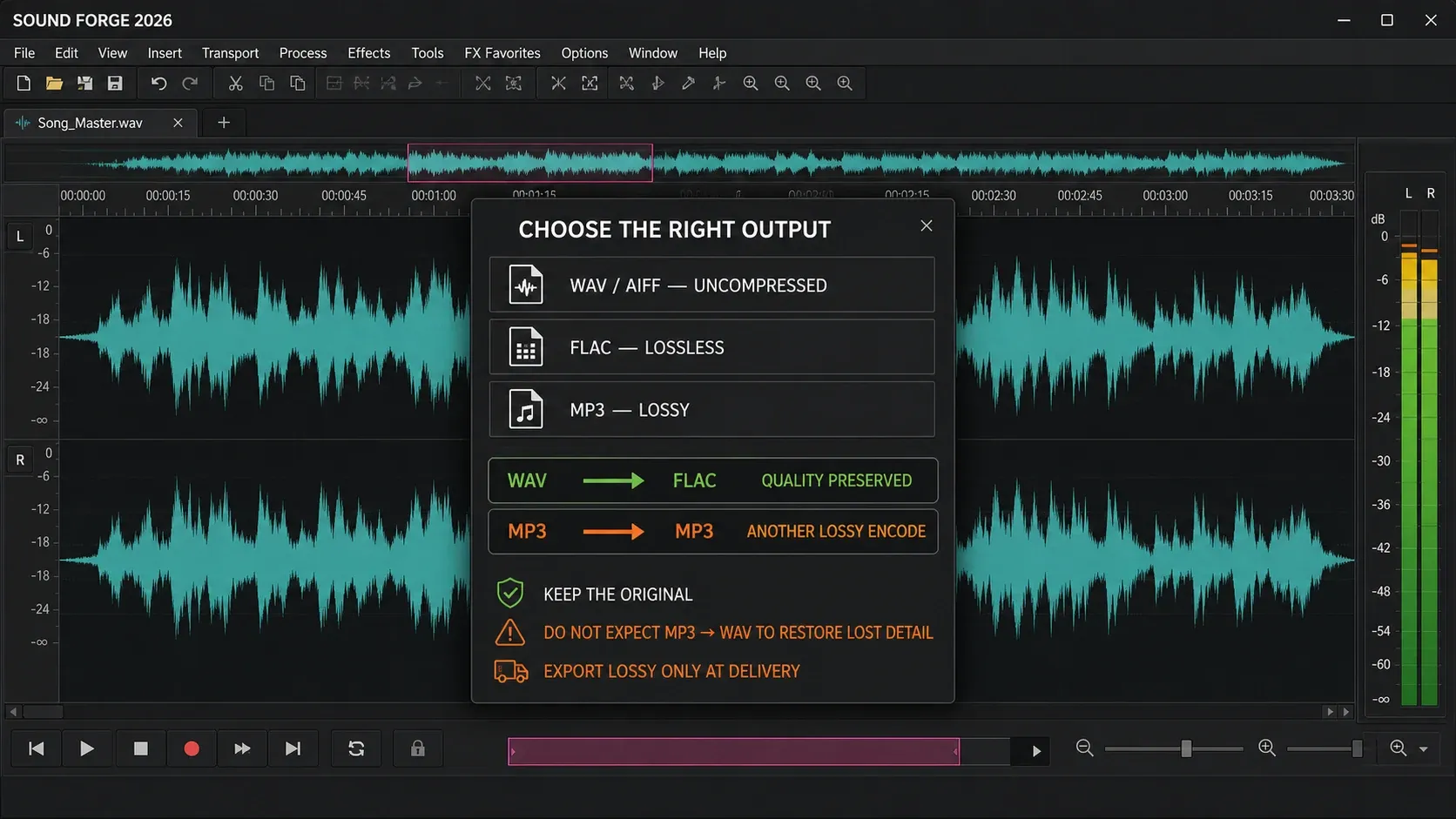
The illustration summarizes format choices; “Choose the right output” is an explanatory overlay, not a Sound Forge dialog to look for. Check what changes in each direction:
- WAV → FLAC is lossless when compatible integer PCM sample values, sample rate and channels are preserved. FLAC → PCM WAV can preserve those same samples too.
- MP3 → WAV is not restoration. The new WAV stores the decoded MP3 as PCM; information already discarded by MP3 does not return.
- MP3 → MP3 is another lossy encode. If all you have is MP3, edit it once and make one final export. Don’t bounce through repeated MP3 generations.
Saving a compressed source as WAV before editing can be useful as a working file because subsequent saves no longer add MP3 compression. It doesn't make that source lossless retroactively. Lossless audio also does not guarantee that every marker, artwork field or WAV metadata chunk survives a format change. Verify those separately.
How to batch-convert multiple audio files
- Choose Tools → Batch Converter.
- Under Files to Process, review automatically added open files, then use Add or Add Folder for the rest.
- For format-only conversion, leave the Processing list empty and make sure no Watermark file is selected.
- Under Export Formats, choose the required Renderer and Template; use Edit when a custom file template is needed.
- Open Options and choose an output folder separate from the sources plus a safe filename rule.
- Select only two representative test files, including an edge case if the inputs differ. Uncheck the rest of the queue, then click Run Job.
- Open and verify the pilot outputs. Then select the remaining intended sources and click Run Job.
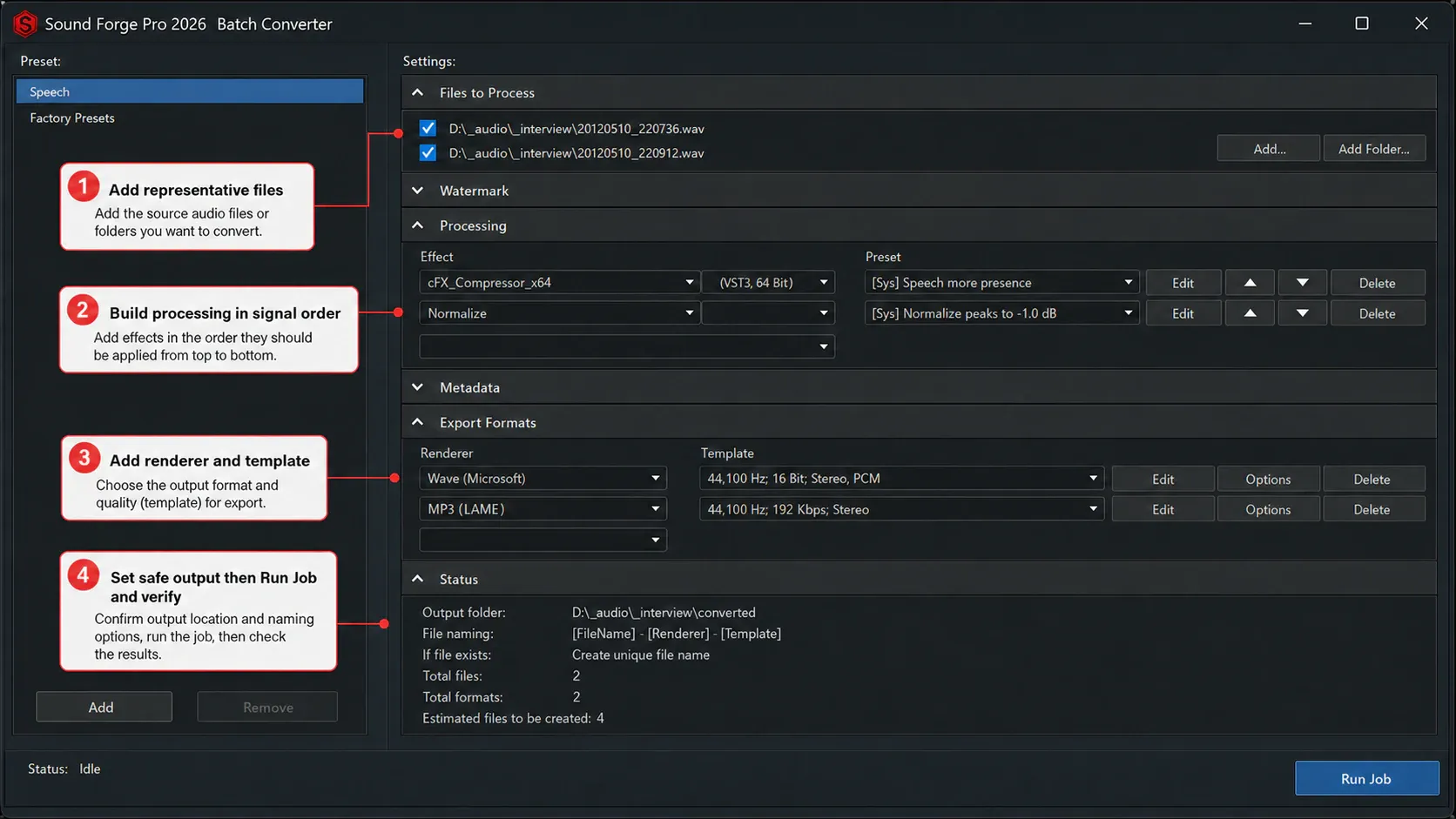
The example above includes a compressor and Normalize in its Processing list. Do not copy that chain for conversion alone. If you only need WAV-to-FLAC or WAV-to-MP3, leave the list empty. Add a process preset only when every source needs the same confirmed operation. Also check the Watermark section: a selected watermark file is mixed into the output, so it does not belong in an unchanged-audio conversion.
The current help also warns that Add Folder adds files from the selected folder but not its subfolders; Preserve source subfolders controls output layout and does not collect nested inputs. Sound Forge can produce more than one export format from the same job. That is useful when the same sources need a lossless archive and a delivery copy. Configure each export format separately, keep the sources untouched, and inspect one output from each format before releasing the batch.
For reusable effect chains, naming and larger production jobs, see the separate Batch Converter walkthrough. It explains how to build and validate a processing chain when conversion alone is not enough.
Format, sample rate and bit depth are separate decisions
Encoding WAV audio as FLAC changes its storage format. Renaming .wav to .flac does not convert the audio. Moving 48 kHz audio to 44.1 kHz is sample-rate conversion, and a cut from 24-bit PCM to 16-bit PCM is a bit-depth change. All of them can happen in one delivery workflow, but they aren't interchangeable.
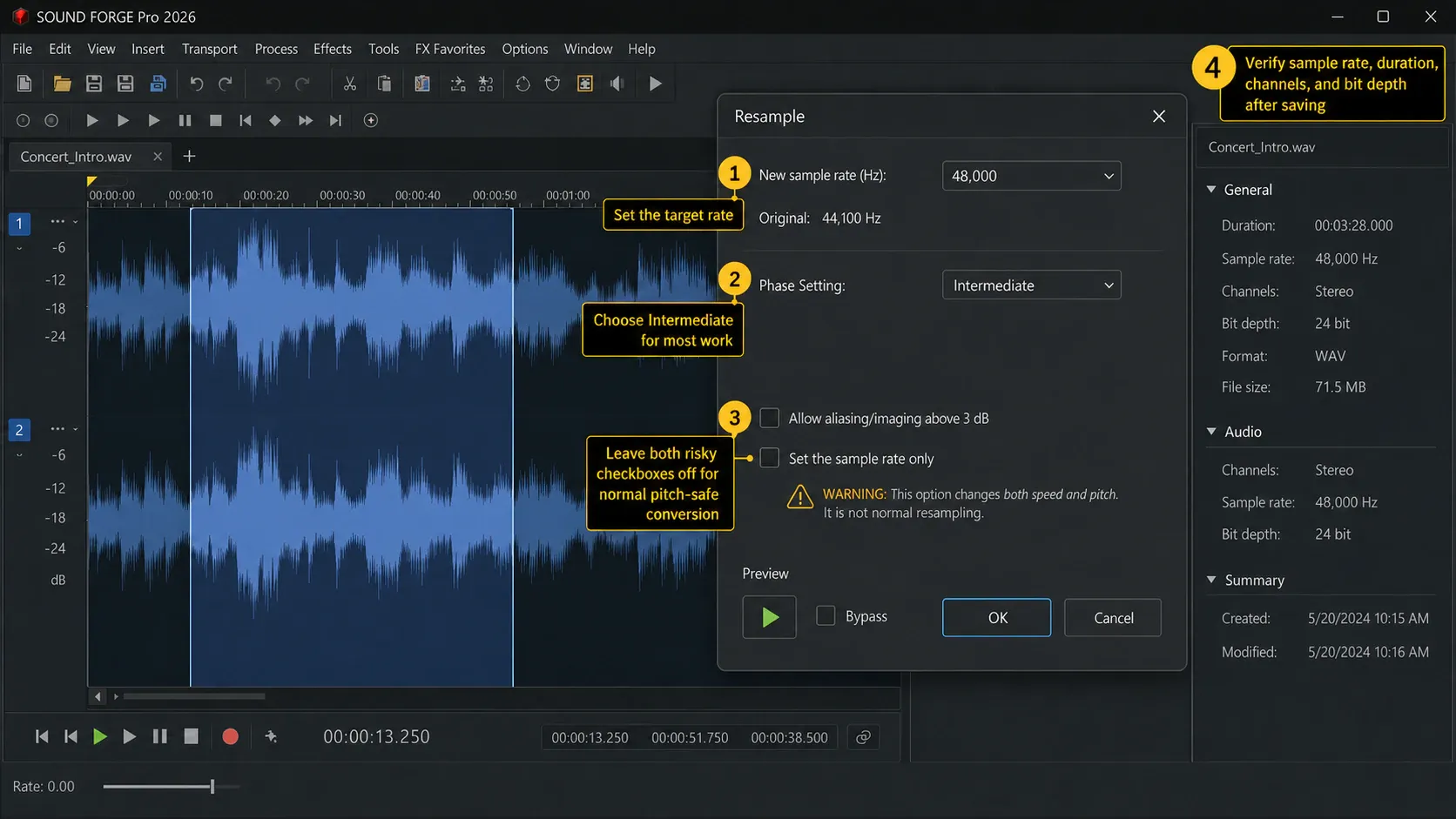
If the delivery spec requires a different sample rate, use Process → Resample → Resample. The option to set the sample rate without resampling changes metadata/interpretation rather than converting the audio and can alter playback speed; leave it off for a normal conversion. The dedicated sample-rate guide explains that trap.
For bit depth, choose an output template that matches the delivery requirement. For a planned reduction to a lower integer PCM depth, configure dither at that final reduction stage using the Bit-Depth Converter controls. Avoid adding it again in another stage, and keep subsequent export settings at the intended depth. If the recipient didn't specify sample rate, bit depth and codec, ask instead of inventing a “best” setting. Podcast hosts, video post, broadcast systems, game engines and music distributors can all want different files. Before a large export, use the audio file size calculator to estimate storage from duration, sample rate, bit depth, channels or bitrate.
Verify the converted file
Before delivery, check the actual saved output rather than just the selected template:
- Open the converted file as a new document.
- Confirm the codec, sample rate, PCM bit depth where applicable, and channel count.
- Play the beginning, a loud section, a quiet section and the end.
- Check duration, start/end boundaries and channel layout against the intended result; any channel conversion should be deliberate.
- Confirm required tags, markers and artwork in the receiving application, not only inside Sound Forge.
- Keep the original until the destination has accepted the delivery.
For MP3, also confirm that the exported file opens outside Sound Forge in the player or platform that will actually use it. Check the MP3’s encoded bitrate rather than mistaking the editor’s decoded PCM depth for an MP3 setting. Recheck peak/loudness on the saved compressed file: the render-time loudness log is generated before the codec, so it does not measure the final MP3. For a batch, count expected outputs for each selected source and renderer, and review the Status section for failed or skipped files.
Keep metadata deliberately
In Save As, enable Save metadata with file when required. Unsupported metadata may need an external .sfl file; do not assume that another player reads that sidecar. In Batch Converter, inspect Metadata before running: Overwrite can replace existing values, and a blank replacement can erase them. Unsupported metadata types are ignored. Preserve the source and verify the receiving system’s required fields.
Common conversion problems
The required format is missing
Check Save as type in the current installation, and compare it with the current vendor export list. Don’t download a random codec pack to “fix” a professional workstation; confirm that the format is supported by your installed Sound Forge version or use a trusted dedicated converter for that delivery.
The converted file plays at the wrong speed
The sample-rate value may have been changed without resampling. Return to the untouched source and use Process → Resample → Resample with the metadata-only option disabled.
The batch is overwriting or mixing with sources
Stop the job and choose a new output folder. Never troubleshoot a batch against the only copy of the original files.
The new MP3 sounds worse
The source may already have been lossy, or the output template may use a more aggressive encode than the original. Return to the best available WAV/FLAC source. If MP3 is the only source, avoid repeated MP3 exports and make a single final delivery encode.
Frequently asked questions
How do I convert WAV to MP3 in Sound Forge?
Open the WAV, choose File → Save As, select the MP3 output in Save as type, choose the delivery template, enter a new filename and save. Keep the WAV as the source master.
How do I convert WAV to FLAC in Sound Forge?
Open the WAV, choose File → Save As, select the FLAC output, choose a template that preserves compatible integer PCM samples and the required rate and channels, and save to a new file. Keep floating-point originals: FLAC does not natively store floating-point samples. Check metadata separately from audio.
How do I convert multiple files at once?
Open Tools → Batch Converter, add the files under Files to Process, leave the Processing list empty and Watermark unset for unchanged-audio conversion, choose Renderer and Template under Export Formats, and use Options to select a separate destination. Run only representative pilot files first, verify them, then select the remaining sources.
Does converting MP3 to WAV improve quality?
No. It creates an uncompressed working file from the decoded MP3 but cannot restore information discarded by the original lossy encode.
What is the best format to convert to?
Use the format required by the destination. PCM WAV is useful for uncompressed delivery, FLAC for lossless storage of compatible PCM, and MP3 for a requested lossy delivery copy. There is no universal best format.
Does Save As change the sample rate?
The selected output template can define audio properties, but deliberate sample-rate conversion should be handled and checked with Process → Resample → Resample. Don’t use the metadata-only option for a normal conversion.
Do I need Sound Forge Plus for Batch Converter?
No. Boris FX lists batch processing in both Sound Forge and Sound Forge Plus. The current Plus description includes the base Sound Forge feature set; Plus is not required just to convert files.
For the editing steps before export, return to the Core Editing guides.
Documentation reviewed September 8, 2026 against Boris FX’s 2026 help and Xiph’s FLAC specification guidance. This is a documented workflow, not a claim of a new listening test.