
Changing sample rate in Sound Forge Pro 2026 is a conversion job, not a metadata edit. For normal work, open Process → Resample → Resample, enter the target rate, leave Set the sample rate only off, choose a phase setting, and click OK. That preserves the file’s pitch and duration while Sound Forge calculates a new set of samples.
The warning matters because Sound Forge can also change only the rate stored for playback. That makes the same samples play faster or slower and shifts pitch with them. It’s useful for a wrongly tagged recording and the wrong tool for delivering a 48 kHz file from a 44.1 kHz master.
This guide uses the current Sound Forge Pro 2026 Resampling help, last modified March 4, 2026. The current dialog uses Phase Setting and Allow aliasing/imaging above 3 dB. Older tutorials may show an Interpolation Accuracy slider or a separate iZotope 64-bit SRC command. Those controls are not described on this current help page; follow the help for your installed build rather than assuming the old menu is present.
Change sample rate without changing pitch
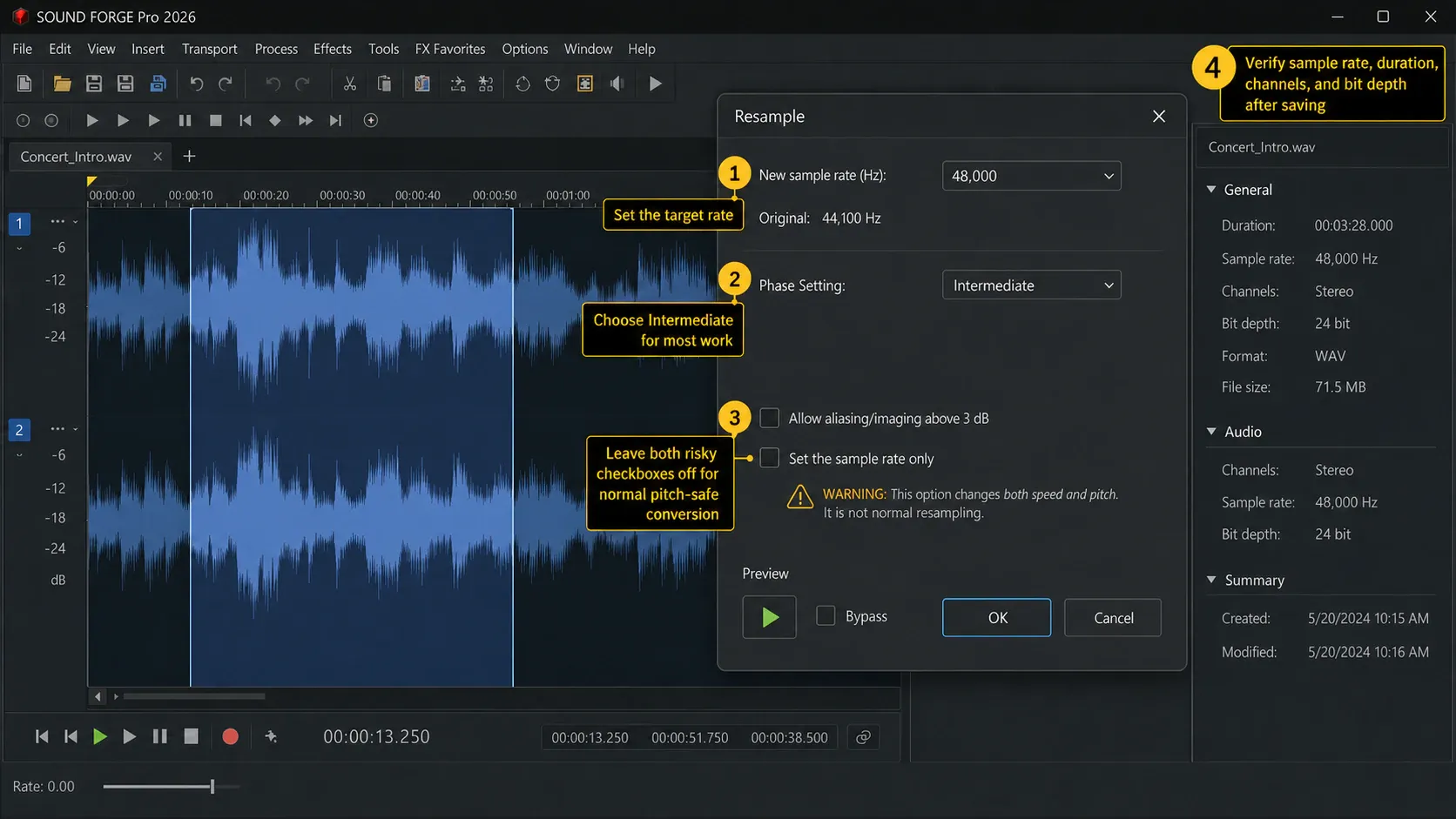
- Open the audio file and note its current sample rate in the status bar.
- Choose Process → Resample → Resample.
- Enter the required value in New sample rate, such as 44100, 48000 or 96000 Hz.
- Choose Intermediate, the setting Boris FX recommends for most uses.
- For normal downsampling, leave Allow aliasing/imaging above 3 dB unchecked so the anti-aliasing protection remains active.
- Confirm that Set the sample rate only is unchecked.
- Click OK, then save the converted result under a new name if you need to keep the source unchanged.
If the target comes from a broadcaster, video editor, game engine, sampler or client, use that specification. Don’t convert to 96 kHz just because the number is larger. The Boris FX 44.1-versus-48 kHz guide describes 44.1 kHz as the established CD rate and 48 kHz as the standard for digital video; neither is a universal delivery rule. If the file belongs to a VEGAS project, use the Sound Forge–Vegas video workflow for the round trip and verify the returned file’s sample rate before the final render.
What the Sound Forge 2026 controls actually do
New sample rate
This is the rate of the converted file in samples per second. A 48,000 Hz file stores 48,000 sample values per channel for each second of audio. A lower rate reduces the available frequency range; a higher rate adds interpolated samples, not information the recording never captured. For uncompressed PCM at the same duration, bit depth and channel count, size changes in proportion to sample rate. Compressed-file size also depends on the codec and its settings.
The Nyquist frequency is half the sample rate: 22.05 kHz for a 44.1 kHz file and 24 kHz for a 48 kHz file. Reconstructible signal content must stay below that boundary, with room for a practical filter transition. When downsampling, filtering removes frequencies that would otherwise fold into the new band.
Phase Setting: Minimal, Intermediate or Linear
The current online help describes three phase settings rather than an interpolation-accuracy number:
- Intermediate is the official recommendation for most uses. It balances transient behaviour and phase response.
- Linear preserves phase relationships more consistently across frequencies, but can place ringing both before and after sharp transients.
- Minimal keeps pre-ringing away from transients, while phase varies more at lower frequencies.
Intermediate is the sensible starting point unless a delivery test or a specific transient problem gives you a reason to compare the other two. “Linear” isn’t automatically better; it’s a different trade-off.
Allow aliasing/imaging above 3 dB
This label is easy to misread. For an ordinary sample-rate conversion, especially when reducing the rate, leave it unchecked. Sound Forge then applies the filtering needed to keep frequencies above the new Nyquist limit from folding back into the audible band as false tones.
The 2026 help says you may enable the option when you are certain the signal contains nothing above half the target sample rate. That can make processing faster and reduce ringing, but treat it as an exception for known material rather than a default “quality” switch.
When “Set the sample rate only” is correct
Set the sample rate only changes playback interpretation without calculating new samples. If a 44.1 kHz file is relabelled as 48 kHz, it plays about 8.84% faster and roughly 1.47 semitones higher. Relabelling 48 kHz as 44.1 kHz does the reverse.
That behaviour is useful when the audio data is correct but its playback rate was assigned incorrectly—for example, a headerless raw file imported using the wrong rate. Establish the original recording rate before changing it; do not guess from the filename. It can also be used deliberately for tape-style speed and pitch changes. It shouldn’t be used to meet a normal delivery specification.
If a conversion unexpectedly changes pitch or duration, undo it and reopen Resample. The first thing to check is this box. Changing the rate through a properties field or status-bar control without resampling can create the same symptom.
Choose the target rate from the destination
| Destination | Practical choice | What to verify |
|---|---|---|
| Audio CD | 44.1 kHz | The authoring workflow also expects the correct bit depth and channel format. |
| Video or broadcast handoff | Commonly 48 kHz | Use the editor’s or broadcaster’s written specification. |
| Music distribution | Keep the native master unless the distributor requests another rate | Do not infer a platform requirement from a generic web chart. |
| Sampler, game or hardware device | Exactly what the device accepts | Check supported rates, channels and sample format together. |
| Archive or further processing | Usually keep the source rate | A larger rate does not restore missing bandwidth. |
Avoid repeated conversions. If the source is 96 kHz and the final deliverable is 48 kHz, work from the 96 kHz source and make one conversion at the end. Converting 96 → 44.1 → 48 kHz adds another filtering and interpolation pass without adding useful information.
Upsampling and downsampling: the useful distinction
Upsampling creates intermediate sample values so the file can run at a higher rate. Use it when a delivery specification or a checked processing workflow requires the higher rate. Upsampling a finished 44.1 kHz file to 96 kHz does not extend its original recorded bandwidth or make it a true high-resolution source.
Downsampling reduces the number of samples and the reproducible bandwidth. A proper converter filters frequencies that cannot exist at the new rate before decimation. That is why Sound Forge’s aliasing option deserves more attention than any “higher numbers sound better” argument. The underlying interpolation and filtering problem is also described in Julius O. Smith’s Digital Audio Resampling material at Stanford CCRMA.
Sample rate is separate from bit depth. Resampling changes the time grid; bit-depth conversion changes how each sample value is represented. If the destination also requires a lower bit depth, perform that conversion once at final delivery and use dither where appropriate. The Sound Forge conversion guide covers format and bit-depth decisions.
Export and batch workflows
For one file, the safest audit trail is simple: keep the source, run Resample, then use Save As with a new filename that includes the target rate, such as mix-v7-48k.wav. Reopen the result and confirm its rate, duration and channel layout. Recheck sample peak and true peak, then listen to transients and the start/end: resampling can change peak levels even when pitch and duration are correct.
When many files need the same destination format, use the Batch Converter workflow instead of repeating manual clicks. Build one preset and test copies of a typical and a stress file, including a source that needs conversion and one already at the target rate where both occur in the batch. Verify rate, duration, channels, format, peak/true peak and sound before running the full folder. That test catches the expensive mistakes: changing only the header, choosing the wrong destination folder or applying a rate intended for a different device.
Troubleshooting sample-rate changes
The result is faster and higher, or slower and lower
The rate was probably changed without resampling. Undo if possible, then use Process → Resample with Set the sample rate only disabled.
The converted file has high-frequency whistles or roughness
Check whether Allow aliasing/imaging above 3 dB was enabled during downsampling. Repeat the conversion from the untouched source with it disabled.
The audio interface changes rate or will not play the file
Separate the saved file’s rate from the rate used for playback before changing anything. Check the selected audio driver, hardware-supported rates and clock source. The File Properties help documents ASIO playback resampling when hardware cannot play the file’s rate, with an italic rate display. That playback conversion is not proof that the saved file is wrong. Do not convert an original merely to match a Windows shared-mode setting. The recording setup guide covers interface and ASIO configuration.
I cannot find Interpolation Accuracy or 64-bit SRC
You’re probably comparing Sound Forge 2026 with an older manual or screenshot. The current Boris FX Resample page documents New sample rate, Phase Setting, Allow aliasing/imaging above 3 dB and Set the sample rate only. It doesn’t document an iZotope 64-bit SRC submenu.
Frequently Asked Questions
How do I change sample rate in Sound Forge Pro without changing pitch?
Choose Process → Resample → Resample, enter the target rate and keep Set the sample rate only unchecked. Sound Forge then converts the sample data while preserving pitch and duration.
Which Phase Setting should I use?
Use Intermediate for most conversions. The 2026 help recommends it as the general-purpose balance. Linear preserves phase more consistently but can add pre/post-ringing; Minimal protects transient onset from pre-ringing while allowing more low-frequency phase variation.
Should I enable Allow aliasing/imaging above 3 dB?
Normally no, especially when downsampling. Leave it unchecked so anti-alias filtering remains active. Enable it only when you know the source has no content above half the target rate and accept the trade-off described in the current help.
Why did changing sample rate change speed and pitch?
A likely cause is relabelling the file rate without resampling. Compare with the untouched source, then use Process → Resample with Set the sample rate only disabled. Reserve the rate-only option for correcting a wrong header or for a deliberate speed-and-pitch effect.
Does converting 44.1 kHz to 96 kHz improve quality?
Not by itself. It creates additional interpolated samples but cannot recover frequencies or detail absent from the source. Upsample only when a tested processing or delivery workflow requires it.
Is 44.1 kHz or 48 kHz better?
Neither is universally better. 44.1 kHz is the established audio-CD rate; 48 kHz is common in video. Follow the destination specification and avoid unnecessary conversions.
Can I change a folder of files at once?
Yes. Use Batch Converter and test copies of a typical and a stress file first. Check rate, duration, channels, format, peak/true peak and sound before the full run. Include unchanged-rate and converted-rate cases when present, and keep the originals.
If sample-rate conversion is one step in a larger edit, the Core Editing guide hub connects recording, editing and export workflows. Keep this page for the resampling step; choose the final codec and bit depth from the delivery specification.
Documentation reviewed September 8, 2026. Menu instructions follow Boris FX’s Sound Forge Pro 2026 help; the rate and pitch example is calculated, not a listening-test result.