
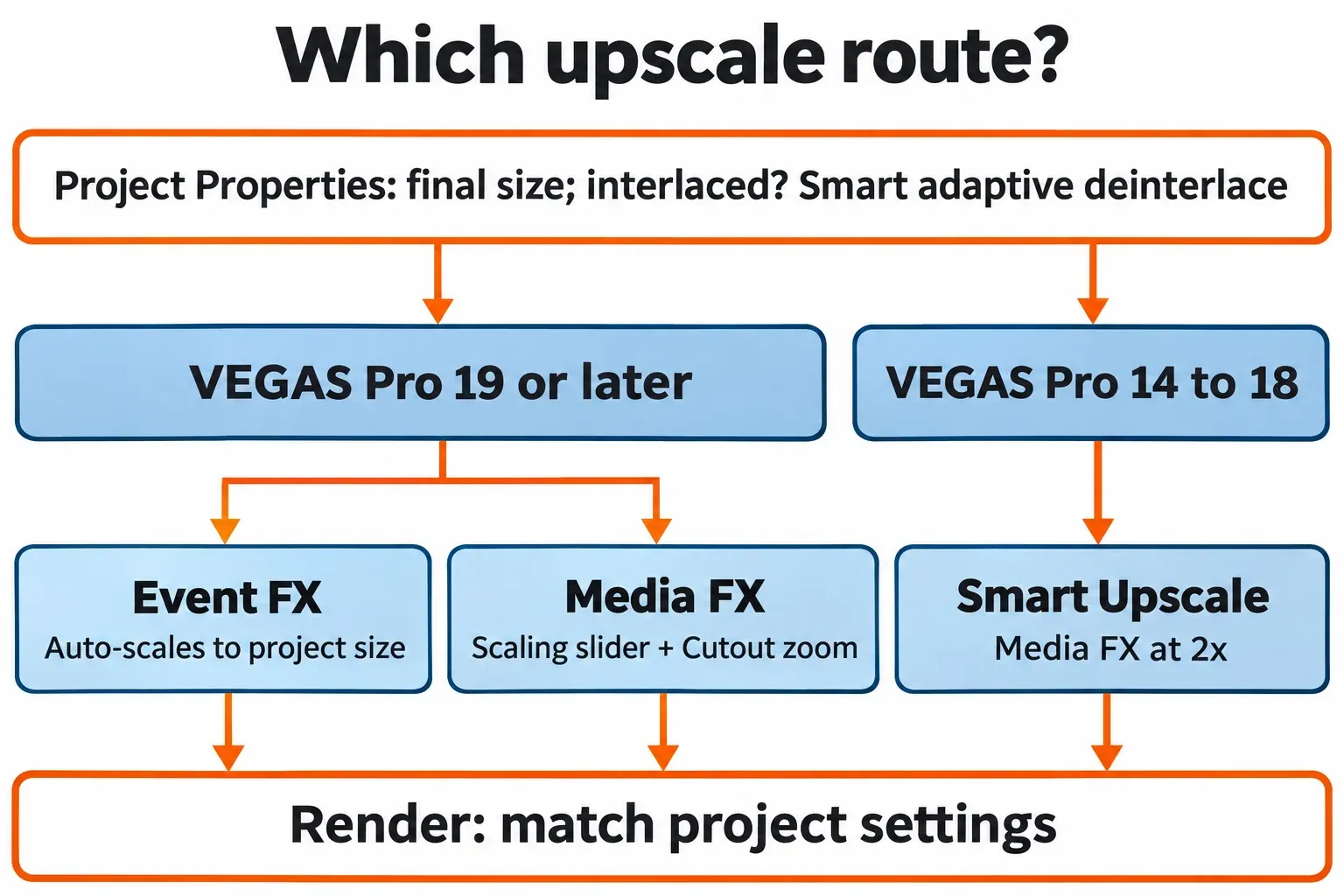
To upscale video in VEGAS Pro, set the project to the size you want (3840x2160 for 4K), add the AI Upscale effect from the VEGAS help to the clip and render with a template that matches the project. The effect has been built in since VEGAS Pro 19 build 341, released on 18 August 2021, and the current plans list AI tools in all three editions. Added as an Event FX, it scales the clip to the project size on its own; added as a Media FX, it gives you a Scaling slider and a Cutout zoom. VEGAS Pro 17 predates it, so that version takes the older Smart Upscale route described further down.
My rule is simple. When a clip only has to fill a 4K frame, I'd add Upscale as an Event FX and let VEGAS pick the factor, because nothing else in the project changes. I'd switch to Media FX only when I want to set the factor myself or reframe with the Cutout zoom, since a media effect follows that file into every event that uses it.
How to upscale video in VEGAS Pro 2026 and 2027
These steps follow the 2027 help, and the current release is VEGAS Pro 2027 build 31 from 23 October 2026. Releases 19 to 23 use the same effect; the menu that differs most is rendering, covered in the settings section.
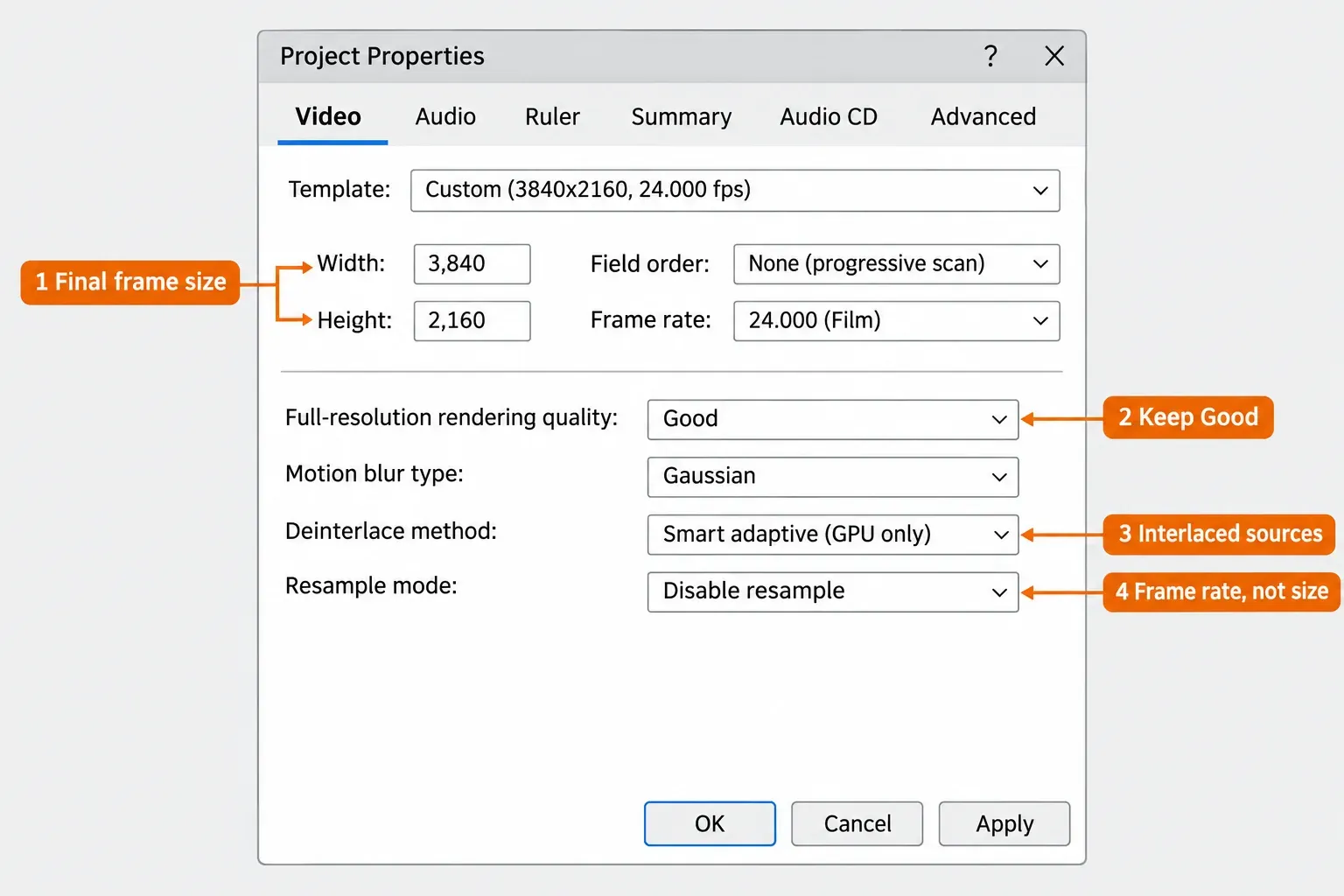
- Open File > Properties (or click the Project Video Properties button in the Video Preview window) and stay on the Video tab. Set Width to 3840 and Height to 2160, and keep the frame rate your footage already has.
- Leave Full-resolution rendering quality on Good. For interlaced footage, set Deinterlace method to Smart adaptive (GPU only). Click OK.
- Make sure the Deep Learning Models are installed. The help says Upscale needs them before it can work properly; the requirements section below shows where they come from.
- Click the Event FX button on the clip, pick the upscale effect in the Plug-In Chooser, click Add and then OK, as the event effect steps in the help describe.
- Check the row of buttons at the top of the Video Event FX window: Upscale has to sit left of Pan/Crop. Since VEGAS Pro 20 build 326 it lands there automatically; in 19 a warning asks you to drag the Upscale button before Pan/Crop.
- Choose a Model in the VEGAS Upscale panel. The Scaling slider stays greyed out and simply shows the factor VEGAS worked out from the project size.
- Choose File > Render, filter the list with Match project video settings, pick a format, adjust bitrate under Customize... and click Render....
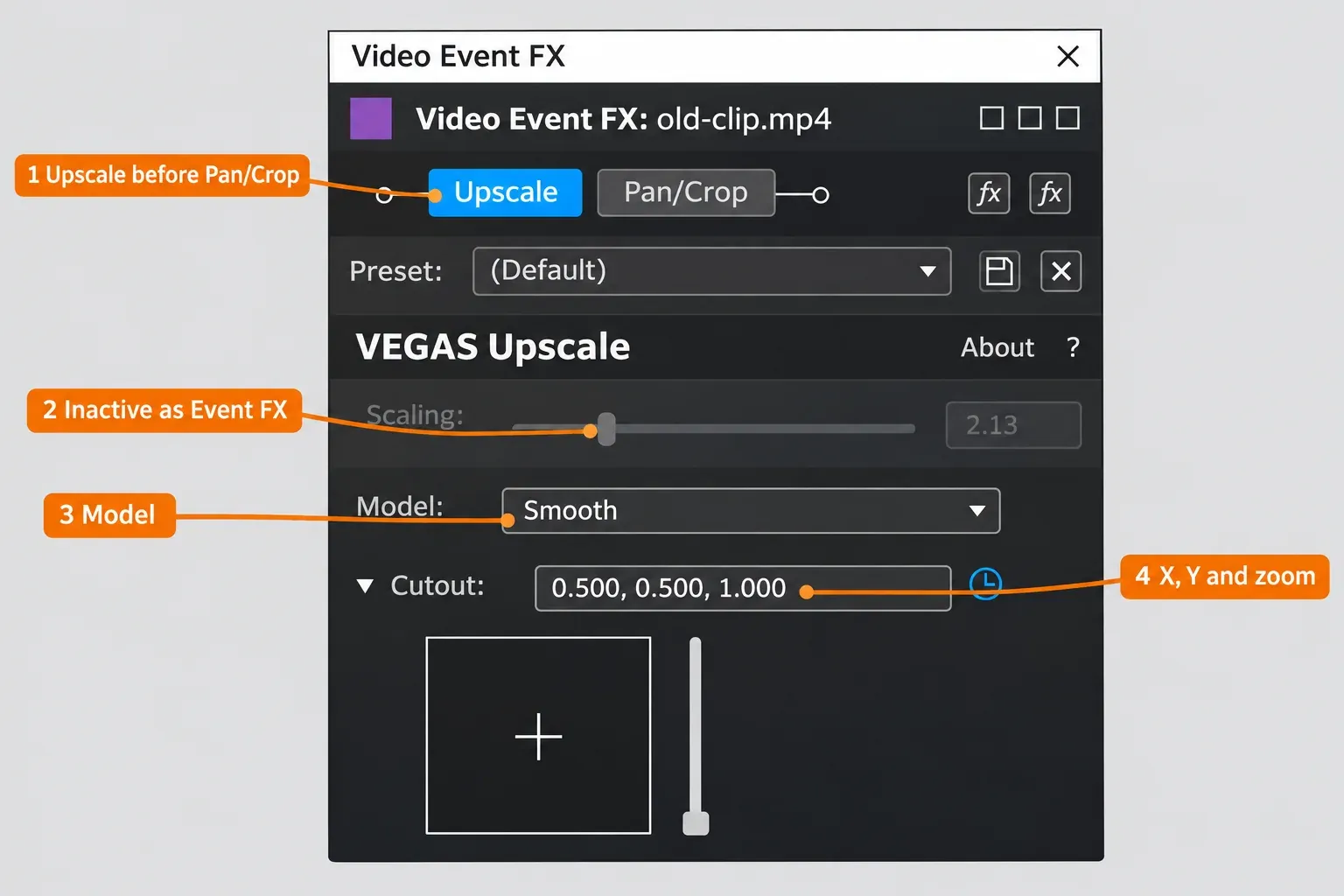
The order matters because Pan/Crop decides what reaches the upscaler. The help on placing effects before or after Pan/Crop says dragging Pan/Crop in the chain is how you avoid unwanted blurring.
Event FX or Media FX: why the Scaling slider is greyed out
A greyed Scaling slider isn't a fault. As an event effect, Upscale scales the clip to the project resolution by itself, so the help leaves the slider inactive and uses it only to display the automatic value. The slider wakes up when you add the same plug-in as a media effect.
That's the exact question a MovieStudioZen user upscaling an old 720 video asked: Upscale sat in front of Pan/Crop, the models were installed, and the slider still wouldn't move. The reply pointed to the help: add it as a Media Effect.
| Route | Where you add it | Scaling slider | What it changes |
|---|---|---|---|
| Event FX | Event FX button on the clip | Inactive, shows the automatic factor | That one event |
| Media FX | Project Media window, Media FX button | Active, plus Cutout pan, Zoom and Animate | Every event that uses the file |
For the media route, open the Project Media window, select the file, click the Media FX button, then add the effect in the Plug-In Chooser and click OK. The media effect help also lists the event's More button as a shortcut, and it notes that the source file on disk stays untouched.
Once the slider is active, the Cutout section does the reframing. Drag the crosshair to pan (arrow keys nudge it), use the Zoom slider to push in around that point, or type X, Y and zoom values into the Cutout field. The Animate button lets you animate those values, so a static shot can get a slow push-in.
Project and render settings for 1080p to 4K
The upscale only looks as good as the frame you ask for. The Project Properties help covers every field below; these are the ones that decide an upscale.
- Width and Height set the final frame size, up to 8192x8192. Type 3840 and 2160 yourself. Skip Match Media Video Settings here: it copies the source file's settings, which puts a 1080p project right back at 1920x1080.
- Full-resolution rendering quality: Good uses bilinear scaling, Best uses bicubic with integration. The help warns that Best "can dramatically increase rendering times" and aims it at high-resolution material scaled down. I'd keep Good for an upscale, because the AI model is already doing the enlarging.
- Deinterlace method: Smart adaptive (GPU only) is the option the help pairs with upscaling to 4K, for interlaced clips up to 2048x1080.
- Resample mode is about frame rate, not size. Frame Blend, Optical Flow and Disable resample (the default for new projects) decide how frames are filled when the media frame rate is lower than the project's, and an event's own setting overrides the project. It won't make an upscale sharper.
- Maintain Aspect Ratio is the event switch that stops 4:3 footage from being stretched across a 16:9 frame; the switches page explains it.
To render, choose File > Render and filter the templates with Match project video settings. The 2027 render help lists AVC (H.264), HEVC (H.265) and AV1, with Customize... for resolution, frame rate and bitrate. In VEGAS Pro 21 and older, the same job sits under File > Render As in the VEGAS Pro 21 help.
Which AI Upscale model to pick
The Model list is where most of the visible difference comes from. The official help image shows Smooth selected, and the release notes add a Sharp model in VEGAS Pro 20 build 402 (2 May 2023).
A Denoise mode turns up on the forum, though the help text never names it. Forum moderator Fr0sty told a VHS-C restoration thread to use the denoiser inside the plug-in by setting its mode to denoise, and in the same reply said to "crank the slider to 4x". User Howard-Vigorita later ran the Denoise model on a laptop with an RTX 3060 at default settings without a crash.
The models have changed under the hood too. VEGAS Pro 19 build 424 added hardware acceleration for Upscale and a third model "for better use on blurry footage", and the Deep Learning Models 20.2 update in VEGAS Pro 20 build 214 brought "more performant and smooth Upscaler models (GPU only)". That release didn't prompt users to update the models; the update had to be installed by hand, so an older install may still carry the earlier set.
I'd start with the default model and try Sharp on a short region before committing a long render, since the two most detailed reports on SD footage point in opposite directions (details in the test results below).
Upscaling SD, VHS and interlaced footage
Tape sources need cleanup before the upscale, not after. Fr0sty's order in the VHS-C thread runs like this:
- Deinterlace, either with the method in Project Properties or with scripts.
- Denoise, with Neat Video or with the Upscale plug-in's denoise mode.
- Color correct.
- Add Upscale as a media effect, set the model to Sharp and take the slider to 4x.
Another forum moderator, wolfgang-schmid, described a PAL capture at 720x576 25p in the same thread. His chain used color grading, AI Smoothen and AI Sharpen, with Smart adaptive deinterlacing during the render. He attributed the denoising mainly to AI Smoothen and later clarified that the enlargement came from putting the SD files in an HD project. That example is not a result from the AI Upscale plug-in.
Sharp isn't a safe default on every SD source, though. Forum user dexcon tried MiniDV in VEGAS Pro 23 and found Sharp created too many artifacts; the default model plus the standard Sharpen effect at about 2 to 3 worked better for him.
For 4:3 tape in a 16:9 project, keep Maintain Aspect Ratio on so the picture gets bars instead of a stretch. If I were digitizing a shelf of tapes, I'd run Fr0sty's order on one tape, compare Sharp against the default model, and only then batch the rest.
Older-version path: Smart Upscale in VEGAS Pro 17
VEGAS Pro 17 has no AI Upscale. Its built-in upscaler is Smart Upscale, which arrived with Smart Zoom and Smart adaptive deinterlacing in VEGAS Pro 14 build 161 (20 September 2016) and needs a GPU; it was replaced only in VEGAS Pro 19. The steps below follow the legacy Ultra HD upscaling FAQ that the VEGAS Pro 22 help still carries.
- Set the project to double the source frame size and keep the source frame rate; for interlaced sources, double the frame rate.
- Set Deinterlace method to Smart adaptive.
- Add Smart Upscale as a Media FX and set it to 2x.
- Use File > Render As, tick Match project settings and pick a matching template, such as XAVC Intra 3840x2160-59.94p for a 1080-60i source.
- Repeat for each clip.
Smart Upscale's own controls are Scale (1 means no scaling, 4 means 400%), Noise sensitivity and Enable enhancement, and it only works as a media effect or a pre-crop event effect. For SD to 1080, a 2019 Creative COW answer on VEGAS Pro 15 suggested a factor of about 2.5 or slightly less, with noise sensitivity as low as still removes the noise.
| Version | Upscaler | How you reach it |
|---|---|---|
| VEGAS Pro 14 to 18 | Smart Upscale and Smart Zoom | Video FX; Smart Upscale as a media or pre-crop event effect |
| VEGAS Pro 19 build 341 | AI Upscale replaces both | Event FX or Media FX |
| VEGAS Pro 19 build 458 to 23 | AI Upscale, Smart Upscale optional | Preferences, Deprecated Features |
| VEGAS Pro 2026 build 66 and later | AI Upscale only | Legacy Upscale and Zoom plug-ins removed |
Forum user zzzzzz9125 names the checkbox on the Deprecated Features tab Enable Legacy Upscaler for MAGIX-era builds. On a current release, AI Upscale is the only built-in route.
Deep Learning Models, editions and hardware
AI Upscale runs on the Deep Learning Models installed on your PC. The 2027 help tells you to install them first from the link that came with your purchase. On Boris FX builds from 2026 onward, staff member VegasFlorian said the models install automatically, with no standalone installer at the time, and a user in the same thread noted that the Boris FX Hub caches the offline installers while it works. Boris FX now hosts an official Vegas Pro Deep Learning Models download (version 2026.1.0.2026.1, Windows 64-bit) as well. My Boris FX Hub guide covers the sign-in and license side of that installer.
MAGIX-era builds handle it differently. The plug-in message there points to the "my products" section of the Service Center, and forum moderator ericlnz said that the download comes from the MAGIX servers.
The current AI Upscale help describes locally installed Deep Learning Models and lists no cloud credits or separate subscription for this effect. The 2027 what's new page marks only the speech tools (Speech to Text and Text to Speech, including ElevenLabs voices) and the Storyblocks library as subscription only.
Windows on ARM can't run it yet. Boris FX staff confirmed in a Surface thread that the Deep Learning Models for the AI effects can't be used on ARM, so features that need them won't work.
Hardware is where the effect bites. Boris FX's system requirements page lists three tiers for Windows 11, and the tier it recommends for AI asks for more than the 4K tier: a newer GPU generation and twice the VRAM.
| Boris FX tier | Processor | Graphics | VRAM | RAM |
|---|---|---|---|---|
| Minimum | Intel Core i5 8th Gen or AMD Ryzen 5 1000 | NVIDIA GeForce RTX 20, AMD Radeon with 8 GB or Intel HD Graphics 630 | 8 GB | 16 GB |
| Recommended for 4K | Intel Core i7 12th Gen or AMD Ryzen 7 5000 | NVIDIA GeForce RTX 30, AMD Radeon RX 5000 or Intel HD Graphics 770 | 8 GB | 32 GB |
| Recommended for AI | Intel Core i9 14th Gen or AMD Ryzen 9 7000 | NVIDIA GeForce RTX 40 or AMD Radeon RX 6000 | 16 GB or more | 32 GB |
Edition doesn't decide access. The plans and pricing page includes AI tools, AI video upscaling among them, in Vegas Pro, Vegas Pro Plus and Vegas Pro Ultimate, and the requirements page adds that a 15-day trial has full access. Prices and the other edition differences are in my VEGAS Pro 23 review, and my VEGAS Pro plugins guide lists what each edition bundles.
Continuum's effect list includes BCC UpRez, but the Continuum VFX plug-ins come only with Vegas Pro Ultimate, as my Continuum in VEGAS Pro guide explains.
Test results: what VEGAS users report about AI Upscale
The 12 retained threads do not provide comparable render times with hardware, source size and VEGAS version, so this summary counts their reported outcomes. The retained comments span 12 public threads (10 on the Boris FX forum, one on MovieStudioZen and one on Creative COW) from 9 distinct posters, two of them forum moderators. They report both image improvements and disappointing results, alongside heavy processing load. A thread can appear in several rows, and a positive comment does not cancel a later negative outcome in that same discussion.
| Finding | Threads | Who reported it |
|---|---|---|
| Threads with positive image comparisons, including mixed reports | 6 of 12 | Howard-Vigorita in four threads, including his Smart Zoom removal thread and his PiP conversion scripts; dexcon in the HD-stills report; and positive comments by Fr0sty and dexcon in the VHS-C thread. Fr0sty later reported no improvement in his own chain there. |
| Editing-load or long-render complaints | 6 of 12 | Howard-Vigorita in four threads, including the RTX 5080 editing complaint; arpierre on the hardware load; and Fr0sty on an ongoing six-hour VHS job with multiple processors. The last is not an isolated, completed AI Upscale timing test. |
| Edit with a light zoom, upscale for the final render | 4 of 12 | Howard-Vigorita, who edits with PiP zooms and pastes the values into AI Upscale or upscales a single clip to a 4K intermediate |
| Stability depends on the load | 2 of 12 | Howard-Vigorita: a long multicam render with many upscaled zooms locked up, while the Denoise model ran on a laptop RTX 3060 without crashing |
| SD model advice and outcomes are mixed | 2 of 12 | Fr0sty first recommended Sharp at 4x for VHS-C, then reported that VEGAS AI Upscale showed no improvement in his chain. In the other thread, dexcon found Sharp too artifact-prone on MiniDV. |
| Media FX advised for the inactive Scaling slider | 1 of 12 | The 720-clip question received the help-backed answer to use Media FX. The asker said they would try it; the thread does not confirm their result. |
| Two different tape-restoration approaches | 1 of 12 | In the VHS-C thread, Fr0sty proposed deinterlacing, denoising, grading and AI upscaling. Wolfgang used grading, AI Smoothen and AI Sharpen with ordinary project enlargement and deinterlacing at render. |
| Darker levels after upscaling | 1 of 12, unconfirmed | CeeJay asked; dexcon and Howard-Vigorita didn't see it in the AI upscale 2026 thread |
| Smart Upscale at about 2.5 for SD to 1080 | 1 of 12 | A 2019 Creative COW answer on VEGAS Pro 15 |
Read the counts as reports, not a success rate. Six threads contain positive comparisons, but four are by Howard-Vigorita. The positive comparisons come from three distinct posters, and one of them, Fr0sty, later gave a negative result in the VHS-C thread. That mixed discussion stays in the summary; it is not a sixth independent endorsement.
The practical choice is to compare a representative region with plain scaling before a long job. If AI Upscale improves that footage, save it for the final render when its processing load makes editing sluggish. Howard-Vigorita's workflow, editing with a cheap zoom and swapping in AI Upscale at the end, is the one I'd copy on any project longer than a few clips. The levels complaint never got a second report, so there's no reason to add a corrective levels effect by default.
AI Upscale problems and the build that fixed them
Several AI Upscale bugs have release-note fixes, so check your build before you chase settings.
| Problem | Fixed in |
|---|---|
| Distorted output at scaling between 1.1 and 1.25 | VEGAS Pro 21 build 314 (15 May 2024) |
| Purple Preview window in Preview mode; memory leak | VEGAS Pro 22 build 122 (9 September 2024) |
| Black frames on AMD GPUs | VEGAS Pro 22 build 248 (15 April 2025) |
| Crash when using keyframes | VEGAS Pro 23 build 302 (29 September 2025) |
| Flicker; sizing problem with Pan/Crop; output shrinking with a Pan/Crop rotation | VEGAS Pro 2026 build 66 (28 March 2026) |
| Aspect ratio distortion with AI Upscale after Pan/Crop in Event FX | VEGAS Pro 2027 build 31 (23 October 2026) |
If a fixed problem keeps showing up after an update, stale preview files are the next suspect; my guide to clearing the VEGAS Pro cache walks through the reset.
FAQ
Does VEGAS Pro have a super resolution effect?
Not under that name. The 2027 help's table of contents lists AI effects such as AI Upscale, AI Sharpen and AI Smoothen, with no Super Resolution topic. AI Upscale is the tool for that job.
Does AI Upscale need an internet connection or credits?
It uses the locally installed Deep Learning Models. The linked AI Upscale help lists no cloud credits or separate subscription for this effect. The subscription-only AI items are the speech tools and Storyblocks.
Can I still use Smart Upscale in VEGAS Pro 2026?
No. Build 66 removed the legacy Upscale and Zoom plug-ins. One forum user carries Smart Zoom into newer projects by saving it as a filter package in VEGAS Pro 22, which is a workaround, not a supported feature.
Which VEGAS Pro edition includes AI Upscale?
All three current editions: Vegas Pro, Vegas Pro Plus and Vegas Pro Ultimate. Only Continuum's extra upscaler is tied to Ultimate.
My verdict
My verdict: AI Upscale is VEGAS Pro's built-in AI route for taking HD or SD footage into a 4K project, but I'd keep it only when a representative region looks better than plain scaling. Set the frame size in Project Properties, add Upscale before Pan/Crop, keep quality on Good and render with Match project video settings. When it improves the footage, the cost is GPU time, so I'd treat it as a finishing effect and edit with a lighter zoom until the cut is locked. Users still on VEGAS Pro 17 have Smart Upscale at 2x as a media effect, and that route ends at 2026 build 66. VEGAS Pro now sits in the Boris FX lineup, and the Boris FX hub maps the rest of it.