

Look at the clip edges first. A red bracket on an event edge means VEGAS Pro is in Expanded Edit Mode: press Esc or choose Edit > Select > Exit Expanded Edit Mode. No red bracket means the track layers are expanded: right-click the video track header and choose Expand Track Layers again to fold the A, X and B rows back into one track. Two separate features draw those rows, and the fix for one leaves the other untouched, so the bracket check comes before anything else.
My rule is simple: match the switch to what's on screen, then close the door it came through. When rows or a bracket survive the first fix, the other feature is on as well and needs its own switch. On VEGAS Pro 18 build 482 or later, clear the General preference that lets a double-click on an event edge turn the mode on, since that double-click is the trigger named most often in the forum threads counted below. Earlier versions lack that preference. On a laptop without a numeric keypad, or on VEGAS Pro 2026 and 2027, skip numpad 5 and use Esc or the Edit menu.
Nothing is broken, and nothing needs reinstalling. Expand Track Layers is a documented track view for transitions, and Expanded Edit Mode is a documented trimming mode. Further down you'll find when each one is worth switching on deliberately and what changed between versions.
Red bracket or not: which A/B view you're in
The red bracket is the tell. According to the VEGAS Pro help's Expanded Edit Mode page, the mode draws a red bracket on the event edge that will be trimmed, puts events before the edit point on the A roll and later events on the B roll, shows the spare frames on the other side of the edit point, and splits the Video Preview so you can watch both sides of the cut. Expand Track Layers draws no bracket. The help page on video track controls describes it as three subtracks inside one track: the A roll, the B roll and a transition roll.
| What to compare | Expanded Edit Mode | Expand Track Layers |
|---|---|---|
| What it is | A trimming mode | A view of one video track |
| The sign | Red bracket on the edge being trimmed, greyed spare frames, split-screen Video Preview | A, transition and B rows with no bracket; the middle header shows crossing arrows |
| How clips sit | Events before the edit point on A, later events on B | Sequential clips alternate between A and B; overlaps sit on the transition roll |
| How it gets switched on | Edit > Select > Enter Expanded Edit Mode, numpad 5 on 21–23, or an event-edge double-click when the General preference allows it | Right-click the track header > Expand Track Layers |
| Way out | Esc or Edit > Select > Exit Expanded Edit Mode | Right-click the track header and choose Expand Track Layers again |
The middle row is the transition roll. Its header carries a crossing-arrows icon, which searchers read as an "X" and one Creative COW poster called a "shuffle symbol". It marks where neighboring clips overlap, not a third copy of your footage.
Both features can be on at the same time, and turning one off doesn't touch the other. An answer in a 2020 Movie Studio Zen thread about a stubborn red bracket spells out the rule: a red square bracket means Expanded Edit Mode, no bracket means the layers are expanded, and unexpanding the layers won't take you out of the mode. The resemblance has a history, too. A 2014 reply on the dvinfo forum described Expanded Edit Mode as a mix of the older expanded track layers, numpad editing shortcuts and a new window layout.
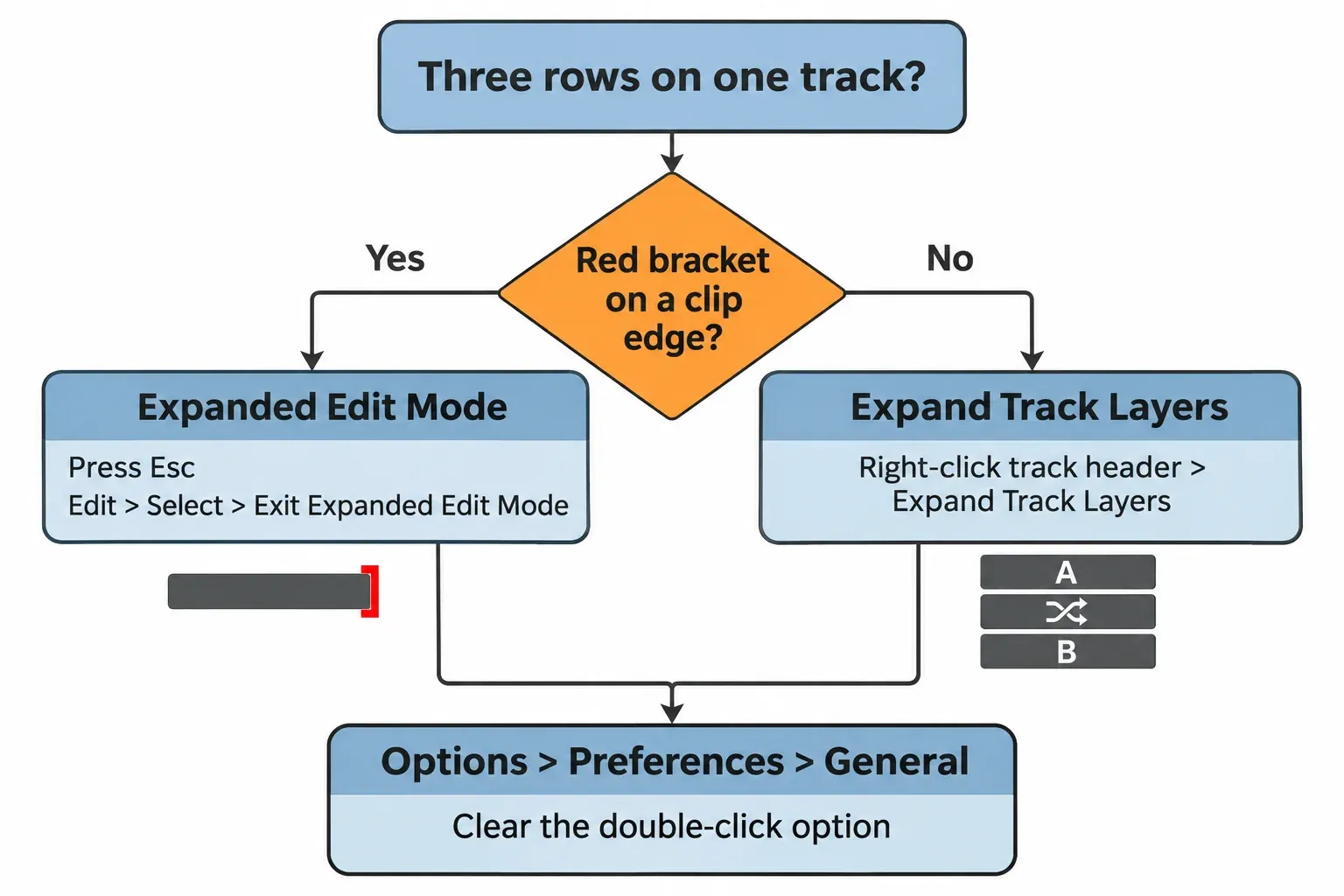
Leave Expanded Edit Mode (red bracket)
Press Esc. The Expanded Edit Mode page in the VEGAS Pro 23 help lists four exits, the 2027 page repeats them word for word, and Esc is the one that needs neither a numeric keypad nor a precise click.
- Press Esc.
- Choose Edit > Select > Exit Expanded Edit Mode.
- On VEGAS Pro 21, 22 and 23, press 5 on the numeric keypad or double-click the bracketed event edge.
On VEGAS Pro 2026 and 2027, leave numpad 5 out: it may not respond with the default keyboard map, for reasons the keypad section below covers. Leaving the mode returns VEGAS to the window layout you had before. When the docked windows still look shuffled, choose View > Window Layouts > Reload Selected Layout, which the help on window layouts describes as resetting the current layout to its last-saved version.
Still three rows but no bracket? Expand Track Layers is on as well, and the next section turns it off.
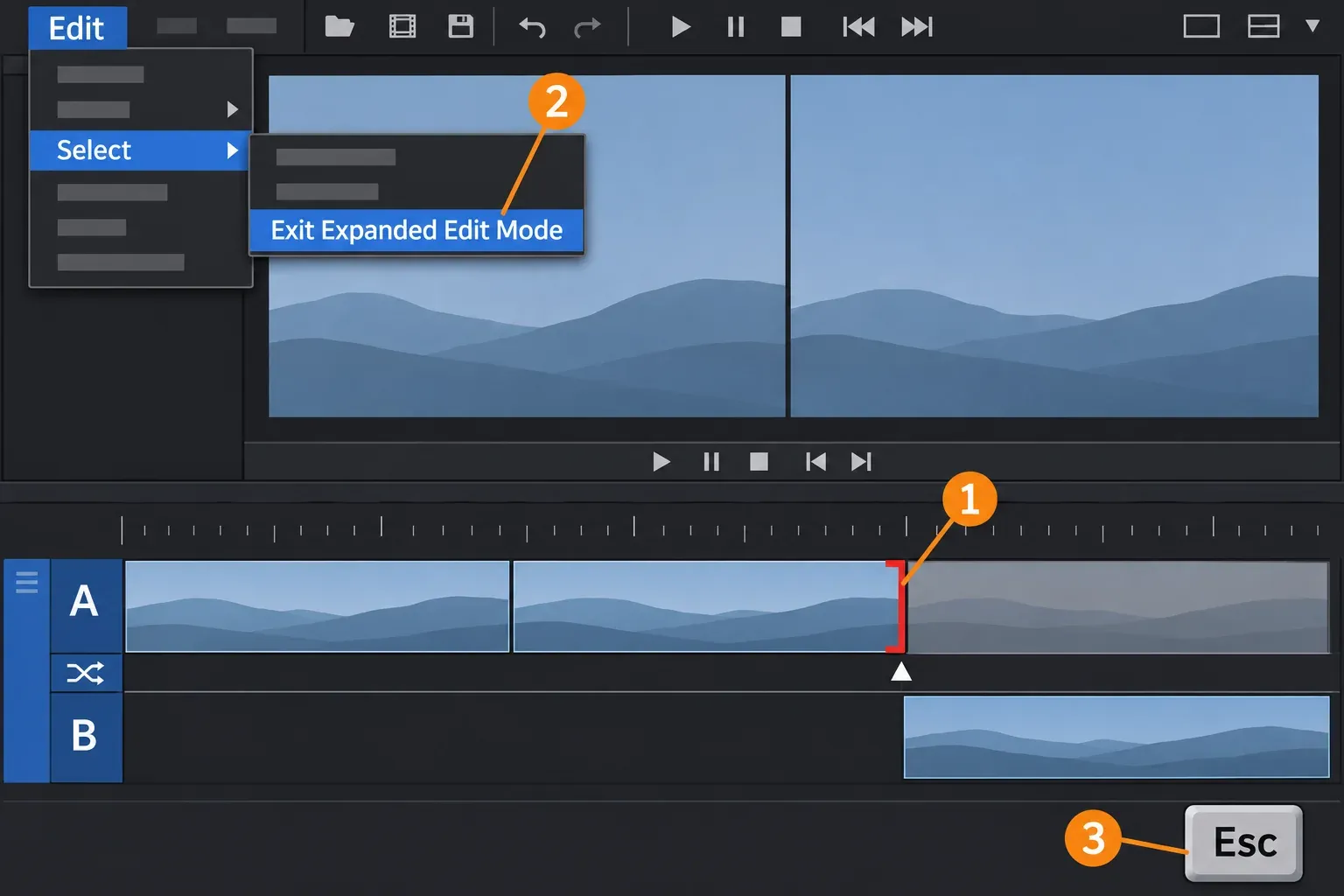
Collapse Expand Track Layers (A, X and B rows, no bracket)
Right-click the header of the split video track and choose Expand Track Layers. The command toggles, and the help says to choose it again to collapse the layers.
- Find the track header, the panel to the left of the split track.
- Right-click it and choose Expand Track Layers. Forum users describe the item as ticked while the rows are showing; choosing it clears the tick and folds the rows back into one track.
- Check every other video track. The setting belongs to one track at a time, and a poster in a long Creative COW thread fixed the others and still had Track 5 split.
There's no default key for this. The default keyboard shortcut table has no row for Expand Track Layers, and the backtick (`) and Ctrl+` keys only minimize, restore or reset track height. Use the documented right-click menu to change this view.
Use the view toggle before trying Undo or reopening the project. In a Creative COW thread about a track split into two levels, the Vegas Pro 12 poster saved, closed and reopened the project, found the track still divided and got nowhere with Undo. Moving the clips to a fresh track or closing without saving, the workarounds posted in those threads, aren't needed once you know the menu item. A cache reset isn't needed either; save that for crashes and broken settings, which my guide to clearing the VEGAS Pro cache and resetting it walks through.
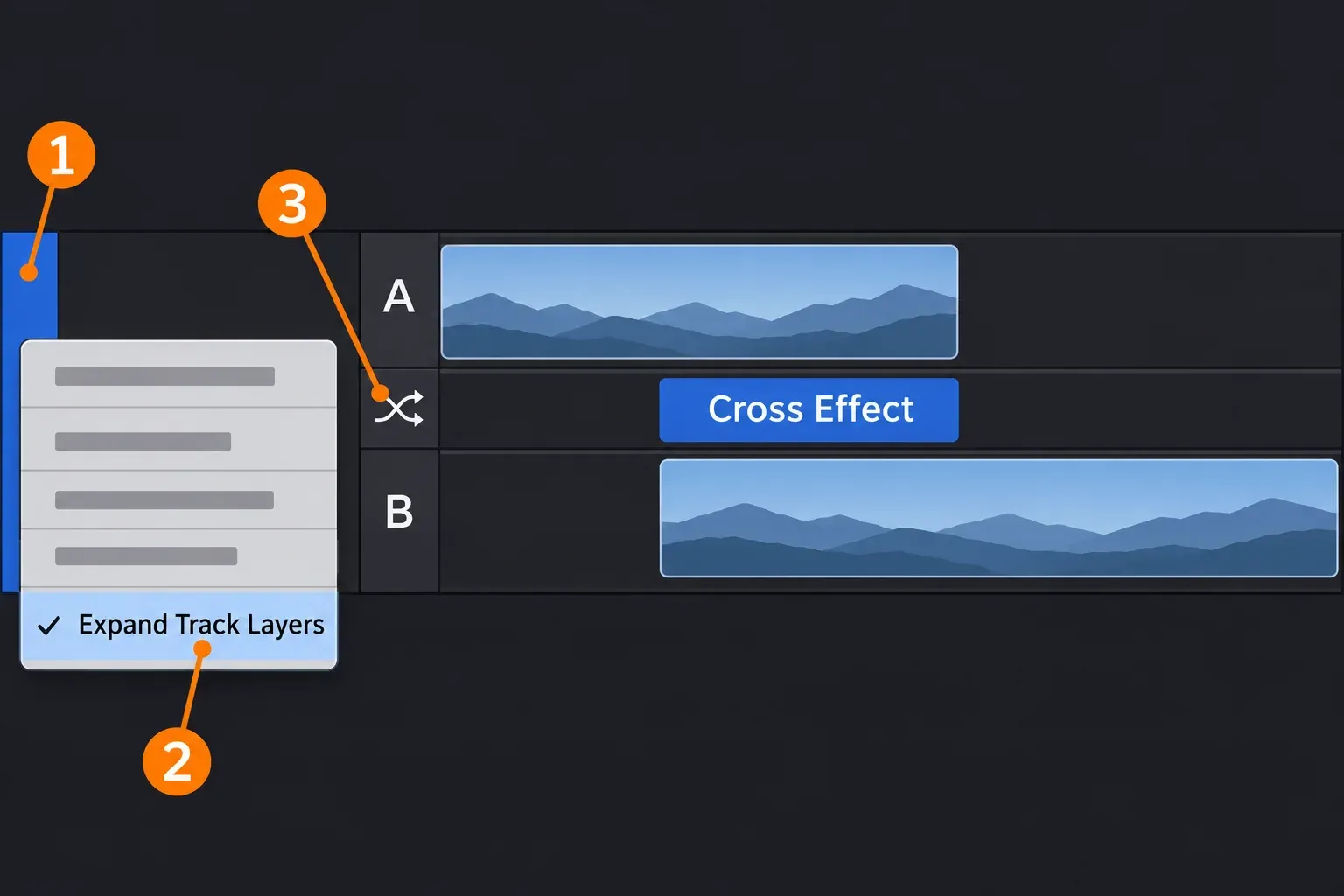
Stop a double-click from switching it back on
On VEGAS Pro 18 build 482 or later, choose Options > Preferences, open the General tab, clear "Double-click event edge to toggle Expanded Edit Mode" and click OK. The General tab help describes that box as the one that lets you enter Expanded Edit Mode by double-clicking the edge of an event, so with it clear, a stray double-click near a cut no longer switches the mode on.
The switch arrived in VEGAS Pro 18 build 482. The VEGAS Pro 18 Update 4 release notes list a "new preference for event edge double click, disabling the toggle to Expanded Edit Mode by default". Versions 12 to 17 predate it, so Esc is the habit to build there. On current versions, a double-click that still throws you into the mode means the box deserves a look.
I'd clear it even if you use Expanded Edit Mode on purpose. Edit > Select > Enter Expanded Edit Mode still gets you in when a cut needs it, and an edge double-click is the trigger posters named in 4 of the 7 forum threads below, with a fifth blaming a click on the seam between clips.
No numeric keypad, or numpad 5 does nothing
Use Esc or Edit > Select > Exit Expanded Edit Mode. Neither needs a keypad, and neither depends on the numpad 5 shortcut that changed in VEGAS Pro 2026.
That change is easy to miss. The VEGAS Pro 2026 build 66 release post lists "Keyboard shortcut for Expanded Edit Mode removed by default", yet the VEGAS Pro 2027 shortcut table still pairs Numeric Keypad 5 with entering and exiting the mode. With the default keyboard map on 2026 or 2027, numpad 5 may not respond. The shortcut tables for 21, 22 and 23 list it as a default key.
To put the mode on a key you can reach, choose Options > Customize Keyboard, type "expanded" in the Show commands containing box to filter the list, select the expanded edit command, click the Shortcut keys box, press the key you want and click Add. The help on customizing keyboard shortcuts also covers the way back: choose [Default] from the Keyboard map list and click OK. That page doesn't list command names, so keep the right-click menu as the route for Expand Track Layers.
I'd map a key only if you trim in Expanded Edit Mode every week. For an accidental visit, Esc is faster than any setup.
When the A, X and B rows are worth turning on
Both views exist for transitions and precise trims. Expand Track Layers shows every overlap, and the overlap sets the transition length; Expanded Edit Mode, in the help's words, "takes the best of edge-trimming and A/B-roll editing to provide a fast, accurate method of trimming events."
Expand Track Layers for transitions
With the layers expanded, sequential clips alternate between A and B and each overlap sits on the transition roll. The help on creating transitions explains the mechanics: drag either of two overlapping events and the overlap changes, with the transition length following it. Cuts that VEGAS converts into transitions take their length from the Cut-to-overlap conversion settings on the Editing tab of Preferences.
Expanded Edit Mode for trims
Select the event, then choose Edit > Select > Enter Expanded Edit Mode. The keys below come from the same 2027 help page and act on the bracketed edge.
| Keys | What they do |
|---|---|
| Numpad 1 / 3 | Trim one video frame left or right |
| Numpad 4 / 6 | Trim one screen pixel left or right; the time covered depends on zoom |
| Ctrl + 1 / 3 or 4 / 6 | Time compress left or time stretch right |
| Alt + 1 / 3 or 4 / 6 | Slip trim: the media moves with the event edge |
| Ctrl+Alt + 1 / 3 or 4 / 6 | Slide a crossfade or transition (adjacent trim) |
| [ or ] (numpad 7 / 9) | Move the cursor to the event edge you want to trim |
| Drag the transition or the cut arrow | Adjacent trim; red brackets appear on both event edges |
Audio crossfades take the same Ctrl+Alt adjacent trim as video transitions. When the shape of a crossfade is the problem rather than its position, the Sound Forge guide to crossfading audio without level dips picks up from there.
I'd turn track layers on for a sequence built on dissolves, where seeing every overlap saves guesswork, and enter Expanded Edit Mode from the Edit menu only for the cut that needs frame-exact work, then leave with Esc.
What changed from VEGAS Pro 12 to 2027
The exits barely moved. A reply in the 2014 dvinfo thread on Vegas Pro 12 already listed the four that the 23 and 2027 help gives; what changed around them is the double-click preference in 18 build 482 and the numpad 5 default in VEGAS Pro 2026.
| Version | What changed for these views |
|---|---|
| Vegas Pro 12 | Expanded Edit Mode arrives, per a 2013 walkthrough of the then-new mode, which lists Edit > Select, numpad 5 and an edge double-click as the ways in and out |
| 15 build 216 | A fix for a crash that could occur when entering the mode, per the VEGAS Pro release history on the Boris FX forum |
| 18 build 482 (Update 4, March 2021) | The General preference for edge double-clicks arrives, with the toggle to Expanded Edit Mode off by default |
| 21, 22, 23 | The 23 help lists Esc, the Edit menu, an edge double-click and numpad 5 as exits; the 21 and 22 shortcut tables list numpad 5, and the General tab in all three carries the preference |
| 2026 (build 66, March 2026) | The keyboard shortcut for Expanded Edit Mode is removed by default |
| 2027 (October 2026) | The help still lists numpad 5; its Expanded Edit Mode and Expand Track Layers wording matches the 23 help, and the General tab carries the preference |
Readers on 21 to 23 weighing a move to the year-named releases will find what changed, and who should upgrade, in my VEGAS Pro 23 review.
Test results: what 7 forum threads show
Across 7 readable forum threads from 2013 to 2022, the A/B view appeared accidentally or without a known trigger. Three threads describe symptoms or replies involving confusion between the two views; only two explicitly report that collapsing the layers left the red bracket visible. These are older reports from Vegas Pro 12 to 14, plus two threads with no version stated, so the composite result is a count of cases, not a success rate or a picture of current versions.
| Finding | Threads |
|---|---|
| Accidental or unexplained A/B view | 7 of 7 |
| Expanded Edit Mode exits offered | 7 of 7 |
| Edge or seam click/double-click named or suggested as the trigger | 5 of 7 |
| Expand Track Layers offered or already used | 4 of 7 |
| Symptoms or replies indicate confusion between the two views | 3 of 7 |
| Affected poster confirms a proposed fix in a follow-up | 2 of 7 |
| Freeze or crash as the mode toggled | 2 of 7 |
| Workaround posted instead of a switch | 2 of 7 |
| Answered with the build 482 preference | 1 of 7 |
The double-click comes up again and again. A reply in the Creative COW split-track thread called a double-click on an event edge while resizing "the most common way" into A/B roll editing, a 2020 Movie Studio Zen answer blamed "clicking on the line dividing two events", and a sixth case, in the Movie Studio Zen red-bracket thread, began while the poster was adjusting the width of a text caption.
Mixing up the two features is what kept posters stuck. The poster in a 2013 Creative COW thread on Vegas Pro 12 tried numpad 5 and clicking event edges, which only toggled the trimmed footage, and the reply that fits those symptoms pointed to Expand Track Layers. A 2014 Creative COW poster had turned the layers off and still saw a red bracket, and the Movie Studio Zen red-bracket thread repeats that pattern. Follow-up confirmations came from three affected posters in two threads: an edge double-click in the 2014 dvinfo thread, and deselecting Expand Track Layers for two posters in the Creative COW split-track thread. The table counts threads, not people. The 2022 prevention question starts with exits the poster already uses, while a reply in the 2020 split-track thread describes its author's usual double-click fix; neither is a follow-up showing that the questioner applied the new advice.
Two threads describe what a misclick cost. The 2022 Movie Studio Zen poster asking how to disable A/B tracks for good waited "a solid 10 seconds" for the PC to unfreeze each time, and a Vegas Pro 12-era Creative COW poster saw an hourglass and then a crash. That 2022 thread is the only one dated after 18 build 482, and it was answered with the General preference. The poster looked forward to upgrading; the thread does not confirm that the preference was applied or that it resolved the freezes. These older reports cannot establish how often either issue occurs in current versions.
The practical reading is short. Check the bracket before anything else, because two threads explicitly show that collapsing the layers left Expanded Edit Mode active and a third mixes the two features. On versions with the General preference, clear it to prevent the edge double-click trigger described in the replies.
Verdict
My verdict: the A, X and B rows are a view or a trim mode switched on by accident, not damage, and two switches put the timeline back. Look for the red bracket. When it's there, press Esc or use Edit > Select > Exit Expanded Edit Mode; when it isn't, right-click each split track header and choose Expand Track Layers again. On VEGAS Pro 18 build 482 or later, clear "Double-click event edge to toggle Expanded Edit Mode" in Options > Preferences > General, so a double-click near a cut can't switch the mode on again. On versions 12 to 17, use Esc to leave the mode and avoid double-clicking event edges. On 2026 and 2027, leave numpad 5 out of the plan unless you map it yourself. For the rest of the Boris FX family that VEGAS Pro now belongs to, start at the Boris FX hub.