
For a whole-file EQ adjustment in Sound Forge Pro 2026, open View → Plug-In Chain and load Modern Equalizer. For the classic Graphic, Paragraphic or Parametric process, use Process → EQ. These are different interfaces; a Paragraphic EQ preset is not a set of instructions for Modern Equalizer.
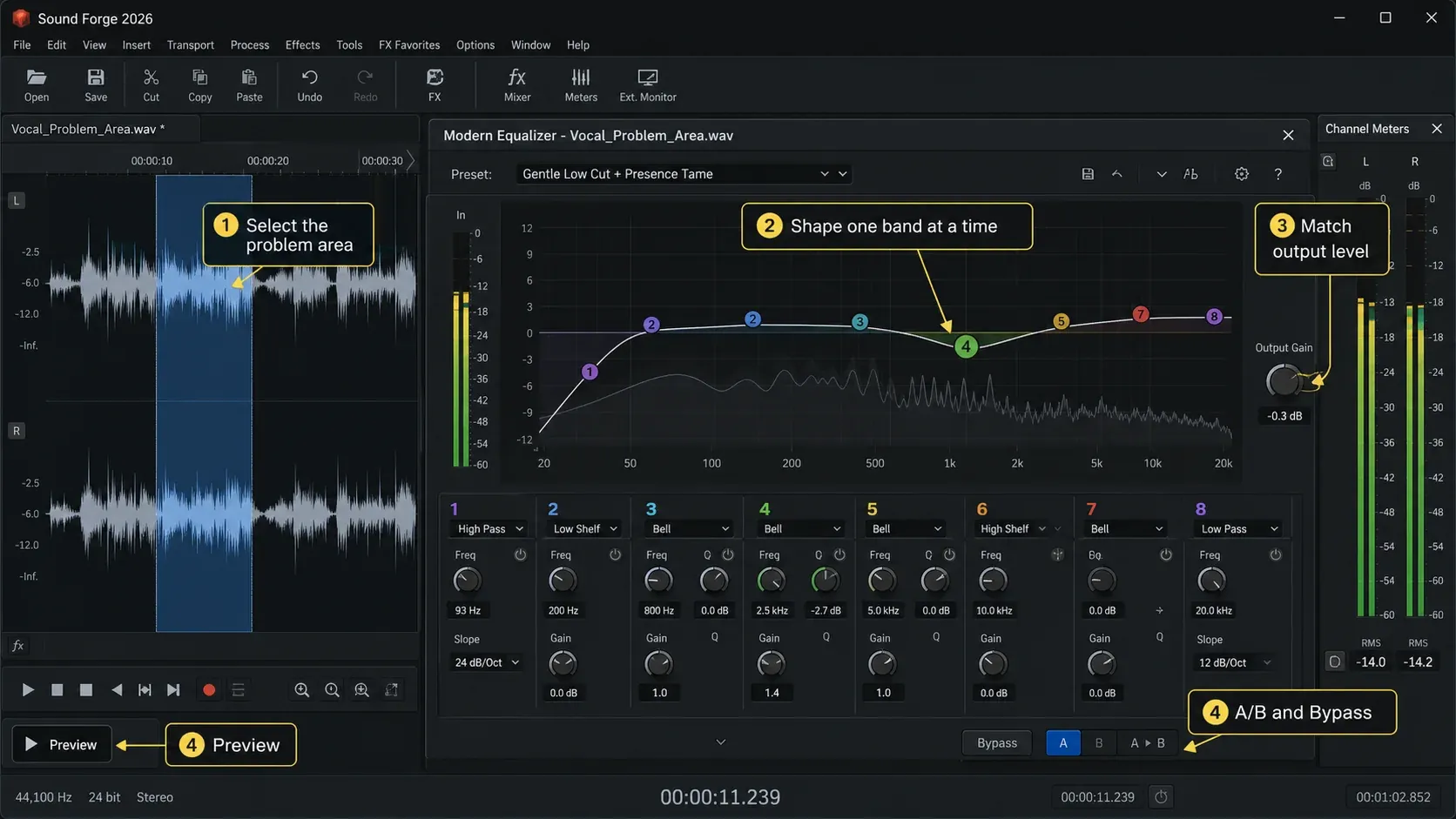
This guide belongs to the Sound Forge mastering hub. It follows current documentation, not a hands-on compatibility test. The workflow illustration is a visual aid, not a guarantee that every control will look identical in your installed build.
Start with one audible problem: rumble, a ringing note, too much bass or a dull upper range. Add one band, choose its shape and compare the result at similar loudness. Then save a separate processed file and reopen it for a final check. An attractive curve is not the goal; a useful change that survives the comparison is.
Which EQ Should You Use in Sound Forge 2026?
Modern Equalizer is the eight-band parametric VST effect documented for the current release. The classic processes remain available for older workflows. If you are following a tutorial, check which EQ its author actually uses before copying settings.
Use Paragraphic EQ when reproducing its own saved settings or working through a direct Process → EQ operation. Open the dialog’s ? help for its controls. For a new adjustment, Modern Equalizer lets you place bands visually and compare curves; that is the workflow developed below.
Graphic EQ uses fixed frequency bands; parametric EQ lets you choose the frequency and bandwidth. Fixed bands can suit a broad tonal change, but they may not land on a particular ring. Choose the tool by that job, not because one name sounds more advanced.
The older Parametric process is also under Process → EQ. Keep its settings with that process rather than assuming the same numbers produce an identical curve in another equalizer.
Dynamic Equalizer is a separate effect, not a switch that turns every Modern Equalizer band into a compressor. Its help page still says Suite only, while the current Sound Forge product page describes dynamic EQ. Those pages do not establish the entitlement of an older license. Check your installed effects and purchase entitlement if it is missing.
The Modern Equalizer reference documents eight bands, a spectrum display and A/B memories. It also explains the channel and output controls discussed below. You do not need to enable every feature to make a useful correction.
Modern Equalizer: Add and Configure Bands
- Protect the recording. Keep an untouched source and work on a separate copy.
- Open the chain. Choose View → Plug-In Chain for the active audio file.
- Load Modern Equalizer. Click Add Plug-Ins to Chain, select Modern Equalizer, click Add, then OK. Select the effect and click Show Plug-In Window.
- Add one band. Click Plus, select the band and choose the filter shape for the problem. Start with both stereo channels unless you specifically need channel-selective processing.
- Adjust while listening. Use Play Normal to audition. Set frequency, gain and bandwidth where applicable; stop when the fault is controlled without damaging wanted sound.
- Compare safely. Keep peaks below clipping. Use Output Gain to compensate for added level, then compare at similar playback loudness with Bypass. If necessary, compare separately level-adjusted reference copies rather than raising an unsafe output.
- Keep the useful curve. Use A and B for two alternatives; the arrow copies between their memories. Save reusable settings through the equalizer’s Menu → Save As. This saves a preset, not audio.
- Save and check the audio. Use File → Save As with a new name for an audio file, or File → Render As for a Sound Forge project. Reopen the output with an empty or bypassed playback chain so EQ is not applied twice. Check the full recording and its final peaks.
Use Plus when learning the interface. Double-clicking empty graph space can create a band, but double-clicking an existing colored band area deletes that filter. Select a band with one click. For a peaking band, drag horizontally for frequency and vertically for gain; the mouse wheel changes Q. For exact entry, hover over a parameter to reveal its number, then double-click that value and type it. Tab moves to the next value.
The white line is the combined response, not an extra band. Add another filter only when the first one leaves a separate problem unresolved. Two overlapping adjustments can undo or exaggerate each other.
A/B compares two settings; Bypass compares processing with the original. They answer different questions. For example, compare a gentle shelf in A with a narrower bell in B, then bypass the winner. If neither helps at comparable loudness, remove the adjustment.
Filter Types: What Each One Does
Choose the shape before searching for a frequency. Peaking targets a band, shelves change an end of the spectrum, and pass filters attenuate outside a chosen range.
Peaking: boost or cut around a center frequency. A broad bell can rebalance tone; a narrow cut can control an identified resonance. A frequency suggested for someone else’s voice is not a preset for yours.
Listen to an entire phrase, not just the offending note. Reduce the cut if nearby wanted notes lose their body. For a moving resonance, a fixed narrow band may miss the problem elsewhere in the phrase.
Low Shelving: raise or lower the low-frequency range rather than progressively removing it. Try this when the bass balance is too heavy or light. For unwanted rumble below useful content, consider High Pass instead.
High Shelving: change the upper-frequency balance. A reduction can soften brightness, but enough high-frequency attenuation to hide hiss may also dull speech or cymbals. EQ does not separate noise from wanted sound at the same frequencies.
High Pass: attenuate below the cutoff. The Modern Equalizer help gives a 6–36 dB/octave slope range. Raise the cutoff while listening, then back off if the voice or instrument loses wanted body. There is no universally safe 80 Hz setting.
Low Pass: attenuate above the cutoff. Check consonants, cymbals and room detail before accepting the result; 16 kHz is not an automatic cleanup boundary.
Band Pass: retain a middle range while attenuating below and above it. This can produce a restricted-band effect; it is not a notch that removes just one middle frequency.
The Q Control: Broad or Narrow
For a bell filter, lower Q means a wider affected range; higher Q narrows it. Modern Equalizer’s pass-filter slope is a separate choice under the three-dot control beside the filter-type icon. Do not read a Q value as dB per octave.
Do not transfer a Q number blindly between plug-ins. The FabFilter explanation of Q conventions notes that equalizers can define bandwidth differently. Match the intended curve and listen, rather than treating Q 1 or Q 4 as a guaranteed sound.
“Boost wide, cut narrow” is a shortcut, not a rule. Broad buildup may need a broad cut. A very narrow cut may affect one note but leave the rest of the phrase unchanged. Set the width to the fault you can hear.
If you use a temporary boost to locate a resonance, turn monitoring down first and keep the boost modest. Sweep slowly, then return gain to zero before making the corrective cut. Stop if the sweep becomes uncomfortable.
Applying EQ to a Selection or the Whole File
The View-based chain processes data-window playback; a selection does not limit that chain to a local repair. For selected audio, choose FX Plug-Ins → Apply Plug-In Chain instead, or use a classic Process → EQ command. Protect the untreated source first.
For direct processing, select the intended region in the waveform before opening the dialog. Use Ctrl+A in the data window when you intend to process the whole file. Verify both the selected time span and channels; a local edit to one speaker should not silently become an EQ change to the entire recording.
In a classic processing dialog, Preview auditions the change, Bypass lets you compare, and OK commits it. The processing-dialog reference also explains pre/post-roll, which helps you hear the transition into and out of a selected repair.
When different speakers need different curves, treat their sections separately and listen across the boundaries. For a chain containing other effects as well as EQ, the Plug-In Chainer workflow distinguishes selection processing from whole-file playback and saving.
EQ and Clipping: Match Level and Keep Headroom
Do not check peaks only after a boost. iZotope’s explanation of EQ and headroom shows why filtering can raise peaks even when frequencies are being cut. Watch the output while previewing, especially if the source was already close to 0 dBFS.
Lower Output Gain if the processed signal approaches clipping. Safe output comes first; do not raise it again merely to match a loud reference. Compare at similar listening level using a separately adjusted reference if needed. For a direct process without suitable output trim, reduce the working copy’s level before applying EQ.
After saving, reopen and measure the result. Modern Equalizer’s peak display is not proof of a true-peak-compliant delivery file. Use the loudness and true-peak measurement workflow for that check. If a fixed-point export has flattened peaks, making it quieter afterward does not reconstruct them; return to the clean source and render again.
EQ after a limiter can create new peaks, so measure after the complete chain. Whether tonal EQ belongs before or after compression depends on what should drive the compressor. The full mastering workflow covers that larger decision; EQ is not a mandatory stage in every master.
Using EQ with the Spectrum Analysis Tool
The analyzer can help locate energy, but it cannot choose a musical balance for you. Listen to the problem passage, inspect the spectrum, make one change and listen again. A flatter-looking spectrum is not evidence of a better recording.
A spectrum can help locate a stable hum and its harmonics, narrow peaks or low-frequency energy. Its usefulness depends on the selected passage and resolution. The Spectrum Analysis guide covers those measurements; do not confuse a plot with a diagnosis of why the energy is there.
Channel controls and oversampling: use only what the job needs
Modern Equalizer can target both stereo channels, Left, Right, Mid or Side. Keep both channels for an ordinary stereo tonal adjustment. Its Mono Below control attenuates low-frequency Side content; it is not a brick-wall cutoff that removes bass from the whole mix. Stereo Width changes Side level. Check the resulting balance and mono playback before keeping a channel-selective edit.
The gear-shaped Settings button opens the dialog containing oversampling (up to 8x) and display options. Higher oversampling needs more processing power; the maximum is not an automatic best setting or a cure for clipping. If preview struggles, compare a lower setting and verify the saved output before delivery.
Frequently Asked Questions
Where is the EQ in Sound Forge Pro?
Use Process → EQ for classic Graphic, Paragraphic and Parametric EQ. For Modern Equalizer, open View → Plug-In Chain, click Add Plug-Ins to Chain, select the effect, click Add, then OK. Open its controls with Show Plug-In Window.
Which equalizer should I use in Sound Forge Pro 2026?
Use Modern Equalizer for the visual band-editing workflow in this guide. Use Paragraphic EQ when following its own legacy settings or a direct Process → EQ workflow. Do not copy controls from one interface into instructions for the other.
How do I add a high-pass filter in Sound Forge Pro?
Click Plus in Modern Equalizer, select the new band and choose High Pass. Adjust cutoff and slope while listening. Stop before wanted low-frequency content becomes thin; there is no single cutoff suitable for all recordings.
What Q value should I use in Sound Forge Modern Equalizer?
Choose bandwidth by the audible problem, not a fixed number. Lower Q is broader and higher Q is narrower for a bell filter. Check adjacent wanted notes and compare the result at similar loudness. A Q number copied from another equalizer may not describe the same curve.
How do I apply EQ without clipping in Sound Forge Pro?
Allow for peak changes from cuts as well as boosts. Reduce output gain as needed, preview the complete chain and measure the reopened export. Do not sacrifice headroom to match a louder reference. Normalizing an already flattened waveform does not restore the missing peaks.
Can I use VST EQ plugins in Sound Forge Pro?
Yes. The current Sound Forge product documentation lists VST2 and VST3 support, and Modern Equalizer is a VST effect. A third-party EQ still needs a compatible installation and its own entitlement; an old bundled plug-in license should not be assumed to come with a new purchase.
Should I use EQ before or after noise reduction in Sound Forge Pro?
There is no order that suits every fault. A narrow hum filter can precede broadband noise reduction; tonal shaping can follow cleanup. If a denoiser learns a noise profile, capture it from a noise-only section of the audio actually entering that denoiser, including any earlier filtering. Then compare the full result for lost detail, not just a quieter noise floor.
The background-noise removal workflow covers cleanup beyond EQ. For the profile principle, Audacity’s noise-reduction manual explains why a representative noise-only sample matters; its menu commands are not Sound Forge commands.
Documentation checked September 7, 2026. Workflow and control names were cross-checked against the linked current help; no physical Windows application test is claimed.