
Typing under a voice recording is easy to notice and hard to remove cleanly. A key hit in a pause is a small edit. A hit across a consonant shares the same instant as the speech you want to keep. A run of typing beneath every sentence is a recording problem first. I would make those three decisions before opening a noise-reduction control.
Keep an untouched copy of the take. Listen to the whole sentence at an ordinary level, then mark the offending hits. The visible spike can help locate a keypress, but the ear decides whether the word and its natural rhythm survive an edit.
Choose the edit by where the key lands
In a pause: lower the isolated hit or replace only a short gap with matching room tone. Preserve the end of the previous word and the start of the next.
On a word: compare the original with another take or a pickup. A precise repair tool may reduce the hit, but it cannot promise to recover speech hidden beneath it.
Throughout the recording: make a small number of local repairs where the distraction matters most. For the next take, separate the keyboard from the microphone or stop typing while speaking.

This guide is about keyboard noise in spoken-word audio. The existing clicks and pops guide covers a wider set of isolated defects, including clicks outside this recording situation.
Remove a key hit in a pause
Zoom in until you can select the hit without selecting a breath, a word tail or the next consonant. In Sound Forge Pro 2026, Process → Volume can attenuate selected audio using a negative Gain value. Check the selection before applying it: the documented command changes the whole file if nothing is selected. A modest reduction often keeps the pause more believable than complete silence.
Listen across the edit from a few words before the hit. If the background appears to jump down and back up, shape the change more gradually. Process → Fade → Graphic lets you adjust an envelope over selected audio. Keep the edges outside the important parts of the neighboring words. A fade that sounds clean in isolation can still leave an obvious hole in a sentence.
When the hit fills much of a quiet gap, consider room tone from the same session instead of muting it. Choose a piece without a hidden breath, click or change in ambience; retain the timing and listen across both joins. The room-tone guide explains why a natural pause matters to an edit.
When typing falls between sentences and the hits stay below a threshold that still preserves quiet speech, a gate can reduce them in one pass. Sound Forge's Effects → Noise Gate is documented for removing noise from silent breaks, and the noise gate guide shows how to set it from a measured pause and the quietest word you need to keep. It cannot remove a key that lands while you speak, because the voice holds the gate open. A user in an OBS forum thread describes exactly that limit: the gate removed clicks made between words, while clicks made during speech stayed easy to hear. Set it gently enough to keep quiet word endings and some room tone; a gate that drops to silence after every phrase can draw more attention than an occasional key.
When the click overlaps a word
Start with the unprocessed line and any alternate take. If the second take has the word intact, that gives you a safer starting point than trying to erase a click from the first. A short pickup can also work if its distance, tone and background fit the surrounding phrase. For an interview or quotation, keep the spoken wording faithful; do not assemble a different statement from pieces.
If no alternate exists, try a local attenuation on a working copy and compare it against the original at a similar playback level. The keyboard transient and the consonant may occupy the same time. Turning down the transient can turn down the consonant with it. Listen to the whole word and the words on either side, then choose the version that communicates the speech more clearly.
For a consequential take, a dedicated repair editor can offer a more selective attempt. iZotope lists Spectral Repair in RX Standard for selecting unwanted sounds in a spectral display. RX is separate from Sound Forge, and a visible shape is not proof that a damaged syllable can be restored. Check the current edition before buying or relying on a module, and compare the repaired phrase with the original. If the word remains uncertain, flag it for editorial review rather than filling it in by guesswork.
When typing runs under the whole take
Continuous typing is not the same as a few marked clicks. General noise reduction can be useful for a steady background, but sharp key hits change from moment to moment and can overlap speech. Applying more processing across the whole take may make the voice sound hollow while leaving the most distracting hits. iZotope's dialogue-cleanup guidance likewise distinguishes noise types and favors careful listening to the result.
Two narrower tools are worth a trial on a copy. If each keystroke also arrives as a low thump carried through the desk and the mic stand, a High Pass band in Sound Forge's Modern Equalizer can reduce that rumble. Raise the cutoff only until the voice begins to sound thin, and expect the sharp click itself to remain. DeClicker / DeCrackler is documented for crackle and the single clicks typical of scratched records, not typing, so compare consonants and word onsets closely before keeping its result.
Pick the passages that matter: an opening line, a crucial answer, a pause that draws attention to a key. Edit those locally and listen to the result in context. If the keyboard remains audible on nearly every word, consider whether the take is usable as it stands or whether a new recording is possible. The broader noise-reduction guide can help distinguish persistent hiss or hum from these short transients.
If the recording only has to be understood, for a transcript or meeting notes rather than publication, the goal changes. For a half-hour meeting with constant typing near the microphone, a long-time Audacity forum regular suggested a telephone-style band limit that keeps roughly 300 Hz to 3 kHz, since plain words stay intelligible without the rest; High Pass and Low Pass bands in the Modern Equalizer can do the same in Sound Forge. Machine-learning speech enhancement is another route for a file like this, but it can change the voice and the room, and the AI audio restoration guide lists the retention and training terms to check before you upload a private meeting or interview.
Prevent it on the next recording
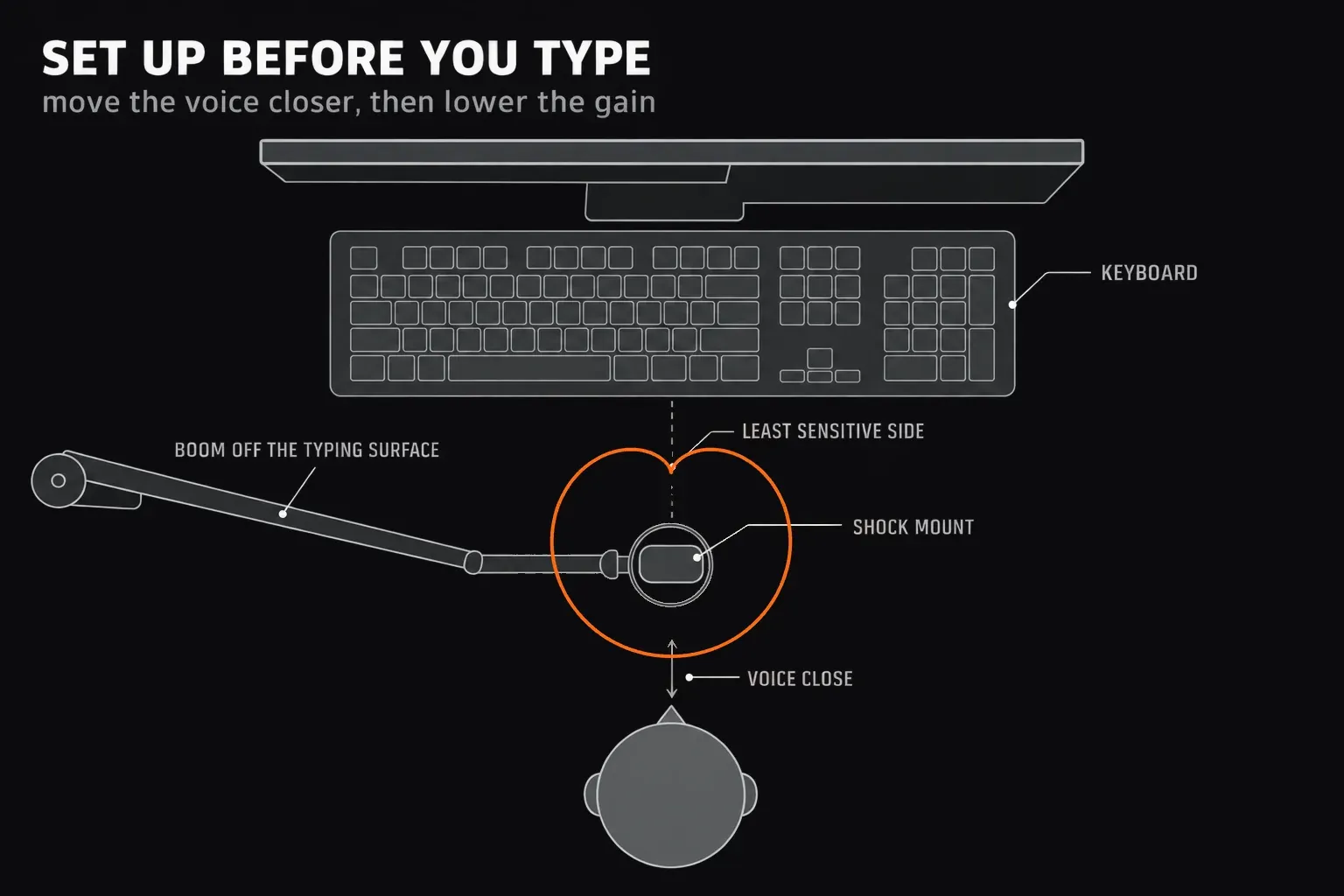
Move the microphone closer to your mouth and lower the input gain to match: your voice comes back to the same level, while the keyboard, whose distance has not changed, gets quieter. Keep the stand off the desk you type on, or use a shock mount if it has to share that surface. Aim the mic at your voice and turn its least-sensitive side toward the keyboard; for a cardioid, that is directly opposite the side you speak into. As the dynamic vs condenser comparison explains, neither microphone type rejects background sound on its own, so placement does most of the work. Record a short sample while speaking and typing as you normally would. Listen back before committing to a long take. If the script is on screen, arrange the workflow so you can stop typing during spoken lines. In a remote conversation, ask the other participant to do the same when possible.
After any repair, check the edited section again once your normal compression or level work is in place: those steps can bring a remaining click forward. Judge the whole sentence, not a single spike. If the pause still feels natural and the words remain clear, stop there. The voice-over workflow covers the surrounding recording and delivery decisions.