
Sound Forge Pro can be useful for music production, but it should not be mistaken for a music-production DAW. Use a DAW to compose, sequence MIDI, arrange, overdub and mix. Use Sound Forge when the job has become one audio file: a sample, a vocal take, a stem, a stereo mix or a folder of deliverables.
For composition and sample preparation, distinguish three things: Sound Forge can record and edit multichannel files, but it doesn't provide a multitrack song session, and the current package does not advertise a general production-sample library. It does have an Explorer for browsing your files and regions; that is different from a bundled sound library. The current official Sound Forge comparison describes it as a specialist editor for a single audio file and explicitly says it is not a DAW.
Recommended boundary: keep composition and mixing in the DAW. Send only the audio that needs focused editing, repair, mastering or batch delivery to Sound Forge. If your DAW already handles these jobs comfortably, a second editor is optional.
Can Sound Forge be used to produce music?
Yes, in the literal sense. Sound Forge can record audio, cut and rearrange waveform sections, mix clipboard audio into a file, run effects and export a finished result. The current help documents Edit → Paste Special → Mix for combining audio at the cursor.
That doesn't make it a sensible replacement for a DAW. There's no piano roll, virtual-instrument workflow, track mixer, bus structure or arrangement view. Audio quality isn't the difference; a capable DAW and Sound Forge can both produce transparent results. What separates them is how quickly and safely each application handles the job.
Burial did make music in Sound Forge: in his interview with The Wire, he confirmed producing the album in it and described working with waveforms rather than a sequencer. That historical example shows what determined editing can achieve; it does not make the current application a conventional DAW.
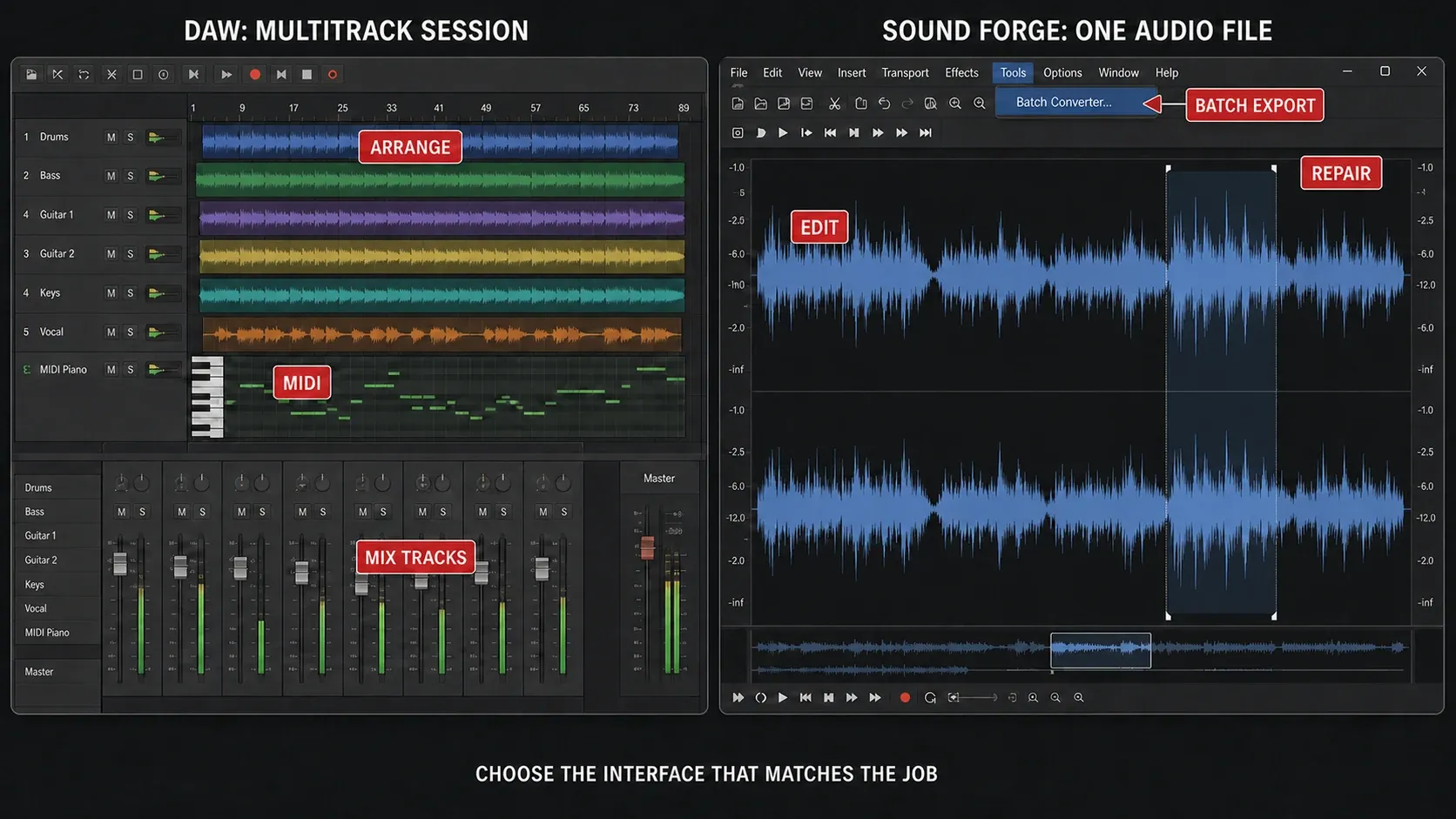
Sound Forge versus a DAW
| Job | Sound Forge | DAW |
|---|---|---|
| Write with MIDI or virtual instruments | No | Use the DAW |
| Arrange a song across many tracks | No multitrack session | Use the DAW |
| Overdub while hearing previous takes | Limited backing-channel monitoring within one file | Use for track lanes, comping and full overdubbing |
| Edit a sample at waveform level | Strong fit | Also possible; workflow varies |
| Repair one damaged take or stem | Strong fit | Possible with suitable tools |
| Process a folder consistently | Batch Converter | Depends on the DAW |
| Master and inspect a stereo file | Strong fit | Also valid |
If you need loop-based composition, MIDI and multitrack recording from the same product family, the current ACID Pro page identifies ACID as the DAW. Our ACID Pro versus Sound Forge comparison explains the division without treating the two products as interchangeable.
Where Sound Forge fits in a modern producer workflow
Sound Forge works best at the handoff points where a project becomes a file:
- Before the DAW: trim, repair and format a sample or field recording.
- During production: clean one vocal take, instrument recording or problem stem, then return it to the session.
- After the mix: inspect, edit, master and export the finished stereo file.
- At delivery: create consistent formats and filenames with the Batch Converter.
Keep the DAW session as the source of the arrangement. Use a separately named output file for each repair so that you can replace a stem without losing the original. The Sound Forge workflows hub separates these jobs into recording, editing and delivery guides.
Prepare samples and build your own library
The current package does not advertise a general library of production-ready sounds; use it to prepare audio you have recorded or have permission to use. That distinction is useful because “sample library” can mean either content to browse or a folder you are building yourself.
- Keep untouched originals. Work into a separate output folder, especially when the source cannot be recreated.
- Audit the files. Check channel layout, sample rate, bit depth, leading silence and obvious damage before applying any batch action.
- Trim and snap deliberately. The current help places zero-crossing alignment at Edit → Selection → Snap to Zero, with Z as the shortcut. This reduces the chance of a click, but is not a guarantee: listen across the edit and check both channels of stereo material.
- Repair only what is wrong. Remove an isolated click or unwanted tail without applying the same restoration preset to every sound.
- Batch only the shared requirement. Use Tools → Batch Converter for a deliberate output format, naming rule or verified effect chain, then import the results into the sampler or DAW.
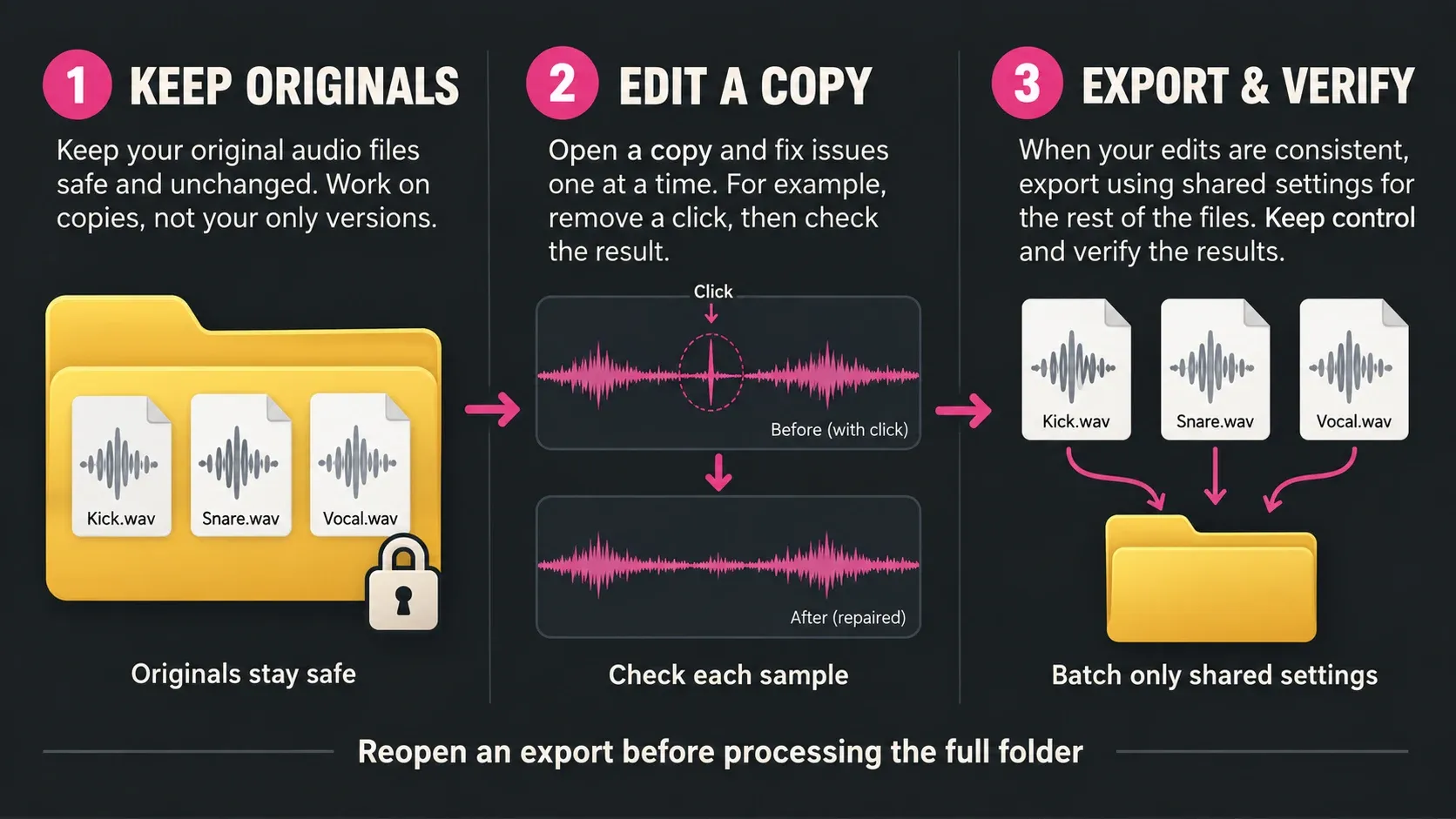
The Sound Forge 2026 Batch Converter help confirms that one job can combine processing, metadata and multiple export formats. Its Default Template can preserve source attributes when the output format supports them. Test one representative export first: a codec may not accept the source rate, channel layout or sample type, and FLAC cannot preserve floating-point samples. That is safer than converting everything merely to make the folder look uniform.
For detailed batch setup, use our Sound Forge batch-processing guide. For resampling decisions, see the sample-rate guide.
Record vocals and instruments: multichannel is not multitrack
Sound Forge can record a microphone, instrument, stereo pair or multichannel input into one data window. The official multichannel recording guide says the recorded channel count depends on both the enabled hardware inputs and the channels in the destination data window and explicitly directs full multitrack work to Vegas or ACID.
Use Sound Forge when you need a clean standalone take or a simultaneous multichannel capture that belongs in one file. For separate take lanes, comping, arrangement and independent track mixing, use a DAW. There is a narrower Sound Forge option: Play unselected channels when recording lets backing on channels 1/2 play while you record selected channels 3/4 in the same four-channel file. That is not a DAW session.
Our updated Sound Forge 2026 recording workflow covers Windows permission, ASIO routing, Record Options, the prerecord buffer and test-file verification. It avoids universal buffer and level settings because the safe configuration depends on the interface, driver and session.
Clean a stem without pretending Sound Forge is a mixer
A vocal, drum or effects stem is still one file, so it fits Sound Forge well. Open a copy, identify the actual problem, process it, compare against the unprocessed version and return the corrected stem to the DAW at the same start position and length.
Don't run a generic “vocal stem” or “drum stem” preset across every project. Noise reduction, EQ and dynamics solve different problems. A stem with two clicks needs the clicks repaired; a constant noise floor needs a diagnosis. If the stem is already clean, leave it alone.
The current Plug-In Chain documentation describes the View → Plug-In Chain as non-destructive real-time processing for the data window, applied when the file is saved. For a selection, use FX Plug-Ins → Apply Plug-In Chain. The distinction matters when only part of a stem needs treatment.
Master a finished mix without chasing one magic number
A finished stereo mix is the clearest music-production use case for Sound Forge. Trim heads and tails, inspect the file, build a reversible processing chain, compare at matched listening level, then render the formats required by the distributor, client or manufacturing specification.
Save the processed result under a new filename, reopen it and check it without an active playback chain. Select the whole file before Tools → Statistics: the dialog measures the selected region. The 2026 help documents sample peaks, RMS, DC offset, true peaks, integrated LUFS and loudness range. Use the readings requested by the delivery specification, and listen to the start, end and repaired passages. Don’t turn a streaming platform’s playback-normalization reference into a universal mastering target for every release.
Plan dither at the final quantization step into an integer deliverable, not merely by comparing source and output filenames. The current Bit-Depth Converter help explains that increasing bit depth cannot restore existing quality and documents dither for downward conversion. A 24-bit source processed in floating point may still need a final quantization decision on 24-bit integer export. An unchanged integer copy needs no second pass. Keep a floating-point working master before final integer conversion. Make sample-rate changes before final dither and avoid two dither stages. FabFilter’s dither guidance explains why further processing after dither defeats its purpose; this is a processing-order principle, not a requirement to buy that plug-in.
For the complete chain and verification logic, use the Sound Forge mastering guide or the shorter master-a-track workflow.
Sound Forge versus Sound Forge Plus for producers
The current tiers are Sound Forge and Sound Forge Plus. Don’t use old Pro 18 Suite bundle lists to describe the 2026 product.
The official comparison says the base tier includes the core editor, metering, VST2/VST3/ARA support, repair tools, noise reduction, multichannel handling, batch processing and event-based non-destructive editing. Plus adds Melodyne 5 Essential, Vandal, VariVerb II and 3D Reverb. It does not advertise a sample-content library, RX Elements or Ozone Elements as part of the current Plus package.
Choose Plus only if those specific additions solve a job you actually have. Pitch correction for a vocal editor, amplifier emulation for guitar or the added reverbs may justify it; none of them adds MIDI composition or a multitrack DAW. See our current Sound Forge versus Sound Forge Plus comparison before buying.
A practical DAW-to-Sound-Forge workflow
- Create, record and mix in the DAW. Keep MIDI, arrangement, automation, buses and track interaction in the session designed for them.
- Export the required file. Send a sample, problem stem or stereo mix without inventing a universal headroom target. Preserve the session and source files.
- Open a copy in Sound Forge. Confirm format, channels and file length before editing. Use event-based mode or another reversible path when the job benefits from it.
- Edit, repair or master only what the file needs. Preview, bypass and compare. Don’t process merely because a tool is available.
- Verify and deliver. Check the rendered file, save the higher-resolution master, create required derivatives and return stems to the DAW without changing alignment.
This workflow gives every application a clear responsibility and keeps revisions traceable: the DAW remains the source of the mix, while Sound Forge holds focused file-level work and final deliverables.
Who should use Sound Forge for music production?
Good fit: Windows producers who regularly edit individual samples, clean isolated recordings, repair stems, master stereo files or deliver many formats. It is especially useful when a DAW’s waveform editor makes short file-level jobs feel heavier than they should.
Poor fit: anyone looking for their first composition environment, a loop library, virtual instruments, MIDI sequencing, live-performance clips, multitrack overdubbing or a conventional mixer. Start with a DAW. Add Sound Forge only when the file-editing workload justifies a specialist editor.
Frequently Asked Questions
Can Sound Forge Pro be used for music production?
Yes, for editing samples, cleaning takes or stems, mastering a stereo mix and creating deliverables. It is not a complete DAW, so composition, MIDI, arrangement and multitrack mixing should normally stay in another application.
Is Sound Forge a multitrack recorder?
No. Sound Forge can record several hardware inputs as channels in one multichannel file, but it does not provide a DAW-style multitrack session for overdubbing, arranging and mixing independent tracks.
Does Sound Forge include a sample library?
The current package does not advertise a general production-sample library. Sound Forge can browse your own files and regions through Explorer and can edit or batch-process them. Use a sampler or dedicated library manager when you need additional auditioning, tagging or instrument functions.
Can I make a complete beat or song in Sound Forge?
You can paste and mix audio into a single waveform, but the workflow lacks MIDI, virtual instruments, arrangement tracks and a multitrack mixer. A DAW such as ACID Pro, REAPER, Ableton Live or another production environment is the practical choice for a complete song.
Is Sound Forge good for mastering music?
Yes. Its single-file view, Statistics, loudness tools, Plug-In Chain, precise editing and export options suit stereo mastering. The result still depends on monitoring, judgment and the processing choices, not the application name.
Can I record vocals or instruments in Sound Forge?
Yes, for mono, stereo or multichannel files. Sound Forge can play unselected backing channels while recording selected channels within one file. Use a DAW for separate track lanes, comping, full cue mixes and arrangement.
What does Sound Forge Plus add for producers?
Current Plus adds Melodyne 5 Essential, Vandal, VariVerb II and 3D Reverb to the base Sound Forge toolset. It does not turn Sound Forge into a DAW, and no general sample library is advertised.
If the project still needs arrangement, MIDI, or independent tracks, compare ACID Pro and Sound Forge or see how Sound Forge fits beside a full DAW. Once the mix becomes a file-level job, build a tested Batch Converter workflow for repeatable deliverables instead of rebuilding each export by hand.
Last fact-checked: September 12, 2026 against the current Boris FX Sound Forge, Sound Forge Plus, ACID Pro, and Sound Forge Pro 2026 documentation.