
Sound Forge 2026 comes with Samplitude Suite 2026, not the standard edition. It remains a separate Windows application. The current Samplitude 2026 product page says to right-click the clip and choose Edit with external software > Edit in Sound Forge; Samplitude then uses the saved audio in the VIP project. If that entry is missing, configure it under File > Program Preferences > External Tools.
Before the first handoff, enable Create copy. Boris FX says this applies the destructive external edit to copied audio so the object edit can be undone. Also keep an untouched backup of irreplaceable recordings. Samplitude's undo path is useful, but it's no replacement for source-media backup.
The setup has one important exception: Convert to Wave before transfer. It helps when an external editor cannot open MP3, FLAC, or video-derived media, but Boris FX warns that the converted result will not return to the virtual project through the normal path. That branch needs a disposable test and a planned manual import or relink.
Sound Forge in Samplitude Suite 2026: quick facts
| Question | Current answer |
|---|---|
| Which edition includes Sound Forge? | Samplitude Suite 2026; not standard Samplitude |
| Is it embedded in the DAW? | No. Sound Forge opens as a separate application |
| How does the handoff work? | A configurable External Tools command passes an audio object to Sound Forge |
| Safest normal setting | Enable Create copy before the transfer |
| Compressed or video-derived media | Convert to Wave can help, but the result needs a different return plan |
| Best Sound Forge jobs | Defined file repair, repeatable waveform work, batch processing, and delivery-file inspection |
| Best Samplitude jobs | Arrangement, object processing, comping, routing, automation, mixing, and multitrack mastering |
| Operating system | Windows applications; check both products’ requirements, not just the DAW’s |
What Samplitude Suite 2026 includes
The current Samplitude product overview places Sound Forge 2026 in the Suite-only feature set. The dated April 2026 launch announcement describes it as the standalone specialist for individual audio files, with precision waveform editing, repeatable functions, trigger-based recording, and batch processing.
Sound Forge is one part of the edition difference. The current Suite overview also lists native Dolby Atmos and ADM support, track-level spectral editing, FX Routing Matrix, Soundly integration, and additional first- and third-party tools. Those extras matter when comparing editions; if your work rarely leaves the Samplitude timeline, the Sound Forge handoff alone shouldn't decide the purchase.
| April 2026 US launch option | Samplitude | Samplitude Suite | Suite premium |
|---|---|---|---|
| Annual subscription | $145 | $175 | $30 per year |
| Perpetual license | $395 | $495 | $100 |
| Upgrade & Support | From $185 | From $275 | Eligibility-dependent |
The launch table listed no monthly Suite subscription. These are dated US launch amounts; they don't promise anything about today's checkout. Region, tax, promotion, currency, and upgrade eligibility can change the total, so verify the live store before paying.
The 2026 overview and launch announcement identify Sound Forge 2026 as the included edition. Do not use the older Suite 2025/Pro 17 FAQ wording to identify a current purchase.
Samplitude lists Windows 10/11 64-bit, while the current Sound Forge requirements specify Windows 11. For the complete bundle workflow, use a system that meets both applications’ published requirements.
Check Suite access and install the included editor
The current Samplitude product page confirms that Suite includes Sound Forge 2026. It also documents where to manage additional first-party tools: find Samplitude in Boris FX Hub, click the arrow on the right, and open Manage Extras. Bundle inclusion and the activation procedure are different questions.
- Sign in to Hub with the Boris FX account that owns the Samplitude Suite license.
- Confirm that the entitlement says Samplitude Suite, not standard Samplitude.
- Install Samplitude and open Manage Extras for bundled items.
- Check the extras and purchase instructions supplied with your Suite entitlement for Sound Forge. Follow the installation and activation instructions for that exact included version. If the product is missing or asks for credentials you were not given, stop and ask Boris FX support to confirm the entitlement.
The bundled-software support article describes a supplied serial number and MAGIX registration under MAGIX SOUND FORGE Pro. Its separate statement about activation within the host without a separate serial belongs to CrumplePop, not Sound Forge. Neither passage establishes how every current Sound Forge 2026 Suite entitlement activates. Do not assume automatic activation through Samplitude, or that every included copy needs a separate key. Confirm your actual license and its instructions before buying another copy.
If Suite is present but Sound Forge is absent, capture the account license record, Hub version, and product screen before contacting Boris FX support. Do not substitute an old MAGIX installer or an unrelated serial. That can turn an entitlement issue into a second activation problem. If Sound Forge installs but will not launch, use the startup-crash checks before changing Samplitude's preferences.
Configure Sound Forge as Samplitude's external editor
The word “integrated” on the product page means a configured application handoff. There's no ARA plug-in here and no mini editor embedded in the arranger. The official External Tools documentation gives these controls:
- If Samplitude was open during installation and does not detect Sound Forge, save your work and try restarting Samplitude. A restart is a troubleshooting suggestion, not a required step in every installation.
- Open File > Program Preferences > External Tools.
- Choose Add. If Sound Forge is detected, the adjacent menu can create an entry with suitable executable and argument values.
- Use a clear title such as Edit in Sound Forge.
- Enable Create copy.
- Leave Release file temporarily enabled when Sound Forge must write to the transferred file.
- Confirm the dialog. In the current 2026 interface, right-click the audio object and look under Edit with external software for Edit in Sound Forge.
These controls are documented in the 2026 manual linked from Boris FX’s documentation index. The steps here are documentation-checked, not a claim that we tested every checkbox in a live Windows session. Use the copy test below to confirm the return path in your installed build.
Run the normal Samplitude-to-Sound-Forge round trip
Use this path for WAV or another source format Sound Forge opens directly. Test it once in a disposable project before touching the only copy of a paid session.
- Save the VIP and protect the source. Save the Samplitude project and keep an untouched backup of irreplaceable source media before the external edit.
- Select the exact audio object. Confirm the object, its boundaries, and whether other objects refer to the same source recording.
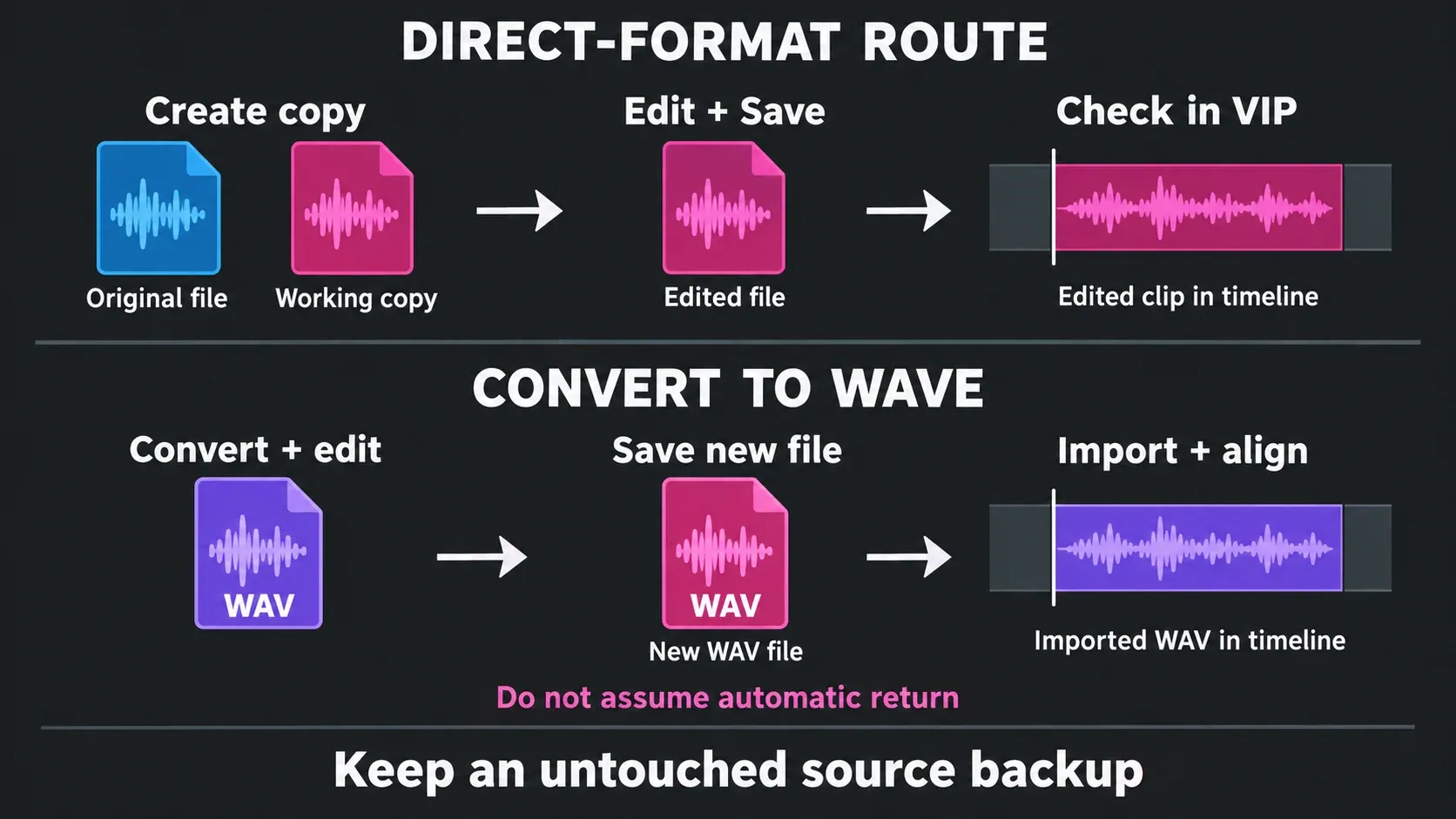
- Send a copy to Sound Forge. Use the configured external-tool command with Create copy enabled for a file-level edit that must remain reversible in Samplitude.
- Repair the identified file-level problem. Work on the intended range, preserve duration unless the project allows a timing change, and audition the edit boundaries.
- Save the transferred file in place. Use Save on the file Samplitude supplied. Treat Save As as a separate-asset workflow that may require manual import or relinking.
- Return to Samplitude and verify the object. Check playback, timing, fades, channel layout, sample rate, and every object that could share the original recording.
- Recheck the mix or delivery file. Judge the edited audio in the full project context and create a new render from Samplitude if the mix itself changes.
The official Editing Objects Externally page says the edited audio is then available in the VIP. It doesn't promise identical return behavior for every source format, custom command argument, or renamed file, which is why the direct-format and converted-format paths must remain separate.
Handle MP3, FLAC, and video-derived objects without losing the return path
Convert to Wave before transfer exists because some external editors cannot open MP3, FLAC, or audio inside video media. Boris FX says Samplitude creates a Wave file under a different name before opening the editor. The same help page warns that this prevents the file from transferring back to the virtual project through the normal route.
The current Sound Forge format list includes MP3 and FLAC import. The conversion option is for an actual compatibility problem, not an instruction to convert every file with those extensions. Test direct opening to establish format compatibility. For repeated processing of a lossy source, a WAV working copy is still preferable; plan its manual return to the VIP instead of relying on the direct-save route. Before processing a real project:
- Duplicate a short object in a disposable VIP.
- Enable Create copy and Convert to Wave before transfer.
- Make a harmless edit and save the Wave file.
- Return to Samplitude and observe whether the object updates in your exact build and preset.
- If it does not, import the saved Wave, place it at the original start, verify timing and channel layout, and keep the source object muted or on a backup track.
Don't mistake an MP3-to-WAV conversion for quality restoration. The decoded Wave avoids another compressed working stage, but it can't recreate information already removed by the source codec. For repeated processing of a lossy source, keep a WAV working copy and plan its manual return instead of repeatedly saving new MP3 generations. Direct opening is a compatibility check, not a recommendation for repeated lossy encoding.
What destructive editing means in this workflow
Samplitude's object trims, fades, volume, pitch, and object effects can remain non-destructive instructions. Sound Forge normally focuses on the underlying file. The current Sound Forge feature page also documents an event-based non-destructive mode, but that does not erase the risk at the application handoff: the file Samplitude passes out can still be saved with changed audio data.
This matters when several objects use one long recording. A file-level repair can affect every reference to that portion of the source. Use four layers of protection:
- enable Create copy in the external-tool preset;
- save the VIP before transfer;
- keep an untouched recording or project backup outside the active media folder;
- check every object that may share the source.
Save As is a path-handoff risk, not a documented universal failure. The public manual doesn't state that every Save As operation breaks every setup. The safer editorial rule is to use Save on the file Samplitude supplied when you expect an automatic return. If you intentionally create a new name or location, treat it as a separate asset and be ready to import or relink it explicitly.
Stay in Samplitude or open Sound Forge?
| Task | Better first choice | Reason |
|---|---|---|
| Object boundaries, fades, crossfades | Samplitude | The relationship between timeline objects remains visible and adjustable |
| Object EQ, compression, and effects | Samplitude | Processing stays editable in project context |
| Comping, routing, automation, mixing | Samplitude | These decisions depend on the multitrack session |
| One defined defect in an underlying file | Sound Forge | A dedicated waveform view isolates the file-level problem |
| One repeatable process across a folder | Sound Forge | Batch processing works outside a DAW project |
| Standalone voice-over or sample asset | Sound Forge | The deliverable is the file itself |
| Master while the mix is changing | Samplitude | Revisions stay connected to the source session |
| Inspect an approved stereo render | Sound Forge | The exact exported file becomes the subject |
Samplitude already offers deep object editing and direct wave editing. Opening a second application for every clip adds switching without improving a timeline decision. Use Sound Forge when the work has a clear file-level boundary.
Three workflows where the bundle earns its place
Dialogue or voice-over repair
Keep placement, fades, automation, and the surrounding mix in Samplitude. Send a copy when one recording needs precise click repair, a tightly selected replacement, or a standalone cleaned asset. Return to the full mix and listen across the boundaries. An isolated file can sound clean while its room tone no longer matches the next object.
Sample-library preparation
Use Sound Forge when a folder needs consistent trimming, naming, format conversion, or a repeatable process before the assets enter Samplitude. The Batch Converter workflow covers the file queue, chain, output, and verification. Use Samplitude later for arrangement and mix decisions.
Printed mix verification
When the mix is approved, export a high-resolution stereo file from Samplitude and inspect that exact candidate in Sound Forge. Check boundaries, channel layout, sample rate, peaks, and the delivery formats. If a balance, automation, or bus decision changes, return to Samplitude and print a new source. Do not stack file corrections on an obsolete mix. The Sound Forge mastering guide keeps file finalization separate from the mix session.
Which application keeps the multitrack project?
Samplitude keeps the VIP project. Sound Forge can record and edit multichannel files with up to 32 channels, but multiple channels inside one file are not a DAW arrangement with independent tracks, instruments, buses, and automation. Its FAQ explicitly says the application is not intended to function as a DAW.
For a Suite owner, the division is simple: the VIP project owns the timeline and Sound Forge handles selected file work. For other project-to-file handoffs, use the Sound Forge workflow guides. If you are comparing standalone tools instead of the bundle, the Sound Forge versus REAPER comparison explains the waveform-editor and DAW boundary.
If Edit in Sound Forge is missing
- Confirm that Sound Forge is installed. Configure the external-tool entry below to check the handoff. If Sound Forge displays an activation prompt, resolve it using the instructions for your exact entitlement; creating a menu entry does not establish license access.
- If you expect the bundled license, confirm that your entitlement is Samplitude Suite. Suite inclusion and the existence of a configured external-tool command are separate checks.
- Open File > Program Preferences > External Tools; the command may not exist until an entry is created.
- Use the preset beside Add if Sound Forge is detected. Otherwise select the executable and verify the arguments.
- Right-click the audio object and check Edit with external software for Edit in Sound Forge.
- If Hub never installed Sound Forge, return to Manage Extras and verify the account entitlement.
Don't confuse Samplitude's own Wave Editing command with the configured External Tools entry. If Sound Forge opens but can't play the file, troubleshoot its audio device separately with the Sound Forge playback and ASIO checks. If installation itself is incomplete, use the Boris FX Hub installation fixes.
Verify the returned edit
- Play the returned object and confirm that it uses the intended edited copy, not a stale or renamed file.
- Compare its start, duration, fades and channel layout in the VIP; listen across both edit boundaries.
- Confirm the untouched source remains available. If other objects share media, check those references too.
- Render a fresh delivery file after a mix change and measure that file against the recipient’s requirements.
Frequently Asked Questions
Does Samplitude Suite 2026 include Sound Forge?
Yes. Boris FX lists Sound Forge 2026 in the current Samplitude Suite-only feature set and in its April 2026 launch announcement. The standard Samplitude edition does not include it.
Is Sound Forge built into Samplitude?
No. Sound Forge is a separate Windows application. Samplitude passes an audio object to it through a configurable External Tools command, then uses the saved audio in the VIP project.
How do I open a Samplitude object in Sound Forge?
Select an audio object, right-click it, and choose Edit with external software > Edit in Sound Forge. If that command is absent, open File > Program Preferences > External Tools, use Add to create or select the Sound Forge entry, enable Create copy, and confirm it.
Does Sound Forge overwrite the original audio?
It can write changes to the audio data it receives. Enable Create copy so Samplitude makes the external edit on copied audio and can undo the object edit. Keep a separate backup of irreplaceable source media as well.
When should I use Convert to Wave before transfer?
Use it when the external editor cannot open the source format, or when you need a WAV working copy to avoid repeated lossy encoding. Boris FX warns that this converted-file route cannot transfer the result back to the virtual project normally, so test it and plan to import or relink the Wave file manually.
Why is Edit in Sound Forge missing?
The command is configurable. Confirm that Sound Forge is installed, then add it under File > Program Preferences > External Tools. For the included copy, verify the Suite entitlement and follow its version-specific activation instructions if prompted. Configuring the command does not activate a license. The entry appears in the audio object’s context menu.
When should I stay in Samplitude?
Stay in Samplitude when the decision depends on the timeline: object fades and effects, comping, routing, automation, mixing, or a master that is still changing. Open Sound Forge for a defined file-level job.
Sources and scope
Documentation checked September 17, 2026 against current product pages, dated April 2026 launch pricing, and the 2026 External Tools and external-object editing manuals. The licensing section distinguishes current Suite inclusion from MAGIX-labelled and CrumplePop instructions. This is a documentation-based workflow, not a reported hands-on test.