

A VST plugin chainer sends audio through several effects in order and lets you recall the setup. For an open audio file in Sound Forge Pro 2026, choose View → Plug-In Chain, add effects and compare playback with bypass. Save the result to a new audio file when it is ready. To process only a selection, use FX Plug-Ins → Apply Plug-In Chain instead.
This guide covers recorded-file processing, not a live keyboard or guitar rig. The built-in chain is serial; it does not provide parallel lanes or MIDI instrument routing. If those are your requirements, the host alternatives below are a better starting point. For related finishing tasks, the Sound Forge mastering hub groups the EQ, dynamics and measurement guides.
Documentation-based guide, checked September 7, 2026. The steps follow current Boris FX help, not a hands-on compatibility test. Workflow illustrations are explanatory, not exact captures of the current interface; use the written menu and control names below.
Is Sound Forge a VST plugin host?
Yes, for effects on an open audio file. The current Plug-In Chain help documents a serial rack of up to 32 DirectX/VST effects, real-time preview and saved order/settings. It is a file-processing workflow, not a MIDI instrument rack.
In this workflow, the open file passes through one effect and then the next. The built-in rack is not a modular audio/MIDI router. A compatible wrapper can provide routing inside a plug-in, but that is an additional tool, not a parallel-lane control in Sound Forge’s chain.
| If you need to… | Use this type of tool | Where Sound Forge fits |
|---|---|---|
| Clean, repair or finish one recorded file | Waveform editor with a serial effect chain | Strong fit |
| Reuse a VST chain while editing several WAV files | File editor with chain presets | Strong fit |
| Play VST instruments from a MIDI keyboard | DAW or standalone instrument host | Wrong tool |
| Split one signal into parallel effect paths | Modular host, rack or DAW bus routing | Not built into this rack |
| Process browser, game or meeting audio system-wide | System-audio router plus compatible host | Not a direct route |
A chainer may be a standalone rack or a plug-in loaded inside another host. Here the job is narrower: change the sound of an existing recording, keep the effect settings reusable and write a checked output file.
Choose the correct Sound Forge chain before adding effects
Sound Forge exposes two workflows with similar names. A MAGIX community question about how to apply a completed chain illustrates why the distinction matters.
| Job | Command | Scope and commit behavior |
|---|---|---|
| Hear and adjust a chain across the open file | View → Plug-In Chain | Real-time playback; the waveform stays unchanged while you work; the chain is rendered when you save the file |
| Render a chain into one selection or event | FX Plug-Ins → Apply Plug-In Chain | Processing dialog for the selected audio; click OK after previewing |
The real-time window has no Apply or Process button. Normal playback is the preview. If only one phrase, click or noise burst needs processing, make the selection and use Apply Plug-In Chain. Don’t save a whole-file real-time chain just to repair a two-second defect.
Build a VST effect chain in Sound Forge step by step
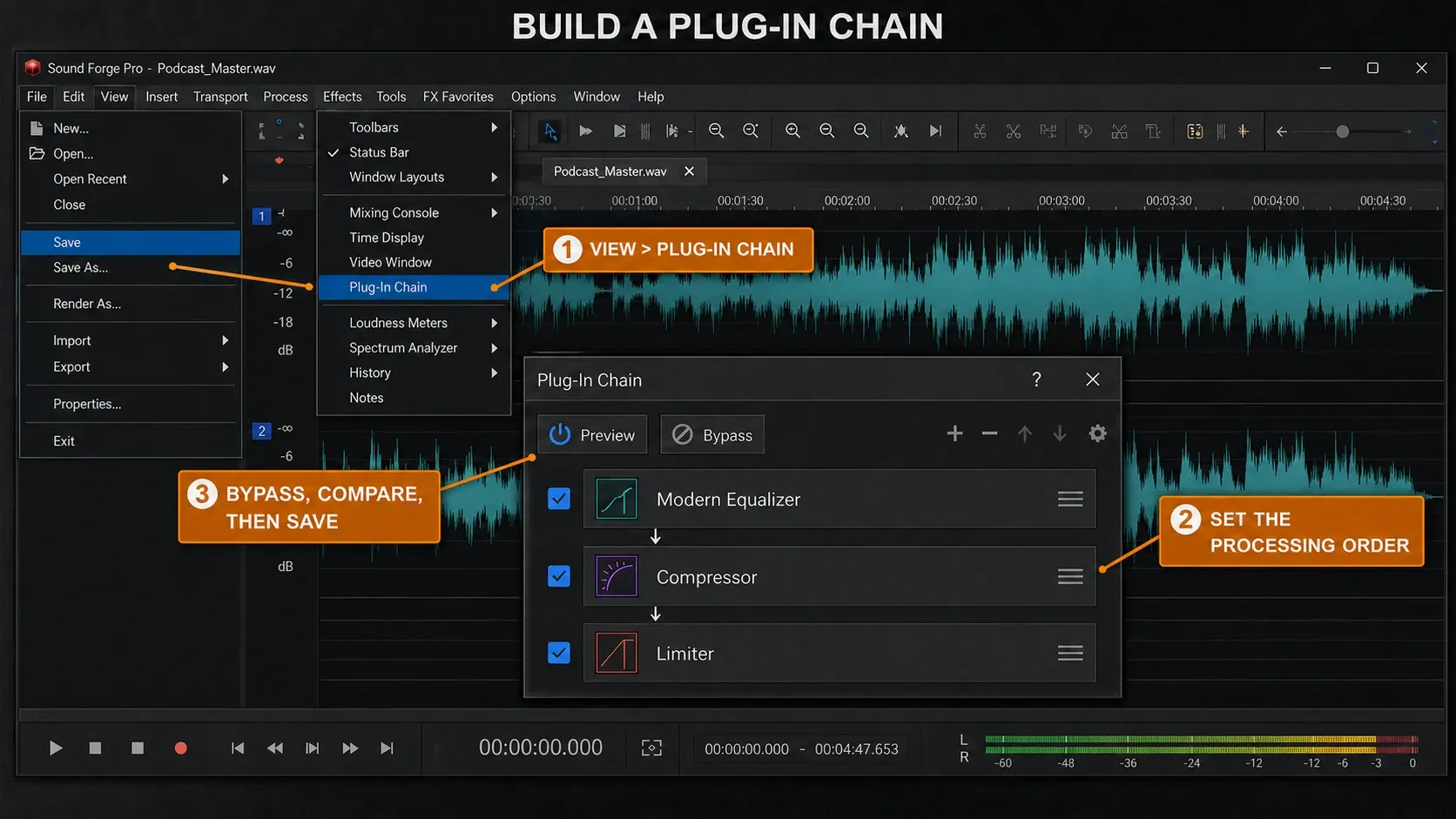
- Protect the source. Make a separate copy of the untreated audio before opening it for processing. Work on that copy; Save As with an active chain is not an untreated backup.
- Open Plug-In Chain. Choose View → Plug-In Chain for the active data window.
- Add the first effect. Click Add Plug-Ins to Chain, select an effect, click Add, then OK to close the chooser.
- Open the controls. Select the effect and click Show Plug-In Window to adjust its parameters.
- Preview. Use Play Normal and loop a representative passage containing both ordinary audio and the problem.
- Add only necessary stages. Add the next processor only after you can identify what the first one improves.
- Set the order. Drag the effect buttons, or use Shift Plug-In Left and Shift Plug-In Right.
- Bypass and compare. Compare the full chain and individual effects at similar playback loudness. Use an output control in the chosen processor to compensate for added gain.
- Save the preset. Type a descriptive name in the Chain box, then click Save Chain Preset. Recheck input-dependent thresholds on the next file.
- Render and verify. Use File → Save As to write a new audio file. Reopen it without adding the chain again; confirm its playback chain is empty or bypassed. Check the start, loud and quiet passages, and ending. For a Sound Forge project, use File → Render As to produce the media file.
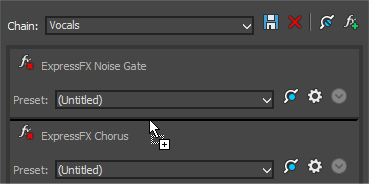
Use View → Plug-In Manager if the chooser is crowded. Its category/type filters and search help locate an effect. Dragging an effect onto a data window adds it to that window’s real-time chain; double-clicking opens selection processing instead. Load saved racks from the Chain list. If an effect is absent, follow the VST plug-ins not showing checks before changing configuration files.
Choose an effect order you can explain
Each processor receives the output of the preceding stage. If rumble is driving compression, try filtering it before the compressor, then check that the wanted bass remains intact. Reverb before compression can exaggerate room movement; EQ after limiting can create new peaks. For rhythmic effects, the tempo-synced delay and reverb timing guide converts note lengths to milliseconds. Tempo matching is a creative choice, not a requirement for every reverb.
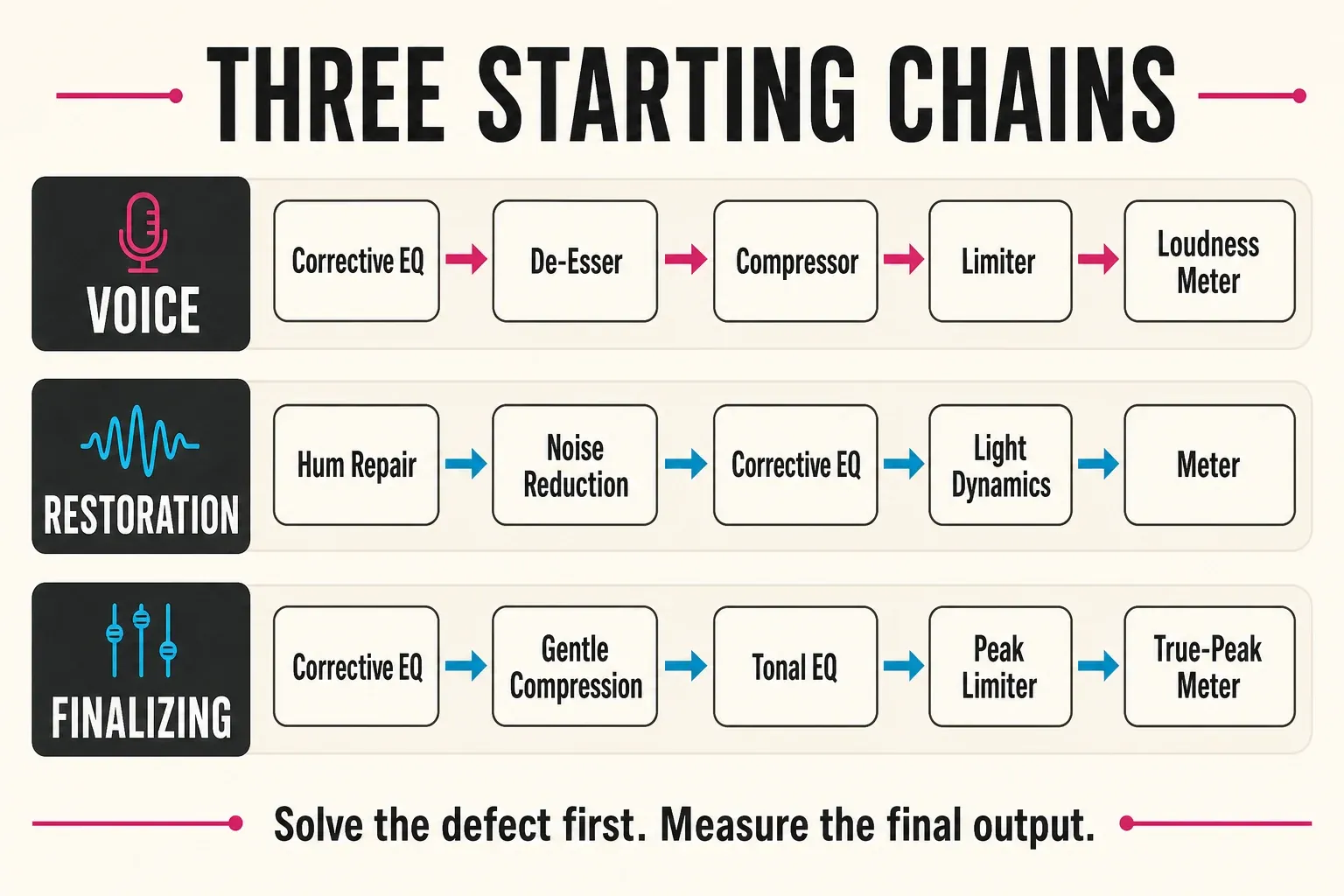
| Source | Useful starting order | Why it starts there |
|---|---|---|
| Voice-over | High-pass or corrective EQ → de-esser → compressor → limiter → loudness meter | Remove energy that should not drive compression; control peaks before measuring delivery level |
| Noisy field recording | Hum/notch repair → noise reduction → corrective EQ → light dynamics → meter | Try cleanup before gain or compression makes remaining noise more noticeable |
| Stereo music file | Corrective EQ → gentle compression → tonal EQ if needed → peak limiter → loudness/true-peak meter | Separate correction from polish and measure the signal after the final peak-producing stage |
Treat these as diagnostic starting points, not presets to paste onto every file. On a vocal, moving the de-esser before or after compression can change how aggressively it reacts; on a restoration job, a severe click may need a local repair before any real-time chain. The background-noise workflow separates constant hiss and hum from problems better handled by a gate, while the Noise Gate guide covers pauses and room tone without cutting word endings.
Bypass at matched loudness, not by first impression
A louder processed version can make the chain seem more useful than it is. Reduce added output gain before comparing, then listen for the change you wanted: less rumble, clearer words or better-controlled peaks. A loudness increase alone does not establish an improvement.
- Loop a short passage containing a normal section and a difficult moment.
- Bypass the full chain and listen to the unprocessed level.
- Re-enable it and use a processor’s output trim to bring the comparison close in loudness. The control name depends on the plug-in.
- Bypass one effect at a time. Remove a stage if you cannot identify a useful contribution.
Then check a second passage. A chain tuned on the loudest sentence may lift breaths in a quiet paragraph; a restoration chain tuned on a noisy gap may dull the wanted audio. The smallest chain that survives both checks is usually the safer preset.
Preview, save and verify without damaging the source
The View-based chain changes playback, not the displayed source samples. Saving an audio file applies it. A Sound Forge project is different: Save As saves the project, while Render As produces the media file. An unchanged waveform during preview is therefore not proof that the effect is inactive.
Before delivering the result:
- Keep the untreated recording separate.
- Write a new output file with the required format settings.
- Reopen that output and check with an empty or bypassed playback chain. Do not load the processing preset onto audio that already contains it.
- Listen to the first transient, loud and quiet passages, and the final decay.
- Measure the reopened file against the delivery target, particularly after lossy encoding.
If you use a meter plug-in, put it after the processing you want to measure. The LUFS, EBU R128 and true-peak meter guide also covers Sound Forge’s separate metering displays. If Wave Hammer is your final dynamics processor, see the compressor and maximizer workflow; measure its output rather than treating its settings as proof of a compliant file.
Process selections and effect tails deliberately
Select the region first, then choose FX Plug-Ins → Apply Plug-In Chain. Use Preview to audition it and OK to process it. With no selection, processing can affect the whole file. The Apply Plug-In Chain help also describes tail handling for reverb and delay.
| Tail mode | What Sound Forge does | Practical use |
|---|---|---|
| Ignore Tail Data | Stops the effect at the selection boundary | Only when a deliberately hard ending is acceptable |
| Mix Tail Data | Blends the decay into the adjacent audio without moving it | Natural first choice for many partial repairs and ambience effects |
| Insert Tail Data | Creates room for the full decay and moves later audio to the right | When preserving the complete tail matters more than fixed timing |
Right-click the processing dialog to choose a tail mode. After processing, inspect the boundary: Mix can overlap the next word, Insert moves later audio, and Ignore can cut the decay abruptly. Use pre/post-roll to hear the transition, as described in the processing-dialog controls. For the effect settings themselves, follow the reverb setup guide.
Save reusable presets without pretending every file is identical

A chain preset stores the processors, their order and their settings. Name it by source and intensity rather than by a vague promise: “Podcast dynamic mic — light cleanup” is more useful than “Perfect Voice.” On the next recording, treat it as a starting point and reset thresholds that depend on input level.
Individual effects may offer their own preset files; these are not the same as a complete chain preset. The help documents .fxp presets and .fxb banks for VST effects with those controls. Do not assume every VST format or vendor uses them. A chain preset does not install the required plug-ins or supply their licenses on another machine.
Chain presets omit automation envelope points. Saving a preset during playback captures parameter values at the playback cursor, not the timeline. For an automatable effect, use Show Parameters: Show Envelope controls visibility, while Enable Envelopes controls whether automation runs. Hiding a line does not disable it. The automation help also warns that loading a new chain preset clears current effect automation settings; do not switch presets casually after drawing envelopes.
Fix stutter, latency and unstable chains from the top down
Separate two symptoms. Crackles or dropouts may indicate that real-time processing cannot keep up; a steady delay can instead come from a plug-in’s look-ahead or other latency. Reducing CPU load will not necessarily remove intentional processing delay. Test the suspect effect on a disposable copy before changing the whole setup.
- Compare playback with the entire chain bypassed, then with an empty chain on a disposable copy. Bypass alone is not proof that the plug-ins are unrelated to a fault.
- Close unused data windows after protecting any unsaved work. Reintroduce effects one at a time in processing order.
- If one effect triggers the problem, check its own manual for quality, oversampling and latency options. Change one setting and compare again.
- In a processing dialog, use a non-real-time preview if its Real-time option is available and playback cannot keep up. Check the preview-length limit in Preferences → Previews.
- For a local repair, preview and apply a verified selection before continuing. Do not save a lower-quality result merely because its preview plays smoothly.
Latency matters differently in a file editor than in a live rig. A delayed playback response is annoying, but it doesn't make Sound Forge a low-latency instrument host. If your actual goal is to play guitar or a VST instrument through several effects, choose software designed around live input, ASIO configuration and plug-in latency management.
When a standalone or modular VST chainer is the better answer
Use Sound Forge when the input is an audio file and the output is another audio file; when routing, performance or portability between DAWs is the job, pick a different host.
- For parallel chains and a commercial wrapper: Blue Cat PatchWork supports serial and parallel racks, standalone operation and use as a plug-in inside compatible hosts.
- For a modular open-source graph: Kushview Element runs on Windows, macOS and Linux and routes audio and MIDI through reusable graphs.
- For a free multitrack editor with a real-time stack: Audacity’s real-time effects can be a better fit when the work already lives in an Audacity project.
- For full production: use a DAW when the chain belongs on tracks, buses or sends alongside MIDI, arrangement and automation.
For a finishing job, the next question is what the chain should achieve, not how many effects it can hold. The full Sound Forge mastering workflow covers baseline measurements, EQ, dynamics and delivery checks.
Fast checks when a plug-in chain does not work
The effects are audible, but the waveform does not change
That is expected during View → Plug-In Chain playback. Save to a new audio file, or use Render As for a Sound Forge project, to produce the processed media.
The chain changes the whole file instead of the selection
You opened the real-time chain. Make the selection and use FX Plug-Ins → Apply Plug-In Chain.
A VST effect is missing
Open Options → Preferences → VST Effects, confirm the installation folder, click Refresh and enable the effect in the list. The VST Effects preferences also provide a generic editor for plug-ins with display problems. Check the installed format and architecture before attempting configuration resets.
The saved file is clipped even though each effect looked safe
A later EQ, saturator or gain stage may have created new peaks. Check after the complete chain, reduce gain before an overloaded stage and render again from the untreated source. If the source itself is clipped, seek a clean original first. The clipped-audio repair guide covers salvage attempts, not guaranteed recovery of the missing waveform.
A reverb or delay is cut off
For a processed selection, inspect the tail mode and the saved boundary. Mix blends into adjacent audio without shifting it; Insert makes room and moves later audio. Neither choice excuses skipping the playback check.
Frequently asked questions
What is a VST plugin chainer?
It is a host or rack that passes audio through multiple VST effects in a defined order and usually saves the complete setup as a preset. Some chainers are standalone applications; others live inside an editor or DAW.
Can Sound Forge run VST plug-ins without a DAW?
Yes, Sound Forge can host VST effects while editing an audio file, so a DAW is not required for that job. It is not intended to replace a live VST instrument host or modular performance rack.
How many effects can the Sound Forge Plug-In Chain hold?
The current Sound Forge 2026 documentation specifies up to 32 DirectX and VST effects in one chain.
Where is the Process button?
The real-time chain opened from View has no Process button. Playback previews it; saving an audio file applies it. Use Render As to produce media from a Sound Forge project, or FX Plug-Ins → Apply Plug-In Chain to process a selection.
What is the best VST effect order?
There is no universal order. If noise or rumble is causing a downstream problem, try repair before dynamics and compare. Place final peak control after stages that can create peaks, then measure its output. Remove unnecessary effects and compare at matched loudness.
Does a Sound Forge chain preset save automation?
It saves effects, order and parameter settings, but not automation envelope points. During playback it captures values at the playback cursor. Loading a different chain preset clears current effect automation settings.
Can Sound Forge create parallel VST chains?
Not inside the standard serial Plug-In Chain described here. Use a modular host, a wrapper with parallel lanes or DAW bus routing when the signal must split and recombine.
Should I use Mix or Insert Tail Data?
Start with Mix when a reverb or delay tail should blend into adjacent audio without changing timing. Choose Insert when the entire decay must be preserved and moving later audio is acceptable.
Checked September 7, 2026 against the linked Boris FX help and host documentation. These are documentation-based instructions, not a compatibility guarantee for every third-party plug-in.