
Sound Forge Pro is a strong podcast editor when the episode is already one mono or stereo file. Use it to tighten dialogue, repair steady noise, shape tone, control dynamics, measure loudness and create the delivery file. If every guest is on a separate track, or music must duck under speech, assemble the show in a multitrack DAW first and use Sound Forge for the final edit and master.
That distinction matters. Sound Forge is a precise waveform editor, not a session-based podcast studio. For a solo show or a finished interview mix, you can work directly on the episode waveform. Keep isolated speakers and overlapping music in a multitrack project until their balance is settled; a flattened file makes later speaker-by-speaker changes harder.
Workflow rule: edit the words before polishing the sound. A perfect EQ curve cannot rescue a slow opening, a repeated answer or 12 seconds of dead air.
Is Sound Forge Pro the right podcast editor?
Use Sound Forge as the main editor when:
- the recording is one host, one narrator or a pre-mixed interview;
- you prefer editing directly on a waveform;
- restoration, exact cuts, loudness and export are the main jobs;
- you want reusable effect chains or batch conversion for finished episodes.
Use a multitrack DAW or podcast app first when:
- each participant has an isolated track that still needs balancing;
- music, ads and ambience overlap dialogue;
- you need automatic transcript editing, collaboration or video-first production;
- you want to change one speaker without processing the others.
Sound Forge can open multichannel files and perform mixes, but those features don't turn it into a clip-based multitrack session. For a complex episode, export a clean mix from the DAW, then finish that mix here.
1. Preserve the recording and prepare the edit
Keep the original recording untouched. Open the WAV or other lossless source, then save a working copy before destructive processing. Don’t convert to MP3 at the beginning: every lossy encode throws away information, and another encode at delivery compounds the loss.
Confirm the sample rate and channel count before editing, and keep the native sample rate unless the host or production brief requires another one. A spoken-word source doesn't improve because it was resampled to a larger number.
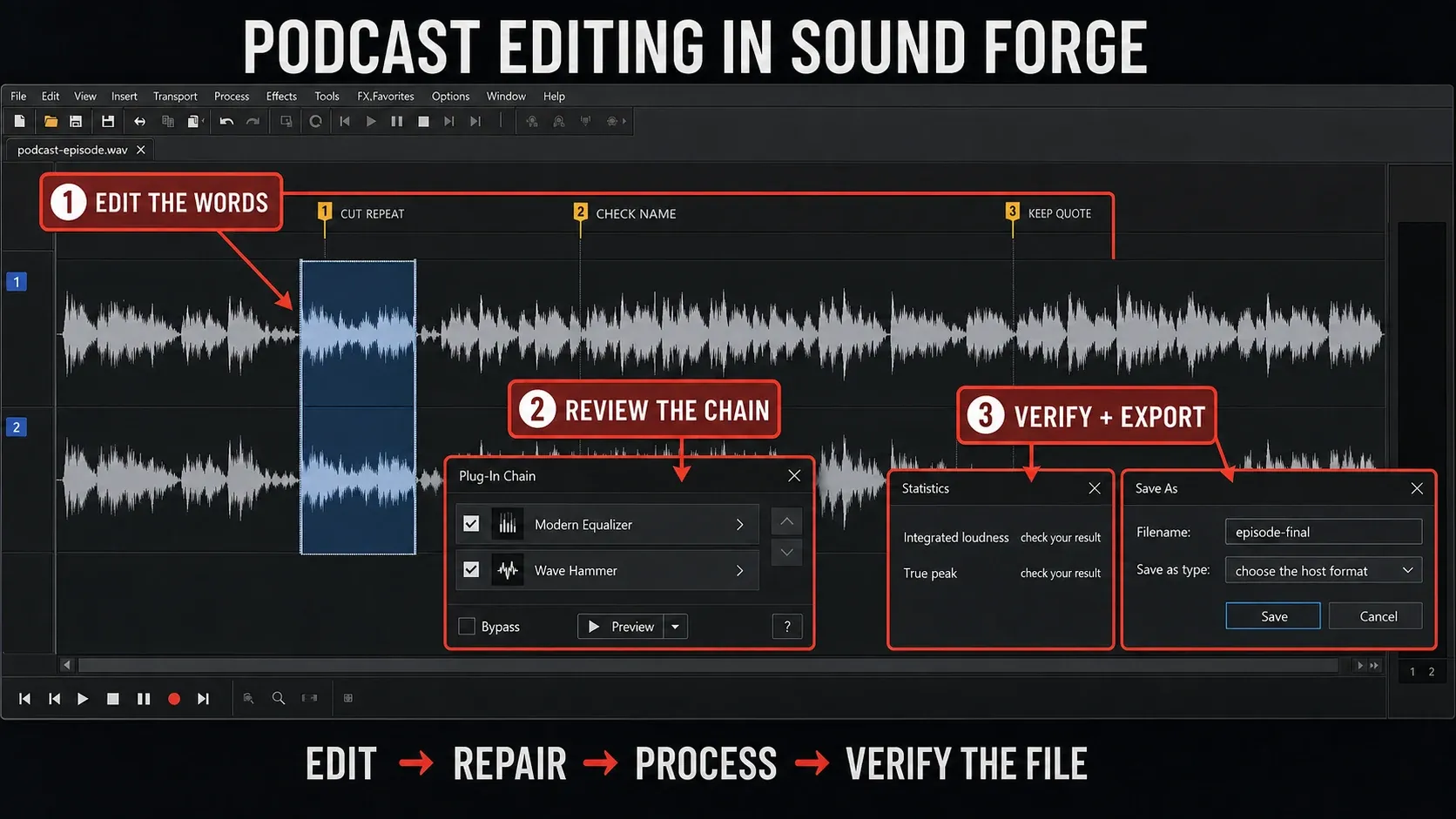
For a long interview, play once and press M wherever something needs attention: false start, repeated thought, cough, long pause or factual pickup. The current Sound Forge 2026 marker help confirms that M inserts a marker during playback; markers can be renamed and reviewed in the Regions List.
Use names such as “CUT repeat,” “CHECK name” and “KEEP quote.” Markers are editorial notes inside the working file. They do not automatically become chapter metadata in every podcast host, so build listener-facing chapters in the hosting platform or its supported metadata workflow.
2. Edit content, pauses and boundaries
Work from large decisions to small ones:
- remove unusable starts, interruptions and repeated answers;
- tighten pauses that feel accidental, without deleting every breath;
- repair obvious clicks at edit boundaries;
- add short fades where a cut creates an abrupt change in room tone.
A podcast should still sound like people speaking. Removing every hesitation can make timing robotic and can expose room-tone jumps between edits. Leave the pause when it helps meaning; shorten it when a listener might think playback stopped.
Zoom into difficult boundaries and cut where the waveform and the sound both support the edit. The cut and trim guide covers selections, zero-crossing snaps, event edges and fades. If a cut clicks, fix the boundary instead of hiding it under heavy noise reduction.
3. Repair noise before EQ and loudness
Use restoration only when the defect is audible. Steady HVAC, fan wash and hiss can respond to a clean noise print; clicks need click repair; electrical hum needs targeted diagnosis. One processor isn't the answer to every kind of noise.
- Select a passage containing only the unwanted steady noise.
- If your installation includes the classic Noise Reduction plug-in, open it from the Tools toolbar and capture a noise print. If it is absent, use the installed-tool decision in the noise-reduction guide before processing; do not transfer noise-print steps to a different effect.
- Extend the selection to the material that needs treatment.
- Preview a conservative reduction against Bypass.
- Stop when the noise no longer distracts, not when the meter looks empty.
Metallic consonants, watery tails and pulsing room tone are reasons to stop and reassess. Excessive reduction or wanted audio in the noise print can cause them, but changing noise or an unsuitable algorithm can also defeat this approach. Back off, compare a cleaner profile, or choose a more targeted repair. The full Sound Forge noise-reduction workflow separates broadband noise, hum, clicks and installed RX options.
A noise gate is optional rather than a required podcast step. Use it only when low-level room tone between phrases is the real problem; a hard-closing gate can clip word endings and make every pause unnaturally dead. The noise gate guide explains how to set the threshold from the recording instead of copying someone else’s number.
4. Shape the voice with Modern Equalizer
In Sound Forge 2026, add Modern Equalizer through the FX Plug-Ins menu or Plug-In Chain. The current Boris FX help documents up to eight bands, pass filters, shelves, peaking filters, a live spectrum, Output Gain, A/B memories and Bypass.
Don't apply a fixed “podcast voice” curve to every speaker. A high-pass filter may help desk vibration or mic-stand rumble, but set too high it can thin a low voice. A cut in the low mids may reduce boxiness in one room and remove body in another, and a high shelf may add clarity or simply magnify hiss and mouth noise.
Make one correction at a time. Use the analyzer to locate energy, then decide by ear. Match Output Gain so the processed and bypassed versions are equally loud; otherwise the louder version usually wins the comparison. The separate Modern Equalizer guide explains filter choice, Q and level-matched A/B without pretending one frequency fits every voice.
5. Control dynamics without flattening speech
Compression should make quiet phrases easier to follow and loud phrases less startling. It shouldn't pull breaths forward, exaggerate room noise or make every sentence hit with the same weight.
Sound Forge’s Wave Hammer combines a classic compressor with a Volume Maximizer. Treat them as two decisions:
- Compressor: control the loudest phrases while preserving natural consonants and sentence shape.
- Volume Maximizer: catch remaining peaks only after the compression is stable.
There is no universal ratio, threshold, attack or release for podcasts. The threshold depends on the recorded level; the timing depends on the speaker and room. Watch gain reduction, listen to the loudest sentence and a quiet sentence, then compare at matched output level. If the voice pumps or the room jumps forward between words, use less compression.
For a repeatable show, save the tested EQ and dynamics as a Plug-In Chain preset, but keep restoration outside the default chain unless the noise is genuinely consistent from episode to episode. The Plug-In Chain guide covers order, presets and safe A/B checks.
Commit the processing before the final loudness check. A chain opened through View → Plug-In Chain changes playback, not the underlying audio; the real-time chain documentation explains that its effects are applied when saving. If you used that route, save or render a separate lossless processed file, then open it in a new data window and confirm its chain is empty or bypassed. Normalize and measure that processed file. If you already applied the effects to the audio with FX Plug-Ins → Apply Plug-In Chain, do not apply them again. Keep the source project or working copy for revisions.
6. Normalize to the delivery specification
Sound Forge 2026 can normalize directly by loudness: choose Process → Normalize → Loudness, select the ITU‑R BS.1770/1771 option, then enter the integrated loudness, tolerance and maximum true-peak values required by the destination. You don't need to guess a gain change from the meter and push Wave Hammer until the number happens to match.
For one authoritative target, Apple Podcasts recommends overall loudness around −16 dB LKFS ±1 and true peak no higher than −1 dBFS, calculated under ITU‑R BS.1770-5. LKFS and LUFS describe the same loudness scale here. Use about −16 LUFS for the integrated target and a true-peak reading no higher than −1 dBTP; do not substitute a sample-peak meter for the true-peak check.
That isn't permission to label −16 LUFS a law for every host. Check the current requirements of the service receiving the file, and don't repeat the old shortcut that mono must always be −19 LUFS. Apple’s current page gives one overall −16 LKFS recommendation and separate mono/stereo bitrate ranges; it does not state a mandatory −19 target for mono RSS audio.
After normalization, select the complete episode, then run Tools → Statistics and verify integrated LUFS and true peak. Then save a test encode and check it again, because codec processing can change peaks. Sound Forge can also generate a loudness log during Save As/Render As; its current Save As help notes that the render-time log is measured before the codec, so use Tools → Generate Loudness Log on the compressed file when you need post-encode values.
7. Export a master and the upload file
Save two deliverables:
- Archive master: a lossless WAV at the approved sample rate and bit depth.
- Upload file: the format and bitrate required by the podcast host.
For RSS feeds, Apple accepts MP3 or AAC and currently recommends AAC in an MP4 container for efficient streaming and accurate seeking. At 44.1 or 48 kHz, its recommended ranges are 64–128 kbps for mono and 128–256 kbps for stereo. Those are ranges, and they aren't proof that every spoken-word file needs the maximum.
Spotify for Creators currently accepts MP3, M4A and WAV in mono or stereo for shows hosted there. Your RSS host may transcode the upload or impose its own format, artwork and metadata limits, so the host’s current specification wins.
In Sound Forge, choose File → Save As for a sound file, or Render As when working from a Sound Forge project. Select the format and template, open Custom for codec settings, and preserve metadata only where the target format and host support it. The MP3 export guide covers templates, bitrate modes, sample-rate conversion and post-encode checks.
Podcast delivery checklist
- Keep the untouched source and a lossless working copy.
- Edit content and timing before restoration or tone shaping.
- Repair only the defects you can identify.
- Level-match EQ and compression comparisons.
- Normalize from the receiving platform’s specification.
- Verify integrated loudness and true peak on the complete file.
- Reopen the upload file and audition its beginning, loudest passage and ending.
Listen once outside the editing chair: phone speaker, ordinary earbuds or the device your audience actually uses. The final QA question is not “does the waveform look mastered?” It is “can I follow every word without reaching for the volume?”
Frequently Asked Questions
Can Sound Forge Pro edit a complete podcast?
Yes, when the episode is one mono or stereo file. It can handle waveform edits, restoration, EQ, dynamics, loudness normalization and export. For separate guest tracks, complex music beds, collaboration or video, assemble the episode in a multitrack DAW first.
What loudness should I use for a podcast in Sound Forge Pro?
Use the receiving platform’s specification. Apple currently recommends about −16 dB LKFS ±1 and a true-peak ceiling of −1 dBFS; a true-peak meter commonly labels that reading −1 dBTP. In Sound Forge 2026, Process → Normalize → Loudness can use ITU‑R BS.1770/1771 targets, followed by a complete-file Statistics check.
Should a mono podcast always be −19 LUFS?
No universal rule makes −19 LUFS mandatory. Apple’s current audio requirements recommend overall loudness around −16 LKFS and publish separate mono/stereo bitrate ranges. Follow the host or client brief rather than an inherited forum number.
Which EQ settings are best for a podcast voice?
There is no universal curve. Remove only problems present in the recording, use Modern Equalizer’s analyzer as a clue, match Output Gain for bypass comparisons, and judge the result by ear. A copied high-pass or presence boost can thin one voice and exaggerate noise in another.
Should noise reduction come before compression?
Usually yes. Compression can raise room noise and make cleanup harder to judge. Edit first, repair identified noise, shape tone, control dynamics, then set final loudness. Keep an untouched source because aggressive restoration is destructive.
Can markers in Sound Forge create podcast chapters?
Markers are excellent internal navigation points for edits and can be named in the Regions List. Don’t assume they become listener-facing chapters automatically; create chapters through the podcast host or its supported metadata workflow.
Is Sound Forge Pro better than Audacity for podcasting?
Sound Forge suits a finished mono or stereo episode that needs file-based editing, analysis and delivery. Audacity can record, arrange and mix separate speaker tracks in a free multitrack project. Choose the project model you need; more complex routing or video integration may justify another DAW or podcast application.
For other recurring production jobs, the Sound Forge workflow guides connect podcast editing with related file-based tasks. Once one episode passes QA, turn the repeatable parts into a controlled workflow: use Statistics to verify loudness and true peak, follow the MP3 export and post-encode check, then batch-process finished episodes only after the chain has been tested on different voices and noise conditions.
Last fact-checked: September 12, 2026 against Apple Podcasts, Spotify for Creators, and Sound Forge Pro 2026 help.