

Sound Forge Pro is a good fit for mastering one finished stereo file at a time. It gives you precise waveform editing, EQ, dynamics, loudness and true-peak metering, bit-depth conversion and controlled export. It isn't a substitute for fixing the mix, though, and there's no universal streaming LUFS number that makes a master correct. The job is to preserve the musical decision, meet the actual delivery sheet and verify the rendered file.
Part of the Sound Forge mastering hub. This full guide covers processing choices, album checks and delivery versions. For a shorter session, use the five-step mastering checklist.
The current Sound Forge comparison lists coreFX dynamics and peak/loudness metering. Its current help also documents Modern Equalizer and both Wave Hammer versions. The workflow below separates those processors and explains when a real-time chain becomes saved audio. Ozone is not listed in the current offer; treat it as a separately licensed option, not a promised inclusion.
Quick answer: work through five checkpoints:
- Measure: duplicate the source and save a whole-track, all-channel Statistics baseline.
- Correct: make necessary EQ moves and compare at matched playback loudness.
- Control: use compression or limiting only where the sound or delivery brief needs it.
- Verify: save and reopen the processed copy, check that no extra chain is applied, then measure the complete file.
- Deliver: make the required format conversions, with one planned dither stage at final integer quantization, and check each exported version.
If a render misses the brief, revise the high-precision working version. A later gain boost can invalidate the earlier limiter ceiling.
What to Check Before You Open Sound Forge
Start by asking what the recipient needs: a streaming upload, an album master, a CD package or a file for a cutting engineer. Get the requested format and loudness method in writing. Then listen to the mix before building a chain; a buried vocal is a different problem from a whole track that needs a small level adjustment.
Bring an unclipped source and leave working margin for the processing chain. There is no universal requirement for its peak to be exactly −2, −4 or −6 dBFS; a recipient may still request a particular margin. A clean gain adjustment changes level without rebalancing the instruments, but it does not remove distortion already printed into the mix.
Ask for an unlimited mix when the master-bus limiter was used only to make the preview loud. Keep intentional mix-bus processing when removing it changes the balance or feel, and ask for a second version if the choice is unclear. The mastering stage should not reverse-engineer a mixer's intent from a single flattened file.
Keep the mix at its native sample rate and retain the original file. A 24-bit PCM or 32-bit-float working WAV may be appropriate; do not make a 16-bit intermediate just to begin mastering. If delivery needs another rate, use Process → Resample and the current conversion controls on the processed working copy. Leave Set the sample rate only off for normal conversion: that option changes playback rate and pitch without resampling. The sample-rate guide provides more background, but older iZotope SRC instructions are not interchangeable with the current dialog.
A dense waveform isn't proof of clipping, and a low peak doesn't guarantee useful headroom. Run Statistics, inspect suspicious peaks at sample level and listen. If clipping or unwanted limiting is already printed, ask for a clean export. Turning that file down creates numerical headroom but does not restore the transients that were removed.
Session Setup: Statistics Before You Touch Anything
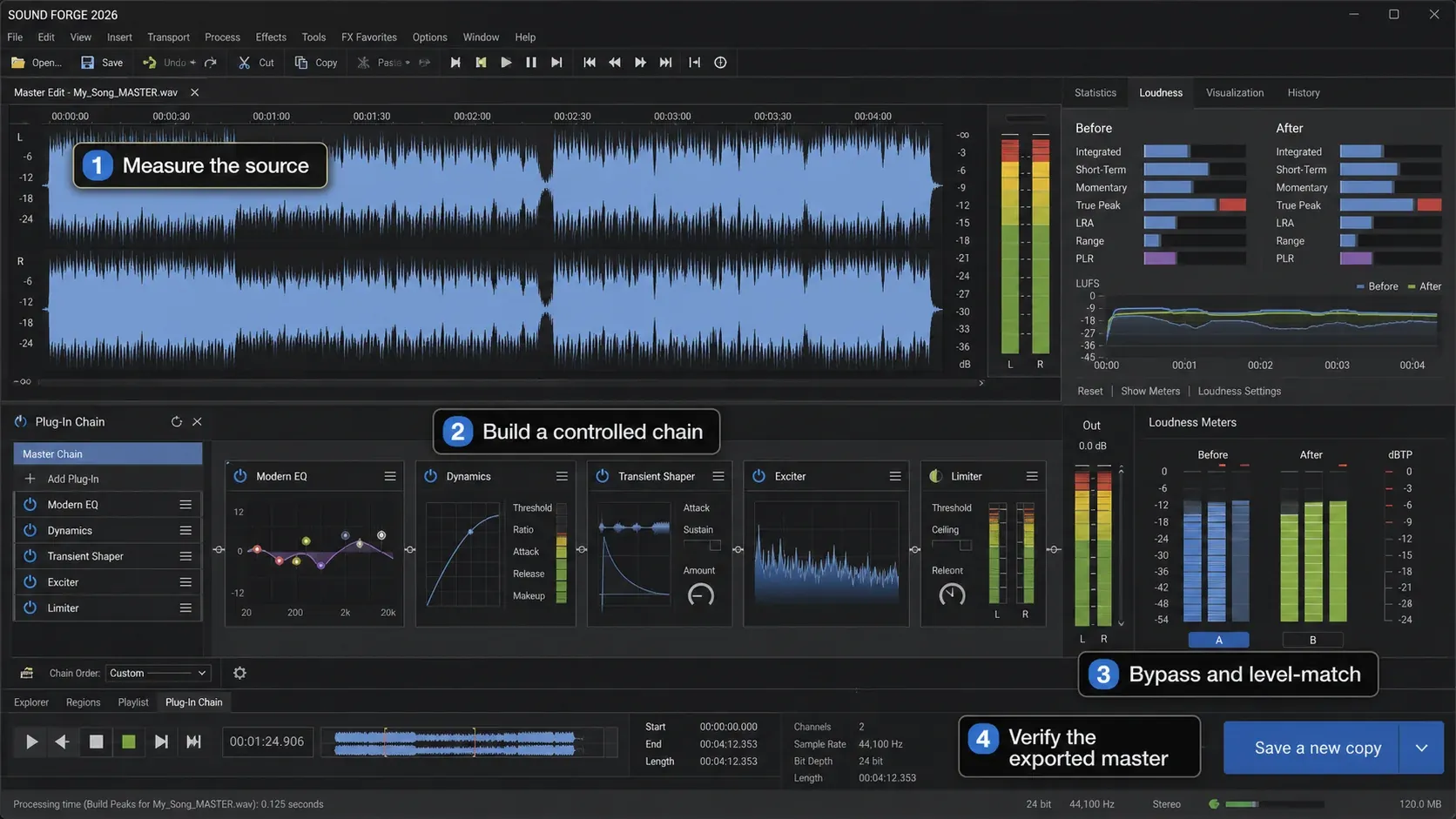
Open a copy of the mix, select the complete track and all intended channels, then run Tools → Statistics. Use Copy to clipboard to keep the baseline. The Statistics field guide explains Integrated LUFS, sample extremes, RMS, Average value and the two true-peak fields. The scan describes the selected audio; it does not stand in for measuring an uncommitted mastering preview.
Use the baseline to identify questions before processing: is the loudness already near the requested value, is there a suspicious sample extreme, and does Average value suggest an offset worth investigating? After mastering, compare with a fresh scan of the saved result. An unchanged source scan cannot verify a new chain.
Save the report alongside the source filename and its file properties: sample rate, encoding/bit depth, channels and duration. Compare the finished render over the same scope. Keep both reports, not just a note saying “passed,” so a later revision can be checked against the correct file.
Check for DC offset in Statistics by using Average value as the indicator, but don't process a file merely because a rounded display isn't exactly 0.000. Correct a meaningful offset when it's confirmed in the waveform or affects processing; otherwise leave the signal alone. If correction is necessary, do it before dynamics and limiting, then remeasure.
Check both sample peak and true peak. If a processor is overloading, reduce level before that stage and listen again. This can create working margin, but it cannot repair clipping baked into the source. Keep the original untouched for comparison.
EQ: Fix the Audible Problem
Classic equalizers are under Process → EQ. For Modern Equalizer, open View → Plug-In Chain, click Add Plug-Ins to Chain, select it, click Add, then OK. The current chain documentation distinguishes live preview from processing applied on save. Save to a new file, not over the source; a stored chain preset alone is not a rendered master.
A correction can be a cut or a boost. Choose it because of an audible imbalance, not because mastering supposedly requires subtractive EQ first. For example, if bass masks the vocal, compare a small low-band reduction with bypass before adding a presence boost. Keep whichever change solves the problem with fewer side effects—or return to the mix.
Use the spectrum and reference only to locate a problem; make the decision by listening. A high-pass filter can remove genuine musical low end as easily as rumble. A broad low-mid cut can reduce congestion, but there is no universal 200–400 Hz fix. The same applies to presence and air bands. Start with the smallest move you can hear in a level-matched bypass test, then remove it if the mix does not improve. Use the audio frequency chart to name broad bands and common instrument ranges, then verify the actual problem in this mix by ear and spectrum.
Additive EQ is optional. Small, broad moves are easier to justify than narrow boosts, but no gain value or frequency is automatically safe. If a master needs a large correction, ask whether the mix should be revised instead. Always level-match the processed and bypassed versions; louder is otherwise easy to mistake for better.
Use Bypass throughout the decision and compensate output gain so the comparison is level-matched. Check the loudest section, the quietest section and a transition; a curve that helps one chorus may thin the rest of the track. The detailed controls are covered in the EQ guide.
Classic Wave Hammer: Compression and Limiting
Classic Wave Hammer is a two-stage dynamics processor. The compressor changes level over time and can reduce dynamic contrast; the Volume Maximizer adds gain while controlling peaks against a user-set ceiling. Both stages can change perceived loudness, so compare them at matched output level.
For the compressor, test a low ratio and light gain reduction as a starting point, not a guaranteed setting. Listen for pumping ambience, softened drum attacks and loss of contrast. Adjust attack and release to the actual passage. If the gain-matched bypass is better, skip compression. Use the plug-in’s own help for stage controls in your installed build.
A common mistake is using a high ratio because the master looks too dynamic. Compression can increase density, but it also changes transients, ambience and groove. Many streaming contexts apply playback normalization, yet behavior varies by service and device. Compare compressed and uncompressed versions at equal playback loudness; keep the compression only when its character improves the music.
Set the Volume Maximizer ceiling with the delivery limit in mind, then measure true peak on the saved output. A ceiling labelled dBFS does not itself guarantee a dBTP result. Increase the maximizer’s contribution only until the required level is reached, or back off sooner if the sound suffers. If the brief cannot be met cleanly, revise the mix or agree a different target; do not silently deliver an out-of-spec file.
This describes classic Wave Hammer. Effects → Wave Hammer 2.0 is a different processor with up to four frequency bands. If you compare them, use the same passage at matched loudness. Listen for changes in transients, pumping and distortion; neither a product name nor a preset proves which is better for this mix.
Ozone Is Optional — Check the Exact Version
Check both the Ozone edition and its compatibility requirements before buying or loading it. Ozone 12 Elements offers Master Assistant and macro controls, but its individual Equalizer, Imager and Maximizer modules are not directly accessible. Standard and Advanced expose more editing. Do not follow instructions for editable modules if your edition only provides the assistant interface.
If you own Ozone with editable Maximizer controls, compare it with Wave Hammer on the same difficult passage. Give each version the same delivery brief, verify that both meet the peak limit, and level-match playback. Matching two files to an identical measured peak is not necessary for a fair listening comparison. Do not stack limiters unless the extra stage gives a benefit you can hear.
Stereo width is not a routine mastering step. Check mono compatibility and the phase display before changing it. Ozone 12 Standard and Advanced expose the Imager module; Ozone 12 Elements does not. Sound Forge also has native stereo processing, but a broad width change can move vocals, bass and ambience together, so ask for a mix revision when the problem is structural.
Ozone 12 Elements' Master Assistant can provide a fast alternative, but it isn’t evidence that the suggested EQ or loudness is correct. Audition the result level-matched against the untreated mix, check true peak after rendering and keep only changes that solve an audible problem. An assistant gives you a second opinion; it doesn’t give you a delivery specification.
Reference Tracks: Checking Your Work Against Reality
Pick references that match the intended sound, not just the genre label. A sparse acoustic recording and a heavily layered production can call for different bass weight and dynamics. Use the reference to catch an imbalance you have become used to hearing, while keeping the artist’s intended sound as the priority.
Open a reference with File → Open. Compare equivalent passages or complete-track scans consistently; do not match a quiet verse against a full-song LUFS reading. Use working copies for level adjustments and keep the originals untouched. Check each file’s own chain so the reference is not being processed by your mastering effects. Lower the louder comparison when necessary to avoid creating an overload just to match levels.
Switch between the master and reference data windows. Listen to bass weight, vocal placement, transient impact and high-frequency texture at the same monitoring level. Recheck a quieter passage after the chorus: an EQ curve that helps a busy section can leave the rest of the track thin.
A reference is useful only when level-matched and relevant. Compare tonal balance, transient shape and dynamics across several sections, but forcing the new track into the reference's exact spectrum misses the point. Different arrangements can justify different bass, vocal and high-frequency balances.
Choose Loudness for the Destination and the Music
Many listening services apply playback loudness normalization, but behavior varies by service, device, account setting and album-versus-playlist context. A louder master may be turned down; that does not restore dynamics removed by limiting. Judge loudness as a creative choice, then meet the destination's current technical guidance and audition the encoded result where possible.
Spotify recommends −14 Integrated LUFS with true peak below −1 dBTP, or below −2 dBTP for masters louder than −14 LUFS. Its Normal playback reference is also −14 LUFS, but playback behavior varies: the web player does not use normalization, and album playback differs from shuffled tracks. That is a reason to audition the finished sound, not to copy one number across every service.
Apple Digital Masters asks for high-resolution sources and at least 1 dB of headroom, with checks of the encoded result. Its brief does not specify a fixed −16 LUFS mastering target. Follow the actual distributor or receiver’s requirements rather than treating a web table as the acceptance sheet.
A useful workflow separates creative loudness from compliance. First decide how much density and transient control the music needs, then measure the result and compare it level-matched with relevant releases. Finally verify the rendered file against the destination sheet. LUFS describes the result; it doesn't choose the sound for you.
Instead of choosing a genre number, make the listening test specific to the arrangement:
For a beat-led mix, check whether a louder version weakens kick and snare attacks or makes bass sustain obscure the next hit. If deliberate clipping is already part of the approved production, compare against that approved sound rather than assuming every rough edge is a mastering error.
For dense guitars, compare vocal intelligibility and cymbal texture before and after limiting. A setting that makes the chorus feel compact may turn its upper mids into a constant harsh layer. Back off and repeat the level-matched comparison.
For an arrangement built around quiet-to-loud contrast, listen through the transition rather than only the loudest passage. Preserve that contrast unless the brief asks for a change. A quieter integrated reading does not, by itself, establish that the master needs more compression.
CD audio uses 16-bit/44.1 kHz PCM. That format choice does not settle album loudness, gaps, track markers or the plant’s delivery package. Agree those separately; do not call a WAV “replication-ready” just because its sample rate and bit depth are correct.
Measuring LUFS in Sound Forge Pro: Statistics and the LUFS Meter
Use Statistics for a file scan and the live loudness displays for playback. The focused Loudness Meters guide explains M, S, I, LRA and TP, including the current and older interfaces. Integrated loudness describes the measured program; sample peak alone does not tell you whether two masters are equally loud.
In current builds, open View → Channel meters and enable Loudness Meters from the right-click menu. The integrated meter has Reset in its context menu. For the older separate View → Loudness Meters window, use Reset Metering Engine. Select Absolute (−23 LUFS) when you need LUFS rather than relative LU. Reset and play the entire track from its beginning without skipping; repeat after changing the chain. Resetting a peak warning alone is not a complete loudness measurement.
For an offline check, select the complete track and all intended channels, then open Tools → Statistics. Read Integrated under Loudness, minimum and maximum sample values, and both true-peak fields. Use the largest absolute sample amplitude when judging sample headroom. Average value can flag possible DC offset; it is not a separate “DC Offset” field. Keep the measurement scope consistent. LRA needs enough material: EBU R128 does not recommend it for programs shorter than a minute.
In Process → Normalize, choosing Peak and setting −1 dBFS aims at sample peak, not a particular Integrated LUFS value. Rescan the current selection before applying it. A dynamic recording and a dense one can have the same sample peak and different loudness. The normalization guide separates Peak, RMS and Loudness modes.
If the delivery sheet calls for loudness normalization, use Process → Normalize → Loudness only when its available method matches that brief. Work on the processed, high-precision copy before final dither. Enter the required settings, apply them to the whole program, then save and remeasure. For chain processing, use File → Save As for audio or File → Render As for a project. Reopen the output and bypass any effects already baked into it before another save or audition.
Dithering: When It's Needed and When It Isn't
Dither deals with quantization at the final fixed-point conversion. A 24-bit or floating-point working signal becoming 16-bit is the clearest case; float-to-24-bit is also a quantization decision. Follow the destination and processor documentation, plan one dither stage, and put it after the remaining processing. This is not a requirement to add dither to every file copy.
For streaming delivery, use the bit depth and file type accepted by the distributor; 24-bit WAV is common, but acceptance is not universal and can change. Never assume every service accepts 32-bit float. If the final render is already the required fixed-point bit depth, do not dither an unchanged copy again. Sample-rate conversion is processing: create the required-rate derivative from the undithered high-resolution master, then apply any final fixed-point quantization and dither once.
For a 16-bit CD version, first make the 44.1 kHz derivative if needed. Then open Process → Bit Depth → Bit-Depth Converter, choose 16-bit and the planned dithering mode. The converter documentation includes POW-r options and distinguishes conversion from merely changing a file’s playback properties.
POW-r modes use different noise-shaping curves. There's no single correct type for every master. Use the manual's intended programme guidance, audition at a safe monitoring level and keep the choice documented. The important rules outlast the preset choice: apply dither only at final quantization, only once, and do no processing afterward.
To compare dither modes, render the same quiet tail to the final bit depth and audition it level-matched. Don’t boost the result to extreme levels and then treat the amplified noise as normal listening evidence. Keep the undithered high-resolution archive and document the dither used for each fixed-point deliverable.
Commit the approved EQ, dynamics and gain to a high-precision working render first. Reopen it and bypass the already-applied chain. Then make any required sample-rate conversion and final integer conversion, with dither last. The final-stage dither principle applies regardless of which brand performs it. Do not dither the unprocessed waveform and then apply the mastering chain on save. Verify the output without further processing.
Album Checks: Order, Relative Level and Track Boundaries
A collection needs another listening pass after the individual tracks sound right. iZotope’s album-mastering guidance separates song sequence and spacing from matching every track to one sonic template. Choose an approved running order and audition the transition from each ending into the next beginning.
- Compare relative level. Does the next song feel unintentionally quieter or louder, or does that change serve the arrangement? Do not normalize every song to identical LUFS by reflex.
- Check starts and tails. Listen for an accidental cut-off, click, doubled gap or lost reverb tail. Recheck both sides of a crossfade, including each separate exported track.
- Write down the sequence. Number filenames and keep a track list with titles, timings and any intentional continuous transitions. Agree who will assemble the final delivery package.
- Check the delivered sequence. Audition the exact exported files in order and, when supplied, the plant’s DDP or reference version. A correct working session does not prove that the last export has the same boundaries.
For vinyl, confirm whether the cutter wants one file per side or separate tracks. MonotypePressing, for example, asks for pauses to be embedded unless changes have been arranged; visual groove markers do not create silence in the audio. Treat the chosen plant’s instructions as the brief.
Multiple Deliverables from One Session
A single production may need different masters for different contexts: streaming, CD, vinyl preparation, broadcast, each with its own requirements. The efficient approach in Sound Forge Pro is to master from the same source file but export different versions with different processing parameters.
Keep the untouched mix, the approved processing settings and a high-precision processed working render when available. Do not reduce the archive to 16-bit solely because one delivery needs CD resolution. If vinyl or another brief requires less limiting, return to the source and settings; lowering a finished loud master does not recover the removed dynamics.
Streaming: choose the accepted file type and resolution, then check peaks and loudness on the export. Use Spotify’s advice above where relevant; it is not a universal upload rule. If you need an MP3 listening copy, the MP3 export guide covers that format. Do not make an unnecessary 16-bit intermediate just to encode it.
CD: prepare 16-bit/44.1 kHz PCM with the planned final dither. Ask the plant what package it accepts. For example, MonotypePressing specifies DDP delivery and offers WAV-to-DDP preparation by arrangement. That is different from assuming a Sound Forge WAV export contains all sequencing and CD-Text information needed for replication.
Vinyl pre-master: ask the cutting engineer before filtering, narrowing bass or changing level. Their brief may specify side files, running times, phase checks and how to handle sibilance. Do not invent a universal −16 or −18 LUFS target. Send the requested high-resolution files with notes on intentional sub-bass or stereo effects, and leave cutting-specific processing to the agreed workflow.
Broadcast: EBU R128 uses −23 LUFS program loudness and a −1 dBTP ceiling for linear-audio production; distribution may require a lower ceiling. ATSC A/85’s July 2026 reference gives −24 LKFS as the default without metadata or another agreement and distinguishes dialogue from full-program measurement. Confirm the receiver’s method, channel layout and peak limit. A Sound Forge preset name alone does not establish compliance.
For each output, record the source/version, file format, rate, PCM bit depth where applicable, channels, duration, Integrated loudness, true peak and dither choice. Reopen and audition it, checking the beginning, transitions and final tail as well as the meter report. Sound Forge’s save-time loudness log is measured before codec encoding; for a lossy copy, generate a new log from the saved file.
Common Mastering Mistakes in Sound Forge Pro
Two avoidable problems are treating a meter reading as a processing decision and changing the file after its final check. Use the checks below before delivery.
Assuming an early normalization target remains final. Initial gain adjustment can be useful, but EQ and dynamics can change the later loudness and peaks. Measure after the approved processing and format conversion. If the result misses the brief, revise the working version and check again.
Confusing peak and loudness normalization. The Peak mode applies constant gain. Loudness mode uses a chosen loudness method and may involve dynamics. Check which one is selected; a −1 dBFS peak setting is not a −14 LUFS mastering instruction.
Dithering to 16-bit and then continuing to process. Further gain changes or processing create a new quantization decision; the earlier dither is not a substitute for handling that final reduction. Return to the undithered high-resolution master, make the revision there and dither once for the new 16-bit deliverable.
Applying heavy limiting because a meter is below a platform reference. First test whether clean gain can reach the required loudness without crossing the true-peak limit. If it can, no extra peak reduction is needed. If it cannot, decide whether the destination actually requires that loudness and whether the audible cost of limiting is acceptable. A number does not justify damaged transients.
For a fair comparison, bring the louder render down to a common listening level where both versions retain peak headroom. Do not force the clean-gain version up to a loud target that would clip it. Listen for the musical benefit of limiting, not the larger waveform. The Plug-In Chain guide explains the preview-versus-save workflow.
Frequently Asked Questions
What is the correct mastering chain order in Sound Forge Pro?
Duplicate and measure the source, make necessary EQ changes, then add compression or limiting only where needed. Save a processed copy and reopen it with no unwanted chain applied. Measure the complete output, revise if needed, then perform required rate and integer conversion with one final dither stage. Check each delivery file again after conversion.
What LUFS target should I use when mastering in Sound Forge Pro?
Use the destination’s current brief. Spotify recommends −14 Integrated LUFS and true peak below −1 dBTP, or below −2 dBTP for louder masters. Apple Digital Masters does not prescribe −16 LUFS. CD and vinyl preparation still need a receiver’s specification, not a universal music LUFS number. Broadcast requires the specified standard and measurement method.
When should I use Wave Hammer vs Ozone Elements for mastering in Sound Forge Pro?
Classic Wave Hammer supplies the compressor-plus-maximizer workflow described here; Wave Hammer 2.0 is a different multiband effect. Use Ozone only if you own a compatible edition and prefer its workflow. Ozone 12 Elements offers Master Assistant and macro controls, not directly editable Equalizer, Imager or Maximizer modules. Compare saved results at matched playback loudness and check each against the same peak limit.
When do I need to apply dithering in Sound Forge Pro?
Dither when the final render is quantized to a lower fixed-point bit depth, and apply it only once as the last signal-processing step. A 16-bit CD export is the clearest case; float-to-24-bit delivery can also be a final quantization decision. Use the destination format and the processor manual to choose the mode, then do not normalize, EQ or sample-rate-convert the dithered file.
How do I check the integrated LUFS in Sound Forge Pro?
Select the complete saved track and all intended channels, then use Tools → Statistics for an offline Integrated reading. For playback, enable the Channel Meters’ Loudness display and reset it; the older separate window uses Reset Metering Engine. Select Absolute (−23 LUFS), then play the entire track without skipping. Reopen the final export and confirm no extra processing chain is active before checking it.
What mix settings should I prepare before mastering in Sound Forge Pro?
Export an unclipped high-resolution WAV at the original project sample rate, with no dither and no loudness-only limiter. A fixed -2 to -6 dBFS peak range is not required; clean gain can create working margin. Keep intentional mix-bus processing, or provide limited and unlimited versions if intent is unclear. Use Statistics' Average value to investigate possible DC offset and correct it only when meaningful, not merely because a rounded value is not exactly zero.
Can Sound Forge Pro produce masters for both streaming and CD from the same session?
Yes, but save separate delivery versions. Keep the source and an approved high-precision working render, make the requested streaming file and a 16-bit/44.1 kHz CD version with final dither, and verify each output. Ask the plant about sequencing, DDP and metadata; an ordinary WAV export does not settle those requirements.
Documentation checked September 7, 2026 against the linked Sound Forge help, platform guidance and delivery specifications. The menu routes are documentation-based; this update is not a newly recorded mastering test on an installed Windows build.