
This guide covers the Sound Forge Pro 2026 default-map commands that matter in day-to-day editing: playback, recording, cursor movement, sample-accurate selection, zoom, markers, snapping, windows and the Plug-In Chain. Every combination below follows the Boris FX Keyboard Shortcuts reference.
Your installation can differ if you imported or edited a keyboard map. Open Help → Keyboard Shortcuts inside Sound Forge to see the documented defaults, or Options → Customize Keyboard to inspect the active assignments. A shortcut only works in the window that receives it: Ctrl+R records in the waveform context but runs a script when the Script Editor has focus. Use Alt+0 to return focus to the waveform.
The 20 shortcuts worth learning first
| Shortcut | Action |
|---|---|
| Space or F12 | Play or stop in the default mode |
| Enter or Ctrl+F12 | Play/pause |
| Ctrl+R | Start/stop recording |
| M | Place a marker at the cursor |
| R | Create a region from the selection; Event tool uses Ctrl+Alt+R |
| Ctrl+A | Select all data |
| Ctrl+C / Ctrl+X / Ctrl+V | Copy / cut / paste |
| Delete | Clear selected data, unless Treat as Cutlist is enabled |
| Ctrl+T | Trim/crop to the current selection |
| Ctrl+M | Mix clipboard data with the active window |
| Ctrl+E | Paste clipboard data into a new window |
| Ctrl+Z / Ctrl+Shift+Z | Undo / redo |
| Ctrl+Home / Ctrl+End | Beginning / end of file |
| Ctrl+Alt+←/→ | Move one sample |
| ↑/↓ | Zoom in / out horizontally |
| Ctrl+↑ | Zoom to selection; Zoom In Full if none |
| Ctrl+↓ | Return to the normal zoom ratio |
| Z / Shift+Z | Snap selection / active edge to the next zero crossing |
| Ctrl+B | Toggle auto snap to zero crossings |
| Ctrl+Alt+0 | Open/focus the Plug-In Chain |
Playback, transport and recording
| Shortcut | Action |
|---|---|
| Space or F12 | Play or stop in the default mode |
| Shift+Space or Shift+F12 | Play All |
| Enter or Ctrl+F12 | Play/pause |
| Esc | Stop playback or cancel the current action |
| Ctrl+Shift+A | Arm for recording |
| Ctrl+R | Start/stop recording |
| Q | Toggle looped playback |
| X | Cycle Normal, Play as Sample and Play as Cutlist modes |
| J, K, L | Scrub playback |
| F | Seek the cursor during playback |
| Ctrl+K | Preview cut with pre-roll |
| Ctrl+Shift+K | Play to cursor with pre-roll |
| F6 / Shift+F6 | Toggle playback scrolling / smooth scrolling |
The scrubbing instructions explain the direction: J plays in reverse, K pauses and L plays forward. Pressing J or L repeatedly speeds playback up, and the Editing preferences set the speed range. X cycles Normal, Play as Sample and Play as Cutlist; it has nothing to do with Plug-In Chainer modes.
Editing and clipboard commands
| Shortcut | Action |
|---|---|
| Ctrl+A | Select all sound data |
| Ctrl+C | Copy selection |
| Ctrl+X | Cut selection |
| Ctrl+V | Paste into the active window |
| Ctrl+E | Paste into a new data window |
| Ctrl+M | Mix clipboard data with the active window |
| Delete | Clear selection without copying; Treat as Cutlist instead adds a cutlist region |
| Ctrl+T | Trim/crop to selection |
| Ctrl+Y | Repeat the last process, effect or tool |
| Ctrl+Z | Undo |
| Ctrl+Shift+Z | Redo |
| Ctrl+D | Select the normal edit tool |
| D / Shift+D | Previous / next editing tool in the documented default map |
| S | Split event at cursor when Event tool is selected |
| Ctrl+Alt+T | Split selected events at region boundaries |
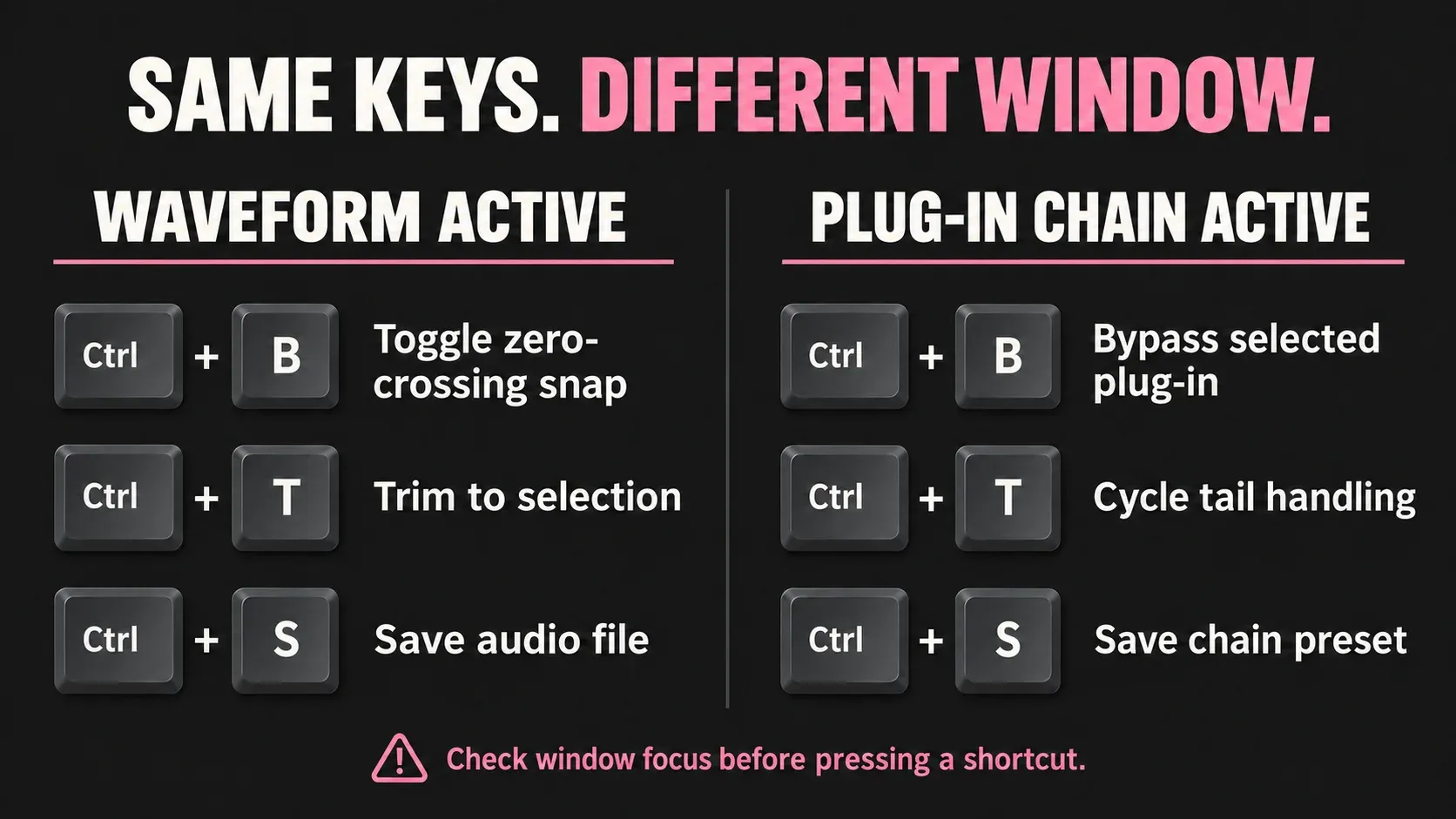
Ctrl+T is destructive in the main data window: everything outside the selection gets removed. In the focused Plug-In Chain, the same keys change tail-data handling. My rule is to check which window has focus.
Cursor movement and sample accuracy
| Shortcut | Action |
|---|---|
| ←/→ | Move one screen pixel |
| Ctrl+←/→ | Beginning/end of file or previous/next marker, region or loop boundary |
| Ctrl+Alt+←/→ | Move one sample |
| Alt+←/→ | Move one video frame when video is present |
| Home / End | First/last visible sample or selection boundary |
| Ctrl+Home / Ctrl+End | First/last sample in the file |
| Page Up / Page Down | Move 10% of the current view |
| Ctrl+Page Up / Ctrl+Page Down | Move 100% of the current view |
| \ or . | Center the cursor in the waveform |
| Num + / Num − | Next / previous sample |
| Ctrl+Num + / Ctrl+Num − | Move 10 samples forward / backward |
| Ctrl+G | Open Go To |
Selection and zero crossings
| Shortcut | Action |
|---|---|
| Ctrl+Shift+D | Open Set Selection |
| Shift+←/→ | Extend by one pixel |
| Ctrl+Alt+Shift+←/→ | Extend by one sample |
| Ctrl+Shift+Home / Ctrl+Shift+End | Extend to file start / end |
| Shift+Num + / Shift+Num − | Extend to next / previous sample |
| Ctrl+Shift+Num + / Ctrl+Shift+Num − | Extend 10 samples forward / backward |
| Z | Snap selection to the next zero crossing |
| Shift+Z | Snap the active selection edge to the next zero crossing |
| Tab / Shift+Tab | Move selection through channels in a multichannel file |
| < / > | Shift selection left / right by its length |
| ; / ' | Halve / double selection length |
| Backspace | Restore one of the previous five time selections |
Zoom and saved views
| Shortcut | Action |
|---|---|
| ↑/↓ or mouse wheel | Increase / decrease time magnification |
| Shift+↑/↓ | Increase / decrease level magnification |
| Ctrl+↑ | Zoom to selection; Zoom In Full when none exists |
| Ctrl+↓ | Return to normal zoom |
| Num 1 / Num 2 | Display custom zoom ratio 1 / 2 |
| Ctrl+Shift+1–8 | Save current view in a numbered cell |
| Ctrl+1–8 | Restore a saved view |
| Num 5 | Move cursor to the opposite end of a selection |
Markers, regions, loops and snapping
| Shortcut | Action |
|---|---|
| M | Place a marker at the cursor |
| R | Create a region from the selection; Event tool uses Ctrl+Alt+R |
| Ctrl+Alt+R | Place a region when Event tool is selected |
| 0–9 number row | Jump to corresponding marker or select corresponding region |
| Alt+L | Create a sample loop from the selection |
| Alt+Shift+L | Edit the sample loop in the Sampler Loops window |
| F8 | Enable/disable snapping |
| Ctrl+F8 | Toggle auto snap to grid |
| Shift+F8 | Toggle auto snap to markers |
| Ctrl+Shift+F8 | Toggle auto snap to event edges |
| Ctrl+B | Toggle auto snap to zero crossings |
The shortcut reference gives conflicting window notes for Alt+L and Alt+Shift+L. The rows above follow the dedicated sample-loop procedure: create the loop first, then open its settings. Confirm custom-map assignments if your installation behaves differently.
Window and panel shortcuts
| Shortcut | Window |
|---|---|
| Alt+0 | Waveform display |
| Alt+1 | Explorer |
| Alt+2 | File Properties window |
| Alt+3 | Video Preview |
| Alt+4 | Time Display |
| Alt+5 | Channel Meters |
| Alt+6 | Loudness Meters |
| Alt+8 | Undo/Redo History |
| Alt+9 | Spectrum Analysis |
| Ctrl+Alt+0 | Plug-In Chain |
| Ctrl+Alt+1 | Plug-In Manager |
| Ctrl+Alt+3 | Script Editor |
| Ctrl+Alt+5 | Record Options |
| Ctrl+Alt+6 | Instant Actions |
| Ctrl+F6 / Ctrl+Shift+F6 | Next / previous data window |
| F11 / Shift+F11 / Ctrl+F11 | Toggle bottom / side / all docked windows |
| Ctrl+Alt+7 | Remote Record |
| Ctrl+Alt+M, then 0 | Regions List |
Alt+Enter displays File Properties; Alt+2 shows or focuses its window. The two commands are related, but they work in different contexts.
Plug-In Chain shortcuts
These work when the Plug-In Chain has focus. Current Sound Forge applies the real-time chain when the file is saved, and the 2026 shortcut table no longer lists the old Ctrl+P Preview or Ctrl+Shift+P Process commands.
| Shortcut | Action |
|---|---|
| Ctrl+B | Bypass selected plug-in |
| Ctrl+Shift+B | Bypass entire chain |
| Ctrl+S | Save chain preset |
| Ctrl+T | Cycle Ignore/Mix/Insert Tail Data options |
| Ctrl+E | Add plug-ins |
| Ctrl+Delete | Remove selected plug-ins |
| ↓/↑ | Select next / previous plug-in |
| Ctrl+D | Show plug-in window |
| Ctrl+H | Show/hide effect automation parameters |
| Shift+D | Show/hide envelope in the data window |
| Shift+E | Enable/disable envelope |
| Ctrl+A | Select all plug-ins or automation parameters |
The current Plug-In Chain help explains the save-time application model and the difference between the real-time window and FX Plug-Ins → Apply Plug-In Chain for a selection.
Project and file commands
| Shortcut | Action |
|---|---|
| Ctrl+N | Create a new data window |
| Ctrl+Shift+N | Create a new window without showing New Window |
| Ctrl+O | Open a sound file or project |
| Ctrl+S | Save modified sound data |
| Alt+Enter | Display File Properties |
| Ctrl+W | Close active data window |
| Alt+F4 | Exit Sound Forge Pro |
Ctrl+Shift+S and Ctrl+P are familiar Windows conventions, but the current Sound Forge 2026 reference doesn't list them as default project-file shortcuts. Check your active map before you rely on them.
When a shortcut does nothing—or the wrong thing
Finish or deliberately cancel any open dialog, then put focus back on the intended window. If a text field has focus, click outside it or use the right window-focus shortcut. In the waveform, Ctrl+B toggles zero-crossing snapping; in the Plug-In Chain it bypasses a plug-in. In the same way, Ctrl+S in the chain saves a preset and leaves the audio file untouched. Stop and check focus before you retry a destructive edit.
If the command still behaves differently, inspect its assignment in Options → Customize Keyboard. Number-row keys and numeric-keypad keys are listed separately in this guide; on a laptop without a numeric keypad, use the listed arrow-key alternatives for single-sample movement. For punctuation shortcuts, check which key the Shortcut keys box actually receives on your keyboard layout. Back up a custom map before you reset it.
Customize and back up a keyboard map
- Choose Options → Customize Keyboard.
- Select the command category and command.
- Click the Shortcut keys box and press the new combination.
- Click Add to assign it.
- Choose Save as and name the map.
Sound Forge 2026 stores custom map .ini files under C:\Users\[user]\AppData\Roaming\BorisFX\Sound Forge Pro\2026.0\. Back up the current map before importing another. Copy the INI file into that folder, restart Sound Forge, then select the imported entry in Keyboard map and confirm it. To restore defaults, choose [Default] in Keyboard map and click OK. These current paths and button names come from the Customize Keyboard documentation.
Frequently Asked Questions
Where can I see the active shortcuts in Sound Forge Pro?
Choose Help → Keyboard Shortcuts. That reference reflects the default 2026 map; Options → Customize Keyboard shows assignments in your current map.
What is the Sound Forge recording shortcut?
Ctrl+R starts or stops recording. Ctrl+Shift+A arms for recording, and Esc stops or cancels the current action.
What does M do in Sound Forge Pro?
M inserts a marker when the appropriate Sound Forge waveform context receives the key. If another window or text field has focus, do not assume M reached the editor. During recording, the Remote Record window also provides a Set markers button.
How do I move exactly one sample?
Use Ctrl+Alt+Left Arrow or Ctrl+Alt+Right Arrow. Numeric keypad minus and plus also move to the previous or next sample.
How do I snap an edit to a zero crossing?
Press Z to snap the selection to the next zero crossing or Shift+Z to snap its active edge. Ctrl+B toggles automatic zero-crossing snapping.
What opens the Plug-In Chain?
Ctrl+Alt+0 opens or focuses the Plug-In Chain. Once it has focus, Ctrl+B bypasses the selected plug-in and Ctrl+Shift+B bypasses the full chain.
Can I export and share custom shortcuts?
Yes. Save a map from Options → Customize Keyboard. It is stored as an INI file in the current version’s BorisFX Sound Forge Pro AppData folder and can be copied to the same folder on another installation. Restart Sound Forge, select that map in Customize Keyboard and confirm; copying the file alone does not make it active.
For related editing tasks, start with the Core Editing hub. Put the map to work in the two workflows where focus mistakes matter most: the Cut/Trim guide explains destructive data-window shortcuts, while the Plug-In Chain guide covers the same key combinations when the effects window has focus.
Shortcuts follow Sound Forge Pro 2026.