
MIDI velocity is a value carried with a note event. It describes the force or speed of the playing gesture, but it does not define one fixed loudness. The receiving instrument decides whether that value changes level, brightness, sample layers, attack or some combination of them.
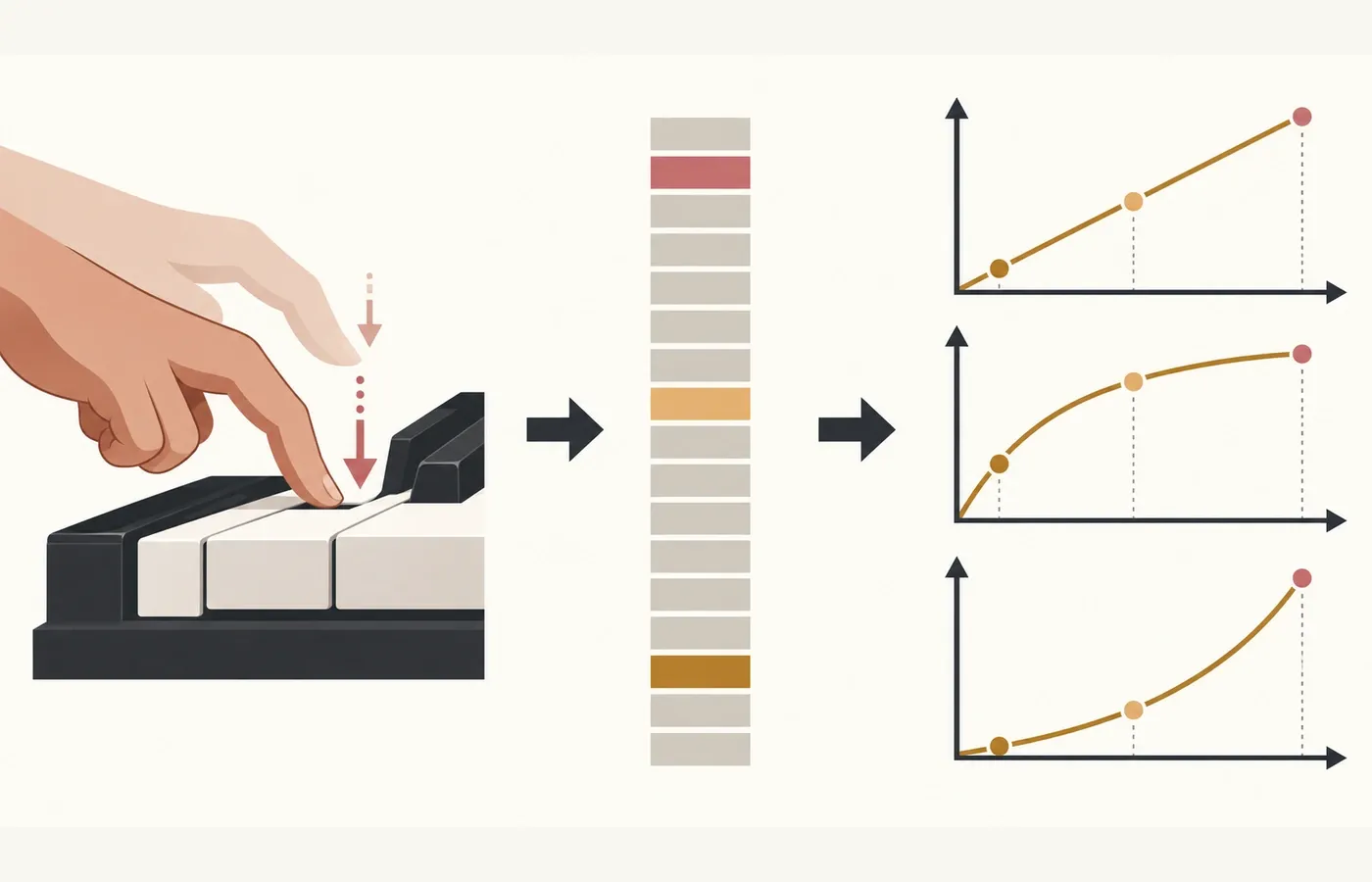
The useful mental model: gesture → value → response
Velocity becomes much easier to understand when you keep three stages separate:
- 01Gesture
A performer strikes a key, pad or drum surface, or an editor enters a value for a note.
- 02MIDI value
The note message carries a number representing that attack gesture.
- 03Instrument response
The receiving sound engine maps the number to amplitude, timbre, samples, envelopes or another destination.
The middle stage is standardized data. The last stage is an implementation choice. That distinction explains why copying the same velocity values between two instruments can produce a performance that feels very different.
What Note On and Note Off velocity carry
The MIDI Association’s message guide describes note activation and release as separate events. A MIDI 1.0 Note On message carries the note number and a velocity field. A Note Off message also carries the note number and a release-velocity field.
| Message | When it occurs | Velocity describes | Typical use |
|---|---|---|---|
| Note On | The note begins | The attack gesture | Level, tone, sample layer or envelope response |
| Note Off | The note is released | The release gesture | Often ignored, but available to instruments that support release response |
The official MIDI 1.0 message summary writes both velocity fields as seven-bit data. Many editors show that range in decimal form. The number is precise as protocol data, yet its audible meaning still depends on the patch receiving it.
In MIDI 1.0, Note On velocity 0 means Note Off for that note and channel. It isn’t an extra-soft attack. Use values 1–127 for a note onset. The MIDI Association’s technical discussion quotes this rule from the specification, and JUCE’s MIDI message documentation treats zero-velocity Note On as a note-off by default. This exception concerns MIDI 1.0 Note On, not the separate release-velocity field.
Why velocity is not simply volume
Velocity is commonly mapped to note amplitude, so the shortcut “higher velocity means louder” often works as a first approximation. It breaks down as soon as an instrument also changes tone or articulation.
A sampled piano may switch or blend between recordings made at different playing intensities. A synthesizer may open a filter, shorten an attack or increase modulation depth. A drum instrument may use the value to select a different hit character. These are examples of possible mappings, not rules imposed by the MIDI note message.
Velocity tells the receiver about the gesture. It does not contain a decibel target, a fixed gain change or a universal instruction for timbre. There is no universal conversion from a velocity value to decibels.
This variation is measurable. Roger Dannenberg’s paper The Interpretation of MIDI Velocity compared several synthesizers and found materially different velocity-to-amplitude behavior, with still wider differences among piano implementations. The measurements are historical examples rather than current product rankings, but they establish the point: one velocity number doesn’t imply one acoustic result.
What a velocity response curve changes
A response curve maps incoming velocity to an instrument’s internal response. “Linear,” “soft” and “hard” labels are common ideas, but their exact behavior isn’t universal. Think about the shape rather than trusting the name.
Even response
Input changes are spread more evenly across the available output range. This is the clearest starting point, not an objective reference for every patch.
Early response
Lower input values reach more of the instrument’s response sooner. It can help a light touch reach a stronger response, but leaves less room for fine control at the quiet end.
Late response
More input is required before the response rises strongly. It can preserve extra room near the quiet end for a player with a firm touch.
A curve can sit in the controller, the DAW, the instrument or more than one place. Stacked curves can exaggerate or compress the result, so change one layer at a time. My practical rule is to solve the mismatch at the earliest reliable point that serves the whole setup. If only one patch behaves badly, adjust that instrument rather than reshaping every performance globally.
Velocity vs volume, expression and aftertouch
These controls can all affect dynamics, but they describe different actions. Treating them as substitutes usually produces flat or unpredictable edits.
| Control | Scope | When it acts | Use it for |
|---|---|---|---|
| Note velocity | Individual note | At attack or release | The character and dynamic intent of each note |
| Channel Volume (CC7) | MIDI channel | As a separate Control Change message | Overall channel-level control supported by the receiver |
| Expression (CC11) | MIDI channel | As a separate continuous controller | Ongoing expressive movement where the instrument maps it appropriately |
| Aftertouch | Per key or channel | While held keys are pressed further | Sustained pressure-based modulation supported by the controller and instrument |
The current MIDI 1.0 Control Change table assigns Channel Volume to CC7 and Expression Controller to CC11. Aftertouch belongs to Polyphonic Key Pressure or Channel Pressure messages, as the MIDI message guide explains. None of these assignments forces one gain relationship or sound destination. The receiver’s implementation still matters. Our MIDI CC chart is the broader controller-number reference, while this page stays focused on note velocity.
MIDI 1.0 and MIDI 2.0 velocity resolution
MIDI 1.0 uses a seven-bit velocity field. MIDI 2.0 expands Note On velocity and release velocity to 16-bit values, from 0 to 65,535, according to the MIDI Association’s 2026 high-resolution performance overview.
More numerical steps don’t guarantee a more expressive sound. The controller must capture useful detail, the message path must preserve it, and the instrument must map it meaningfully. A coarse or insensitive response curve can still waste high-resolution input.
A DAW-neutral way to edit velocity
- Choose the instrument first.Velocity edits only make sense against the patch that will interpret them. Changing instruments can change the musical effect of the same values.
- Listen for a musical problem.Identify notes that jump out, disappear or trigger the wrong articulation. Do not start by making the lane look tidy.
- Edit relationships before numbers.Decide which notes should lead, support or recede. Adjust their relative shape instead of chasing a universal target value.
- Preserve useful variation.Repeated notes with identical values may sound mechanical on a responsive instrument, but random values are not automatically human. Keep accents tied to phrasing.
- Check the response curve.If a large range of incoming values produces almost no change—or too much change—fix the mapping before rewriting every note.
- Compare at the same listening level.If the edit makes the passage louder overall, reduce monitoring bias before deciding that it is better.
When velocity seems to do nothing
Every note sounds equally loud
The patch may ignore velocity, use a narrow response range or route it mainly to timbre. Check the instrument’s modulation and response settings.
Small value changes feel extreme
The response curve may be too steep for the controller or performance. Test a gentler curve before compressing the entire note lane.
The tone changes more than the level
That may be intentional. Some instruments use velocity to select brighter layers, change filter response or alter attack behavior.
Edits work on one patch but fail on another
If the same values reach both instruments, their different mappings can explain the changed result. If the values change along the way, inspect routing or velocity processing first. Rebalance for the destination patch.
What should you remember?
Velocity is per-note performance data, not a universal volume command. Edit it to shape accents, dynamics and articulation, then judge the result through the instrument that will play the notes. If the response feels wrong across the whole performance, inspect the curve or mapping before forcing every value into a new pattern.