
WaveColor is a waveform display mode in Sound Forge Pro. In its default color view, hue gives a broad pitch cue: red for lower tones, green for the middle range, and blue for higher tones. Vivid color indicates more tonal or harmonic material; washed-out color indicates more noise-like material. WaveColor does not measure loudness, identify an exact frequency, or repair the file.
Part of the Sound Forge restoration hub. New to the editor? Start with the complete Sound Forge 2026 guide.
Its best use is navigation. A long file can reveal a change in pitch range, a noisy section, applause between live tracks, wind noise, or low-frequency vinyl rumble before you open a detailed analyzer. A color change is a clue worth inspecting; it isn’t a diagnosis.
How to Turn WaveColor On and Off in Sound Forge Pro 2026
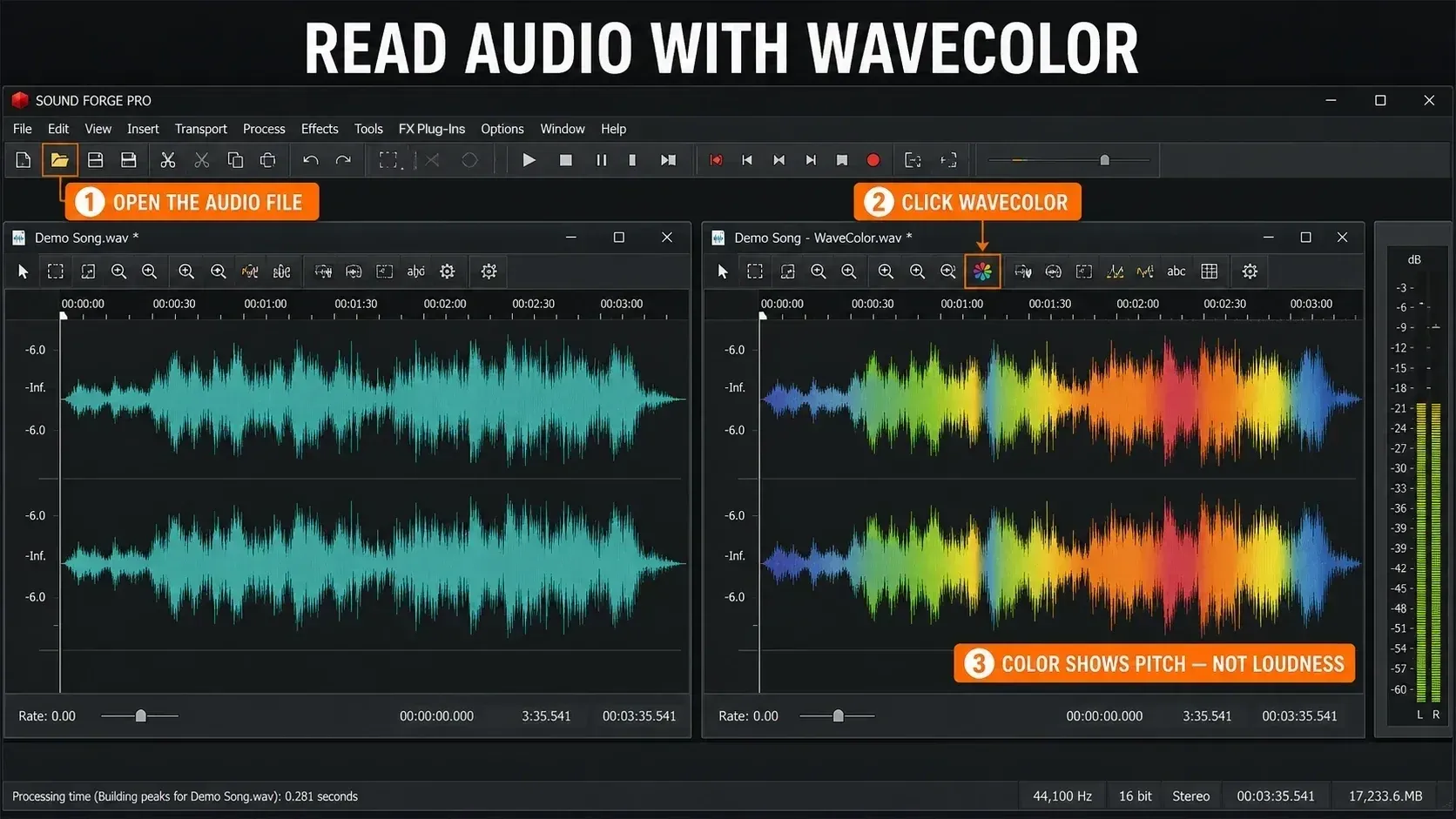
Open an audio file and click Toggle Wave Coloring in its Data Window playbar. The Data Windows help identifies the on/off button there. Click it again to restore the ordinary waveform. This changes the view, not the audio. Installed interfaces can differ, so follow the documented controls described here.
If that button is hard to find, the Tools toolbar also has an Activate WaveColor control. Don't mix it up with the separate Vocal Activity Display button. WaveColor is part of the waveform view and won't open a frequency-analyzer window.
Use the colored view for a fast scan, then switch back whenever the ordinary waveform makes an edit easier to judge. Because WaveColor changes only the display, toggling it is safe before, during, or after an edit.
MAGIX introduced WaveColor in Sound Forge Pro 14 in March 2020. The instructions here follow the current 2026 help, so an older tutorial may show a different layout.
What the WaveColor Colors Actually Mean
The Wave Coloring help separates pitch from sound character. In the default preset, follow the hue to compare lower and higher-pitched passages; follow saturation to compare harmonic and noise-like material. If your waveform is black and white, check the preset before applying the red/green/blue legend.
The colors are broad categories rather than a calibrated frequency scale. Red doesn’t stand for one fixed Hz value, and blue doesn’t stand for another. WaveColor helps you compare regions across a file; Spectrum Analysis is the tool for a frequency readout and level measurement.
Saturation has nothing to do with volume. Waveform height depends on display zoom too, so use level meters or Statistics for numerical amplitude checks, and a loudness meter for a delivery loudness target. A pale waveform and a vivid one tell you equally little about whether a file meets a LUFS requirement.
How to Read WaveColor Without Guessing
Start by getting a local baseline. Look at a section that sounds normal and notice its hue and saturation, then scan for sustained changes or short interruptions. Compare each suspect region with the audio just before and after it, because a change of color may be a real edit point, a new instrument, applause, noise or an actual defect.
- Enable the view. Open the file and click Toggle Wave Coloring in its Data Window playbar.
- Check the preset. In the default color view, read hue as a broad pitch cue and saturation as tonal versus noise-like character. In a black-and-white preset, brightness represents only its named property.
- Compare neighboring audio. Scan for a change, then listen across it and compare with the passage immediately before and after.
- Inspect the suspected problem. For a tonal problem, select the passage, open View → Spectrum Analysis and click Refresh. For a possible click, listen and look at the waveform at close zoom; you don't have to take a spectrum measurement.
- Choose whether to repair. Keep the bass, percussion and speech sounds you want. If you confirm damage, keep the original and repair a working copy, since WaveColor itself won't remove anything.
A drum hit, a consonant, an edit or an instrument change can look odd simply because it differs from the audio around it. WaveColor doesn't label that interruption as a click. Listen before you remove it; the click-and-pop repair guide covers the next step once you're sure the transient is unwanted.
Three Jobs WaveColor Does Well
1. Find boundaries in long recordings. The official help gives applause between tracks in a live recording as an example. A change in pitch and noise character can make those sections easier to find than a monochrome overview alone.
2. Locate noise-like sections. The help gives wind noise and bass-range vinyl rumble as examples. In the default view, a pale patch or a shift toward lower-pitched color is a reason to listen more closely. It doesn't prove a fault. Compare it with a normal-sounding section of the same recording.
3. Triage before detailed analysis. WaveColor can tell you where the file changes. It can’t tell you whether a noise floor passes a specification, whether a peak is 280 Hz, or whether a click is real. Use it to choose the next section to inspect; approving delivery is a different job.
WaveColor vs Spectrum Analysis
Both tools describe spectral content, but they answer different questions. WaveColor asks, “Where does this file change?” Spectrum Analysis asks, “Which frequencies are present here, and at what level?”
Spectrum Analysis examines a selected region in depth. It provides a frequency graph and numeric information for the content you are investigating. Use it to confirm a hum, resonance, rumble, or high-frequency problem that WaveColor helped you locate. The Spectrum Analysis guide explains the FFT controls and snapshots.
Pick the next check based on the suspected problem. A tonal hum calls for a representative selection and Spectrum Analysis, while an isolated click may only need listening and a sample-level look. WaveColor helps you find the passage. Deciding which repair belongs there is still up to you.
Mark the questionable passages during the scan so you can inspect them one by one. If listening and measurement confirm a tonal problem, continue with the EQ workflow. For unwanted broadband noise, use the noise-reduction workflow. A naturally different instrument or a clean transition needs neither treatment.
WaveColor Display Modes and Preferences
Open Options → Preferences and the Wave Color settings if the default red/green/blue view isn't the clearest one for you. The current Wave Color Preferences help lists three presets: the default colorful two-dimensional view, Black White - Noise Factor, and Black White - Pitch.
The two black-and-white modes show one property at a time: Black White - Noise Factor uses brightness for noisiness, and Black White - Pitch uses it for pitch. Try them if the combined color view is hard to read. The help gives no calibrated Hz or noise-level scale for either preset, so switching the display won't turn WaveColor into a numerical meter.
Color for Vocal Activity sets the alternate color for the separate Vocal Activity Detection display. That feature estimates where spoken or sung voice is present, which is a different job from WaveColor’s pitch/noise display. Voice detection can take a while to appear because its separate analysis is CPU-intensive.
If scrolling feels sluggish, compare the same file and zoom level with WaveColor on and off. That comparison helps diagnose the problem, but it won't prove WaveColor is to blame. For waveform scrolling, the Display preferences also suggest setting Peak ratio default for new files below the current zoom ratio. Note the old setting so you can put it back if the change doesn't help.
Frequently Asked Questions
Where is the WaveColor control in Sound Forge Pro 2026?
Open an audio file and click Toggle Wave Coloring in its Data Window playbar. Click the same button again to return to the ordinary waveform. The Tools toolbar also provides an Activate WaveColor control.
What do the WaveColor colors mean in Sound Forge Pro?
In the default color preset, red indicates lower pitch, green the middle range, and blue higher pitch. Tonal or harmonic material is more saturated; noise-like material is less saturated. Saturation is not loudness. The black-and-white presets instead use brightness for the selected property.
Can WaveColor identify clicks and pops automatically?
No. A click may look different from nearby audio, but WaveColor does not classify defects or mark them as clicks. Treat a color change as a place to inspect, then listen, zoom in, and use the dedicated click-repair tools only after confirming the problem.
Does WaveColor affect audio quality in Sound Forge Pro?
No. WaveColor changes only the waveform display. It does not process samples, change an effects chain, or alter the rendered file.
Can WaveColor show an exact frequency in hertz?
No. The default color preset gives a broad low-to-high pitch cue, but WaveColor has no hertz scale. Use Spectrum Analysis when you need the frequency and level of a peak.
Can I change the WaveColor display?
Yes. Wave Color Preferences offers the default two-dimensional color view plus Black White - Noise Factor and Black White - Pitch presets. It also includes a separate color setting for detected vocal activity.
Last fact-checked: September 8, 2026 against the current Sound Forge 2026 Data Windows, Wave Coloring, Tools Toolbar, Wave Color Preferences, Vocal Activity Detection, Display Preferences, and Spectrum Graph documentation. Menu instructions were checked against that documentation.